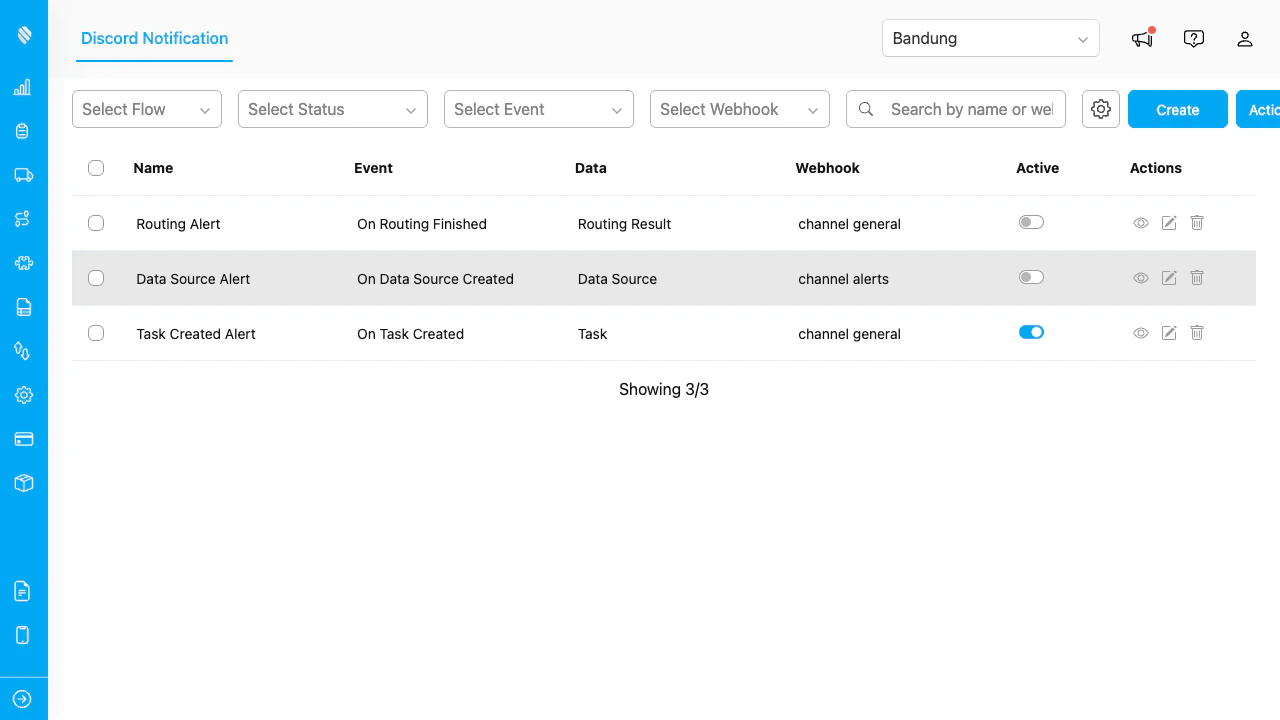
The automation table showing name, event, data type, webhook, status, and action buttons.
Each row displays: | Column | Description | | ----------- | ------------------------------------------------------------------- | | **Name** | The automation name you defined | | **Event** | The event type that triggers the message | | **Data** | The associated flow (task events) or data type (data source events) | | **Webhook** | The Discord webhook name or URL | | **Status** | Toggle switch to activate or deactivate | | **Actions** | View, Edit, and Delete buttons | The table loads 25 automations at a time. Click **Load More** to see additional entries. ## Searching and Filtering Use the controls above the table to narrow down automations.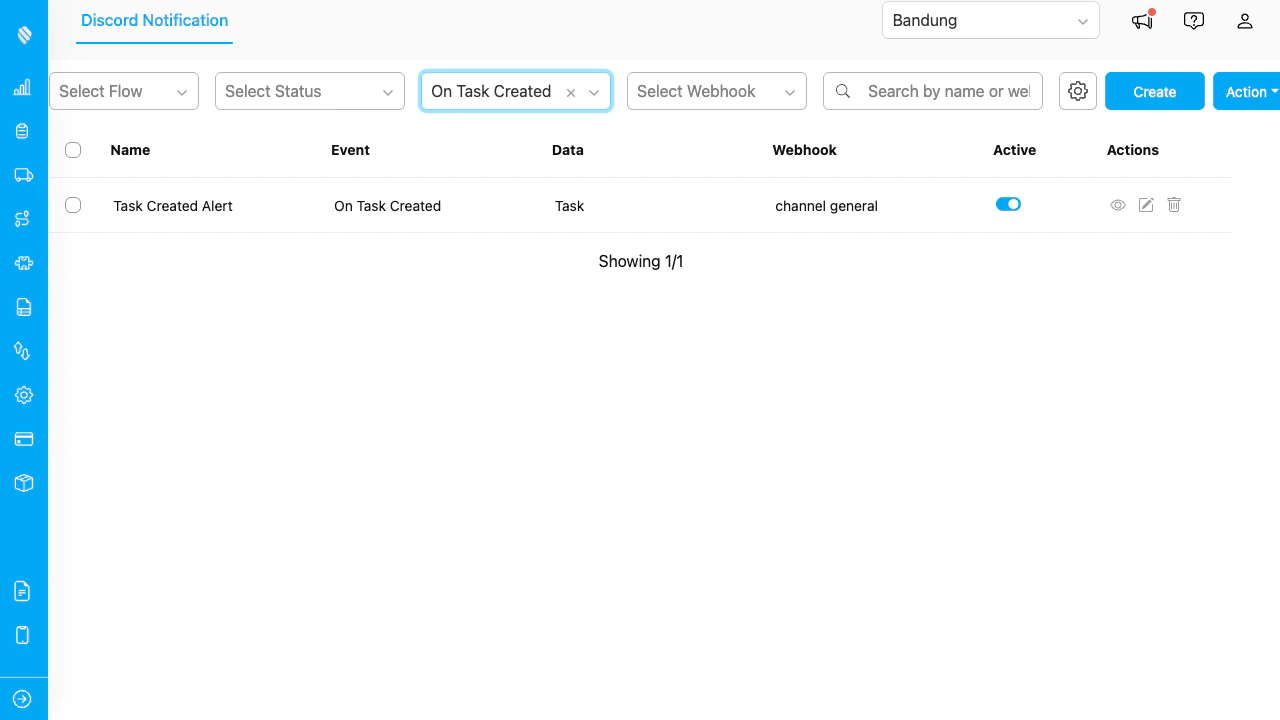
The filter bar with search, flow, status, event, and webhook filters.
| Control | What It Filters | | ----------- | -------------------------------------------------- | | **Search** | Matches automation name or webhook URL | | **Flow** | Shows only automations linked to the selected flow | | **Status** | Shows only Active or Inactive automations | | **Event** | Shows only automations for the selected event type | | **Webhook** | Shows only automations using the selected webhook | Filters combine. For example, selecting Flow "Daily Visit" and Status "Active" shows only active automations for that flow. ## Viewing an Automation Click the eye icon on a row to open the details view.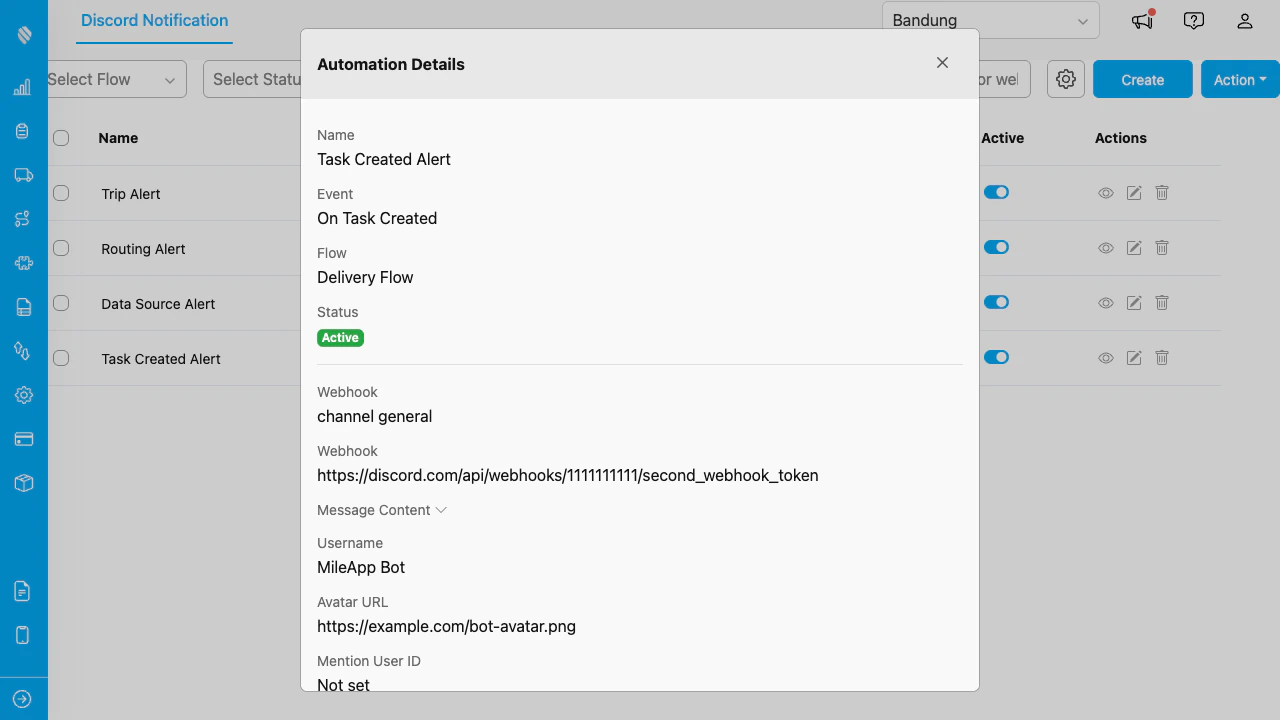
The read-only details view showing configuration, message content, and bot settings.
The details view shows: * Name, event, flow or data type, and status * Webhook name and URL * Message content with markdown preview (collapsible) * Custom username and avatar URL (if set) Click **Edit** to switch to editing mode. ## Editing an Automation Click the pencil icon on a row to open the edit form. The form is the same as the [Create Automation](/pages/add-on/discord-notification/creating-automations) modal. The **Event** field is locked because changing the event would invalidate the existing message variables. Make your changes and click **Save**. If you close the modal without saving, a confirmation dialog asks whether to discard changes. ## Activating and Deactivating Use the **Status** toggle switch in the table row to turn an automation on or off. * **Active**: The automation listens for the configured event and sends messages to Discord. * **Inactive**: The automation is paused. No messages are sent, but the configuration is preserved. ### Webhook Reassignment If the webhook assigned to an automation has been removed from the settings, the automation is automatically deactivated. When you try to reactivate it, a dialog appears asking you to select a new webhook.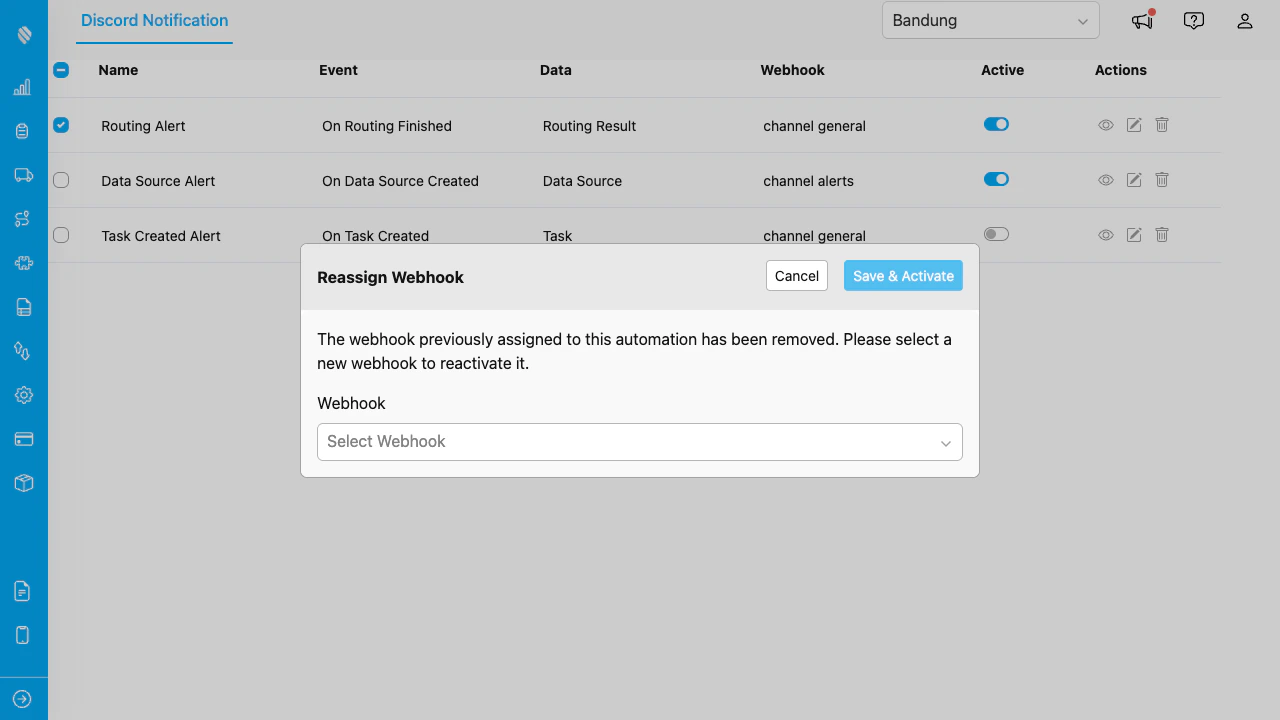
Select a new webhook when the original one has been removed.
Choose a webhook from the dropdown and click **Save & Activate**. ## Deleting Automations ### Single Delete Click the trash icon on a row. A confirmation dialog shows the automation name, event, and flow or data type for verification.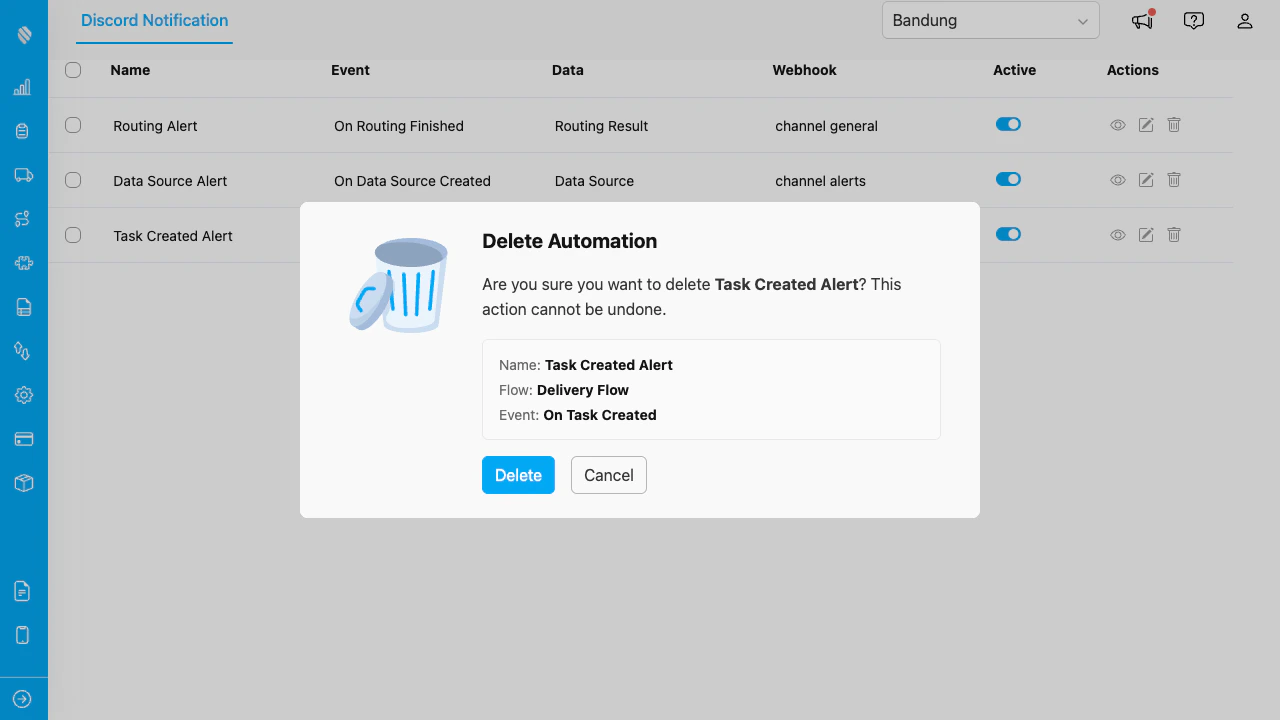
Confirm before deleting. The dialog shows the automation details so you can verify.
Click **Delete** to confirm, or **Cancel** to go back. ### Bulk Delete 1. Select multiple automations using the checkboxes in the table. 2. Click the **Action** dropdown in the filter bar. 3. Select **Delete Selected**. 4. Confirm the bulk deletion in the dialog.