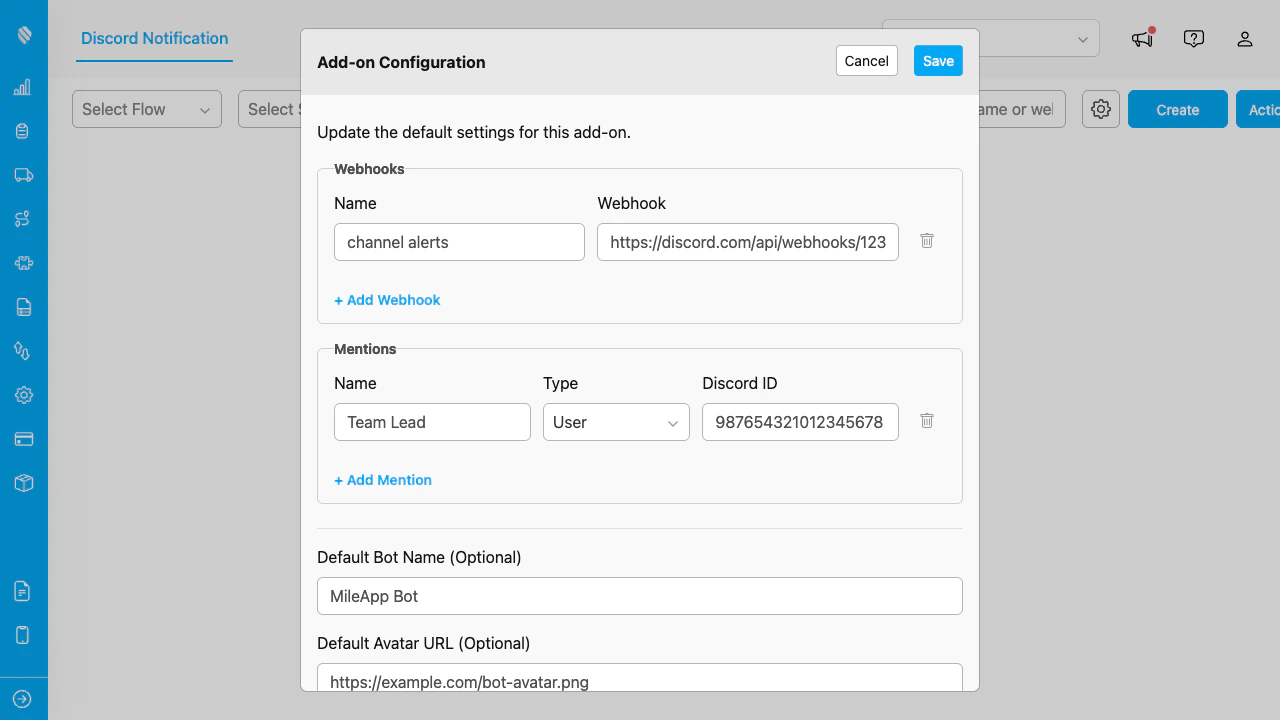
The Settings dialog with webhook, mention, and default bot configuration.
## Managing Webhooks Webhooks connect automations to Discord channels. Each webhook points to one channel. ### Adding a Webhook 1. Click **Add Webhook**. 2. Enter a **Name** (e.g., "Sales Alerts", "Support Channel"). 3. Paste the **Discord Webhook URL**. 4. Click **Save**. Webhook names must be unique across your configuration. ### Editing a Webhook Change the name or URL of an existing webhook directly in the list. Click **Save** to apply. ### Removing a Webhook Click the trash icon next to a webhook. If any automations use this webhook, a warning dialog shows which automations are affected. Removing a webhook deactivates all automations that use it. Those automations are not deleted; they can be reactivated later by assigning a new webhook. ### Getting a Webhook URL from Discord 1. Open your Discord server. 2. Go to **Server Settings > Integrations > Webhooks**. 3. Click **New Webhook**. 4. Select the target channel. 5. Click **Copy Webhook URL**. ## Managing Mentions Mentions let you tag Discord users or roles in messages so they receive notifications. ### Adding a Mention 1. Click **Add Mention**. 2. Enter a **Name** (a label for easy identification, e.g., "Operations Manager"). 3. Select **Type**: User or Role. 4. Enter the **Discord ID**. 5. Click **Save**. Mention names must be unique. All three fields (name, type, ID) are required. ### Finding a Discord ID 1. Open Discord and go to **User Settings > Advanced**. 2. Enable **Developer Mode**. 3. For a user: right-click the user and select **Copy User ID**. 4. For a role: go to **Server Settings > Roles**, right-click the role, and select **Copy Role ID**. ### Removing a Mention Click the trash icon next to a mention. The mention is removed from the list and will no longer appear in the Message Builder for future automations. Existing messages that reference this mention are not affected. ## Default Bot Settings These defaults are pre-filled when creating new automations. Individual automations can override them. | Setting | Description | | ---------------------- | ------------------------------------------------------------------------------------------ | | **Default Bot Name** | Display name shown on Discord messages. If empty, Discord uses the webhook's default name. | | **Default Avatar URL** | Image URL for the bot avatar. If empty, Discord uses the webhook's default avatar. | ## Resetting the Configuration If you need to start over completely: 1. Scroll to the bottom of the Settings dialog. 2. Click **Reset Configuration**. 3. In the confirmation dialog, optionally check **Also delete associated automations**. 4. Click **Confirm**. This removes the add-on configuration and returns you to the setup wizard. If you chose not to delete automations, they remain in the system but are deactivated.