> ## Documentation Index
> Fetch the complete documentation index at: https://docs.mileapp.dev/llms.txt
> Use this file to discover all available pages before exploring further.

# Printing and Exporting

Invoice Generator supports multiple ways to print or export your templates with real task data.

## Print Preview (Builder)

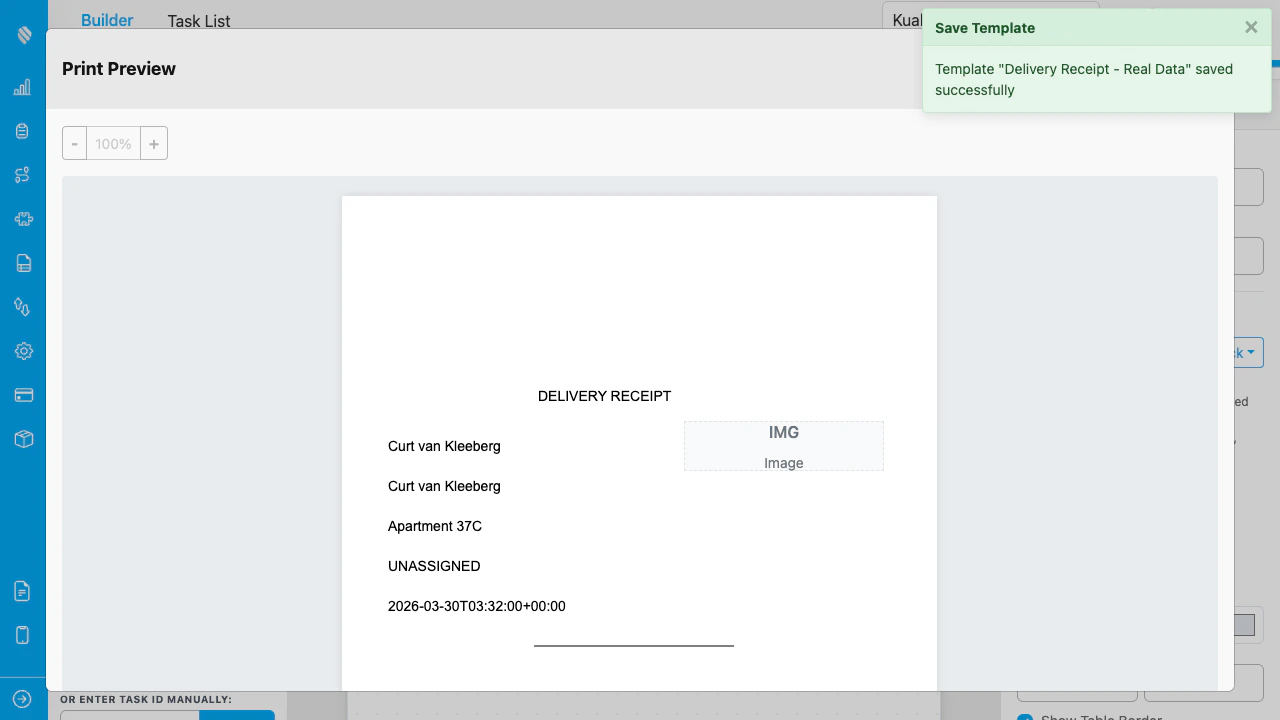
From the Builder page, click **Preview** or press **Ctrl+P** to open the Print Preview modal.

<div align="center">
  <img src="https://mintcdn.com/mileapp-c1584fbc/lT19TBAFfX4u3gQY/images/add-on/invoice-generator/print-preview.png?fit=max&auto=format&n=lT19TBAFfX4u3gQY&q=85&s=cb1a131d997bfae896315e5db3ba9c10" alt="Print Preview" width="600" data-path="images/add-on/invoice-generator/print-preview.png" />
</div>

<p><em>The Print Preview modal with zoom controls, Print button, and Export PDF button.</em></p>

### Zoom Controls

* Use **-** and **+** buttons to zoom in/out (25% steps, range 50%–200%).
* The current zoom percentage is displayed between the buttons.

### Selected Only

When you have 2 or more elements selected on the canvas before opening preview, a **Selected Only** toggle appears. Enable it to preview only the selected elements.

### Print

Click **Print** to open the browser's print dialog. You can select a physical printer or choose "Save as PDF".

### Export PDF

Click **Export PDF** to download a PDF file generated by the jsPDF engine. The PDF contains vector text (selectable, not image-based) and crisp graphics.
<Note>
  If the jsPDF rendering fails for any reason, the system falls back to a legacy HTML-to-canvas approach. The PDF will still download, but text will be image-based.
</Note>

## Single Task Print (Task List)

From the Task List page:

1. Select a flow to load tasks.
2. Click the **print icon** in the Action column of any task row.
3. A template selection modal appears — click the template card to use.
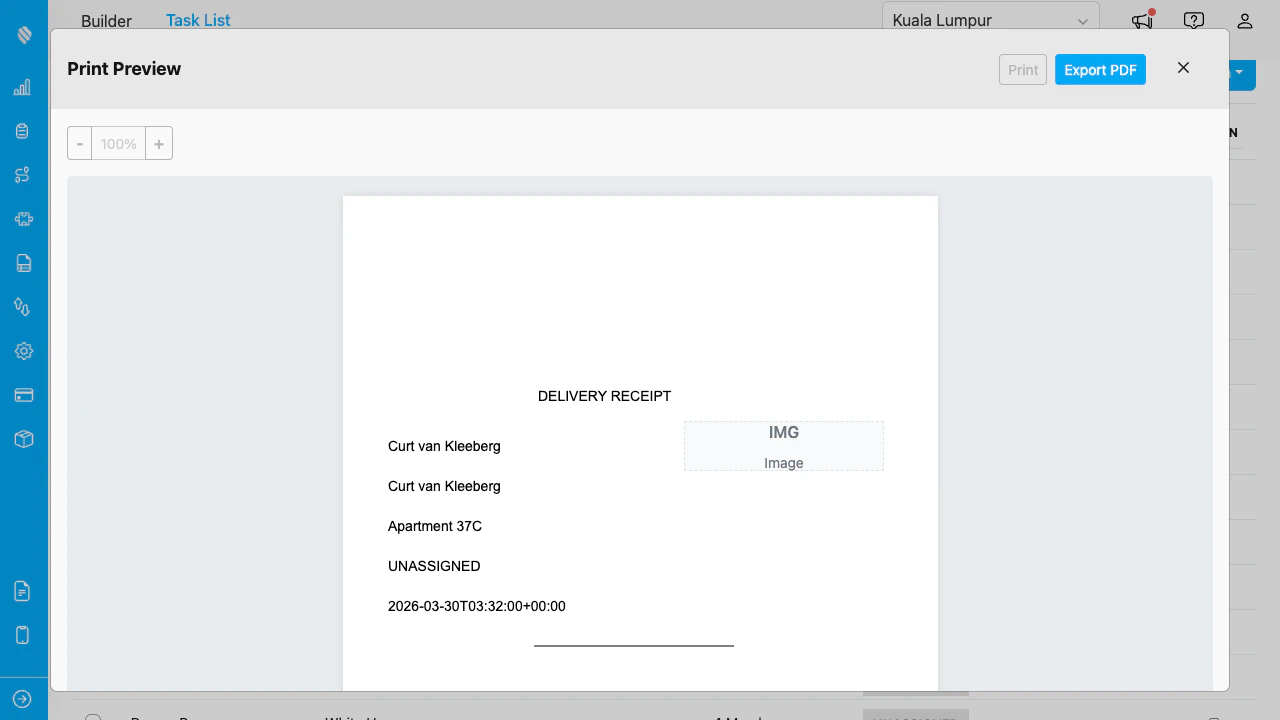
4. The Print Preview opens with that task's data resolved in the template.

<div align="center">
  <img src="https://mintcdn.com/mileapp-c1584fbc/lT19TBAFfX4u3gQY/images/add-on/invoice-generator/single-print.png?fit=max&auto=format&n=lT19TBAFfX4u3gQY&q=85&s=45a0e76fa0dab2200078f74b16b05123" alt="Single task print preview" width="600" data-path="images/add-on/invoice-generator/single-print.png" />
</div>

<p><em>Print Preview from the Task List showing a delivery receipt with the selected task's customer data.</em></p>

## Multi-Task Print (Task List)

To print multiple tasks at once:

1. Select a flow to load tasks.
2. Check the boxes next to the tasks you want to print (minimum 2).
3. Click **Action** > **Print**.
4. Select a template from the template selection modal.
5. The Multi-Task Print modal opens.
<div align="center">
  <img src="https://mintcdn.com/mileapp-c1584fbc/lT19TBAFfX4u3gQY/images/add-on/invoice-generator/multi-print.png?fit=max&auto=format&n=lT19TBAFfX4u3gQY&q=85&s=1d09eff2c0514302290edb4bf35e23d0" alt="Multi-Task Print" width="600" data-path="images/add-on/invoice-generator/multi-print.png" />
</div>

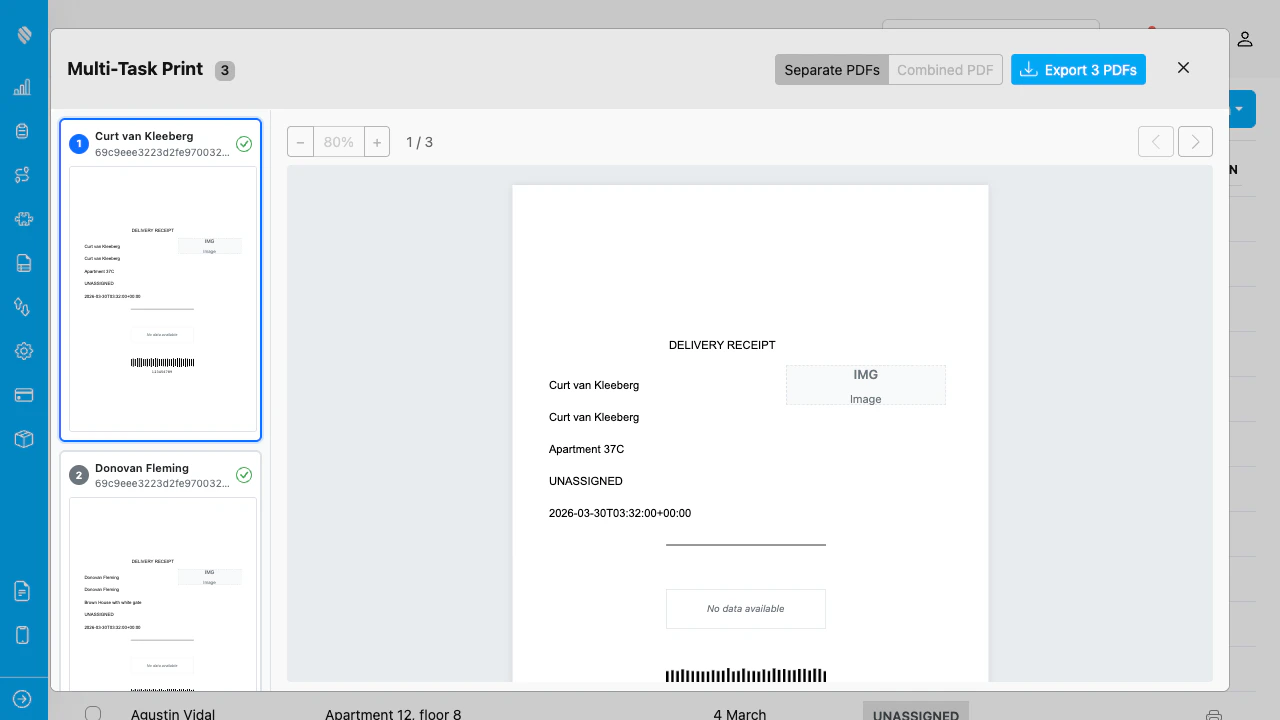
<p><em>The Multi-Task Print modal showing 3 tasks in the left sidebar with a full-page preview on the right. Each task resolves the template with its own data.</em></p>

### Navigating Between Tasks

* The left sidebar shows thumbnails for each selected task.
* Use the **\< >** arrows or the page counter (e.g., "1 / 3") to navigate between tasks.
* Click a task card in the sidebar to jump to its preview.

### Separate vs Combined PDF

Toggle between:

* **Separate PDFs**: Downloads one PDF file per task. The button shows "Export N PDFs".
* **Combined PDF**: Downloads a single PDF with all tasks as separate pages.
