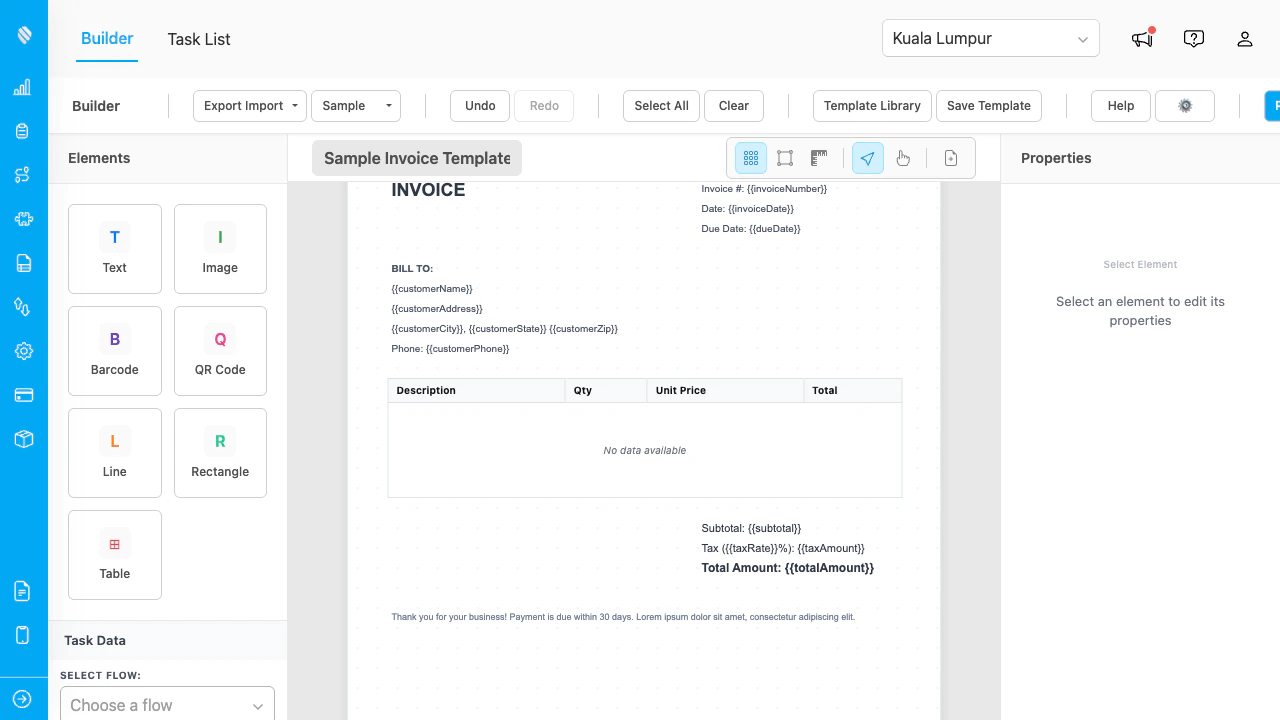
The PDF Generator builder with a sample invoice template loaded.
## Key Concepts * **Template**: A reusable document layout containing text, images, barcodes, QR codes, tables, lines, and rectangles. Templates are bound to task data and can span multiple pages. * **Element**: A building block placed on the canvas. Seven types are available: Text, Image, Barcode, QR Code, Line, Rectangle, and Table. * **Data Field Binding**: Elements can display static content or pull values from task data. Switch any element to "Data Field" mode to bind it to a task variable. * **Multi-Page Canvas**: Templates can have multiple pages. Elements belong to a specific page, while header and footer zone elements repeat across all pages. * **Watermark**: A semi-transparent text overlay rendered behind all elements on every page. * **Conditional Visibility**: Elements can be shown or hidden based on task data values, letting a single template adapt to different scenarios. ## What You Can Do 1. [Set up the add-on](/pages/add-on/pdf-generator/setting-up) with a one-time setup wizard. 2. [Design templates](/pages/add-on/pdf-generator/designing-templates) using a drag-and-drop builder with multi-page support, header/footer zones, watermarks, and conditional elements. 3. [Print and export](/pages/add-on/pdf-generator/printing-and-exporting) documents as PDFs with selectable text, embedded images, and barcodes. 4. [Use the Task List](/pages/add-on/pdf-generator/task-list) to browse tasks, apply filters, and print single or multiple documents at once. ## Who Uses PDF Generator 1. **Administrators**: Set up the add-on, configure permissions, and design document templates. 2. **Field Managers**: Create templates for delivery receipts, inspection reports, and other field documents, then print them in bulk from the Task List. 3. **Operations Teams**: Use the Task List to filter, review, and export PDFs for archival or distribution. ## Getting Started To start using PDF Generator, an administrator must first complete the one-time setup wizard. Head over to [Setting Up](/pages/add-on/pdf-generator/setting-up) to begin.