> ## Documentation Index
> Fetch the complete documentation index at: https://docs.mileapp.dev/llms.txt
> Use this file to discover all available pages before exploring further.

# Printing and Exporting

PDF Generator supports multiple ways to produce documents: preview on screen, print to paper, or export as PDF files.

## Print Preview (Builder)

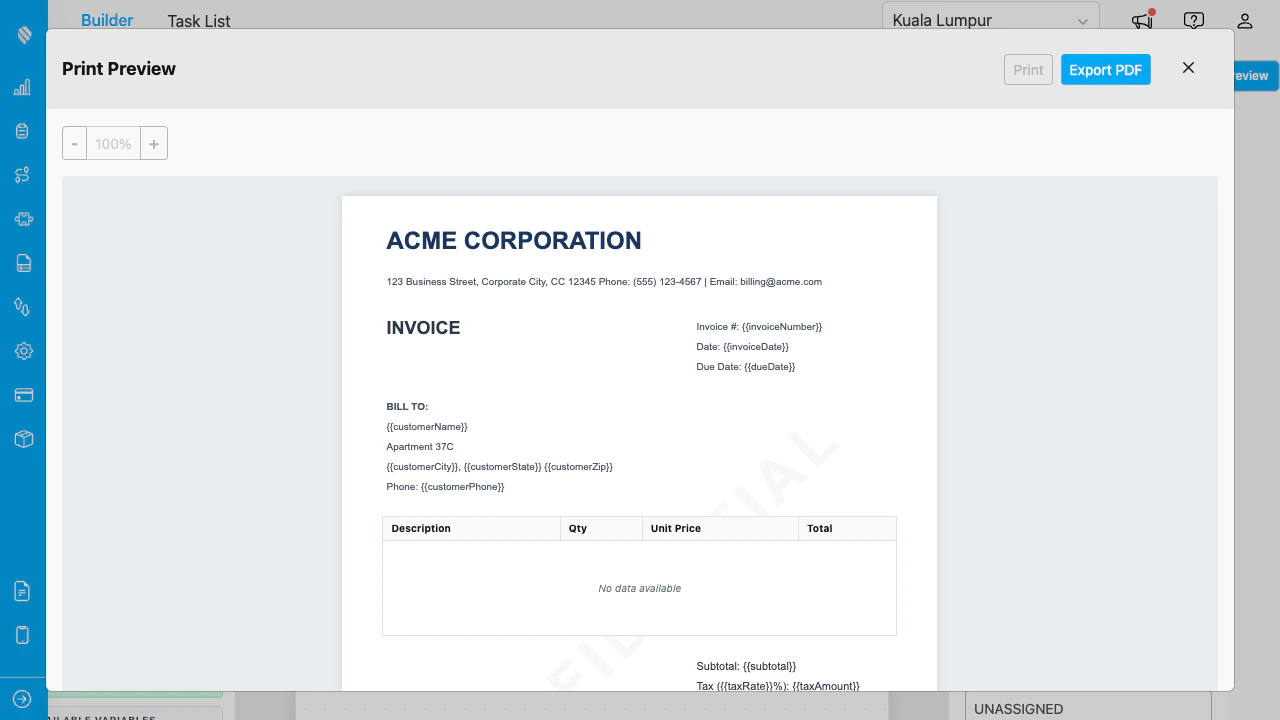
Click **Preview** in the toolbar to open the Print Preview modal. The preview shows exactly how the document will look when printed or exported, including watermarks, conditional elements, and multi-page layouts.

<div align="center">
  <img src="https://mintcdn.com/mileapp-c1584fbc/W5vJ3Uf_FVyZ3Gz9/images/add-on/pdf-generator/print-preview.png?fit=max&auto=format&n=W5vJ3Uf_FVyZ3Gz9&q=85&s=a41be4d290cd2158062d5d5fe8b28624" alt="Print preview" width="600" data-path="images/add-on/pdf-generator/print-preview.png" />
</div>

<p><em>Print Preview showing a multi-page document with watermark.</em></p>

### Zoom Controls

* Click **+** or **-** to zoom in and out (50%–200%).
* The current zoom percentage is displayed between the buttons.

### Print

* Click **Print** to open the browser's print dialog. The document is scaled using CSS zoom to match the physical page dimensions at 72 DPI.

### Export PDF

* Click **Export PDF** to download the document as a PDF file. Text in the PDF is selectable and searchable (vector-based, not a screenshot).
<Note>
  If the primary PDF export fails, the system automatically falls back to a screenshot-based export using html2canvas. The resulting PDF will have rasterized text.
</Note>

The exported filename follows the format: `{Template Name}-{YYYYMMDD}-{HHMMSS}.pdf`. For example, `Delivery Receipt-20260403-141500.pdf`.

## Print Preview (Print Settings)

You can also access Preview, Print, and Export PDF from the **Print Settings** dropdown in the toolbar. This lets you change the page size and orientation immediately before producing the document.

## Single Task Print (Task List)

Print a document for one task directly from the Task List:

1. Navigate to the **Task List** tab.
2. Select a flow to load tasks.
3. Click the **printer icon** on the task row.
4. Select a saved template from the template picker.
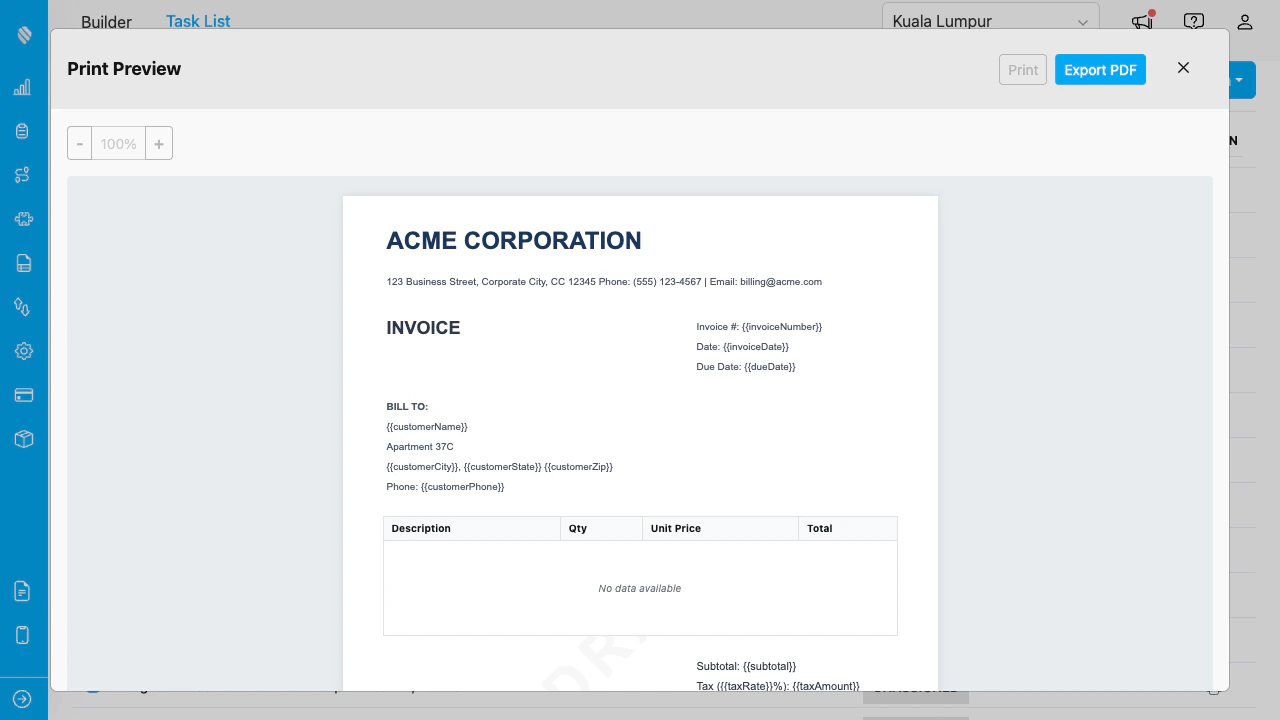
5. The Print Preview opens with that task's data. All data-bound elements show real values.

<div align="center">
  <img src="https://mintcdn.com/mileapp-c1584fbc/W5vJ3Uf_FVyZ3Gz9/images/add-on/pdf-generator/single-print.png?fit=max&auto=format&n=W5vJ3Uf_FVyZ3Gz9&q=85&s=d91219301e2dc543579a1f0491150b8a" alt="Single task print preview" width="600" data-path="images/add-on/pdf-generator/single-print.png" />
</div>

<p><em>Print preview for a single task showing resolved field values.</em></p>

## Multi-Task Print (Task List)

Print documents for multiple tasks at once:

1. In the Task List, check the checkboxes next to the tasks you want to print.
2. Click the **Action** dropdown and select **Print**.
3. Select a saved template from the template picker.
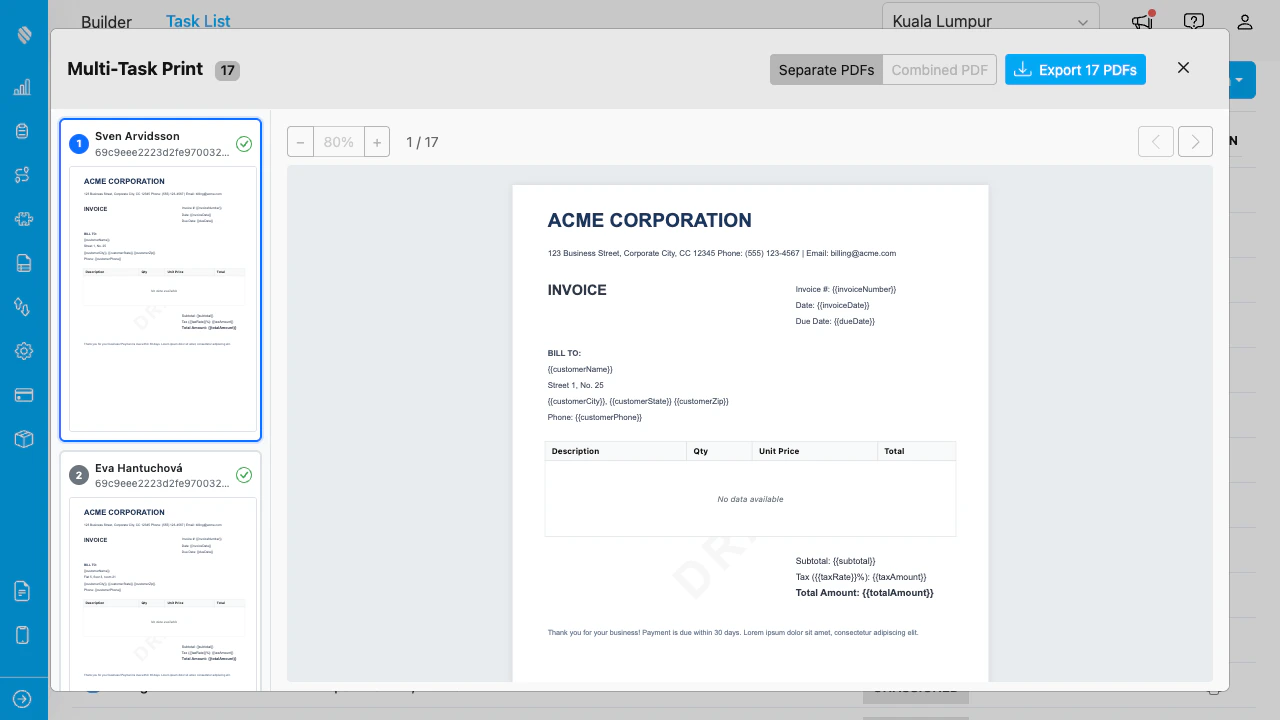
4. The Multi-Print modal opens with a sidebar listing all selected tasks and a preview panel on the right.
<div align="center">
  <img src="https://mintcdn.com/mileapp-c1584fbc/W5vJ3Uf_FVyZ3Gz9/images/add-on/pdf-generator/multi-print.png?fit=max&auto=format&n=W5vJ3Uf_FVyZ3Gz9&q=85&s=9c674273771e9873248ea466626b3854" alt="Multi-task print modal" width="600" data-path="images/add-on/pdf-generator/multi-print.png" />
</div>

<p><em>Multi-Print modal with task cards in the sidebar and preview on the right.</em></p>

### Navigating Between Tasks

* Click a task card in the sidebar to preview that task's document.
* A green checkmark indicates the task data loaded successfully.
* The preview updates to show the selected task's data.

### Separate vs Combined PDF

Toggle between two export modes:

* **Separate PDFs**: Downloads one PDF file per task. Each file is named `{Template Name}-{N}-{datetime}.pdf` where N is the task number.
* **Combined PDF**: Downloads a single PDF containing all tasks. Each task starts on a new page. Watermarks and zone elements repeat on every page.
