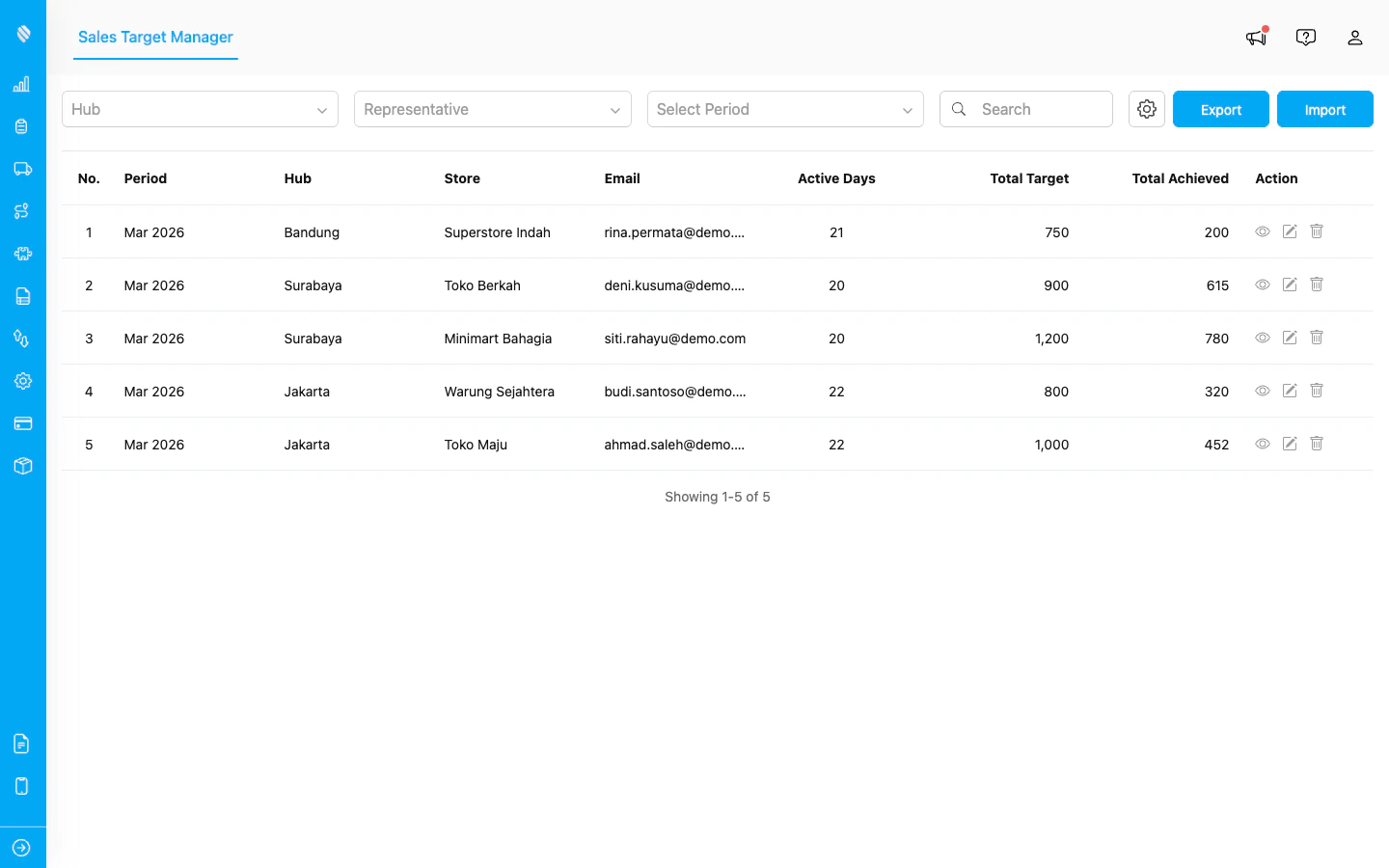
The Sales Target Manager shows all targets in a table with period, location, email, and achievement data.
## Key Concepts Before getting started, here are the main concepts used throughout Sales Target: * **Period**: The month and year a target applies to (e.g., March 2026). Targets are always set on a monthly basis. * **Categories**: Product groupings that break down your targets (e.g., Food, Beverages, Electronics). You define these during setup. * **Active Days**: The number of working days in the month for a representative. Used to calculate daily targets. * **Total Target**: The overall sales goal for the month. * **Daily Target**: Automatically calculated by dividing the total target by the number of active days. * **Achievement**: The actual sales collected from completed tasks. This is updated automatically as your reps complete their work in the field. ## Who Uses Sales Target Sales Target serves two types of users: 1. **Administrators and Managers**: Set up the add-on, create and manage targets for the team, import targets in bulk, and monitor overall progress from the Manager page. 2. **Sales Representatives**: View their personal targets and track daily progress using the **My Target** add-on, which is a separate add-on that must be installed independently. ## What You Can Do * [Set up the add-on](/pages/add-on/sales-target/setting-up-sales-target) with a guided wizard that walks you through the configuration step by step * [Manage targets](/pages/add-on/sales-target/managing-targets) for your team: view details, edit goals, and delete records * [Import and export targets](/pages/add-on/sales-target/importing-and-exporting) in bulk using Excel files * [Track personal targets](/pages/add-on/sales-target/my-target) on the My Target page with real-time progress updates ## Getting Started To start using Sales Target, an administrator must first complete the one-time setup wizard. Head over to [Setting Up Sales Target](/pages/add-on/sales-target/setting-up-sales-target) to begin. To give sales reps access to their personal dashboard, the **My Target** add-on must be installed separately.