> ## Documentation Index
> Fetch the complete documentation index at: https://docs.mileapp.dev/llms.txt
> Use this file to discover all available pages before exploring further.

# Setting Up Sales Target

Before your team can start using Sales Target, an administrator must complete the Setup Wizard. This is a one-time process that configures how the add-on connects to your flows and data.

<Note>
  Required permission:

  * View Sales Target - Manager
</Note>

## Starting the Setup Wizard

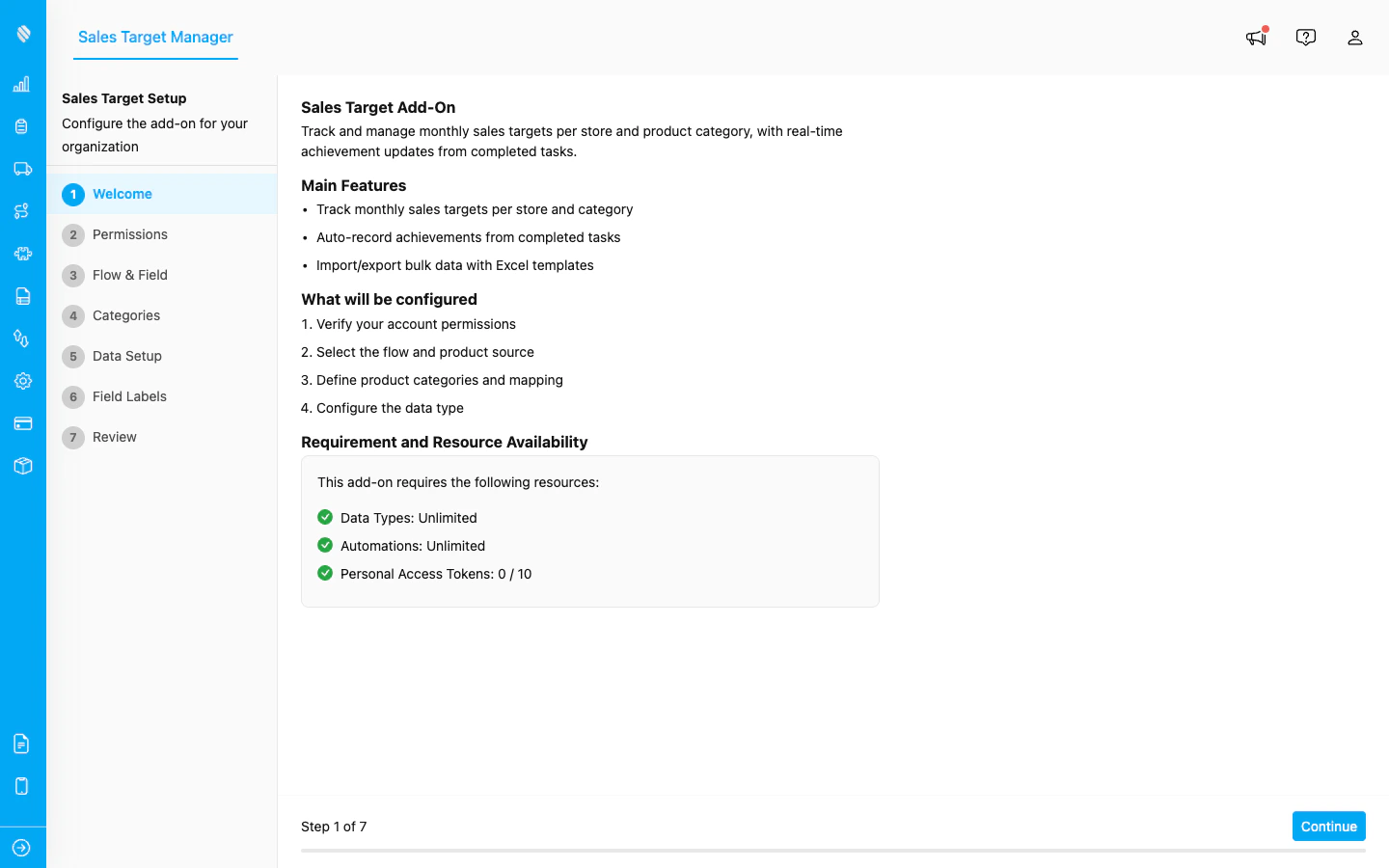
When you open Sales Target for the first time, the Setup Wizard appears automatically. The wizard guides you through all the required configuration in six steps.

<div align="center">
  <img src="https://mintcdn.com/mileapp-c1584fbc/Zv4XvRDz7HMdx5Un/images/add-on/sales-target/wizard-welcome.png?fit=max&auto=format&n=Zv4XvRDz7HMdx5Un&q=85&s=a1aee8620245106f6b972a87bd703b4e" alt="Setup Wizard welcome screen" width="600" data-path="images/add-on/sales-target/wizard-welcome.png" />
</div>

<p><em>The Setup Wizard opens automatically on first access, showing all 7 steps in the left sidebar.</em></p>

## Step 1: Welcome and Permissions

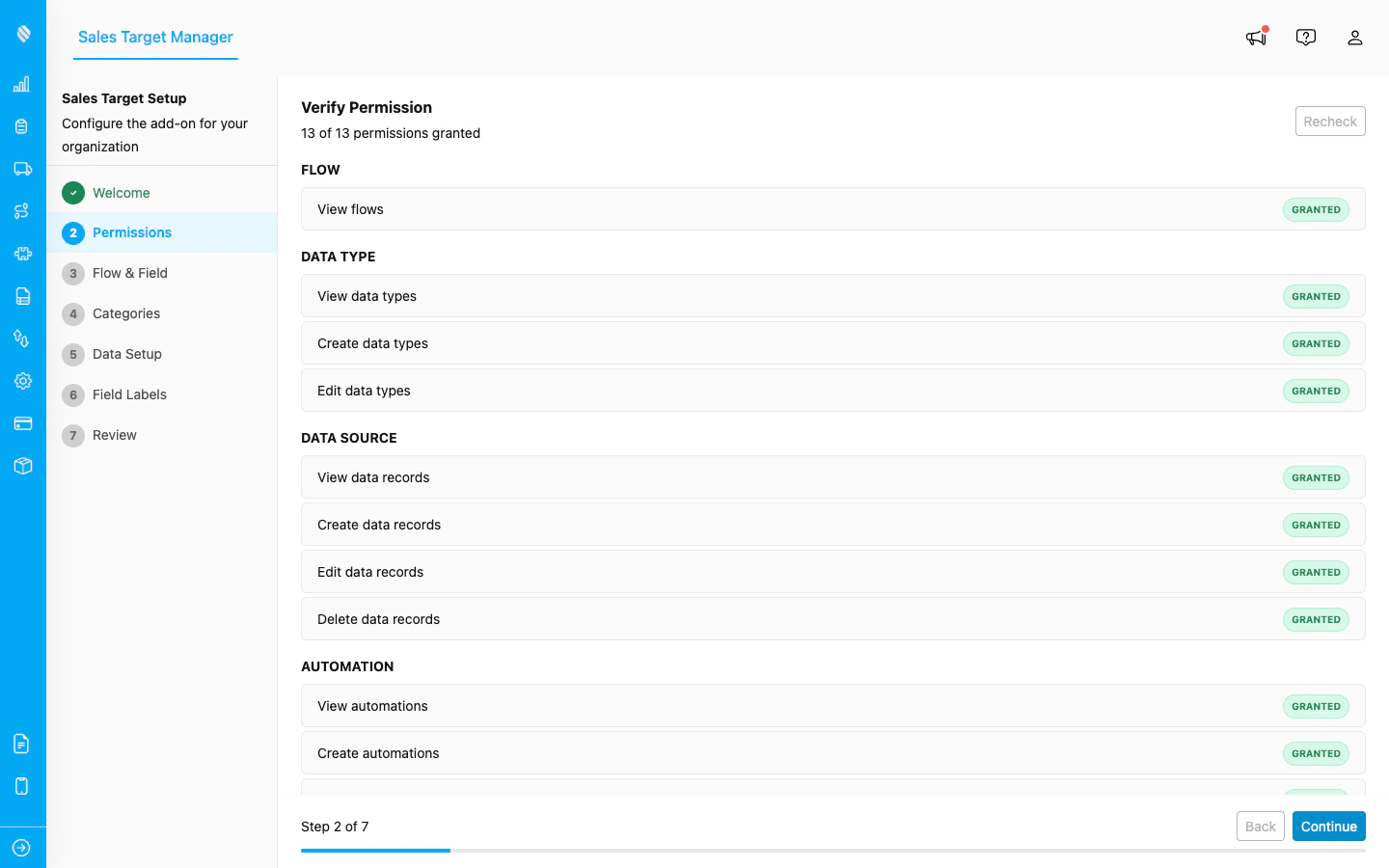
The wizard first checks that your account has the platform permissions needed for the add-on to run. The following permissions are required:

| Category        | Permission           |
| --------------- | -------------------- |
| **Flow**        | View flows           |
| **Data Type**   | View data types      |
| **Data Type**   | Create data types    |
| **Data Type**   | Edit data types      |
| **Data Source** | View data records    |
| **Data Source** | Create data records  |
| **Data Source** | Edit data records    |
| **Data Source** | Delete data records  |
| **Automation**  | View automations     |
| **Automation**  | Create automations   |
| **Automation**  | Edit automations     |
| **Other**       | View hubs            |
| **Other**       | Create access tokens |

All required permissions must be granted before you can proceed. If any are missing, contact your administrator to update your role in the Permission page.
<div align="center">
  <img src="https://mintcdn.com/mileapp-c1584fbc/Zv4XvRDz7HMdx5Un/images/add-on/sales-target/wizard-permissions.png?fit=max&auto=format&n=Zv4XvRDz7HMdx5Un&q=85&s=2f69b31eb83a7303a90edb340c1420c0" alt="Permissions step" width="600" data-path="images/add-on/sales-target/wizard-permissions.png" />
</div>

<p><em>The Permissions step shows a checklist of required permissions. All items must be granted before you can continue.</em></p>

Click **Next** to continue.

## Step 2: Select Your Flow and Sales Field

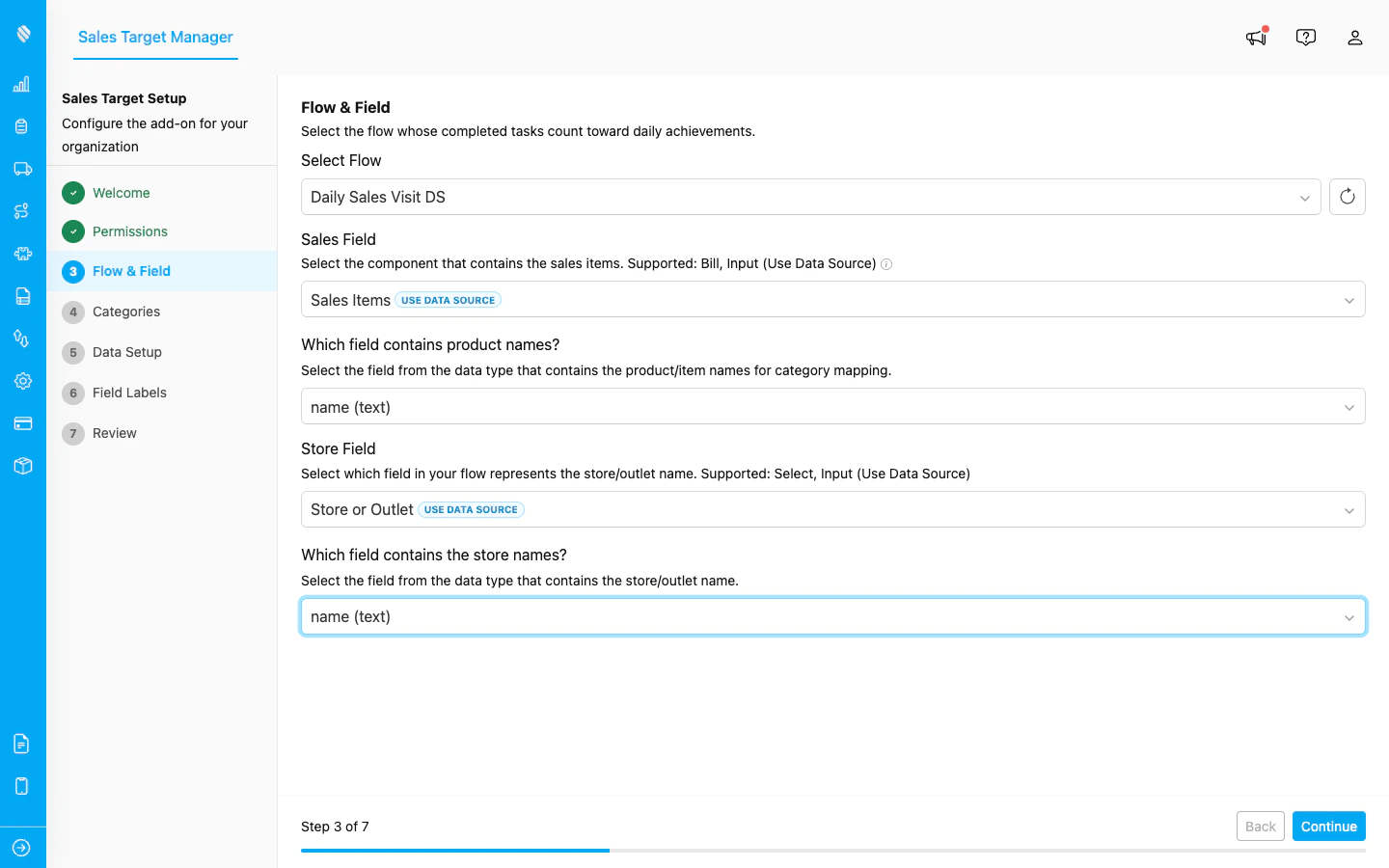
In this step, you connect Sales Target to the flow your sales reps use in the field.

1. **Select a Flow**: Choose the flow that captures your sales data. This is typically the flow your reps fill out when visiting a store.

2. **Select the Sales Field**: Pick the component in your flow that records product sales. This can be a **Bill** component (an inline product list) or an **Input** component connected to a data source.

3. **Select the Store Field** (optional): If your flow has a field for the store name, select it here. This allows Sales Target to track targets per store location.
<div align="center">
  <img src="https://mintcdn.com/mileapp-c1584fbc/Zv4XvRDz7HMdx5Un/images/add-on/sales-target/wizard-flow-field.png?fit=max&auto=format&n=Zv4XvRDz7HMdx5Un&q=85&s=a8de9018647ed36c0b8eb6ba63cd5b7a" alt="Flow and field selection step" width="600" data-path="images/add-on/sales-target/wizard-flow-field.png" />
</div>

<p><em>Select the flow, sales field, and store field that Sales Target will use to track achievements.</em></p>

<Note>
  Only flows with Bill or Data Source components are supported. Make sure your flow is set up before configuring Sales Target.
</Note>

## Step 3: Define Categories

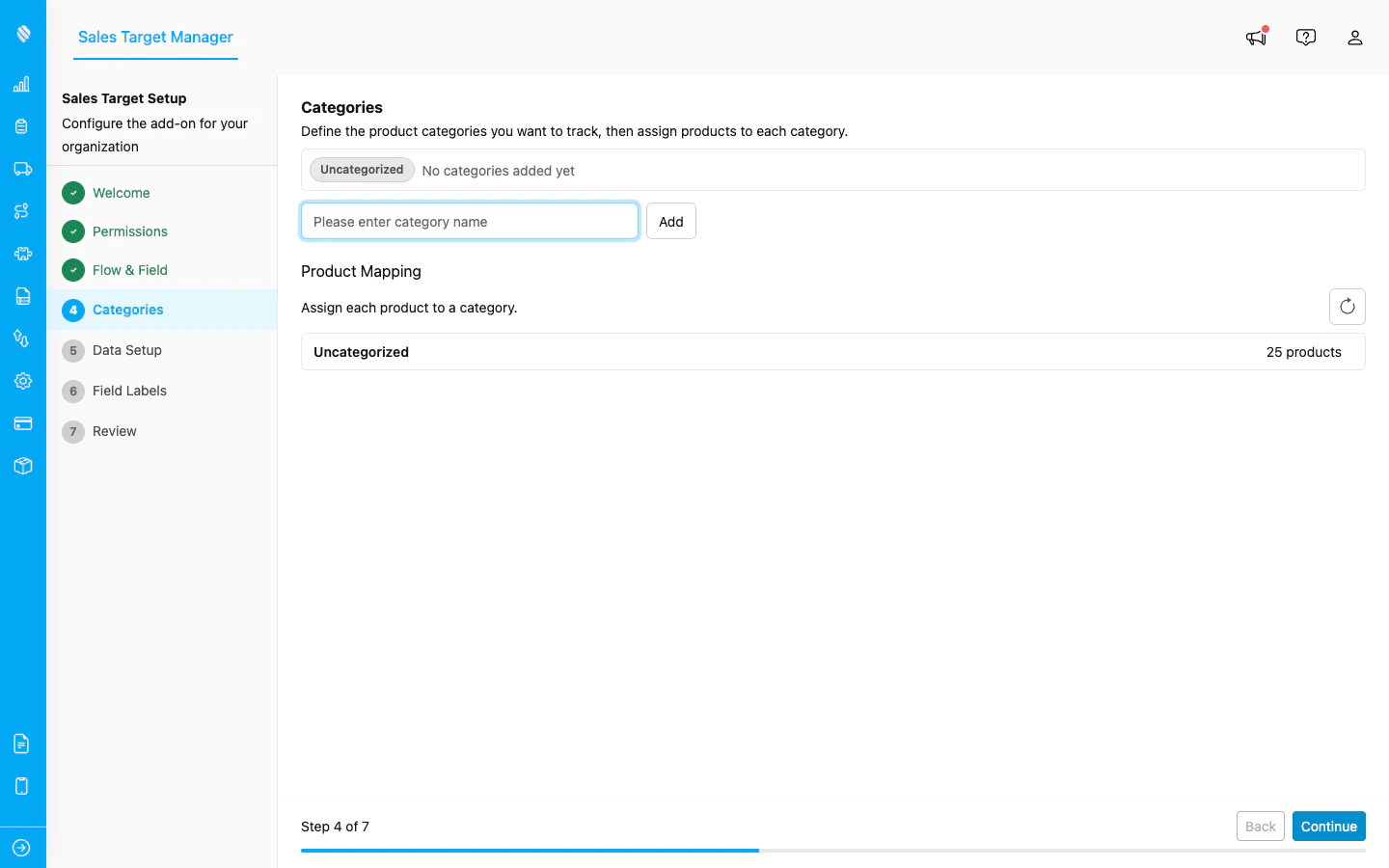
Categories let you break down your sales targets by product group (e.g., Food, Beverages, Personal Care).

1. Type a category name in the input field and click **Add**.
2. Repeat for each product category you want to track.
3. Categories appear as badges. Click the **X** on a badge to remove it.

<div align="center">
  <img src="https://mintcdn.com/mileapp-c1584fbc/Zv4XvRDz7HMdx5Un/images/add-on/sales-target/wizard-categories.png?fit=max&auto=format&n=Zv4XvRDz7HMdx5Un&q=85&s=355bc921d7c71cce9626331228094bd5" alt="Categories step" width="600" data-path="images/add-on/sales-target/wizard-categories.png" />
</div>

<p><em>Add categories and use the Product Mapping section to assign products to each category.</em></p>

After adding categories, the wizard will show a product mapping section. Here you assign each product from your flow to a category. Any products not assigned to a category will fall under **Uncategorized**.
<Note>
  Category names are case-insensitive. You cannot add two categories with the same name (e.g., "Food" and "food").
</Note>

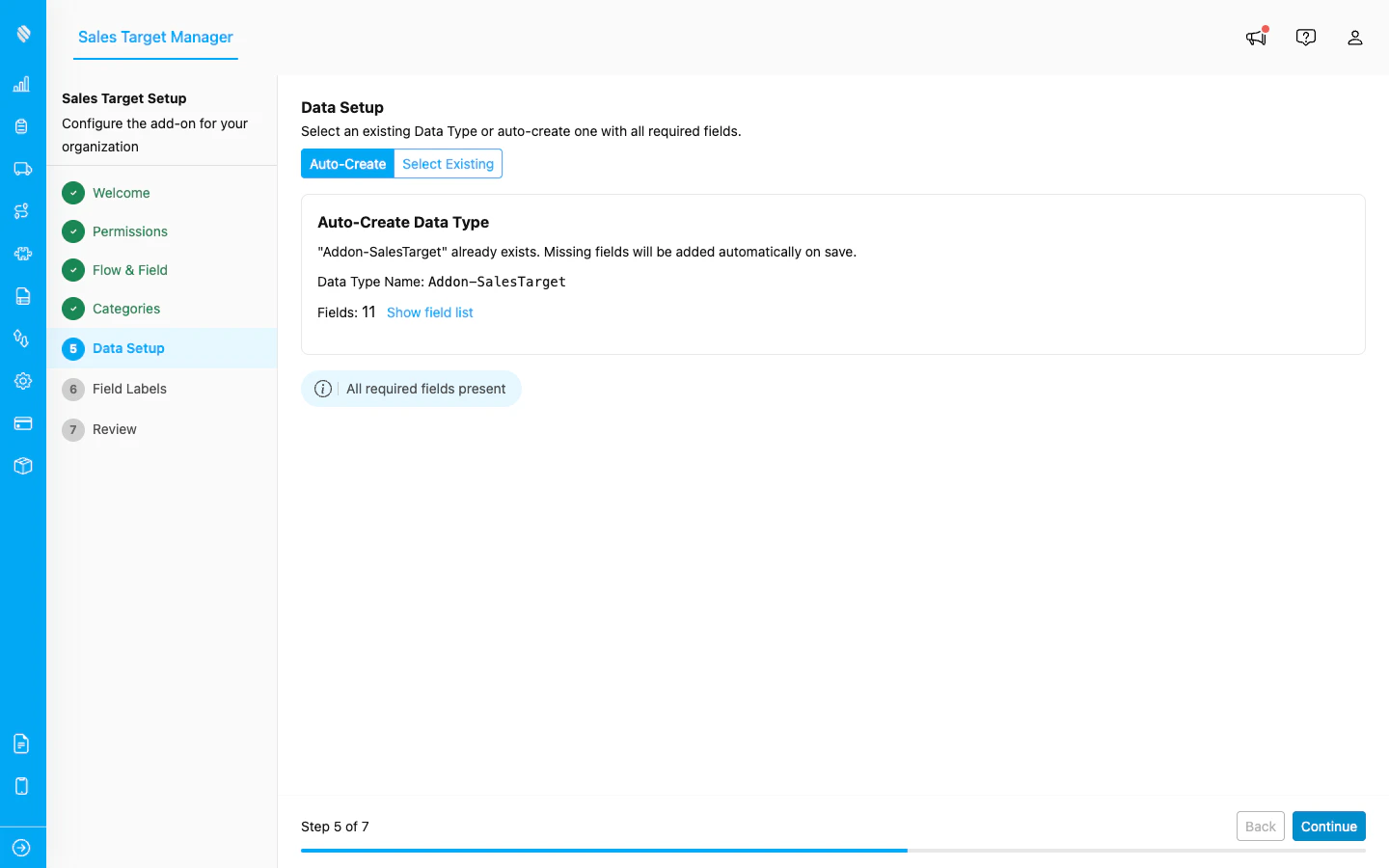
## Step 4: Configure Data Source

Choose how Sales Target stores its data:

* **Auto-Create** (recommended): The wizard automatically creates a data type called **Addon-SalesTarget** with all the required fields. This is the easiest option.

* **Select Existing**: Choose an existing data type that already has the necessary fields. Use this if you want to store target data alongside other information.

<div align="center">
  <img src="https://mintcdn.com/mileapp-c1584fbc/Zv4XvRDz7HMdx5Un/images/add-on/sales-target/wizard-data-setup.png?fit=max&auto=format&n=Zv4XvRDz7HMdx5Un&q=85&s=2a7ae1b56bfa5d118e1cd9c09995ffcd" alt="Data source configuration step" width="600" data-path="images/add-on/sales-target/wizard-data-setup.png" />
</div>

<p><em>Choose Auto-Create to let the wizard set up the data type automatically, or select an existing one.</em></p>

## Step 5: Customize Field Labels

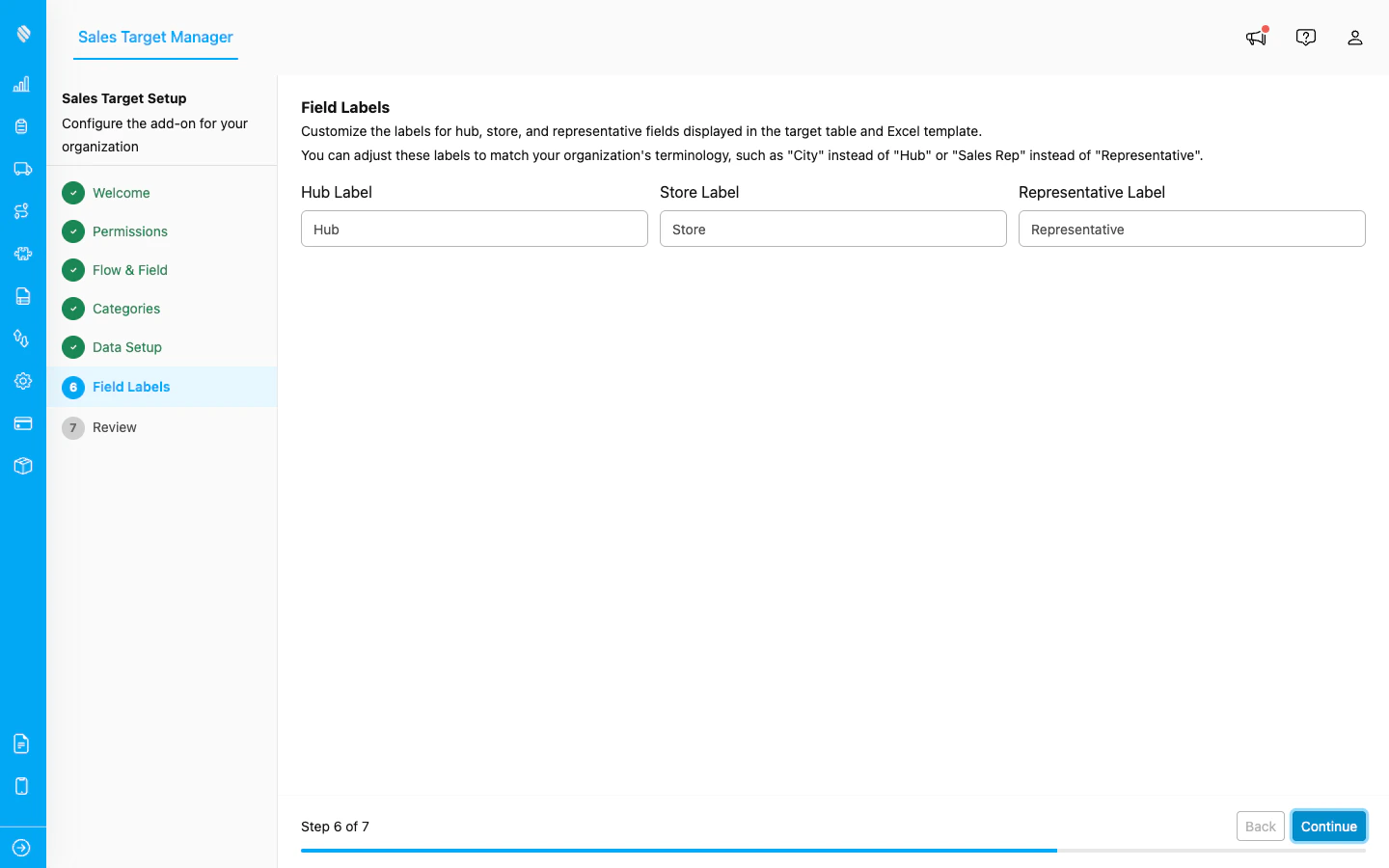
Customize the display names used throughout the add-on to match your organization's terminology:

* **City Label**: Default: "Hub". Change this if your organization uses a different term (e.g., "City", "Region", "Area").
* **Store Label**: Default: "Store". Change this if needed (e.g., "Outlet", "Branch", "Location").
* **Representative Label**: Default: "Representative". Change this if needed (e.g., "Sales Rep", "Agent", "Driver").

These labels will appear on the Manager page, in modals, and in the Excel import/export templates.
<div align="center">
  <img src="https://mintcdn.com/mileapp-c1584fbc/Zv4XvRDz7HMdx5Un/images/add-on/sales-target/wizard-field-labels.png?fit=max&auto=format&n=Zv4XvRDz7HMdx5Un&q=85&s=20ccead536cb12140ea7b48b478a09b4" alt="Field labels customization step" width="600" data-path="images/add-on/sales-target/wizard-field-labels.png" />
</div>

<p><em>Customize Hub, Store, and Representative labels to match your organization's terminology.</em></p>

## Step 6: Review and Save

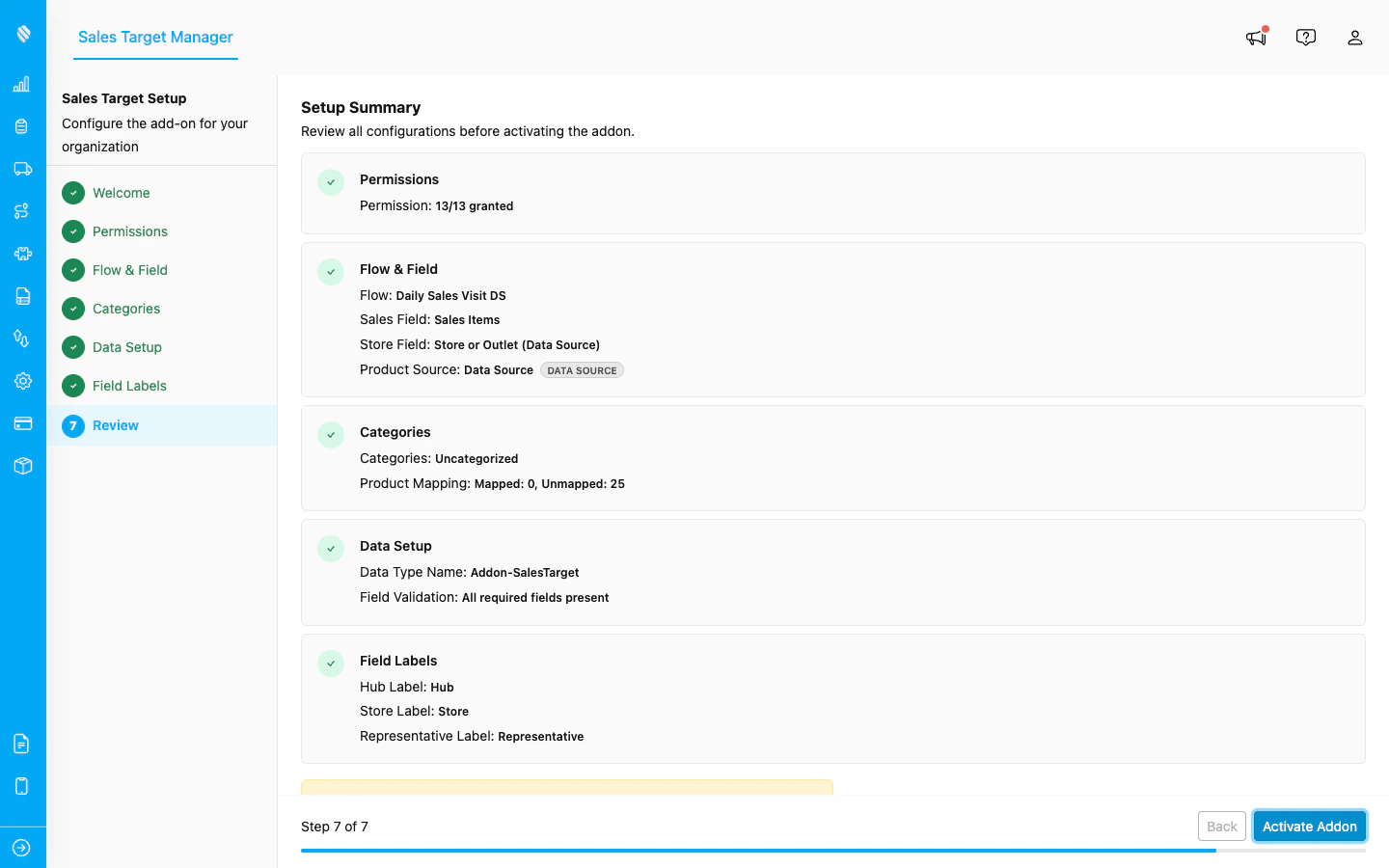
Review all your configuration choices on the summary page. If everything looks correct, click **Save** to complete the setup.
<div align="center">
  <img src="https://mintcdn.com/mileapp-c1584fbc/Zv4XvRDz7HMdx5Un/images/add-on/sales-target/wizard-review.png?fit=max&auto=format&n=Zv4XvRDz7HMdx5Un&q=85&s=abd5ae086b6b59e5e89854f336524cbb" alt="Review and activate step" width="600" data-path="images/add-on/sales-target/wizard-review.png" />
</div>

<p><em>The Review step shows a summary of all your settings. Click Activate Addon to complete setup.</em></p>

After saving, the Setup Wizard closes and you are taken to the Manager page where you can start creating targets.

## Modifying Settings After Setup

You can update your configuration at any time after the initial setup:

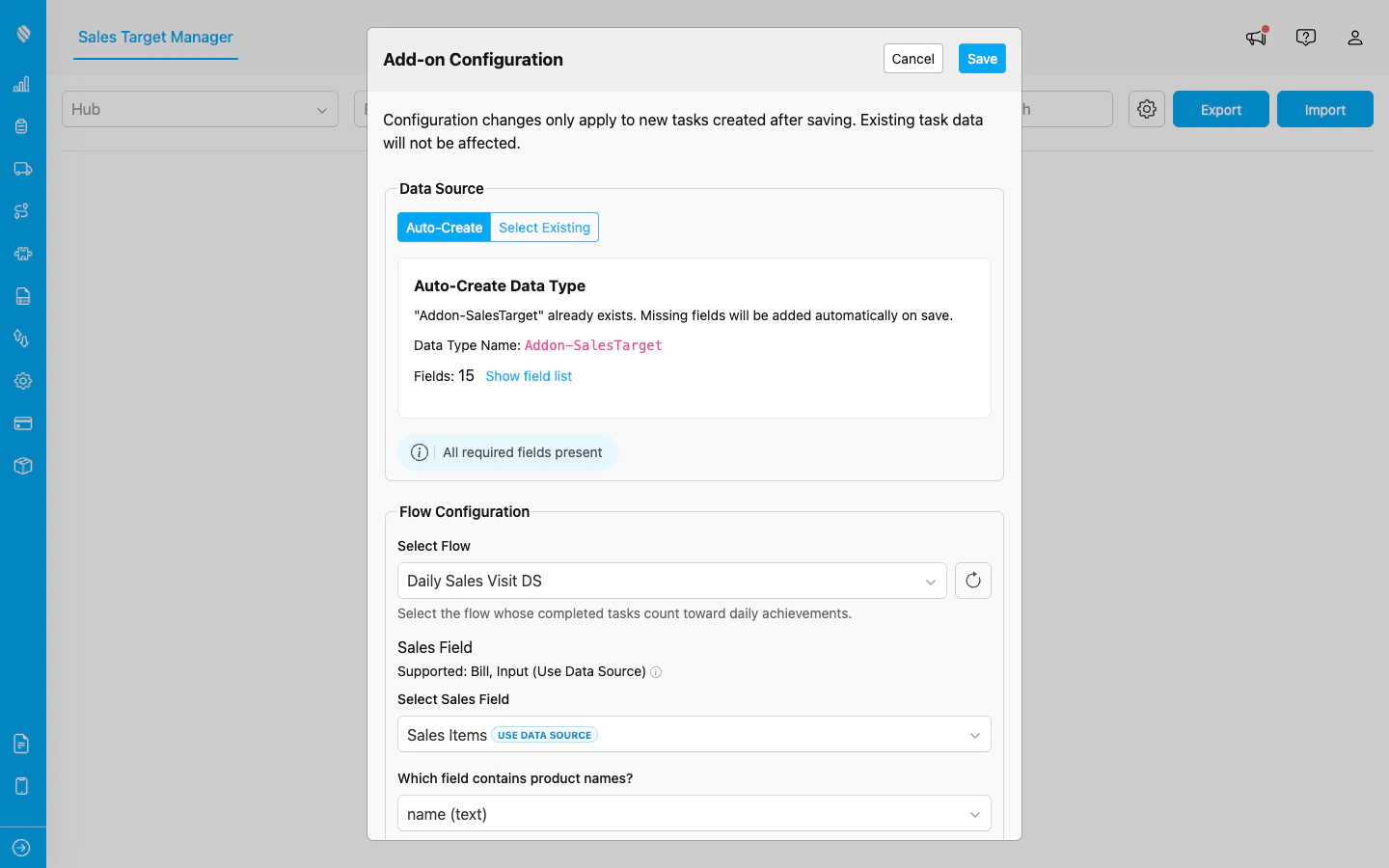
1. Go to the Sales Target Manager page.
2. Click the **gear icon** in the top-right corner of the filter bar.
3. The Settings dialog opens, allowing you to modify categories, field labels, and data source settings.
4. Click **Save** to apply your changes.
<div align="center">
  <img src="https://mintcdn.com/mileapp-c1584fbc/Zv4XvRDz7HMdx5Un/images/add-on/sales-target/settings-dialog.png?fit=max&auto=format&n=Zv4XvRDz7HMdx5Un&q=85&s=8242d29e8cab1f26b95907efa580a224" alt="Add-on configuration settings dialog" width="600" data-path="images/add-on/sales-target/settings-dialog.png" />
</div>

<p><em>The Settings dialog lets you update your flow, categories, and field labels at any time.</em></p>

<Note>
  Changing categories after targets have been created may affect existing data. Review your changes carefully before saving.
</Note>