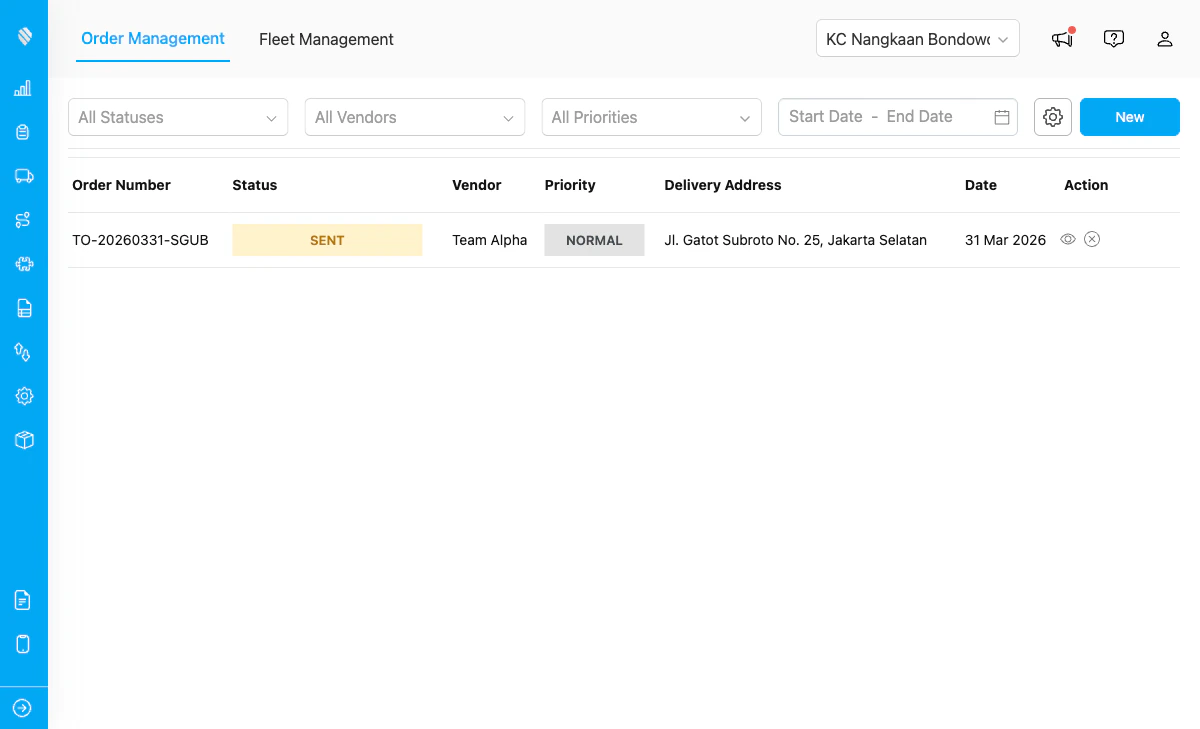
The Order Management page showing a filterable list of delivery orders with status, vendor, and priority columns.
Each row displays: | Column | Description | | -------------------- | ------------------------------------------------------------------------------------ | | **Order Number** | A unique identifier generated from the configured prefix | | **Status** | Current state: Draft, Sent, Accepted, In Progress, Completed, Rejected, or Cancelled | | **Vendor** | The vendor team assigned to fulfill the order | | **Priority** | Urgency level: Low, Normal, High, or Urgent | | **Delivery Address** | The destination address for the delivery | | **Date** | When the order was created | | **Actions** | Send, Edit, Delete, Cancel, Accept, or Reject depending on status and role | ## Searching and Filtering Use the filter bar at the top of the page to narrow down orders. | Control | What It Filters | | -------------- | ------------------------------------------------------------------- | | **Status** | Shows only orders with the selected status | | **Vendor** | Shows only orders assigned to the selected vendor team (admin only) | | **Priority** | Shows only orders with the selected priority level | | **Date Range** | Shows only orders created within the selected date range | Filters combine. For example, selecting Status "Sent" and Vendor "PT Logistics" shows only sent orders for that vendor. ## Creating an Order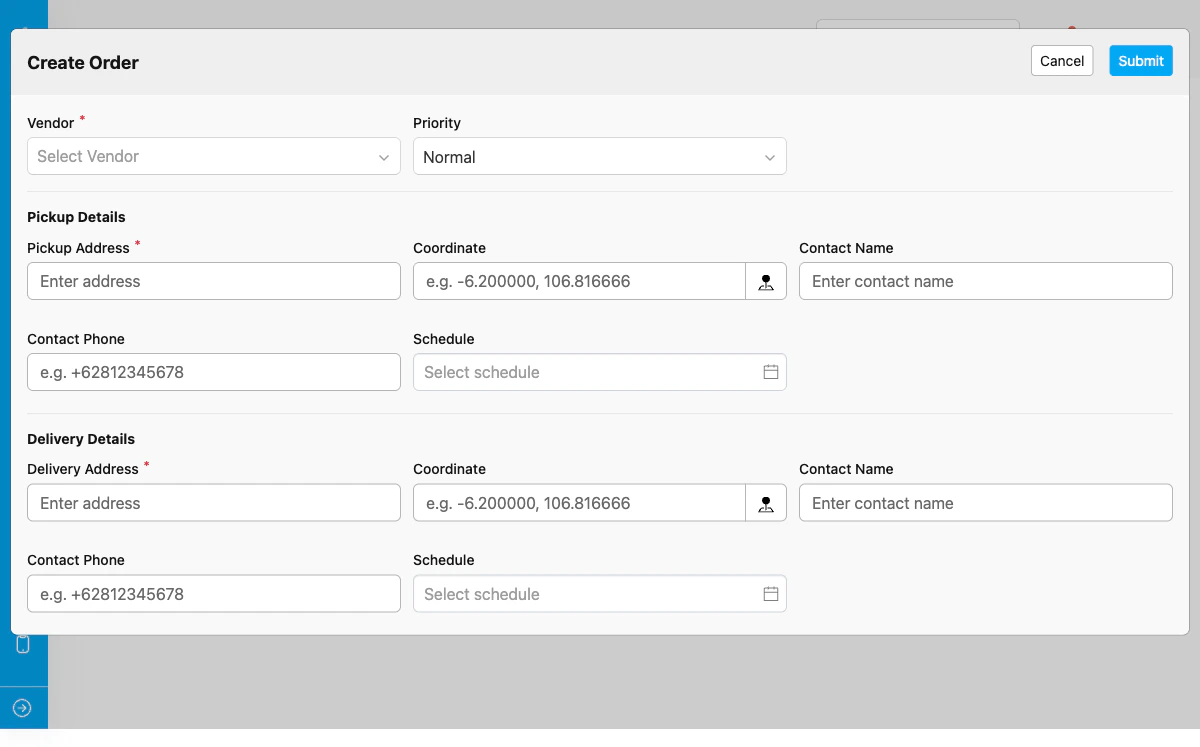
The order form with sections for general information, pickup details, delivery details, and items.
The form is divided into four sections: ### General Information | Field | Required | Description | | ------------ | -------- | -------------------------------------------------------------- | | **Vendor** | Yes | The vendor team that will handle this delivery | | **Priority** | Yes | Urgency level: Low, Normal, High, or Urgent. Default is Normal | | **Notes** | No | Additional instructions or remarks for the vendor | ### Pickup Details | Field | Required | Description | | ------------------ | -------- | ----------------------------------------------- | | **Pickup Address** | Yes | Address where the driver will collect the items | | **Contact Name** | No | Name of the person at the pickup location | | **Contact Phone** | No | Phone number for the pickup contact | | **Schedule** | No | Planned pickup date and time | | **Coordinate** | No | GPS coordinates (latitude and longitude) | ### Delivery Details | Field | Required | Description | | -------------------- | -------- | ---------------------------------------- | | **Delivery Address** | Yes | Destination address for the delivery | | **Contact Name** | No | Name of the recipient | | **Contact Phone** | No | Phone number for the delivery contact | | **Schedule** | No | Planned delivery date and time | | **Coordinate** | No | GPS coordinates (latitude and longitude) | ### Items Click **Add Item** to add items to the order. Each item has: | Field | Description | | ------------- | ------------------------------- | | **Item Name** | Name or description of the item | | **Quantity** | Number of units | | **Weight** | Weight per unit | | **Unit** | Unit of measurement (e.g., kg) | | **Notes** | Additional notes for the item | 3. Click **Save** to save the order as a draft. ## Sending an Order 1. Find the order with **Draft** or **Rejected** status in the table. 2. Click the **Send** icon in the Actions column. 3. Confirm the action in the popup dialog. The order status changes to **Sent** and the vendor team can now see it. ## Accepting an Order When a vendor receives a sent order, they can accept it by assigning a driver and vehicle. 1. Find the order with **Sent** status. 2. Click the **Accept** button.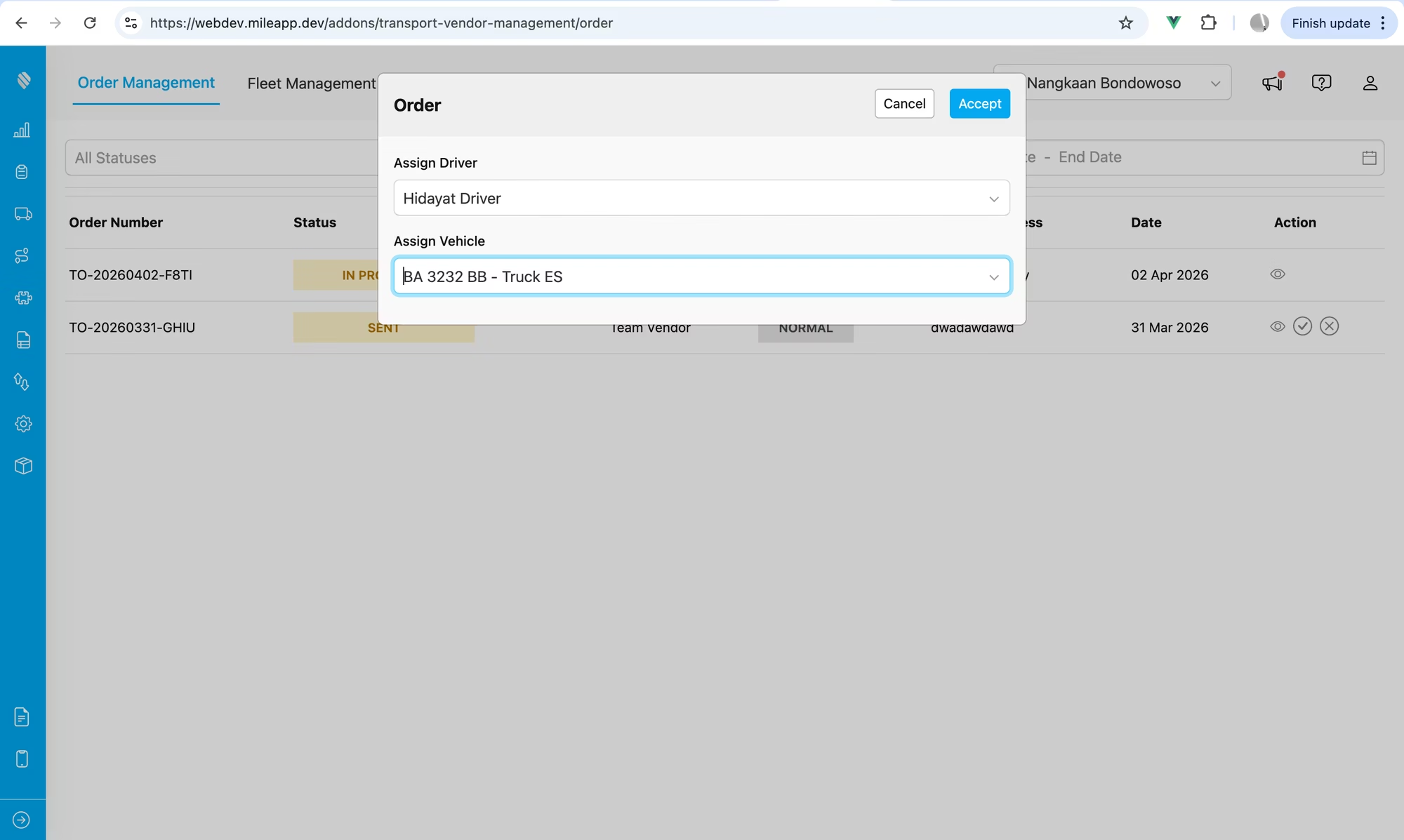
The Accept Order modal where vendors select a driver from their team and a vehicle from their fleet.
3. Select a **driver** from your team members. 4. Select a **vehicle** from your fleet (only active vehicles are shown). 5. Click **Confirm** to accept the order. After acceptance: * The order status changes to **Accepted** * A pickup task is automatically created and assigned to the selected driver * The driver receives the pickup task in the MileApp mobile app ## Rejecting an Order 1. Find the order with **Sent** status. 2. Click the **Reject** button. 3. Enter a rejection reason in the dialog. 4. Click **Confirm** to reject. The order status changes to **Rejected**. The administrator can edit the order and resend it to the same or a different vendor. ## Viewing Order Details Click on any order row to open the detail view.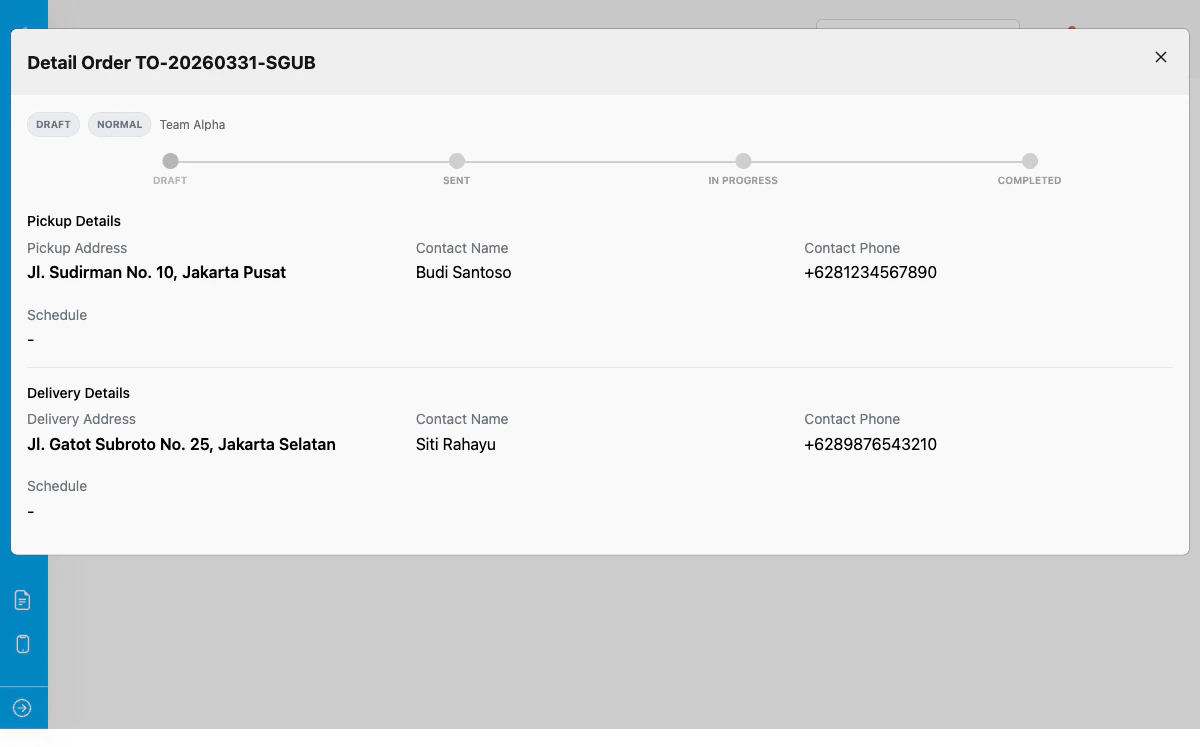
The order detail view showing the timeline stepper, pickup and delivery details, assignment info, and task tracking.
The detail view shows: | Section | Description | | -------------------- | --------------------------------------------------------------------------------- | | **Timeline** | Visual stepper showing order progression (Draft → Sent → In Progress → Completed) | | **Pickup Details** | Address, contact, schedule, and coordinate | | **Delivery Details** | Address, contact, schedule, and coordinate | | **Assignment** | Assigned driver name, email, and vehicle (visible after acceptance) | | **Task Status** | Current status of the pickup and delivery tasks | | **Driver Tracking** | Last known driver location with a link to view on the map | | **Rejection Reason** | Displayed if the order was rejected | ## Cancelling an Order 1. Find the order in the table (status must be Sent, Accepted, or In Progress). 2. Click the **Cancel** icon in the Actions column. 3. Confirm the cancellation in the popup dialog.