> ## Documentation Index
> Fetch the complete documentation index at: https://docs.mileapp.dev/llms.txt
> Use this file to discover all available pages before exploring further.

# On Data Source Created

## Overview

The **On Data Source Created** automation event triggers when a new entry is created in a Data Source. This event enables you to automate workflows based on incoming data, automatically create tasks from data entries, synchronize with external systems, or trigger business processes whenever new data is added to your Data Sources.

## When Does This Event Trigger?

The "On Data Source Created" event is triggered when:

1. A new entry is created in a Data Source through any of these methods:
   * **Manual Entry** - Creating data entries via web portal
   * **Excel Upload** - Bulk data import from spreadsheet
   * **API** - Data creation via MileApp API endpoints
   * **External Data Source** - Automatic data sync from integrated external systems

2. The data entry is successfully saved to the system

3. The Data Source type matches the one selected in the automation configuration

<Note>
  Data Sources are custom data structures you define in MileApp. This automation allows you to trigger actions whenever new data is added to these structures.
</Note>

## Prerequisites

Before setting up an automation with this event, ensure:

1. You have access to the Automation feature in MileApp
2. You have appropriate permissions to create and manage automations
3. You have at least one Data Source configured in your organization
4. You understand the structure and purpose of your Data Source

<Note>
  Required permission:

  * View Automation
  * Create Automation
  * View Data Source
</Note>

## Use Cases

### 1. Automatic Task Generation from Orders

**Scenario:** Create delivery tasks automatically when new orders are added to Order Data Source.

**Configuration:**

* **Event:** On Data Source Created
* **Data Source:** Customer Orders
* **Automation Type:** Create and Assign Task
* **Action:** Create task with Flow "Delivery" using order data (customer name, address, phone, items)

**Benefit:** Eliminates manual task creation, ensuring every order automatically becomes a tracked task

### 2. Lead Distribution System

**Scenario:** Assign new leads to sales representatives when leads are added to CRM Data Source.

**Configuration:**

* **Event:** On Data Source Created
* **Data Source:** Sales Leads
* **Automation Type:** Create and Assign Task
* **Action:** Create and assign "Customer Visit" task to appropriate sales rep

**Benefit:** Instant lead distribution and follow-up task assignment

### 3. External System Synchronization

**Scenario:** Sync new data entries to external ERP, WMS, or CRM systems.

**Configuration:**

* **Event:** On Data Source Created
* **Data Source:** Product Inventory
* **Automation Type:** Webhook
* **Action:** Send new inventory data to warehouse management system

**Benefit:** Real-time data synchronization across business systems

## Setting Up On Data Source Created Automation

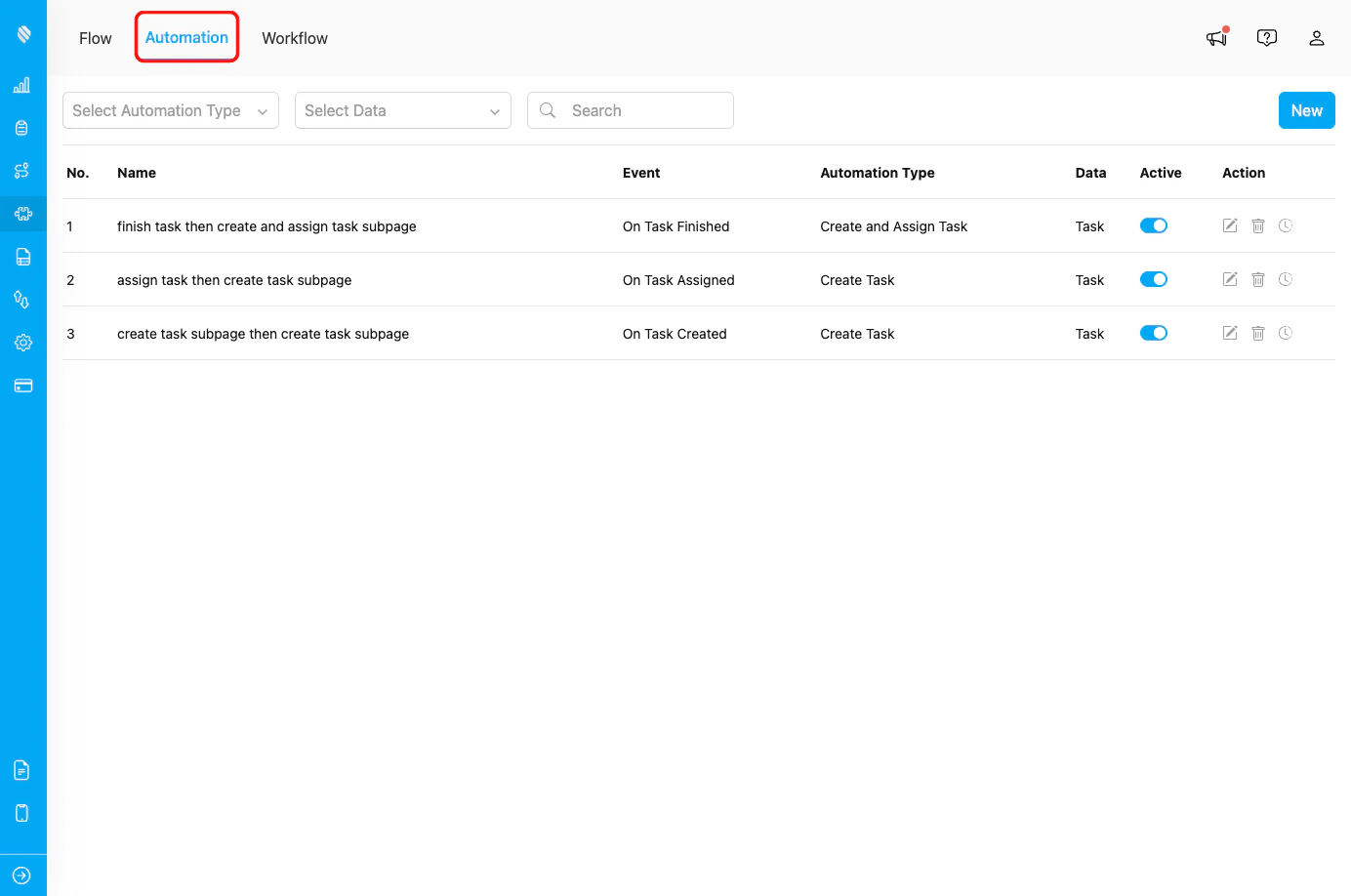
### Step 1: Navigate to Automation Settings

1. Log in to MileApp web portal
2. Click on **Flow** in the main navigation
3. Click on the **Automation** tab

<div align="center">
  <img src="https://mintcdn.com/mileapp-c1584fbc/jvVKvpPwiK1qABos/images/automation-tab.png?fit=max&auto=format&n=jvVKvpPwiK1qABos&q=85&s=b6493e509416761d04fe876351c975e3" alt="Automation Tab" width="600" data-path="images/automation-tab.png" />

  <p><i>Automation tab in Flow menu</i></p>
</div>

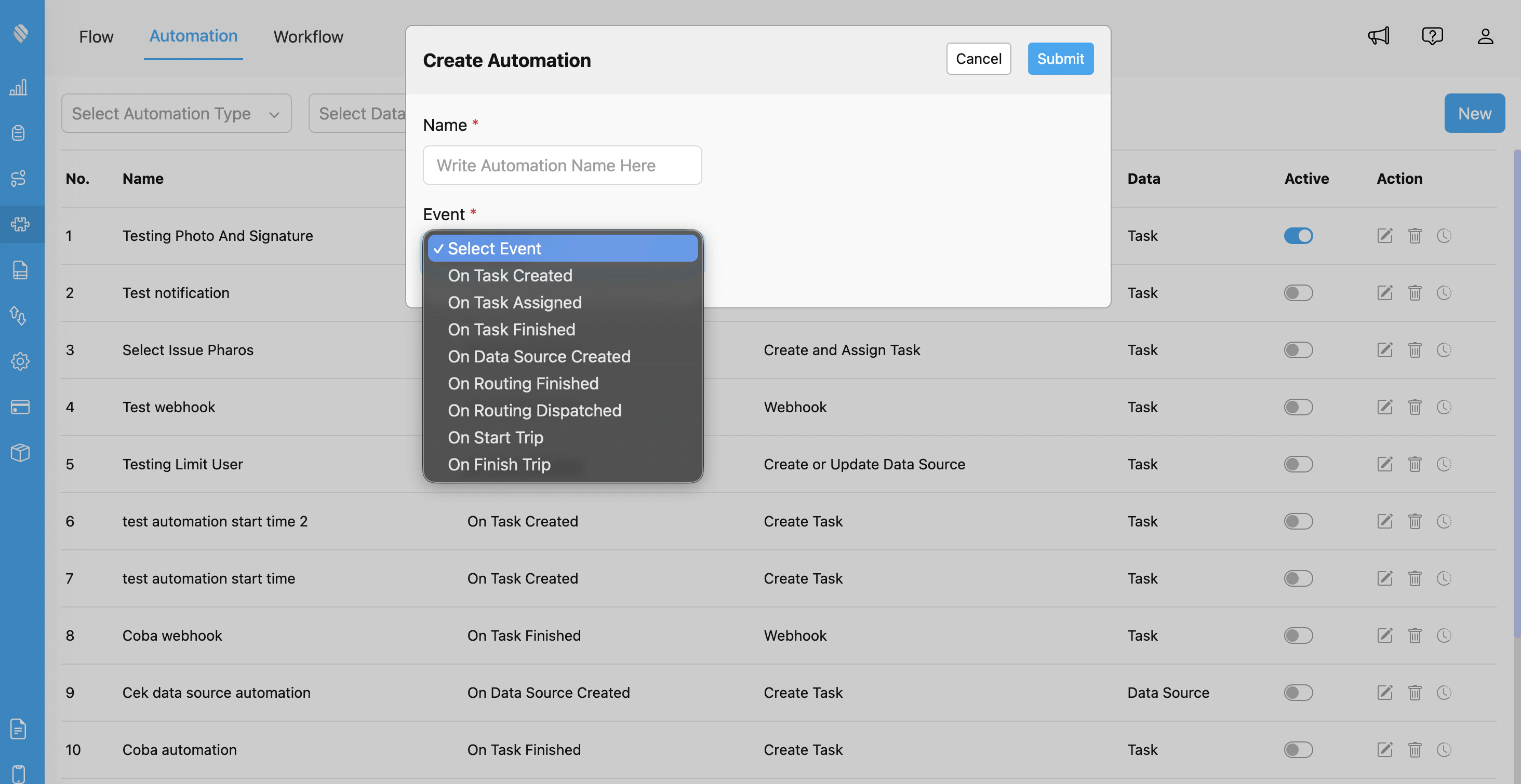
### Step 2: Create New Automation

1. Click the **New** button in the Automation page
2. The "Create Automation" dialog will appear

<div align="center">
  <img src="https://mintcdn.com/mileapp-c1584fbc/jvVKvpPwiK1qABos/images/automation-event.png?fit=max&auto=format&n=jvVKvpPwiK1qABos&q=85&s=b1cbf60faef178fd4e743c15cb7a2d93" alt="Create Automation Dialog" width="600" data-path="images/automation-event.png" />

  <p><i>Create Automation dialog with event selection showing all available automation events</i></p>
</div>

### Step 3: Configure Automation Details

Fill in the following information:

1. **Automation Name:** Provide a descriptive name (e.g., "Create Delivery Task from Order Data")

2. **Event:** Select **"On Data Source Created"** from the dropdown

3. **Data Type:** Select the Data Type you want to monitor

4. **Automation Type:** Choose the action type:
   * **Create Task** - Automatically create a new task
   * **Webhook** - Send data to external URL

5. Configure type-specific settings based on your chosen Automation Type

### Step 4: Configure Automation Type Settings

Depending on the Automation Type you selected, configure the following:

#### For Create Task:

* Select the **Flow** for the new task to be created
* **Map Data Source Fields to Task Fields:**
  * Customer Name → Task Name
  * Customer Phone → Task Phone
  * Customer Address → Task Address
  * Order Number → Task Invoice
  * And other relevant field mappings
* Set default values for required fields not in Data Source
* Configure field mapping and data transformation rules

#### For Webhook:

* **URL:** Enter the endpoint URL where data creation events should be sent
* **Header (Optional):** Add custom HTTP headers (e.g., Authorization, Content-Type)
* **Value (Optional):** Provide corresponding header values

**Example Webhook Configuration:**

```
URL: https://api.yourcompany.com/data/created
Header: Authorization
Value: Bearer your_api_token_here
```

### Step 5: Configure Rules (Optional)

Add conditional rules to control when the automation should execute:

* Filter by specific data field values
* Apply conditions based on hub or location

### Step 6: Save and Activate

1. Click **Submit** to create the automation
2. Ensure the automation is set to **Active** (toggle enabled)
3. Test the automation by creating a new entry in the selected Data Source

## Webhook Integration Details

This section applies only if you're using the **Webhook** automation type.

### Payload Structure

When "On Data Source Created" triggers a webhook, MileApp sends a POST request with the following data structure:

```json theme={null}
{
  "event": "on_data_source_created",
  "timestamp": "2024-01-15T09:00:00.000Z",
  "dataSource": {
    "id": "datasource_id_123",
    "name": "Customer Orders",
    "typeId": "datatype_id_456"
  },
  "entry": {
    "id": "entry_id_789",
    "createdAt": "2024-01-15T09:00:00.000Z",
    "fields": {
      "orderNumber": "ORD-2024-001",
      "customerName": "John Doe",
      "customerPhone": "+6281234567890",
      "customerAddress": "Jl. Sudirman No. 123, Jakarta",
      "deliveryCoordinate": "-6.2088,106.8456",
      "orderItems": [
        {
          "productCode": "PROD-001",
          "productName": "Product A",
          "quantity": 2,
          "price": 50000
        }
      ],
      "totalAmount": 100000,
      "paymentType": "COD",
      "notes": "Handle with care"
    }
  },
  "hub": {
    "id": "hub_id_789",
    "name": "Jakarta Hub"
  },
  "creator": {
    "id": "user_id_101",
    "name": "Operations Manager",
    "email": "ops@company.com"
  },
  "createdFrom": "WEB"
}
```
<Note>
  The `entry.fields` structure varies based on your Data Source configuration and the fields you've defined in your Data Type.
</Note>

## Monitoring and Troubleshooting

### Viewing Automation Logs

To verify your "On Data Source Created" automation is working correctly:

1. Go to **Flow > Automation**
2. Find your automation in the list
3. Click the **clock history** icon to view execution logs
4. Review successful executions and any errors

### Common Issues

**Issue:** Automation not triggering when data entries are created

**Possible Causes:**

* Automation is not set to Active
* Data Source doesn't match automation configuration
* Rules/filters exclude the created entries
* Data entry creation failed validation

**Solution:**

* Verify automation is enabled (toggle is ON)
* Check Data Source selection in automation settings
* Review rules to ensure they don't overly restrict triggering
* Verify data entry was successfully created

**Issue:** Created tasks have incomplete or incorrect data

**Possible Causes:**

* Field mapping incorrectly configured
* Data Source fields have null or empty values
* Data type mismatch between Data Source and task fields
* Required task fields not mapped to Data Source

**Solution:**

* Review field mapping configuration
* Add default values for optional fields
* Implement data validation in Data Source
* Test with sample data entries

**Issue:** Automation triggering multiple times for same entry

**Possible Causes:**

* Multiple automations configured for same Data Source
* Data entry update events triggering creation automation
* Webhook endpoint not responding properly

**Solution:**

* Review all active automations
* Ensure using "On Data Source Created" not "On Data Source Updated"
* Implement idempotency using entry ID in webhook

## Related Documentation

* [Automation Introduction](/pages/automation/introduction-to-automation)
* [Automation Type](/pages/automation/automation-type/introduction)
* [Create or Update Data Source](/pages/automation/automation-type/create-or-update-data-source)
* [Create Task Automation](/pages/automation/automation-type/create-task)
* [Webhook Automation](/pages/automation/automation-type/webhook)
* [Data Source Management](/pages/data-source/how-to-create-and-use-data-source)

## Frequently Asked Questions

**Q: Can I create automation for multiple Data Sources at once?**

A: No, each automation can only monitor one Data Source. To handle multiple Data Sources, create separate automations for each.

**Q: What happens if bulk data import creates hundreds of entries?**

A: The automation triggers for each entry individually. Implement rate limiting and queuing in webhook endpoints to handle high volumes.

**Q: Does the automation trigger if data creation fails validation?**

A: No, the automation only triggers when the data entry is successfully saved to the Data Source.

**Q: How quickly does the automation trigger after data creation?**

A: Typically within seconds. Exact timing depends on system load and webhook endpoint response time.

**Q: Can I filter automations to trigger only for specific data values?**

A: Yes, use the Rules configuration to filter by data field values and hub.

**Q: Does updating an existing entry trigger this automation?**

A: No, "On Data Source Created" only triggers for new entries.
