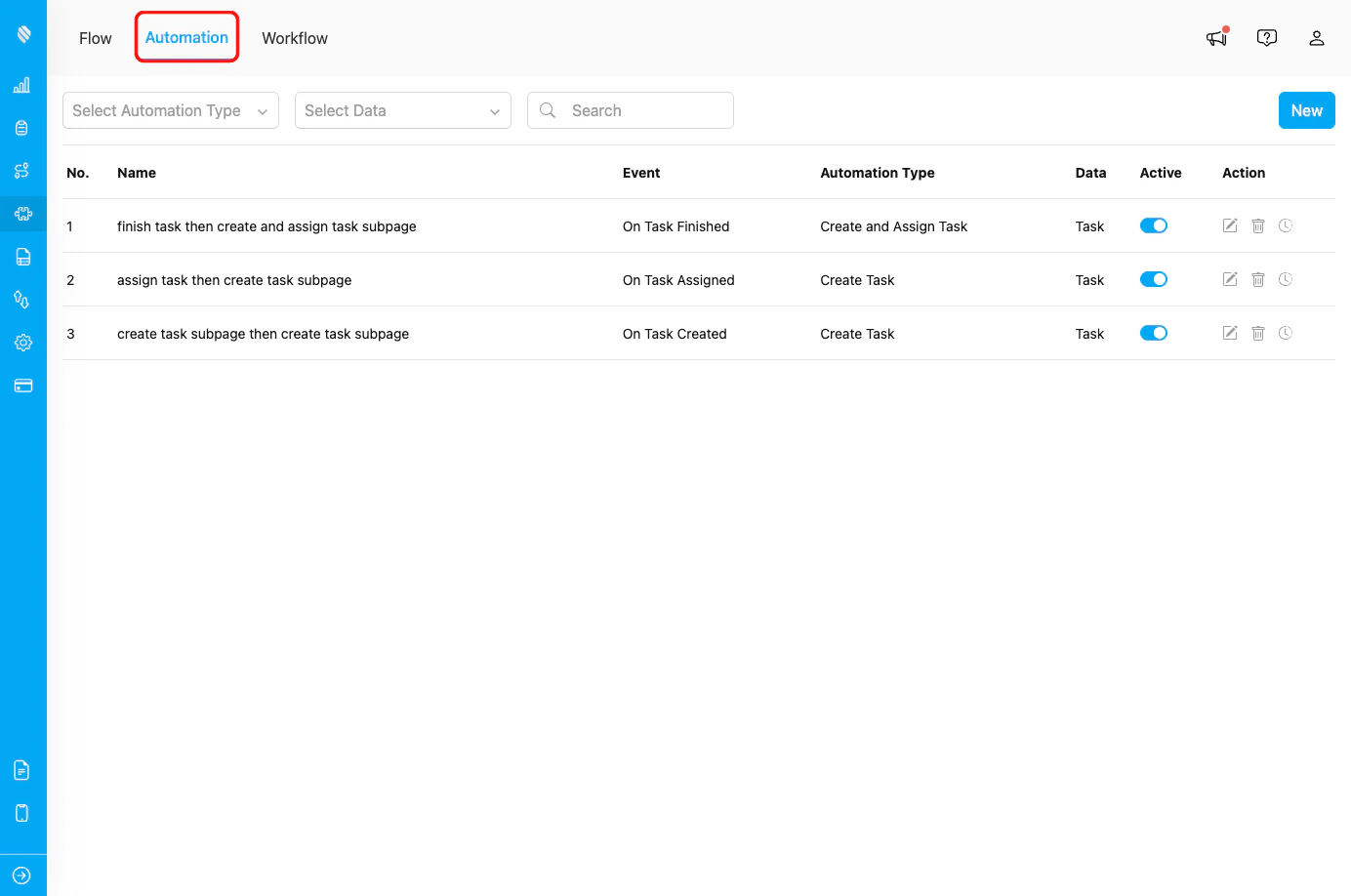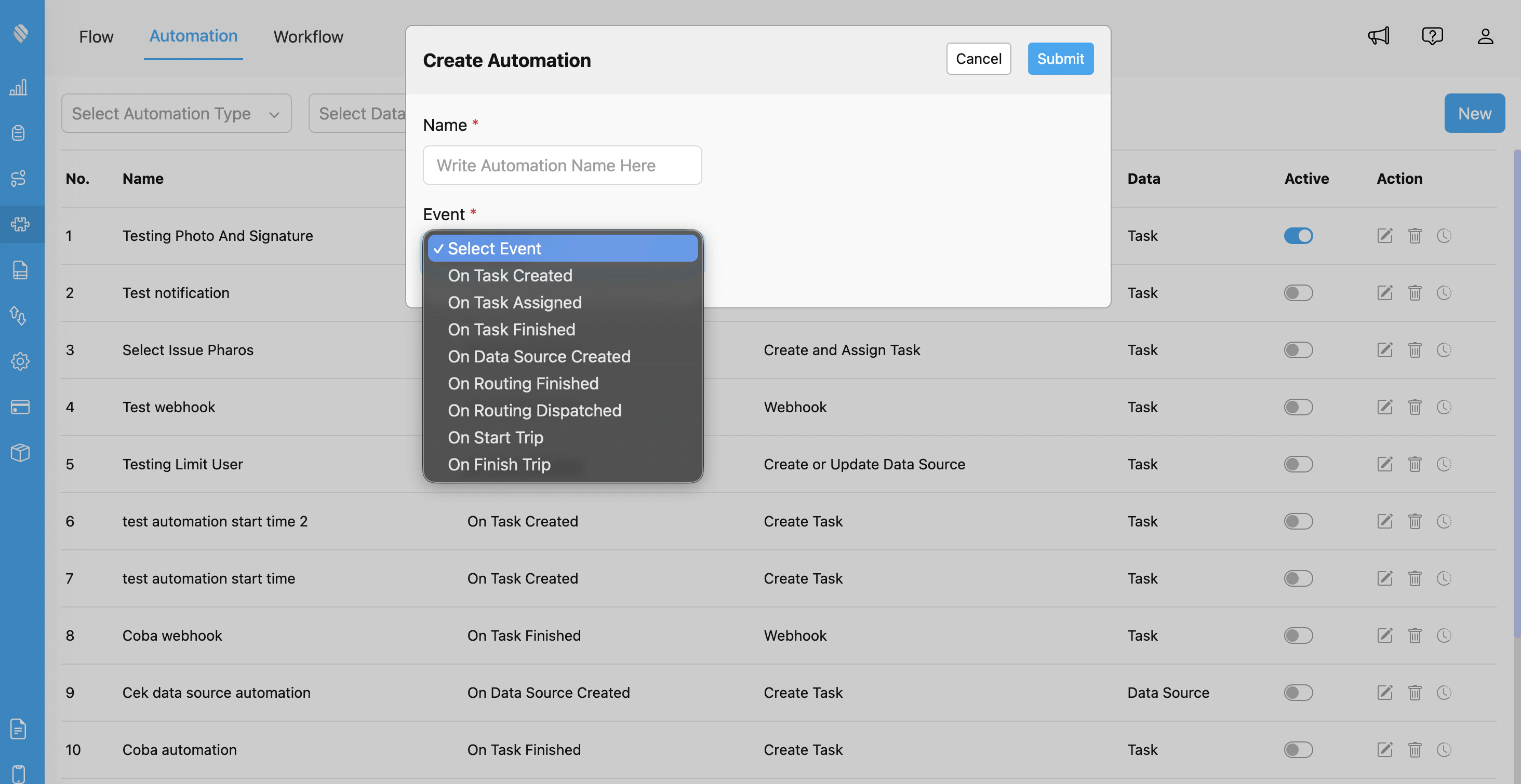
Create Automation dialog with event selection showing all available automation events
### Step 3: Configure Automation Details
Fill in the following information:
1. **Automation Name:** Provide a descriptive name (e.g., "Generate Trip Summary on End")
2. **Event:** Select **"On Finish Trip"** from the dropdown
3. **Automation Type:** Choose the action type:
* **Webhook** - Send data to external URL
4. Configure type-specific settings based on your chosen Automation Type
### Step 4: Configure Webhook (If Selected)
If you selected "Webhook" as the Automation Type:
1. **URL:** Enter the endpoint URL where trip end data should be sent
2. **Header (Optional):** Add custom HTTP headers if required (e.g., Authorization, Content-Type)
3. **Value (Optional):** Provide corresponding header values
**Example Webhook Configuration:**
```
URL: https://api.yourcompany.com/trip/end
Header: Authorization
Value: Bearer your_api_token_here
```
### Step 5: Save and Activate
1. Click **Submit** to create the automation
2. Ensure the automation is set to **Active** (toggle enabled)
3. Test the automation by having a field worker complete a trip
## Webhook Payload Structure
When using the Webhook automation type with "On Finish Trip", MileApp sends a POST request with the following data structure:
```json theme={null}
{
"event": "on_finish_trip",
"timestamp": "2024-01-15T17:45:00.000Z",
"user": {
"id": "user_id_123",
"name": "John Doe",
"email": "john.doe@company.com",
"phone": "+6281234567890"
},
"trip": {
"id": "trip_id_789",
"startTime": "2024-01-15T08:30:00.000Z",
"endTime": "2024-01-15T17:45:00.000Z",
"duration": 33300,
"durationFormatted": "9 hours 15 minutes",
"startLocation": {
"latitude": -6.2088,
"longitude": 106.8456,
"address": "Jakarta, Indonesia"
},
"endLocation": {
"latitude": -6.2015,
"longitude": 106.8520,
"address": "Jakarta, Indonesia"
},
"tasksCompleted": 12,
"totalTasks": 15,
"distanceTraveled": 85.3
},
"hub": {
"id": "hub_id_456",
"name": "Jakarta Hub"
}
}
```
**Note:** The exact payload structure may vary based on your MileApp configuration and version. The `duration` field is in seconds.
## Monitoring and Troubleshooting
### Viewing Automation Logs
To verify your "On Finish Trip" automation is working correctly:
1. Go to **Flow > Automation**
2. Find your automation in the list
3. Click the **clock history** icon to view execution logs
4. Review successful executions and any errors
### Common Issues
**Issue:** Automation not triggering when trip ends
**Possible Causes:**
* Automation is not set to Active
* Field worker doesn't have proper permissions
* End Trip feature is disabled in organization settings
* Trip was not properly started before ending
* Network connectivity issues on mobile device
**Solution:**
* Verify automation is enabled (toggle is ON)
* Check user permissions in Settings > Permission
* Verify End Trip feature is enabled in Settings > Permission
* Ensure field workers start trips before ending them
* Ensure field workers have stable internet connection
**Issue:** Webhook receiving incomplete trip data
**Possible Causes:**
* Trip data not fully synced before automation triggered
* Location services disabled on mobile device
* Tasks not properly marked as completed
**Solution:**
* Ensure mobile app has synced all trip data before ending
* Verify location permissions are granted
* Check task completion status in trip logs
## Related Documentation
* [Automation Introduction](/pages/automation/introduction-to-automation)
* [Automation Type](/pages/automation/automation-type/introduction)
* [On Start Trip](/pages/automation/automation-event/on-start-trip)
* [Start Trip - End Trip Configuration](/pages/configuration/start-trip-end-trip)
* [Webhook Automation](/pages/automation/automation-type/webhook)
* [Task Management](/pages/task/managing-task/introduction)
## Frequently Asked Questions
**Q: What happens if a field worker forgets to end their trip?**
A: The trip will remain active until manually ended.
**Q: Does the automation trigger if the app crashes during trip end?**
A: If the trip end action was successfully saved before the crash, the automation will trigger. Otherwise, the trip remains active until properly ended.
**Q: What timezone are the timestamps in?**
A: Timestamps are typically in UTC. Convert to your local timezone in your webhook endpoint as needed.