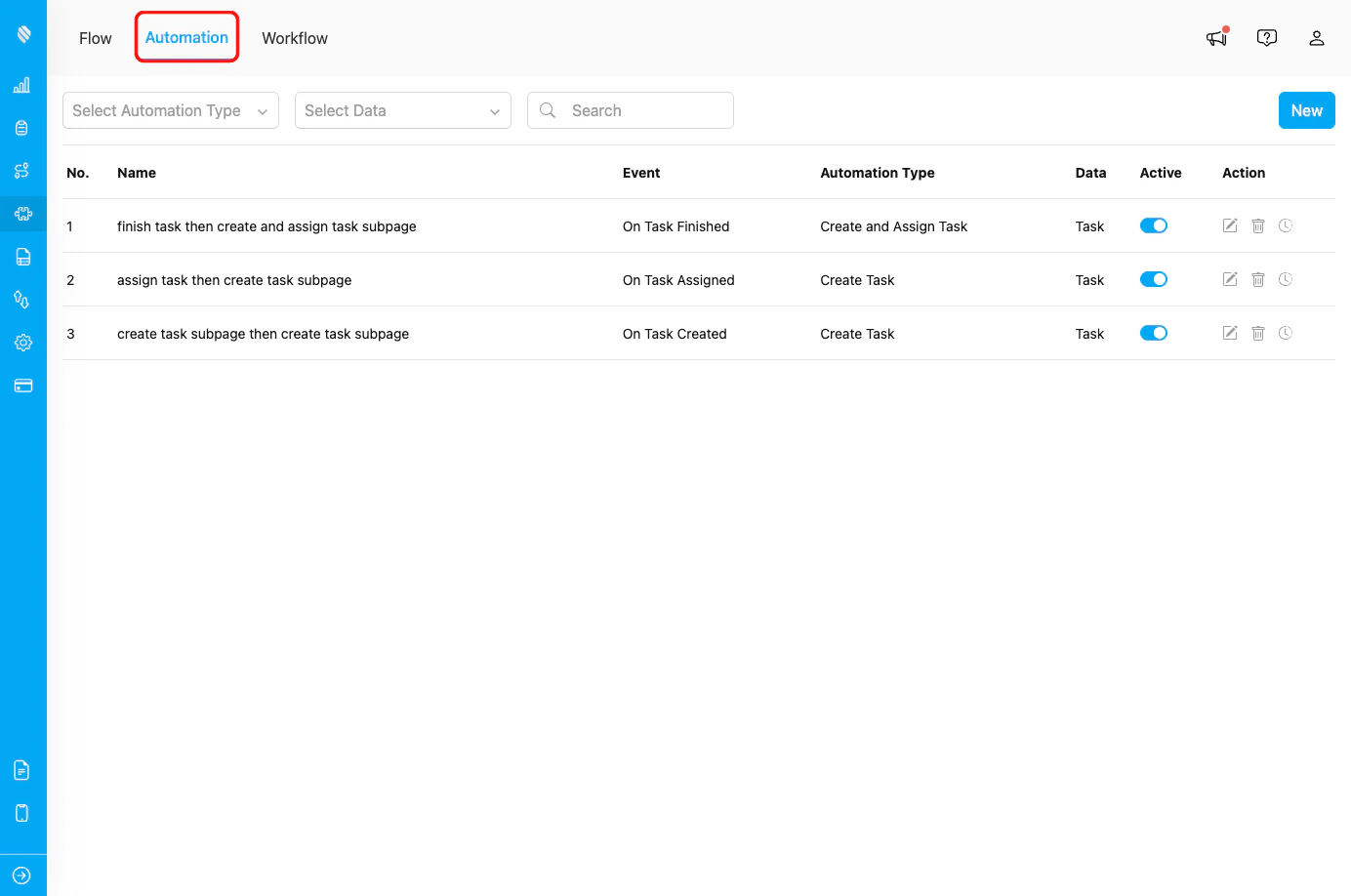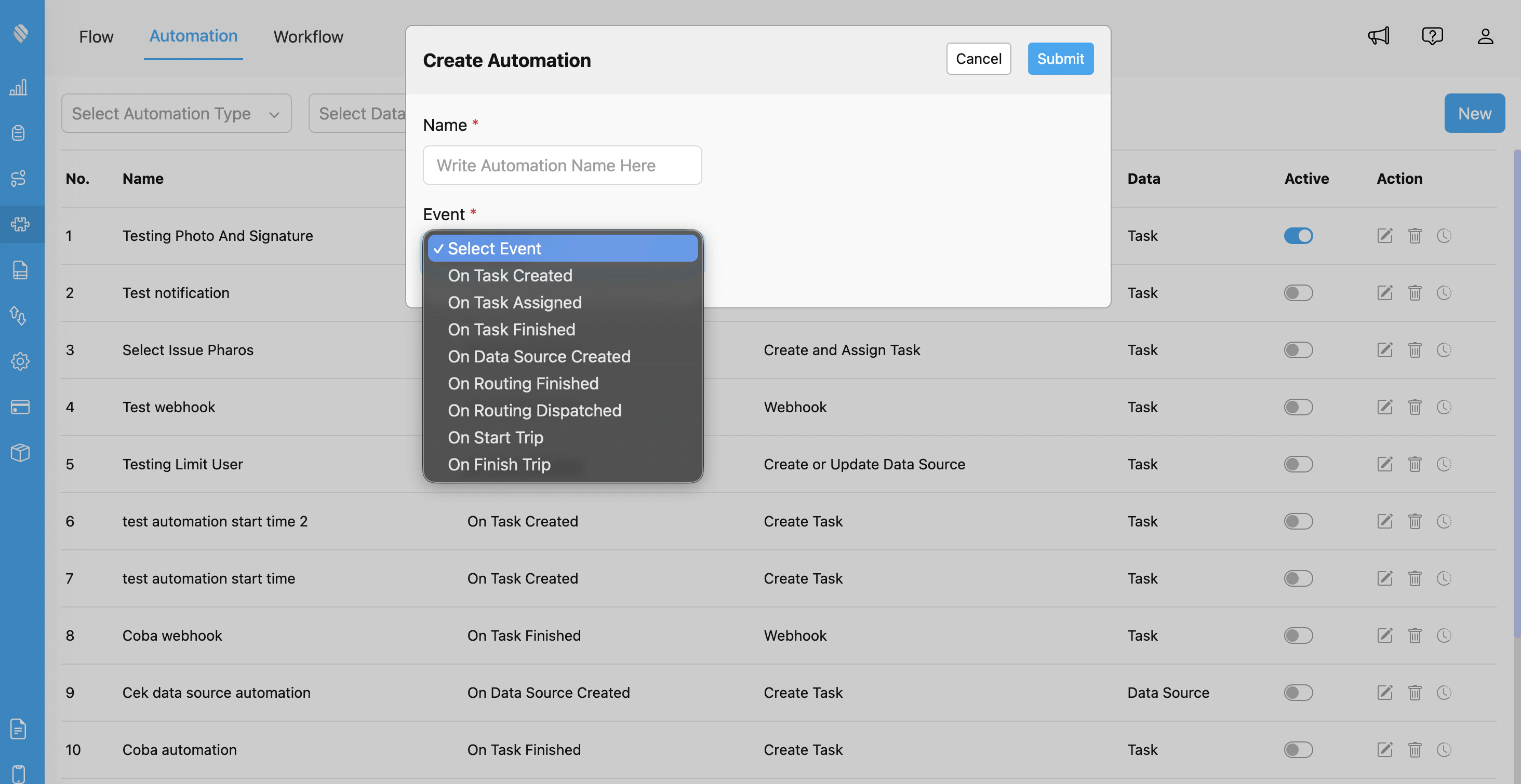
Create Automation dialog with event selection showing all available automation events
### Step 3: Configure Automation Details
Fill in the following information:
1. **Automation Name:** Provide a descriptive name (e.g., "Notify Worker on Delivery Assignment")
2. **Event:** Select **"On Task Assigned"** from the dropdown
3. **Flow:** Select the Flow you want to monitor (e.g., "Delivery", "Visit", "Installation")
4. **Automation Type:** Choose the action type:
* **Create Task** - Automatically create a new task
* **Webhook** - Send data to external URL
* **Notification** - Send notifications to users
5. Configure type-specific settings based on your chosen Automation Type
### Step 4: Configure Webhook Settings (For Webhook Only)
If you selected **Webhook** as the Automation Type, configure the following:
* **URL:** Enter the endpoint URL where task assignment data should be sent
* **Header (Optional):** Add custom HTTP headers (e.g., Authorization, Content-Type)
* **Value (Optional):** Provide corresponding header values
**Example Webhook Configuration:**
```
URL: https://api.yourcompany.com/tasks/assigned
Header: Authorization
Value: Bearer your_api_token_here
```
### Step 5: Configure Rules (Optional)
You can add conditional rules to control when the automation should execute. Rules are configured based on field and value matching to filter when the automation triggers.
### Step 6: Save and Activate
1. Click **Submit** to create the automation
2. Ensure the automation is set to **Active** (toggle enabled)
3. Test the automation by assigning a task with the selected Flow to a user
## Webhook Integration Details
This section applies only if you're using the **Webhook** automation type.
### Payload Structure
When "On Task Assigned" triggers a webhook, MileApp sends a POST request with the following data structure:
```json theme={null}
{
"event": "on_task_assigned",
"timestamp": "2024-01-15T11:00:00.000Z",
"task": {
"id": "task_id_123",
"flow": "Delivery",
"flowId": "flow_id_456",
"invoice": "INV-2024-001",
"name": "John Doe",
"phone": "+6281234567890",
"address": "Jl. Sudirman No. 123, Jakarta",
"deliveryCoordinate": "-6.2088,106.8456",
"startTime": "2024-01-15T14:00:00.000Z",
"endTime": "2024-01-15T16:00:00.000Z",
"status": "assigned",
"priority": "normal"
},
"assignee": {
"id": "user_id_789",
"name": "Field Worker Name",
"email": "worker@company.com",
"phone": "+6281234567891",
"teamId": "team_id_101"
},
"assigner": {
"id": "user_id_102",
"name": "Operations Manager",
"email": "ops@company.com"
},
"hub": {
"id": "hub_id_789",
"name": "Jakarta Hub"
},
"assignmentTime": "2024-01-15T11:00:00.000Z"
}
```
**Note:** The exact payload structure may vary based on your Flow configuration and the fields defined in your Flow components.
## Assignment Types and Behavior
### Single Task Assignment
When a single task is assigned to a user:
* Automation triggers once for that specific task
* Webhook receives data for the single task
### Bulk Assignment
When multiple tasks are assigned at once (e.g., via routing dispatch):
* Automation triggers **for each task** individually
* Each webhook call contains data for one task
* Be mindful of webhook rate limits for large assignments
### Reassignment
When a task is reassigned from one user to another:
* Automation triggers again with the new assignee information
* The payload includes the current assignee (new) and assigner details
* Useful for notifying the new assignee and tracking assignment changes
## Monitoring and Troubleshooting
### Viewing Automation Logs
To verify your "On Task Assigned" automation is working correctly:
1. Go to **Flow > Automation**
2. Find your automation in the list
3. Click the **clock history** icon to view execution logs
4. Review successful executions and any errors
### Common Issues
**Issue:** Automation not triggering when tasks are assigned
**Possible Causes:**
* Automation is not set to Active
* Task's Flow does not match automation's Flow configuration
* Rules/filters exclude the assigned tasks
* Task status doesn't change to "assigned"
**Solution:**
* Verify automation is enabled (toggle is ON)
* Check that task Flow matches automation Flow setting
* Review rules to ensure they don't overly restrict triggering
* Verify assignment is to individual users, not just teams
* Check task status after assignment
**Issue:** Webhook called multiple times for same assignment
**Possible Causes:**
* Multiple automations configured for the same Flow
* Webhook endpoint not responding with 2xx status code (causing retries)
**Solution:**
* Review all active automations to identify duplicates
* Ensure webhook endpoint responds with proper status code (200 or 204)
**Issue:** Assignee not receiving notifications
**Possible Causes:**
* Webhook endpoint has issues sending notifications
* Assignee's WhatsApp number is incorrect
* Assignee has disabled notifications
**Solution:**
* Check webhook logs for errors
* Verify assignee contact information in user profile
* Test notification service independently
* Confirm user notification preferences
## Related Documentation
* [Automation Introduction](/pages/automation/introduction-to-automation)
* [Automation Type](/pages/automation/automation-type/introduction)
* [On Task Created](/pages/automation/automation-event/on-task-created)
* [On Task Finished](/pages/automation/automation-event/on-task-finished)
* [Assign Task Automation](/pages/automation/automation-type/assign-task)
* [Webhook Automation](/pages/automation/automation-type/webhook)
* [Task Management](/pages/task/managing-task/introduction)
## Frequently Asked Questions
**Q: Does the automation trigger when tasks are unassigned?**
A: No, "On Task Assigned" only triggers on assignment events.
**Q: Does reassignment trigger the automation again?**
A: Yes, reassigning a task triggers the automation with the new assignee information.
**Q: Can I prevent task assignment based on conditions?**
A: No, the automation triggers after assignment is complete.
**Q: How quickly does the automation trigger after assignment?**
A: Typically within seconds. For bulk assignments (routing dispatch), all tasks are processed sequentially.
**Q: Can I filter automations to only notify for specific hubs?**
A: Yes, use the Rules configuration to filter by hub.
**Q: Does bulk routing dispatch trigger automation for each assigned task?**
A: Yes, the automation triggers individually for each task assigned during routing dispatch.