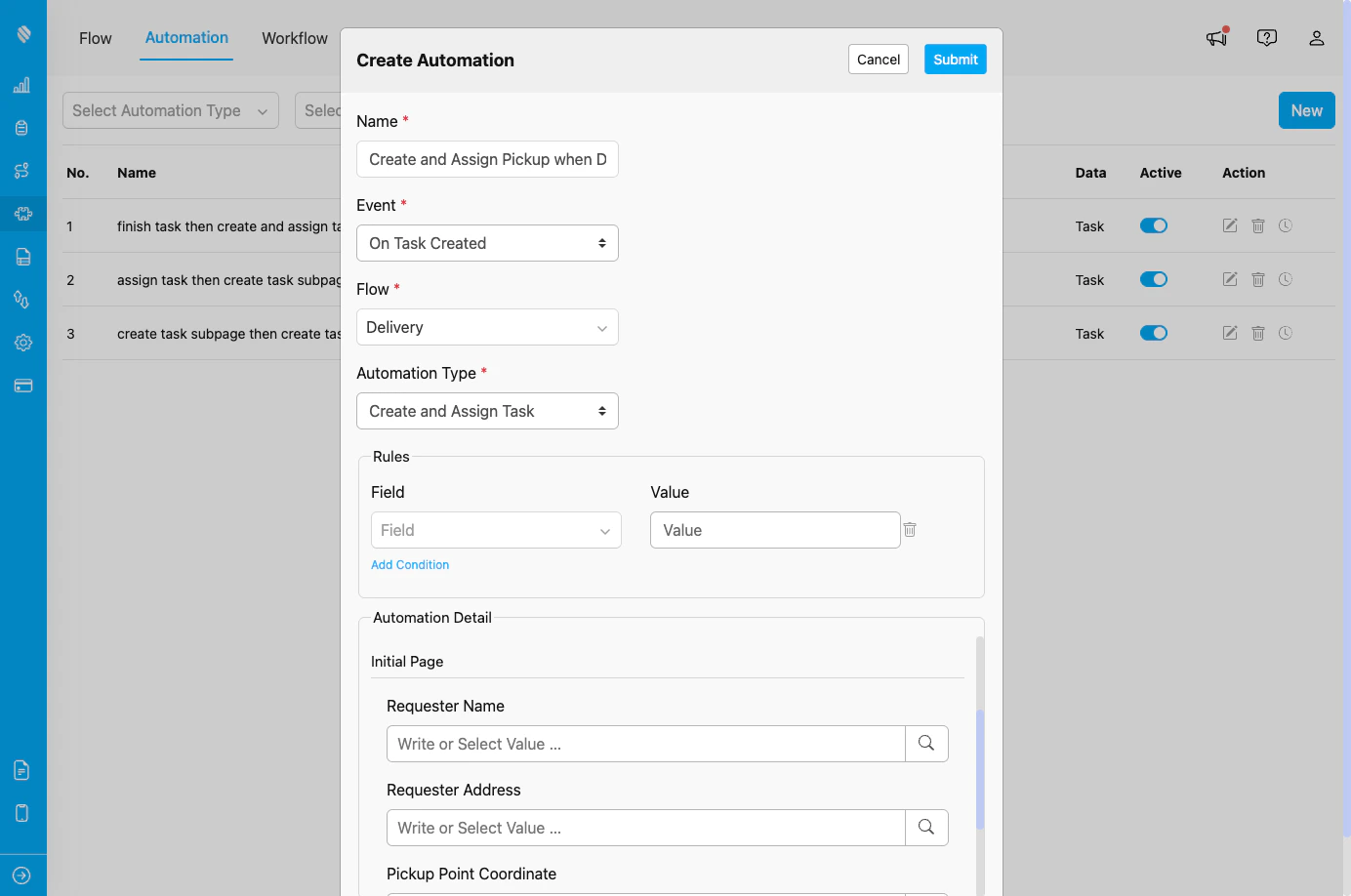
Create and Assign Task automation configuration showing Flow selection, hub assignment, field mapping, and assignee selection
## When to Use Create and Assign Task Use this automation type when you need to: * Create and immediately assign follow-up tasks to specific users * Automatically distribute new tasks to team members based on workflow triggers * Assign inspection or quality check tasks to designated personnel after task completion * Create pickup tasks and assign them to specific drivers when delivery tasks are created * Ensure new tasks are immediately assigned and don't sit unassigned ## Event Availability Create and Assign Task automation type is available for: * **On Task Created** - Create and assign a new task when another task is created * **On Task Finished** - Create and assign a new task when a task is completed ## Configuration Fields When you select Create and Assign Task as the automation type, you need to configure the following: ### 1. Create Task \* Select the Flow for the new task that will be created. **Purpose:** * Defines which type of task will be automatically created * Determines what fields need to be mapped **How it works:** * Choose from any Flow configured in your organization * Once selected, the Flow's fields will appear for mapping ### 2. Hub \* Select the hub where the new task will be created. **Options:** * **Follows task creator's hub** - The new task will be created in the same hub as the trigger task * **Specific hub** - Select a specific hub from your organization's hub list **Purpose:** * Defines the hub location for the new task * Ensures tasks are organized in the correct operational area ### 3. Field Mapping (Initial Page) After selecting the Flow, you'll see all the fields from that Flow. For each field, you can: **Option A: Manual Input** * Type a static value directly into the field * Useful for default values that don't change **Option B: Field Reference** * Click the search icon next to the field * Select a field from the trigger Flow to map its value * The value from the trigger task will be copied to the new task **Option C: Leave Empty** * Fields can be left empty if they are optional * Required fields must be filled either manually or via reference ### 4. Assignee \* Select who will be assigned to the new task. **Options:** **A. Auto Assign based on** (Dynamic assignment from trigger task) * **Assigned by** - Assigns the new task to whoever created/assigned the trigger task * **Assignee** - Assigns the new task to whoever is assigned to the trigger task **B. User** (Manual user selection) * Select a specific user from your organization's user list * The new task will always be assigned to this user **Purpose:** * Ensures the new task has an immediate owner * Enables dynamic assignment based on the trigger task's assignment ## Use Cases ### 1. Driver-Assigned Pickup After Delivery **Scenario:** Automatically create and assign a pickup task to the same driver who completed a delivery. **Configuration:** * **Event:** On Task Finished * **Flow (Trigger):** Delivery * **Automation Type:** Create and Assign Task * **Create Task Flow:** Pickup * **Hub:** Follows task creator's hub * **Field Mapping:** * Requester Name → Customer Name (from Delivery) * Requester Address → Customer Address (from Delivery) * Pickup Point Coordinate → Customer Coordinate (from Delivery) * **Assignee:** Assignee (auto-assign to delivery task assignee) **Benefit:** Ensures the same driver handles both delivery and pickup, maintaining continuity. ### 2. Quality Inspection Assigned to QA Team Lead **Scenario:** Create an inspection task and assign it to the QA team lead when a service task is completed. **Configuration:** * **Event:** On Task Finished * **Flow (Trigger):** Home Cleaning * **Automation Type:** Create and Assign Task * **Create Task Flow:** Quality Inspection * **Hub:** QA Hub * **Field Mapping:** * Customer Name → Customer Name (from Home Cleaning) * Service Address → Service Location (from Home Cleaning) * Service Date → Completion Date (from Home Cleaning) * **Assignee:** QA Team Lead (specific user) **Benefit:** Automatic quality control workflow with immediate assignment to QA personnel. ### 3. Follow-up Task Assigned to Sales Manager **Scenario:** Create and assign follow-up sales tasks to sales manager when canvassing identifies opportunities. **Configuration:** * **Event:** On Task Finished * **Flow (Trigger):** Field Canvassing * **Automation Type:** Create and Assign Task * **Create Task Flow:** Field Sales * **Hub:** Sales Hub * **Field Mapping:** * Prospect Name → Canvassed Name (from Field Canvassing) * Prospect Contact → Contact Number (from Field Canvassing) * Interest Level → Survey Result (from Field Canvassing) * **Assignee:** Sales Manager (specific user) **Benefit:** Immediate assignment of hot leads to the sales manager for follow-up. ### 4. Documentation Task Assigned to Documenter **Scenario:** Create and assign documentation tasks to the documentation team lead when tasks are created. **Configuration:** * **Event:** On Task Created * **Flow (Trigger):** New Customer Onboarding * **Automation Type:** Create and Assign Task * **Create Task Flow:** Customer Documentation * **Hub:** Follows task creator's hub * **Field Mapping:** * Customer Name → Customer Name (from Onboarding) * Customer ID → Reference ID (from Onboarding) * Onboarding Date → Created Date (from Onboarding) * **Assignee:** Documentation Lead (specific user) **Benefit:** Ensures documentation is immediately assigned and doesn't sit unassigned. ## How It Works 1. **Event Occurs:** The specified event is triggered (task created or finished) 2. **Rules Evaluated:** If Rules are configured, they are checked against the triggering data 3. **Automation Triggers:** The Create and Assign Task automation is activated 4. **Task Created:** A new task is created in the specified Flow 5. **Fields Populated:** Fields are filled with mapped values (references or static text) 6. **Task Assigned:** The new task is immediately assigned to the designated user 7. **Task Ready:** The new task appears in the assignee's task list, ready for action ## Field Mapping Best Practices ### Understanding Field Types When mapping fields from the trigger Flow to the new task Flow: **Direct Mapping:** * Map fields with similar data types (text to text, coordinate to coordinate) * Example: Customer Name → Requester Name **Cross-Component Mapping:** * You can map any field from trigger to any field in new task * Example: Order Number → Invoice Reference **Static Values:** * Use for fields that should always have the same value * Example: Priority → "High" (always set to High) **Optional vs Required:** * Required fields (marked with \*) must be filled * Optional fields can be left empty ### Field Mapping Strategies 1. **Complete Mapping:** Map all relevant fields for full context transfer 2. **Partial Mapping:** Map only essential fields, leave others for manual input 3. **Hybrid Approach:** Map some fields automatically, add static defaults for others ## Assignment Strategies ### When to Use Auto Assign **Use "Assigned by":** * When you want the task creator/assigner to handle the new task * Example: Manager who assigns delivery should handle exceptions **Use "Assignee":** * When you want the task executor to handle the new task * Example: Driver who completes delivery should handle pickup ### When to Use Specific User **Use specific user assignment:** * For specialized tasks requiring specific expertise * For tasks that should always go to the same person * For supervisory or review tasks ## Important Notes ### Task Creation and Assignment Behavior * **Immediate Assignment:** Tasks are assigned as soon as they are created * **Hub Assignment:** Tasks are created in the specified hub (follows creator's hub or specific hub) * **Independent Tasks:** Created tasks are separate entities, not linked to trigger task * **Assignment Notifications:** Assignees may receive notifications based on their notification settings ### Assignment Requirements * The assigned user must have access to the destination hub * The assigned user must have permissions to view and edit tasks in the Flow * If using auto-assignment, the trigger task must have the referenced user assigned ## Best Practices 1. **Clear Flow Selection:** Choose the appropriate Flow that represents the next step in your workflow. 2. **Meaningful Field Mapping:** Map fields that provide context and reduce manual data entry. 3. **Use Field References:** Prefer field references over manual input to ensure data consistency. 4. **Choose Appropriate Hub:** Use "Follows task creator's hub" for hub-agnostic workflows, or specific hub for centralized operations. 5. **Select Right Assignment Strategy:** Use auto-assignment for dynamic workflows, specific user for specialized tasks. 6. **Test Thoroughly:** Create test tasks to verify field mapping and assignment work correctly. 7. **Document Automation Purpose:** Use clear automation names that describe the workflow (e.g., "Create and Assign Pickup to Driver when Delivery Finished"). 8. **Leverage Rules:** Combine with Rules to create and assign tasks only when specific conditions are met. 9. **Monitor and Adjust:** Regularly review created and assigned tasks to ensure automation is working as expected. 10. **Verify User Access:** Ensure assigned users have appropriate hub access and permissions. ## Troubleshooting **Issue:** New task is not being created or assigned when event triggers **Possible Causes:** * Automation is not set to Active * Event Flow does not match automation configuration * Rules exclude the triggering task * Required fields in new task Flow are not mapped * Assigned user doesn't exist or is inactive **Solution:** * Verify automation toggle is ON * Check Event and Flow settings match trigger * Review Rules for conflicts * Ensure all required fields have values (mapped or static) * Verify assigned user is active and has appropriate permissions **Issue:** New task is created but not assigned **Possible Causes:** * Assignee field is not configured * Auto-assignment reference user is not assigned to trigger task * Assigned user doesn't have access to destination hub **Solution:** * Verify Assignee field is filled in automation configuration * For auto-assignment, ensure trigger task has the referenced user assigned * Grant assigned user access to destination hub * Check user permissions for the Flow **Issue:** New task has empty fields **Possible Causes:** * Field reference is mapped to an empty field in trigger * Incorrect field mapping * Field types don't match **Solution:** * Verify trigger task has values in referenced fields * Check field mapping configuration * Re-map fields if necessary **Issue:** Wrong user is assigned to new task **Possible Causes:** * Incorrect assignee selection in automation * Auto-assignment reference is pointing to wrong field * Multiple automations with conflicting assignments **Solution:** * Edit automation and verify assignee configuration * Check auto-assignment reference (Assigned by vs Assignee) * Review all active automations for the same event **Issue:** Too many tasks are being created and assigned **Possible Causes:** * No Rules configured to filter when tasks should be created * Multiple overlapping automation rules **Solution:** * Add Rules to create tasks only when needed * Review all active automations for the same event * Consolidate or refine automation rules ## Related Documentation * [Automation Events - On Task Created](/pages/automation/automation-event/on-task-created) * [Automation Events - On Task Finished](/pages/automation/automation-event/on-task-finished) * [Create Task](/pages/automation/automation-type/create-task) * [Assign Task](/pages/automation/automation-type/assign-task) * [Automation Introduction](/pages/automation/introduction-to-automation) * [Flow Management](/pages/flow/introduction) * [Hub Management](/pages/setting/hub-management) ## Frequently Asked Questions **Q: What's the difference between Create and Assign Task vs Create Task?** A: Create and Assign Task creates a new task AND immediately assigns it to a user. Create Task only creates the task without assignment. Use Create and Assign Task when immediate ownership is important. **Q: Can I assign the new task to multiple users?** A: No, each task can only be assigned to one user. To assign to multiple users, create multiple automation rules or manually assign additional users after creation. **Q: What happens if the auto-assigned user is not assigned to the trigger task?** A: The automation will fail to assign the task. Ensure the trigger task has a valid assignee before using auto-assignment options. **Q: Can I use Create and Assign Task for routing events?** A: No, Create and Assign Task is only available for On Task Created and On Task Finished events. For routing events, use Webhook or Notification automations. **Q: Will the assigned user be notified about the new task?** A: Notification depends on the user's notification settings in MileApp. If they have task assignment notifications enabled, they will be notified. **Q: How is this different from Assign Task automation?** A: Create and Assign Task creates a new task in a different Flow and assigns it to a user. Assign Task assigns the existing trigger task to a user without creating a new task. Use Create and Assign Task for follow-up workflows, and Assign Task for distributing existing tasks. **Q: What happens if the assigned user doesn't have access to the hub?** A: The task will be created but the user may not be able to view or access it. Ensure assigned users have appropriate hub access permissions. **Q: Can I change the assignee of the created task after automation runs?** A: Yes, you can manually reassign the task after it's created, just like any other task in MileApp. **Q: What happens if a required field is not mapped and has no value?** A: The automation will fail to create the task. All required fields (marked with \*) must have either a mapped value or a static value. **Q: Can I use "Follows task creator's hub" for all workflows?** A: Yes, this is useful for multi-hub organizations where tasks should stay within the same hub as the trigger task. For centralized operations, use a specific hub instead.