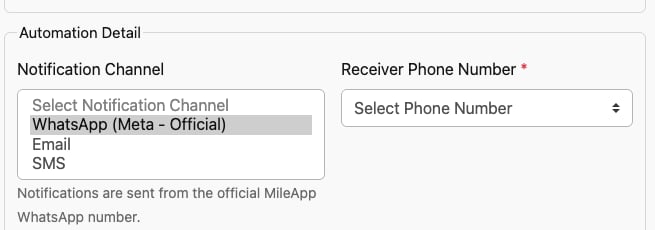
The Notification Channel dropdown, with SMS listed alongside WhatsApp and Email.
## Setting Up an SMS Notification 1. Open [Automation](https://web.mile.app/flow/automation) and click **New**. 2. Give the automation a **Name**, choose an **Event** (On Task Created, On Task Assigned, or On Task Finished), and select the **Flow** the tasks come from. 3. Set **Automation Type** to **Notification**. 4. Set **Notification Channel** to **SMS**. The WhatsApp hint below the dropdown is replaced by the SMS fields described below. 5. Choose a **Receiver Phone Number** field. 6. Edit the **Message**, then click **Submit**.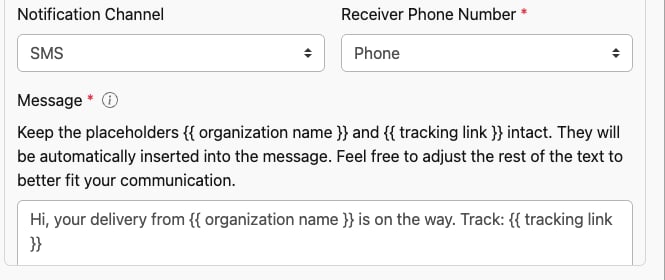
A Notification automation with the Channel set to SMS, showing the Receiver Phone Number field and the Message box.
## Receiver Phone Number The **Receiver Phone Number** dropdown lists the phone number fields available on the Flow you selected in the Event configuration. Only fields that meet both of these conditions appear: * The field is a **Phone Number** field, and * The field is on the **first page** of the Flow. Fields of any other type (Text, Select, Number, Address) never appear, even if they hold something that looks like a phone number. Phone Number fields placed on a second, third, or later page of the Flow don't appear either. If the dropdown looks empty or is missing the field you expected, this is almost always the reason, move the Phone Number field to the Flow's first page and reopen the automation form. The task's value for that field is used as the destination when the SMS is sent. If the field is empty on a particular task, no SMS is sent for it. ## Message and Placeholders The **Message** box holds the text of the SMS. Anywhere you write a `{{ }}` placeholder, MileApp replaces it with the real value from the triggering task at the moment the message is sent. | Placeholder | Replaced with | | ------------------------- | ---------------------------------------------------------- | | `{{ organization name }}` | Your organization's name | | `{{ tracking link }}` | The task's public tracking link | | `{{title}}` | The task's title | | `{{status}}` | The task's current status | | `{{fieldname}}` | The value of any field on the task, referenced by its name | Selecting SMS starts you with a short default message, which you can edit freely. If you edit the text and then switch channels, your edited text is never overwritten. **Example message:** ``` Hi, your delivery from {{ organization name }} is on the way. Track: {{ tracking link }} ``` A few things worth knowing about placeholders: * **A placeholder that can't be resolved becomes empty text.** If you type a field name that doesn't exist on the task, or the field is blank, the message is still sent, with nothing in that spot. Recipients never see a raw `{{ }}` in their SMS. * **There is no spell-check on placeholder names.** The automation saves whatever you type, so proofread field names before going live. * **`{{title}}` only fills in when the Flow has a title.** A Flow field must be marked to show as the task title for `{{title}}` to resolve. If no field is mapped that way, `{{title}}` comes out empty. ## The Character Counter A counter sits under the Message box showing how many characters you've written out of a **100-character guideline**.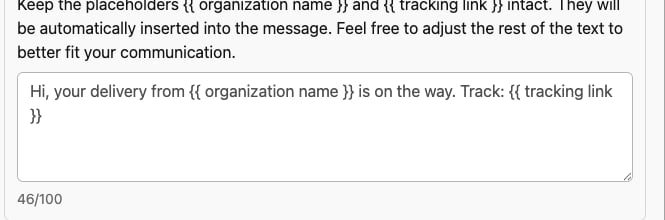
The character counter below the Message box, counting only your own text.
**The counter only counts your own text.** Everything inside `{{ }}` is excluded, because the real length of a placeholder isn't known until the message is actually sent. A message reading `Hi {{title}}, your parcel is here` counts only the visible words, not the placeholder. Hovering the info icon beside the **Message** label shows the same guidance in the form.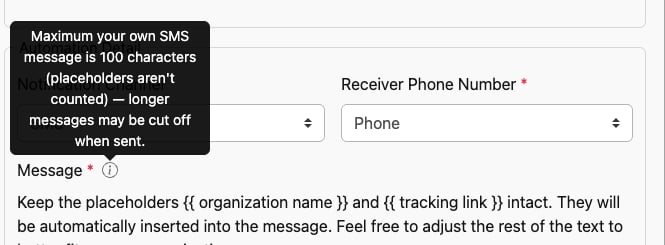
The info tooltip beside the Message label, explaining the 100-character guideline.
### Going Over 100 Characters If your text exceeds 100 characters the counter turns red, but **this does not stop you from saving**. The 100 characters are guidance, not a limit, and the automation saves and runs normally.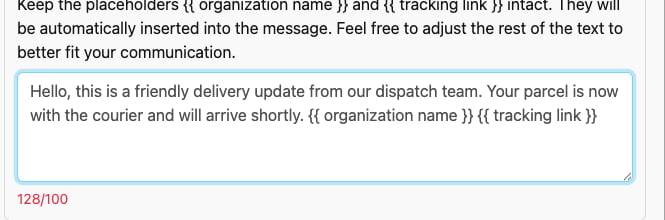
Going over the guideline turns the counter red, the automation can still be saved.
The guideline matters because of what happens at send time. The message that actually goes out is cut off at **160 characters**, and placeholders usually expand into far more text than their name suggests, a tracking link alone is around 50 characters. That's why 100 characters of your own text is the safe amount: a message that looks comfortably short in the form can still lose its ending once the placeholders are filled in. Keeping the counter out of the red is the simplest way to make sure your recipients see the whole message, including the tracking link if it comes last. ## Cost Each SMS consumes your organization's MileApp **Credits** balance, the same balance used by WhatsApp, Email, and OTP sends (see [How to Top Up Your OTP Balance](/pages/billing/how-to-topup-otp-balance)). The number of credits per message depends on the **destination country**, so the same automation can cost different amounts for recipients in different countries. Credit is only deducted when the SMS provider accepts the message. **A failed send costs nothing.** ### Using Your Own SMS Gateway If your organization has connected its own SMS Gateway under **Setting → Integration**, automation SMS messages are routed through that gateway instead, and **no MileApp credit is used**. This happens automatically, there is nothing to configure in the automation form, and the automation itself looks exactly the same either way. If the gateway is later deactivated or removed, sends automatically go back to MileApp's own provider and start consuming credit again. ## When There Isn't Enough Credit The credit check happens when the automation fires, not when you save it. So: * **Saving always works.** You can create and save an SMS automation with a zero balance. * **The send is blocked at the moment it would fire.** Nothing goes out, and nothing is charged. * **The [Automation Log](/pages/automation/managing-automation/automation-log) records what happened**, stating that nothing was sent and no credit was charged. The same fail-safe applies if MileApp temporarily can't verify your balance: nothing is sent and nothing is charged, rather than risking a send you may not be able to afford. Top up your Credits balance and the next matching task will send normally. ## Frequently Asked Questions **Q: Why can't I see SMS in the Notification Channel dropdown?** A: SMS is being rolled out to MileApp internal accounts first. Organizations outside that rollout see only WhatsApp and Email. Contact MileApp support if you'd like early access. **Q: Why isn't my phone field in the Receiver Phone Number dropdown?** A: The dropdown only lists **Phone Number** fields from the **first page** of the Flow. Other field types, and Phone Number fields on later pages, are never listed. **Q: Do I need an API key or a third-party account?** A: No. Unlike WhatsApp, SMS is sent by MileApp. Connecting your own SMS Gateway is optional and only changes who pays for the send. **Q: What happens if I mistype a placeholder name?** A: The automation saves without complaint, and at send time the placeholder simply renders as empty text. The rest of the message is delivered as normal. **Q: The counter is red. Will my automation still work?** A: Yes. The counter is guidance only. The automation saves and runs, but the message that reaches the recipient is cut off at 160 characters once placeholders are filled in, so the ending may be lost. **Q: How much does one SMS cost?** A: It depends on the destination country. Credit is deducted only when the provider accepts the message, and not at all if you send through your own SMS Gateway. **Q: What happens if I run out of credit?** A: The automation stays saved and active, but each send is blocked at the moment it would fire. Nothing is sent and nothing is charged, and the automation log records this. ## Related Documentation * [Notification](/pages/automation/automation-type/notification): the parent automation type, covering the WhatsApp channel * [Email Channel](/pages/automation/automation-type/notification-email): the Email channel for notification automations * [How to Top Up Your OTP Balance](/pages/billing/how-to-topup-otp-balance): topping up the shared Credits balance * [Automation Log](/pages/automation/managing-automation/automation-log): viewing send results * [Automation Events](/pages/automation/automation-event/introduction): events that can trigger a Notification automation