> ## Documentation Index
> Fetch the complete documentation index at: https://docs.mileapp.dev/llms.txt
> Use this file to discover all available pages before exploring further.
# How to Pay Your Invoice
This guide shows you how to pay your MileApp subscription. Payment is processed securely through Stripe.
Your payment method depends on your currency:
* **IDR (Indonesian Rupiah)** - Bank Transfer (Virtual Account). You pay each invoice manually each billing period.
* **USD (US Dollar)** - Credit Card. Your card is saved after the first payment and renewals are charged automatically each billing period.
***
## Paying with IDR (Indonesian Rupiah)
For organizations based in Indonesia, you'll pay using bank transfer through a Virtual Account.
### Step 1: Go to Billing
Open your MileApp dashboard and click **Billing** in the sidebar. You'll see your subscription details and the amount due.
Click the **Pay Now** button.
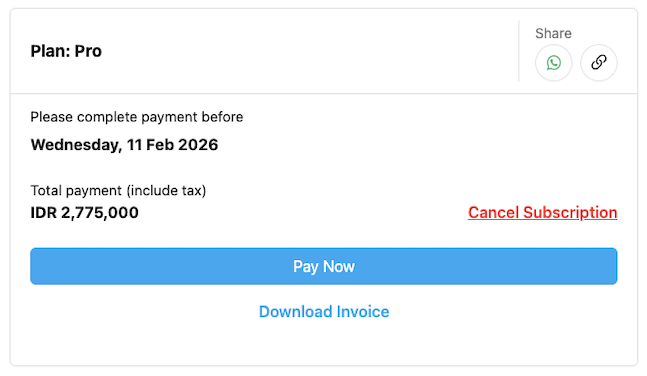
Subscription page showing payment due in IDR
### Step 2: Review Your Invoice
A popup will show your invoice details including:
* Plan name and features
* Subtotal amount
* Tax (11%)
* Total amount due
Review the details, then click **Pay Now**.
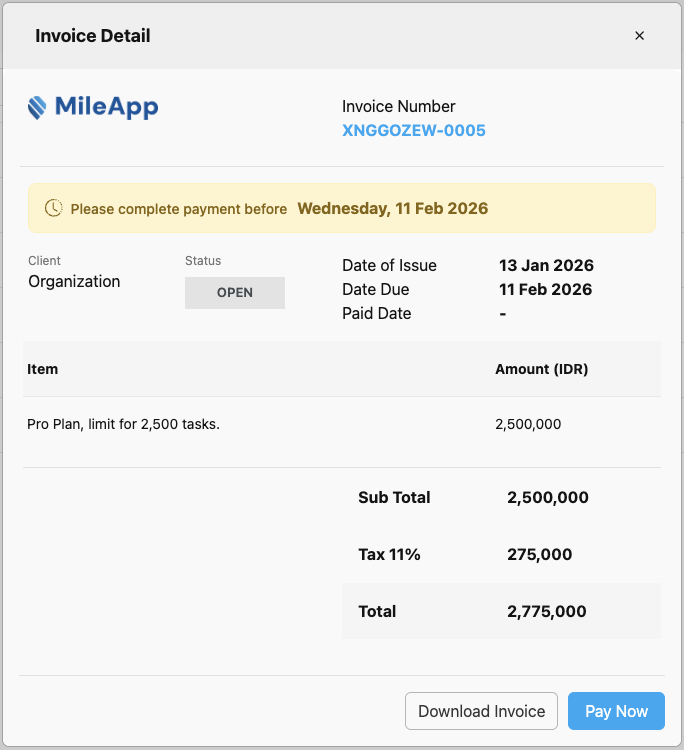
Invoice detail with itemized charges
### Step 3: Select Your Bank
You'll be redirected to the Stripe payment page. Here you can:
* View the total amount and due date
* Download the invoice PDF
* Select your bank for transfer
Choose your bank from the dropdown (e.g., Bank Central Asia - BCA), enter your name, and click **Pay**.
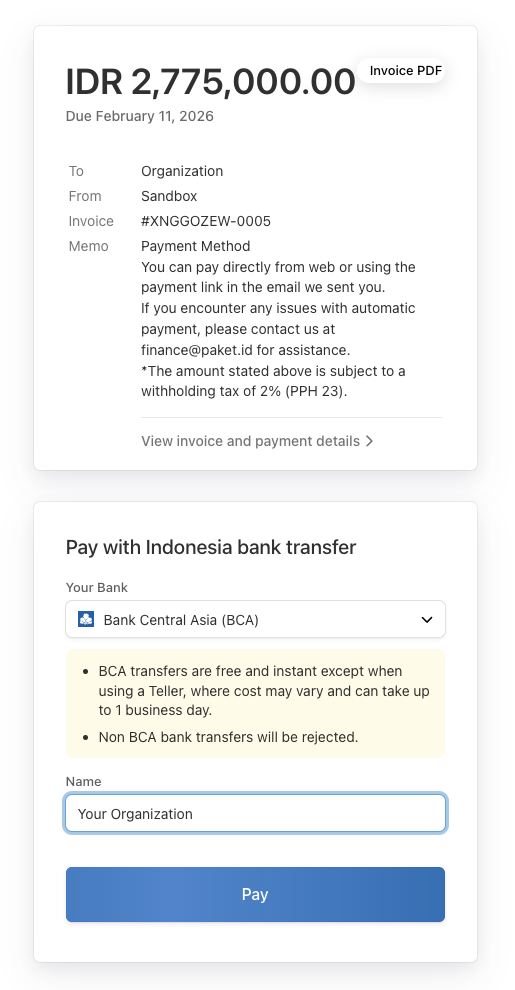
Select your bank for Virtual Account transfer
### Step 4: Complete the Bank Transfer
After selecting your bank, you'll receive Virtual Account details:
* **Bank name** - Your selected bank
* **Account number** - The Virtual Account number to transfer to
* **Beneficiary** - Your organization name
* **Amount** - Exact amount to transfer
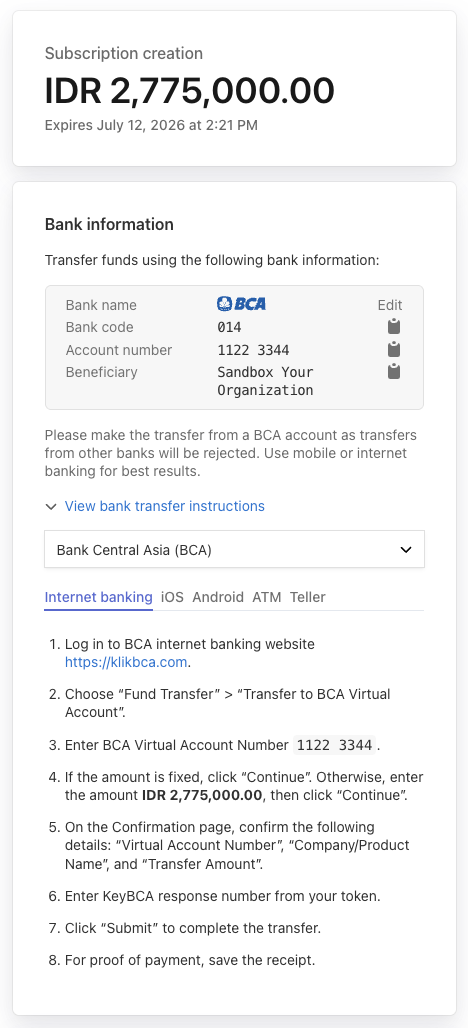
Virtual Account details with transfer instructions
**To complete payment:**
1. Open your banking app (mobile or internet banking)
2. Select **Transfer** > **Virtual Account**
3. Enter the Virtual Account number shown
4. Verify the amount and beneficiary name
5. Confirm the transfer
* Transfer the exact amount shown
* Use the same bank you selected (e.g., BCA to BCA)
* Transfers from different banks may be rejected
* Keep your receipt for records
### Step 5: Payment Confirmed
Once the transfer is complete, you'll see a confirmation screen.
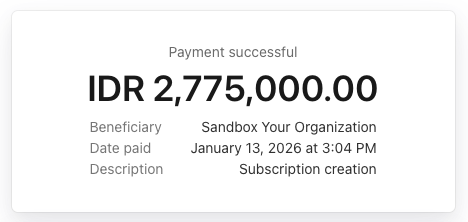
Payment successful confirmation
Your subscription is now active. You'll also receive a confirmation email.
***
## Paying with USD (US Dollar)
For organizations outside Indonesia, you'll pay using a credit or debit card.
### Step 1: Go to Billing
Open your MileApp dashboard and click **Billing** in the sidebar. You'll see your subscription details and the amount due.
Click the **Pay Now** button.
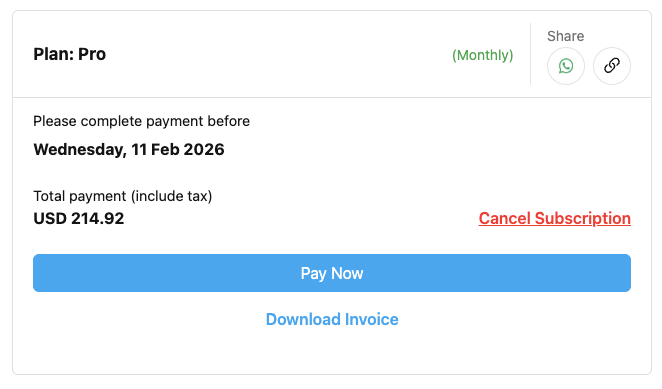
Subscription page showing payment due in USD
### Step 2: Review Your Invoice
A popup will show your invoice details including:
* Plan name and features
* Subtotal amount
* Tax (8%)
* Total amount due
Review the details, then click **Pay Now**.
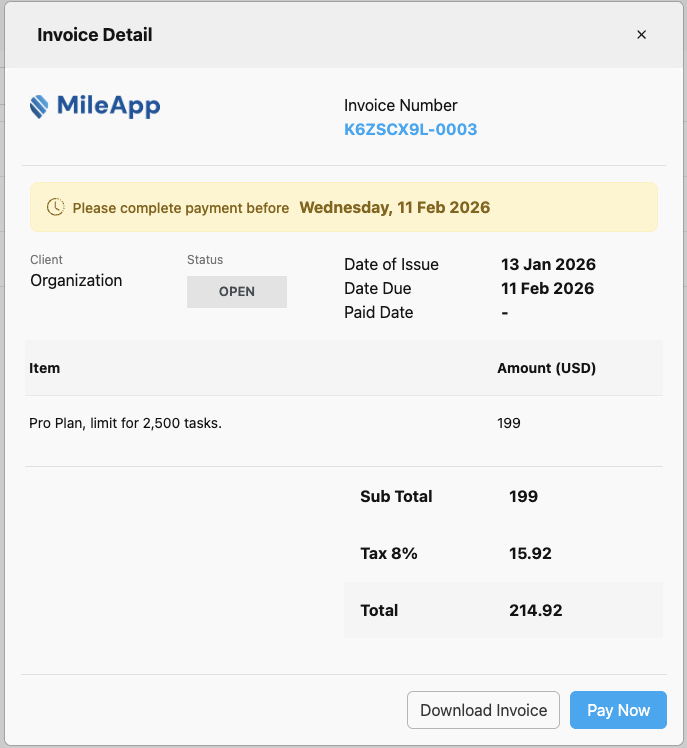
Invoice detail with itemized charges
### Step 3: Enter Card Details
You'll be redirected to the Stripe payment page. Here you can:
* Choose to pay in USD or IDR (exchange rates apply)
* Enter your card details
Fill in your card information:
* **Card number** - Your credit/debit card number
* **Expiration date** - MM/YY format
* **Security code** - 3-digit CVC on the back of your card
* **Country** - Your billing country
Then click **Pay**.
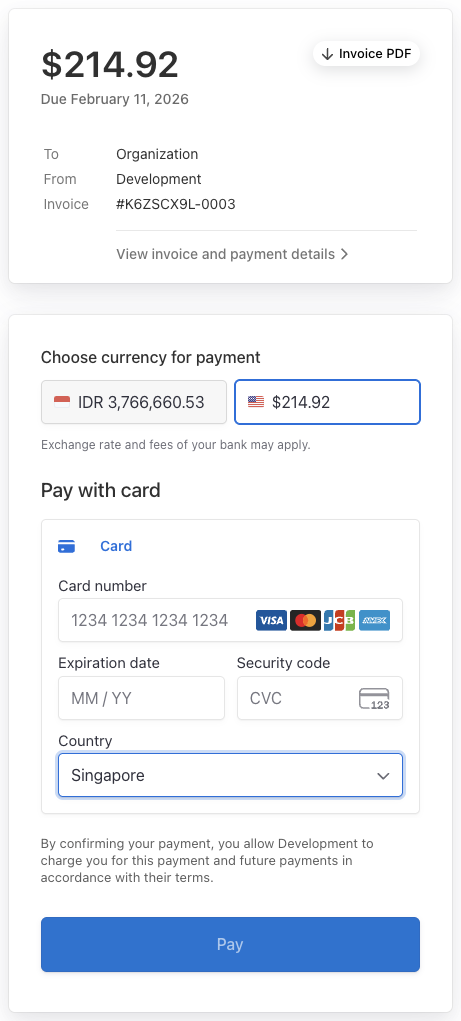
Credit card payment form
Your card is saved securely on Stripe after this first payment. You won't need to enter it again, future renewals will be charged to this card automatically. You can change the saved card at any time (see [Managing Your Saved Card](#managing-your-saved-card-usd-only) below).
**Accepted cards:**
* Visa
* Mastercard
* JCB
* American Express
### Step 4: Payment Confirmed
Once the payment is processed, you'll see a confirmation screen with:
* Amount paid
* Invoice number
* Payment date
* Card used (last 4 digits)
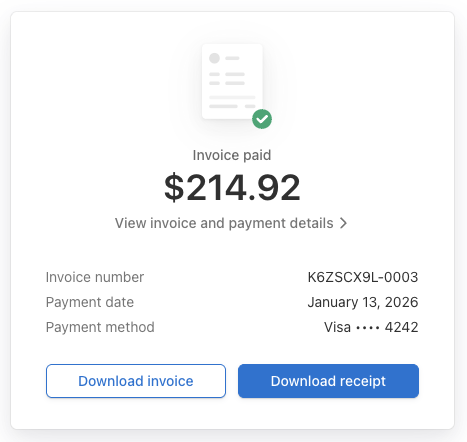
Payment successful with receipt options
You can download your invoice or receipt from this screen. Your subscription is now active.
***
## Automatic Renewals (USD only)
After your first payment, MileApp charges your saved card automatically at the start of each new billing period (monthly or yearly, depending on your plan). You don't need to click **Pay Now** for renewals.
**When auto-renewal succeeds:** A new invoice is generated and marked paid. You'll see it in **Billing > Invoice**, and Stripe will email you a receipt.
**When auto-renewal fails** (declined card, insufficient funds, expired card, etc.):
* Stripe retries the charge automatically over several days (Smart Retry).
* You'll receive failure emails from Stripe each time a retry fails.
* A warning banner appears at the top of every page in MileApp until the card is updated and payment succeeds. Clicking the banner takes you to the Customer Portal.
* If all retries fail, your subscription will be canceled and service access will be paused until you re-subscribe.
To avoid interruption, update your card via the Customer Portal as soon as you see the banner or the failure email.
***
## Managing Your Saved Card (USD only)
You can change, add, or remove your saved card at any time through the Stripe Customer Portal.
**To open the portal:**
1. Go to **Billing > Invoice** in your MileApp dashboard.
2. Click the **Manage Credit Cards** button at the top of the page.
3. A new tab opens with the secure Stripe-hosted portal.
**In the portal you can:**
* Add a new credit/debit card
* Remove a card you no longer use
* Set a card as your default for renewals
Changes you make in the portal apply to your **next** renewal. The currently-open invoice (if any) is not retroactively recharged on the new card — Stripe's retry schedule will use the updated default card on the next attempt.
***
## Common Questions
### What if my payment fails?
Common reasons for payment failure:
* **Insufficient funds** - Check your account balance
* **Card declined** - Contact your bank or try a different card
* **Wrong bank selected (IDR)** - Use the same bank for Virtual Account transfers
* **Expired card** - Update your card details
**For USD users on auto-renewal:** Stripe will retry the charge automatically over several days. You'll get an email from Stripe each time a retry fails, and a warning banner will appear at the top of every page in MileApp. Update your card via the Customer Portal to fix it. If all retries fail, your subscription will be canceled.
### When will my payment be processed?
* **Credit card (USD), first payment** - Instantly when you complete checkout
* **Credit card (USD), renewals** - Charged automatically at the start of each billing period to your saved card
* **Bank transfer (IDR)** - Usually within minutes, up to 1 business day after the transfer
### How do I get a receipt?
After payment, you can:
1. Click **Download Receipt** on the success screen
2. Go to **Billing** > **Invoice** and click on the paid invoice
3. Check your email for the payment confirmation
### Can I change my payment method?
* **IDR users** - You can select a different bank each time you pay
* **USD users** - Open the Stripe Customer Portal from **Billing > Invoice** (click **Manage Credit Cards**) to add a new card, remove an old one, or change which card is used for renewals. See [Managing Your Saved Card](#managing-your-saved-card-usd-only) above.
### What if I pay the wrong amount (IDR)?
For Virtual Account payments, always transfer the **exact amount** shown. If you transfer a different amount:
* The payment may not be automatically matched
* Contact [support@mile.app](mailto:support@mile.app) for assistance
### Is my payment secure?
Yes. All payments are processed through **Stripe**, a PCI-certified payment processor. MileApp never stores your full card details.
***
## Need Help?
If you have trouble with payment:
* **Email:** [support@mile.app](mailto:support@mile.app)
* **Hours:** 24/7