> ## Documentation Index
> Fetch the complete documentation index at: https://docs.mileapp.dev/llms.txt
> Use this file to discover all available pages before exploring further.
# How to Top Up Your OTP Balance
This guide shows you how to top up your OTP credit balance. Credits are consumed each time an OTP is sent through Email, WhatsApp, or SMS channels. Top-up payments are processed securely through Stripe — the same flow used for paying subscription invoices.
Required permission:
* Subscribe
***
## OTP Credit Rates
Before topping up, it helps to know how many credits each OTP send costs:
| Channel | Credits per send |
| -------- | ---------------- |
| Email | 1 |
| WhatsApp | 2 |
| SMS | 3 |
Choose a top-up amount that covers your expected sends. The minimum top-up is **1000 credits**.
***
## Topping Up Your Balance
### Step 1: Go to the Balance Page
Open your MileApp dashboard and navigate to **Billing** > **Balance** in the sidebar. You'll see your **Available Credits** at the top of the page, alongside the **Top Up Balance** button.
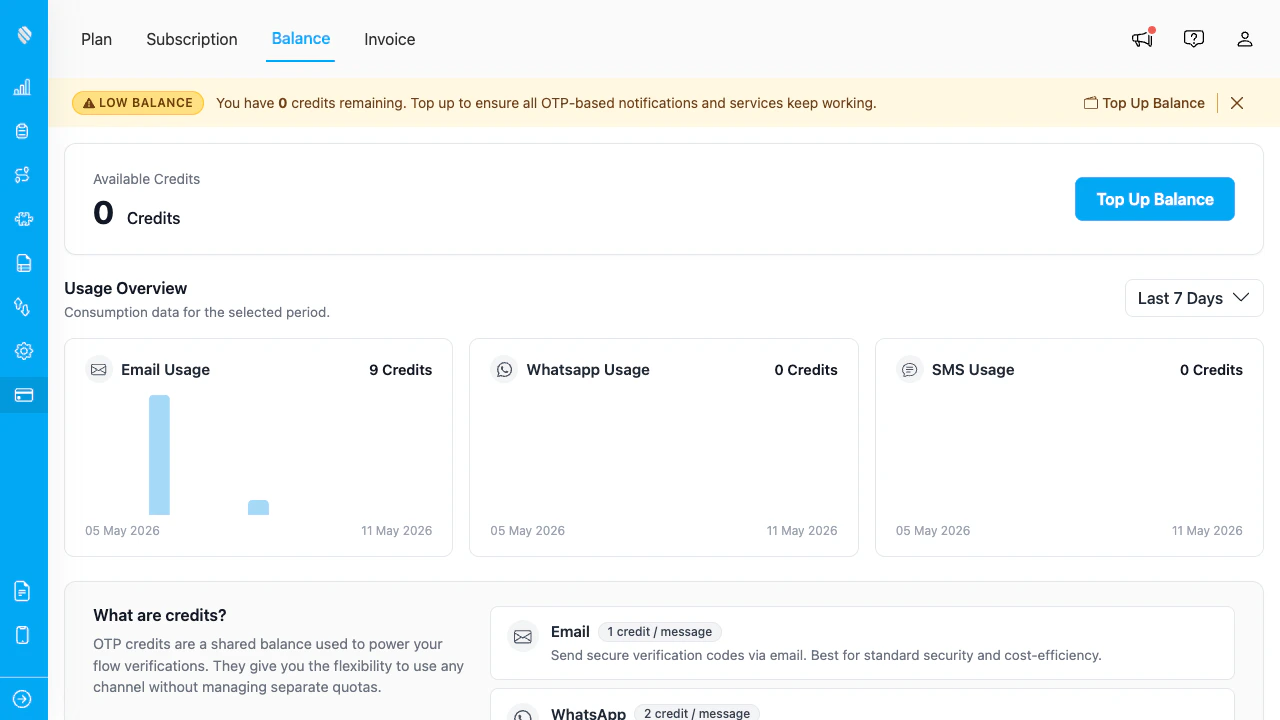
Balance page showing current available credits and the Top Up Balance button
If your balance is **0** or low, you may also see a yellow warning banner at the top of the dashboard reminding you to top up before sending OTPs.
### Step 2: Open the Top Up Dialog
Click the **Top Up Balance** button. A dialog opens with two options:
* **Preset amount** — pick a recommended credit amount (default: 1000 credits)
* **Custom amount** — enter any amount of 1000 or more
The dialog also shows:
* The credit amount selected
* The unit price (IDR per credit)
* The total payment due in IDR
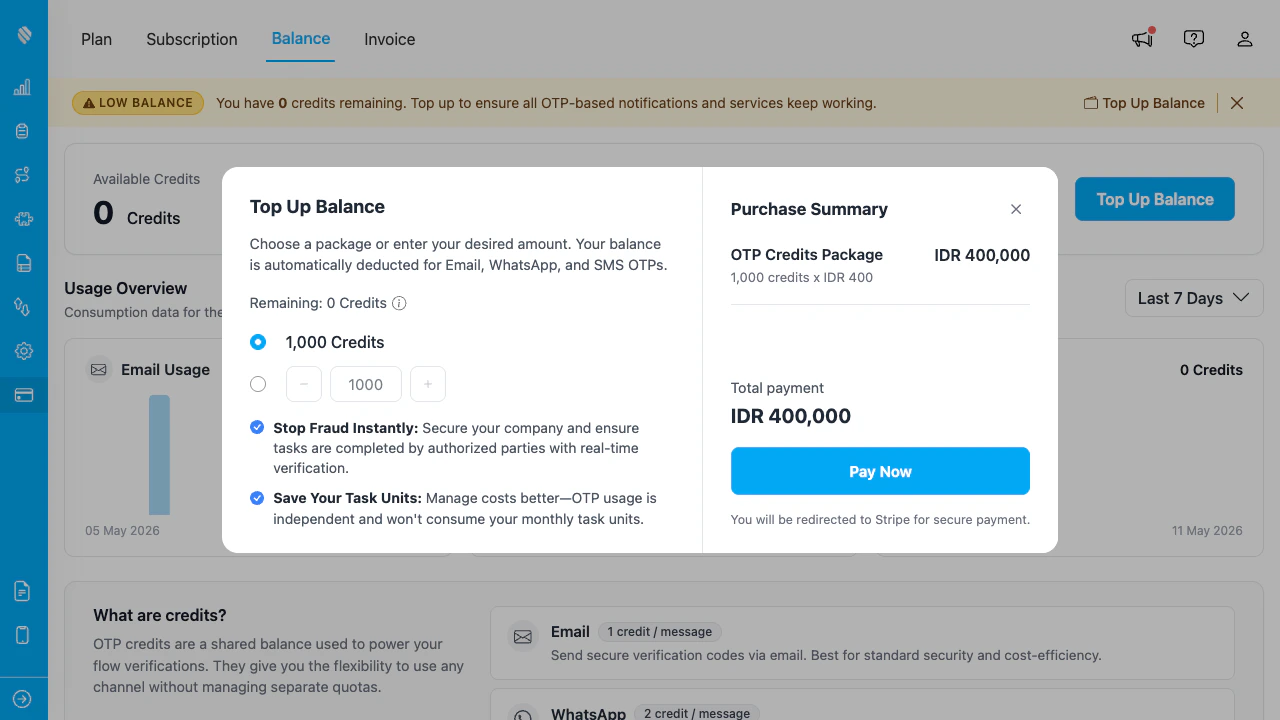
Top Up dialog with credit options and payment total
### Step 3: Click Pay Now
Once you've chosen an amount, click **Pay Now**. MileApp creates a Stripe invoice and prepares the secure payment page.
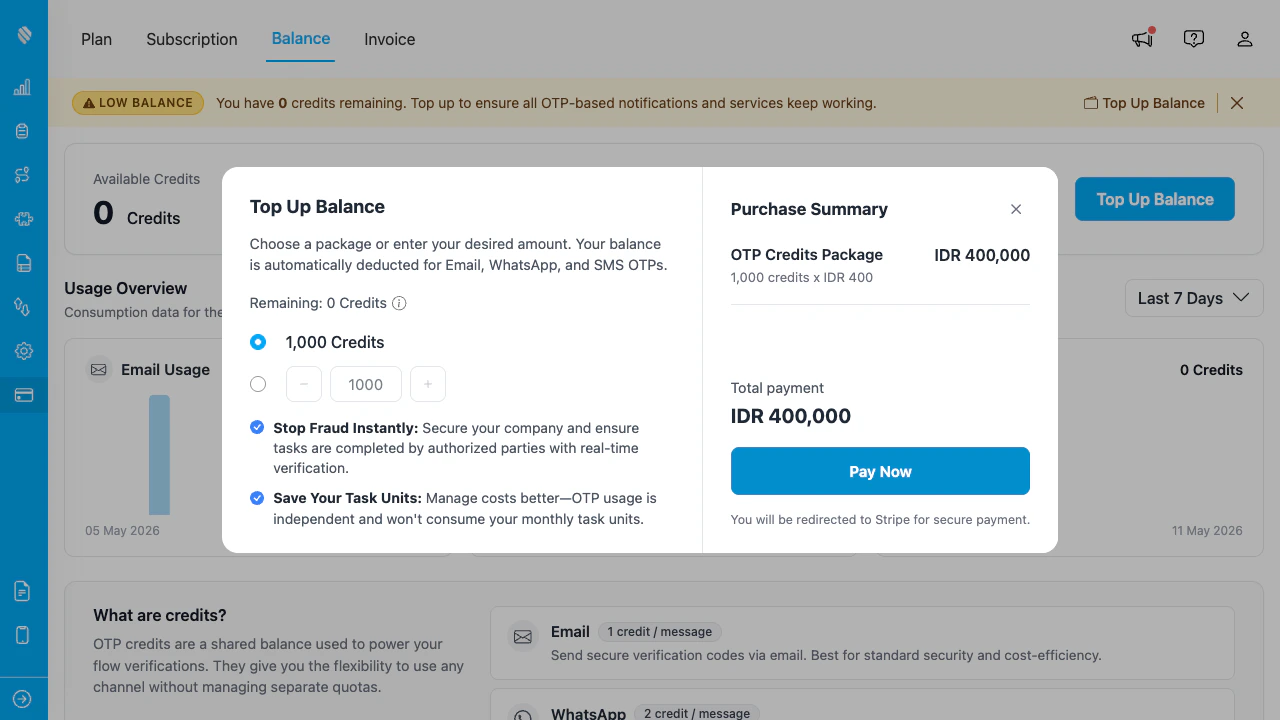
Pay Now button — click to proceed to Stripe
You can only have **one open top-up invoice at a time**. If you previously created a top-up but haven't paid it yet, you'll see a notification asking you to complete or cancel the existing invoice first.
### Step 4: Complete Payment on Stripe
You'll be redirected to the **Stripe-hosted invoice page**. This is the same secure Stripe page used for subscription payments — see [How to Pay Your Invoice](/pages/billing/how-to-pay) for details on each payment method (Virtual Account for IDR, Credit Card for USD).
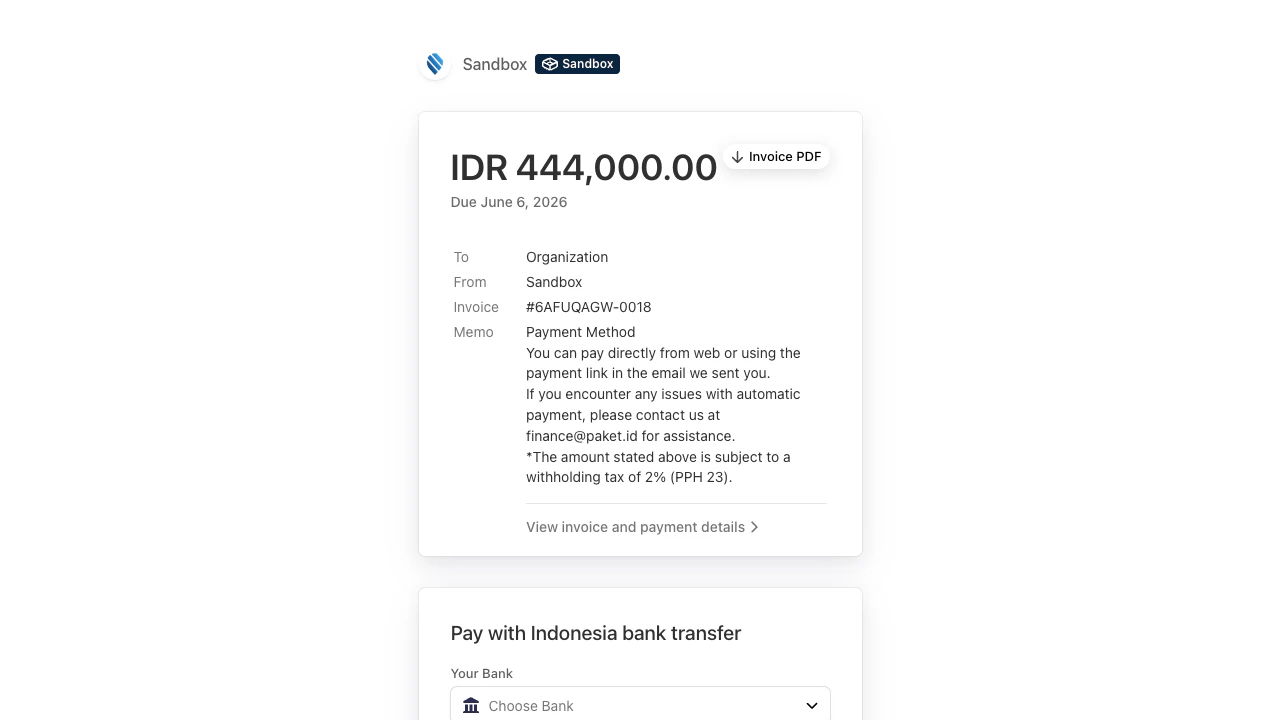
Stripe-hosted invoice page with payment details
Select your payment method, enter the required details, and confirm the payment.
### Step 5: Payment Confirmed
Once payment is processed, you'll see a confirmation page from Stripe.
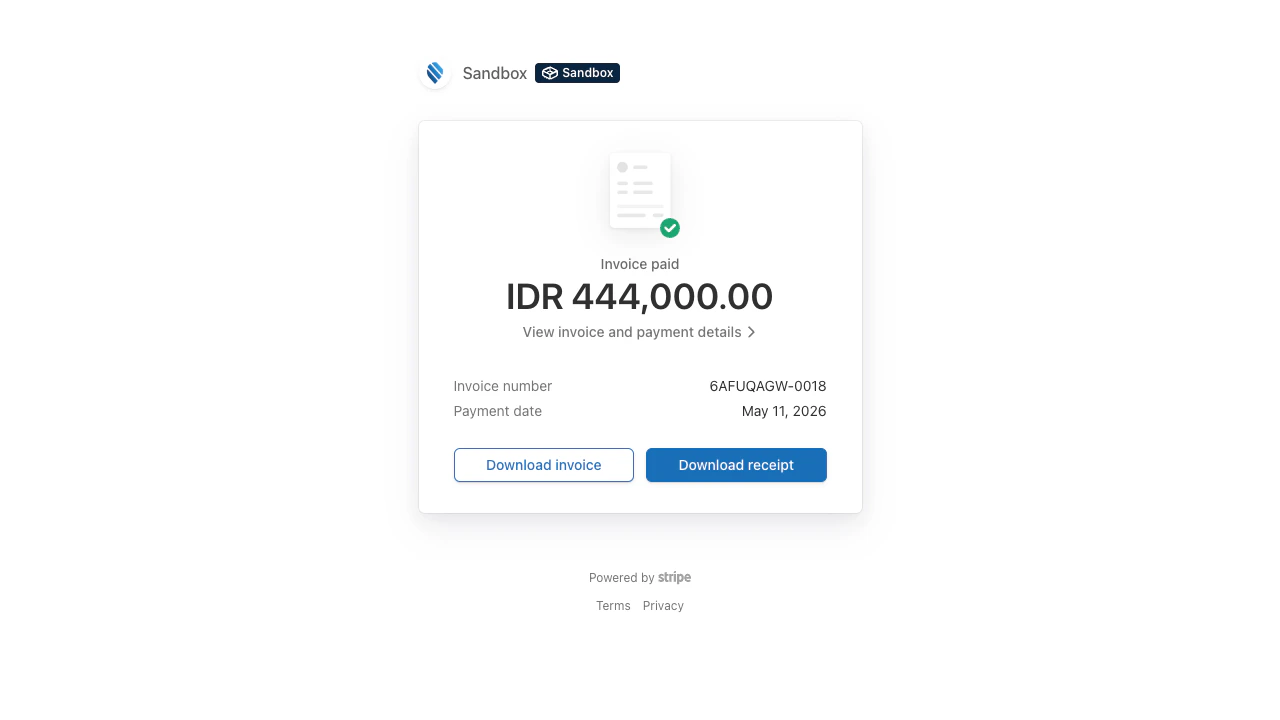
Stripe confirmation after successful payment
You'll also receive an email confirmation, and your invoice will be marked as **Paid** in MileApp.
### Step 6: Verify the Credit
Return to the MileApp **Balance** page. Your **Available Credits** will now reflect the new total — typically within a few seconds of the payment confirmation.
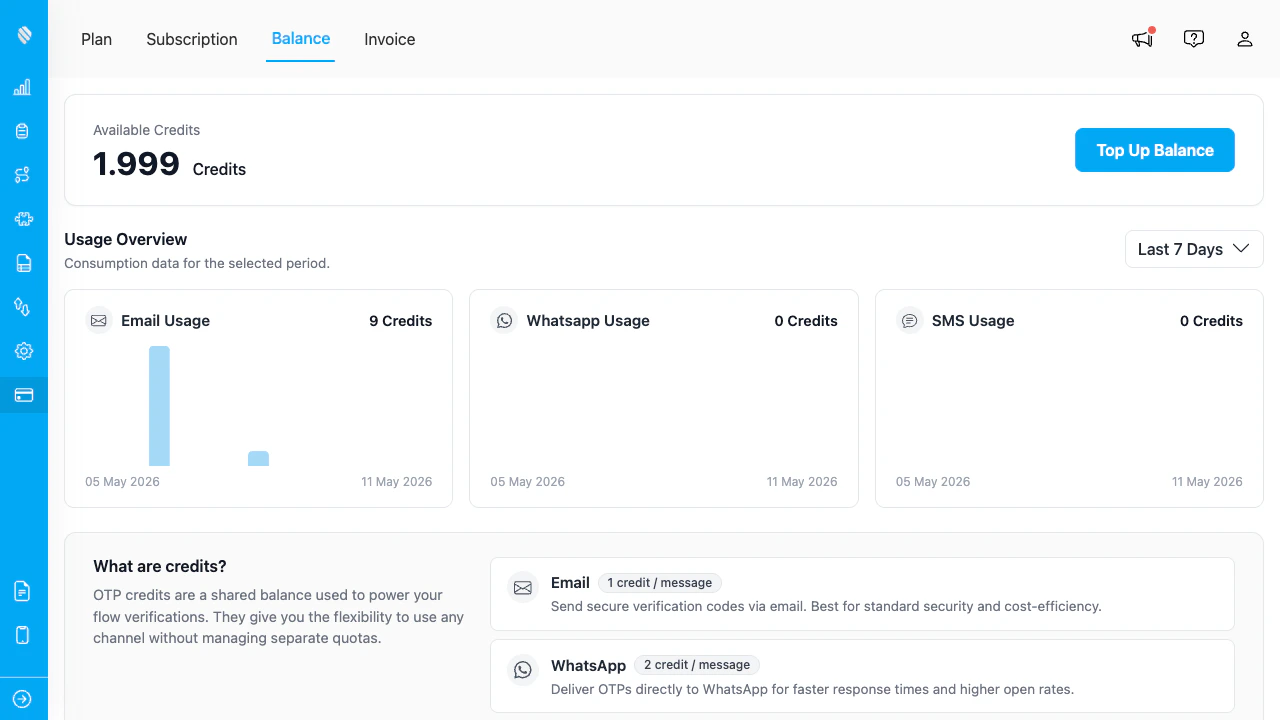
Balance page showing the credited top-up amount
If the new balance is enough to cover your expected sends, the low-balance warning banner will disappear automatically.
### Step 7: View Your Invoice
To see the receipt for this top-up, go to **Billing** > **History**. The new invoice will appear at the top of the list with status **Paid**.
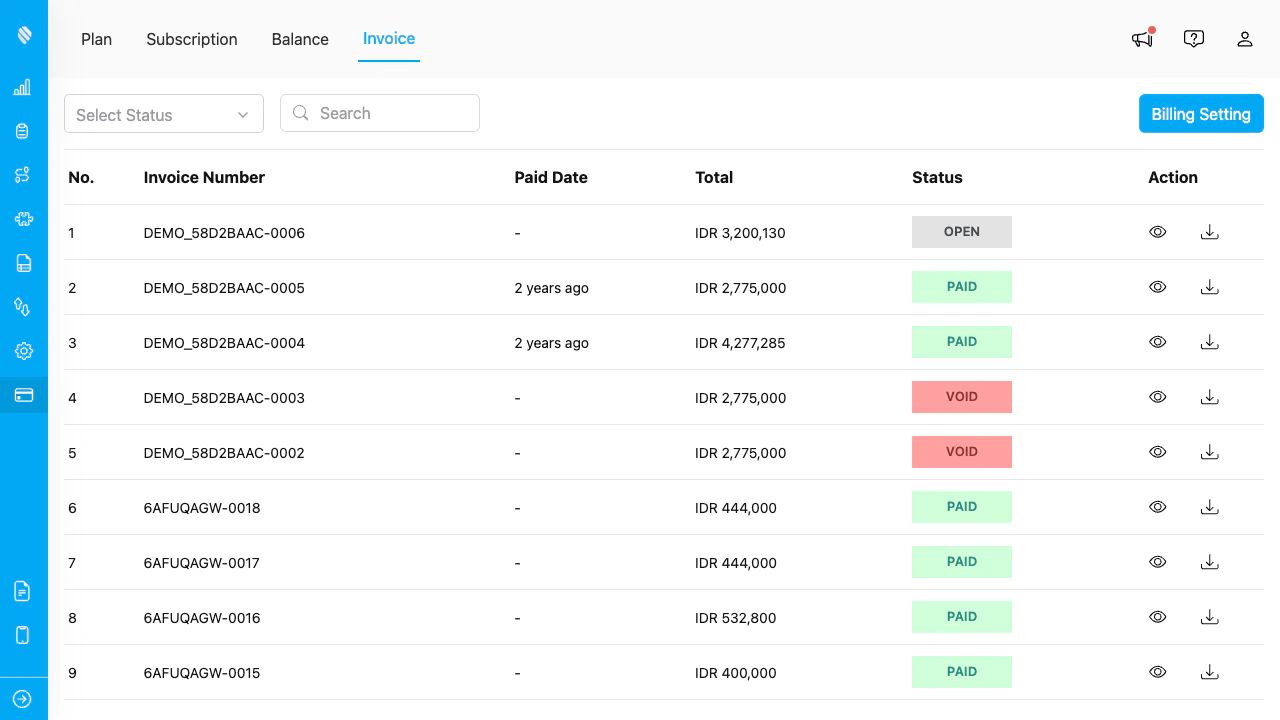
Billing History page showing the paid top-up invoice
Click the invoice row to download the PDF or view full payment details.
***
## What If Top Up Fails?
Common reasons for top-up failure:
* **Pending invoice exists** — You already have an unpaid OTP top-up invoice. Pay it first.
* **Amount below minimum** — The minimum top-up is 1000 credits.
* **Payment method declined** — Use a different card or contact your bank.
* **Insufficient permission** — You need the **Subscribe** permission. Contact your organization admin.
If the on-screen message doesn't help, contact support at [support@mile.app](mailto:support@mile.app).
***
## Common Questions
### How long until my credit appears?
Typically within a few seconds after the Stripe payment is confirmed. If you don't see it after a minute, refresh the Balance page.
### Can I top up while an OTP send is in progress?
Yes. Top-ups and sends are processed independently. Sends consume credits atomically; top-ups add credits atomically.
### Does the top-up expire?
No. OTP credits do not expire. Whatever you purchase stays in your balance until you use it.
### Can I get a refund?
OTP credit purchases are non-refundable. If you have a billing dispute, contact [support@mile.app](mailto:support@mile.app).