> ## Documentation Index
> Fetch the complete documentation index at: https://docs.mileapp.dev/llms.txt
> Use this file to discover all available pages before exploring further.
# How to Upgrade
## Upgrade to Basic or Pro
To upgrade to a Basic or Pro plan and enjoy premium features, follow these simple steps:
1. Sign in with your account at web/mile.app
2. Go to Billing/Plan page
3. Click on button Upgrade
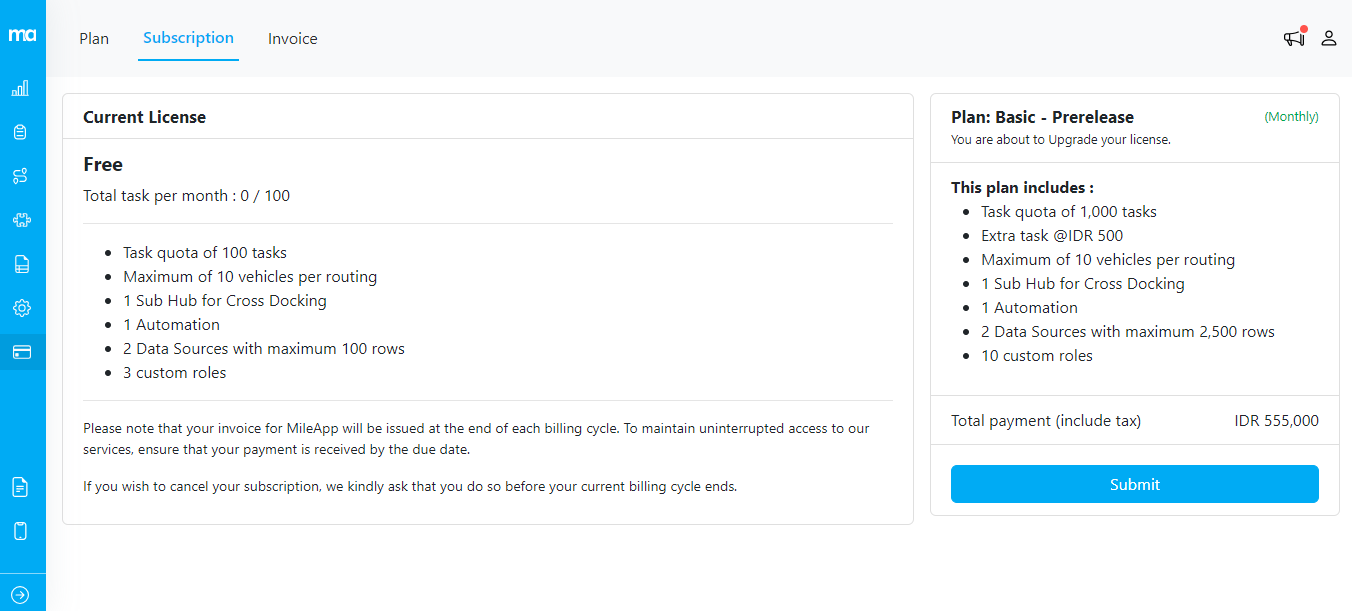
4. You'll be redirected to the payment section where you can review the plan details and the amount to be paid in menu Billing/Subscription
5. Follow the payment instructions to complete the transaction securely
Subscription Confirmation
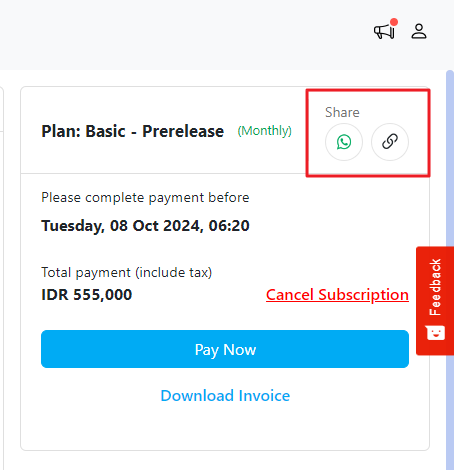
If you're unable to pay the invoice or if someone else in your company will handle it, you can share the payment link by clicking the "Copy Link" or "Share by WhatsApp" button.
Once your payment is successful, your selected plan will be available to you for a duration of 30 days, unlocking all the features and benefits associated with it.
Once you submit, you can cancel the subscription if you change your mind, and the generated invoice will become void.
## What Happens if You Don't Pay the Invoice?
We understand that situations may arise where you are unable to pay your invoice immediately. Here's what you can expect:
1. **Grace Period**: You have a grace period of 29 days from the date the invoice is generated to make the payment
2. **Plan Status**: If you do not make the payment within the 29-day grace period, your account will remain on the Free plan. This means you will lose access to the premium features and benefits associated with the Paid plan
## Download Invoice
You can download your invoice or receipt in two ways:
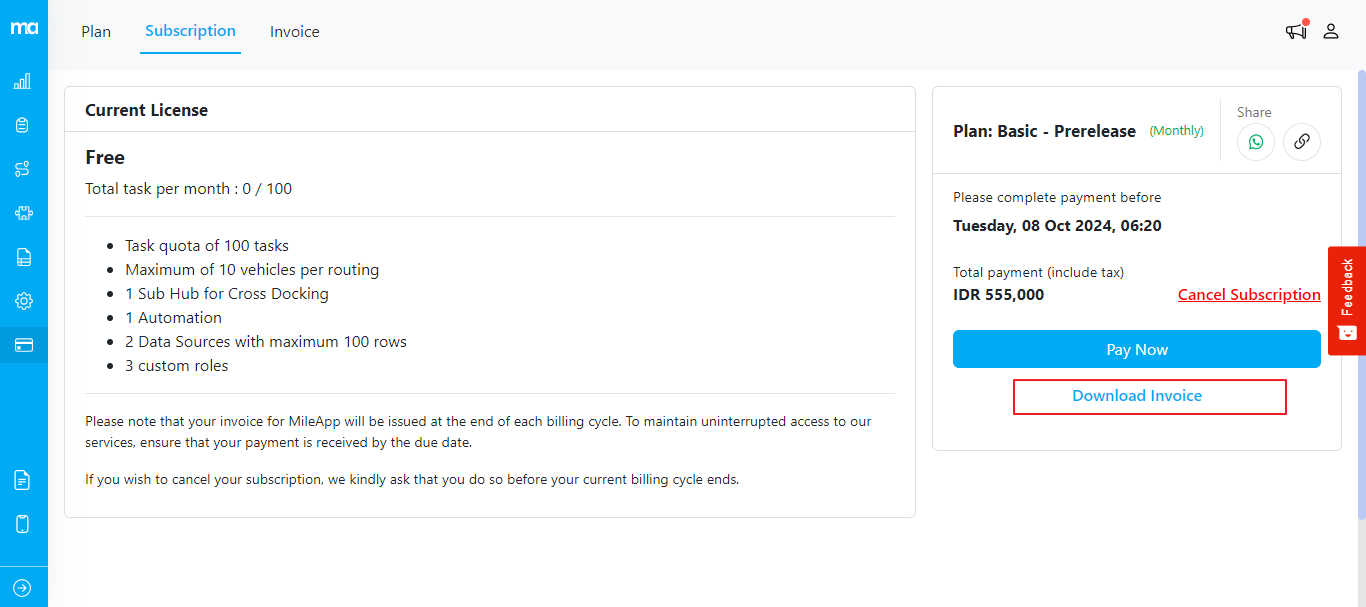
1. **From the Subscription page**: Click the "Download Invoice" button
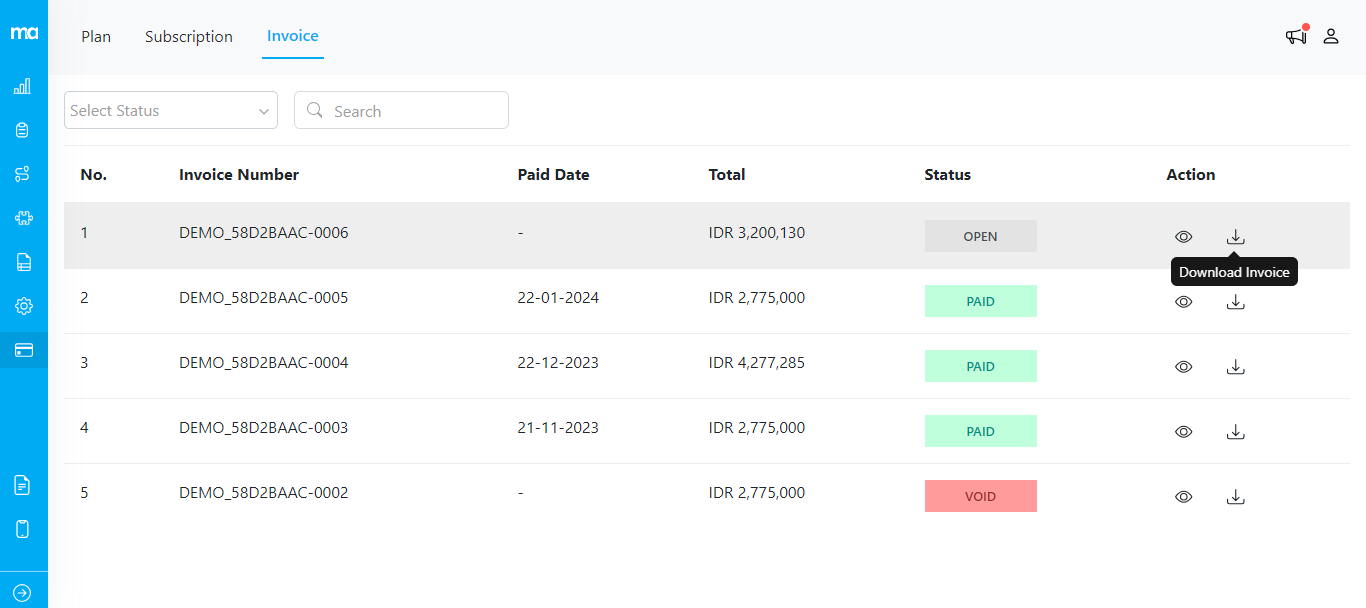
2. **From the Invoice page**: Click the download icon