> ## Documentation Index
> Fetch the complete documentation index at: https://docs.mileapp.dev/llms.txt
> Use this file to discover all available pages before exploring further.
# Introduction
To access the Billing module, follow these simple steps:
1. Sign in with your account to web/mile.app
2. Choose Billing menu on the sidebar
Within the Billing module, you will find four sub-menus, each serving distinct purposes:
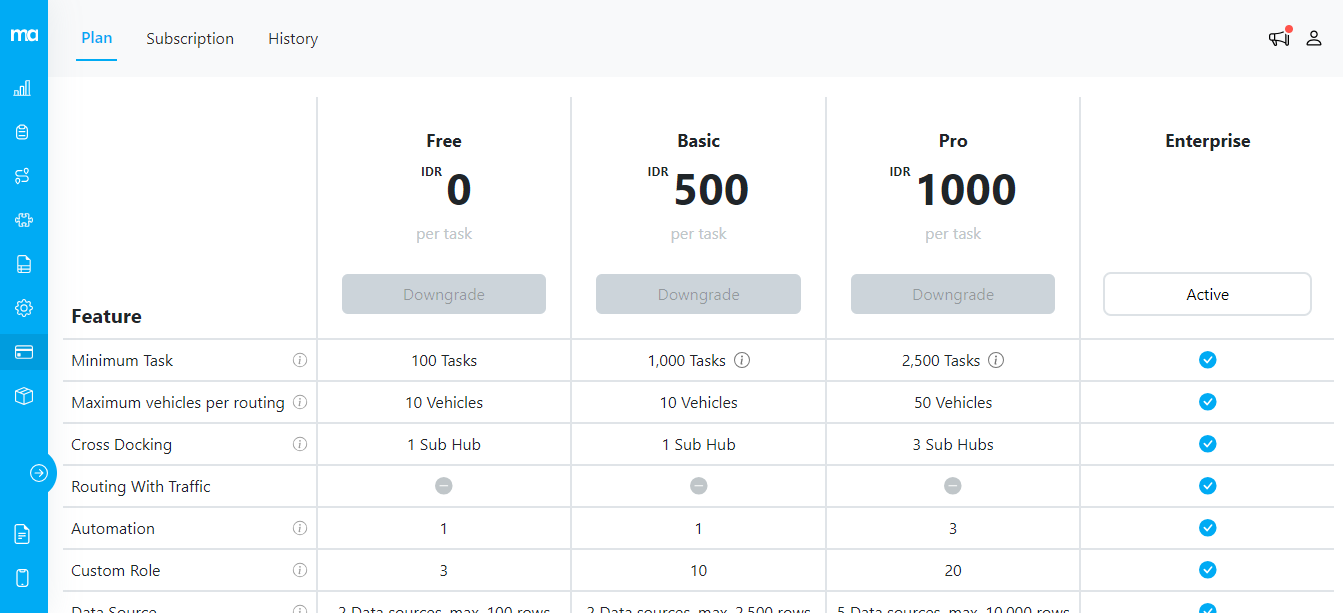
## Plan
This section provides you with a list of available plans. It also offers detailed information about the benefits of each plan and includes a cost calculator to simulate your potential usage. This empowers you to make informed decisions regarding your subscription.
Billing/Plan Menu
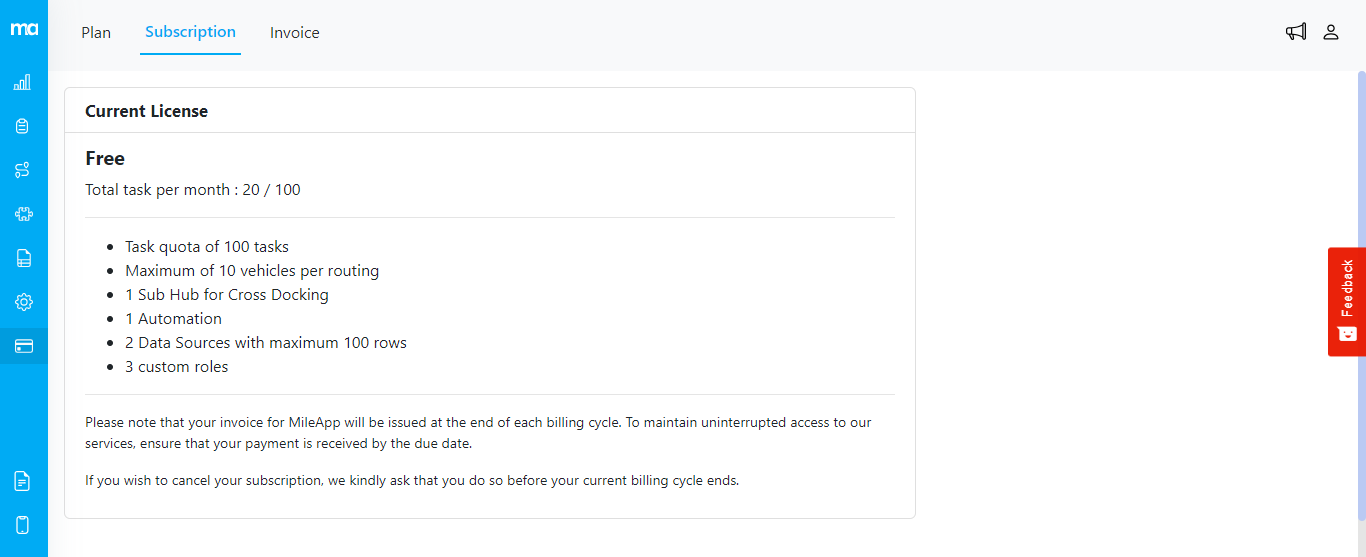
## Subscription
The "Subscription" section offers comprehensive details about your current license and payment information. Here, you can conveniently make payments, ensuring your subscription remains up to date.
For **USD (credit card) plans**, renewals are charged automatically to your saved card each billing period. To change or remove the saved card, open the Stripe Customer Portal via the **Manage Credit Cards** button on the Invoice sub-menu. For **IDR (bank transfer) plans**, you pay each invoice manually each period.
Billing/Subscription Menu
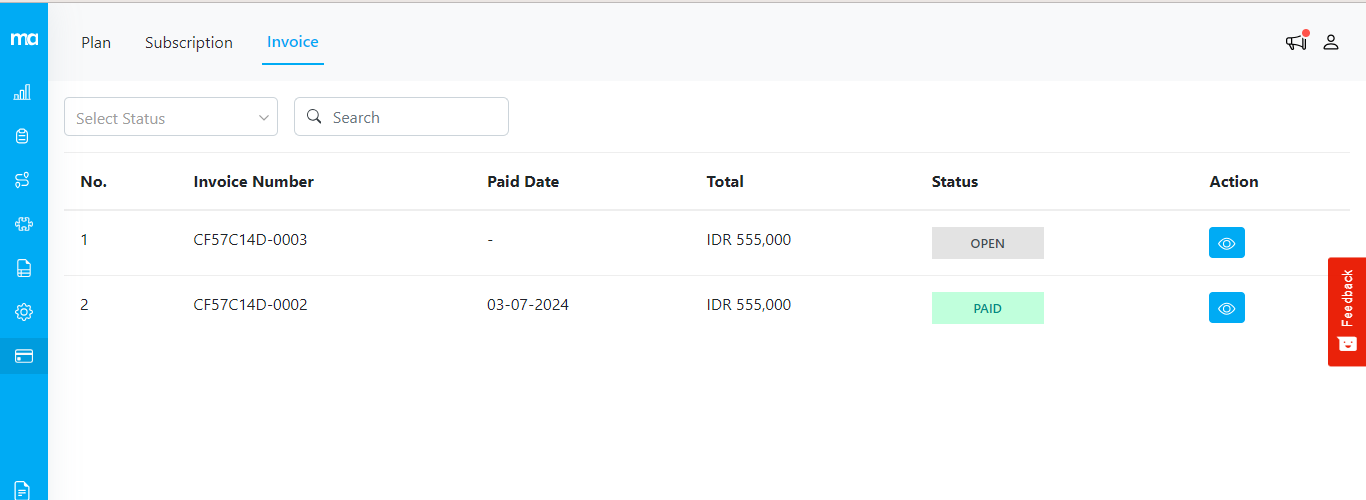
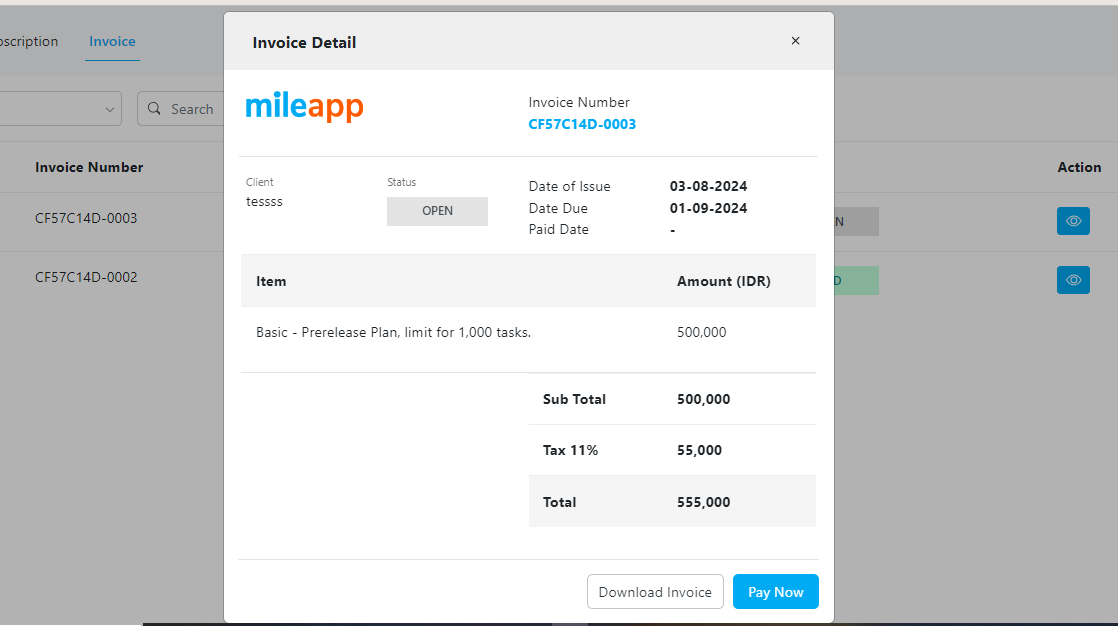
## Invoice
The "Invoice" section provides you with a chronological view of your payment history and past invoices. This helps you keep track of your financial interactions with our service.