> ## Documentation Index
> Fetch the complete documentation index at: https://docs.mileapp.dev/llms.txt
> Use this file to discover all available pages before exploring further.
# Start Trip - End Trip Feature
The **Start - Finish** feature now has changed its name to **Start Trip - End Trip** Feature.
The **Start Trip - End Trip** feature enables MileApp Field users to log their coordinates at set intervals and defines a radius around the hub where they can start and end trips. This feature helps manage task access and location tracking, ensuring users are within designated boundaries.
To enable this feature, go to [**Settings ➝ Permission ➝ Advanced**](https://web.mile.app/setting/permission) on MileApp Web.
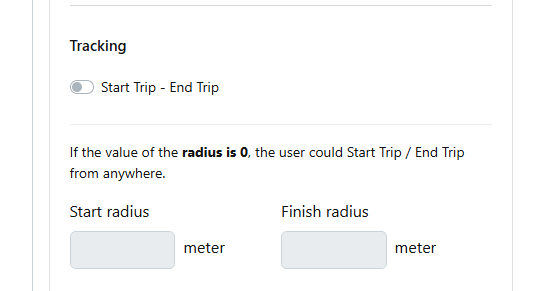
By default, the **Start Trip - End Trip** feature is deactivated. To use it, activate the toggle.
## If "Start Trip - End Trip" Permission is On
When the Start Trip - End Trip permission is enabled, the **user's location on the MileApp Field is tracked only if the Start Trip - End Trip feature is active**. The coordinate history will be available on the [Tracking Page](https://web.mile.app/tasks/tracking).
This feature also ensures that MileApp Field users start their trip within a specified radius around the hub to access their tasks, and their location is tracked once they start the trip. The same applies to finish the trip, where users are restricted to finish the trip only within the designated radius around the hub.
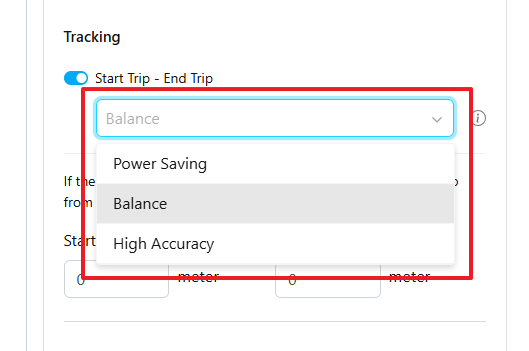
If **Start Trip - End Trip** is active, there are three tracking modes available, each with different intervals and distances between recorded points:
1. **Power Saving** (Saves battery life): Updates location every 10 minutes, with a minimum distance of 10 meters between points.
2. **Balance** (Optimizes accuracy and battery usage): Updates location every 3 minutes, with a minimum distance of 20 meters between points.
3. **High Accuracy** (Consumes battery quickly): Updates location every 1 minute, with a minimum distance of 10 meters between points.
## If "Start Trip - End Trip" Permission is Off
When the Start Trip - End Trip permission is **disabled**, only task coordinates are recorded, and the user's location on the MileApp Field **is not tracked**. Users can access tasks on the MileApp Field without starting a trip.
## Configuring the Feature
You could find the Start Finish feature at the [Permission Page](https://web.mile.app/setting/permission) of the MileApp web, the location is under the "Advanced" setting on the Permission.
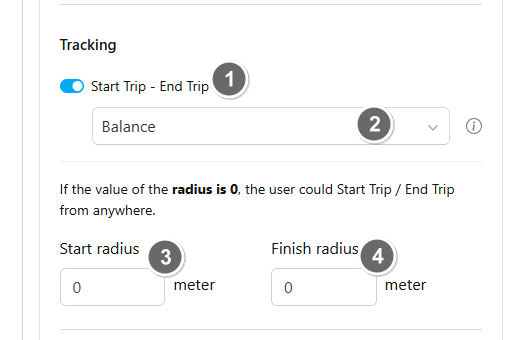
This is where you set up the "Start Trip - End Trip" feature:
1. **Toggle** to enable or disable.
2. **Coordinate recording interval**: Set how frequently the app logs the user's coordinates (e.g., every 5 minutes).
3. **Start Radius**: Defines the maximum distance from the hub to start the trip.
4. **Finish Radius**: Defines the maximum distance from the hub to end the trip and stop the coordinate recording.
### Usage Examples
* **Setting Coordinate Recording Interval**: If set to 5 minutes, the app logs coordinates every 5 minutes during the trip.
* **Setting Start and Finish Radius**:
* If the **Start Radius** is 500 meters, users can start tasks if they initiate the trip within 500 meters of the hub.
* Similarly, with a **Finish Radius** of 500 meters, users can end the trip only if within 500 meters of the hub.
* If both radii are set to **0 meters**, users can start and end the trip from any location, allowing unrestricted access and tracking.
## "Start Trip - End Trip" at the MileApp Field
### Start Page
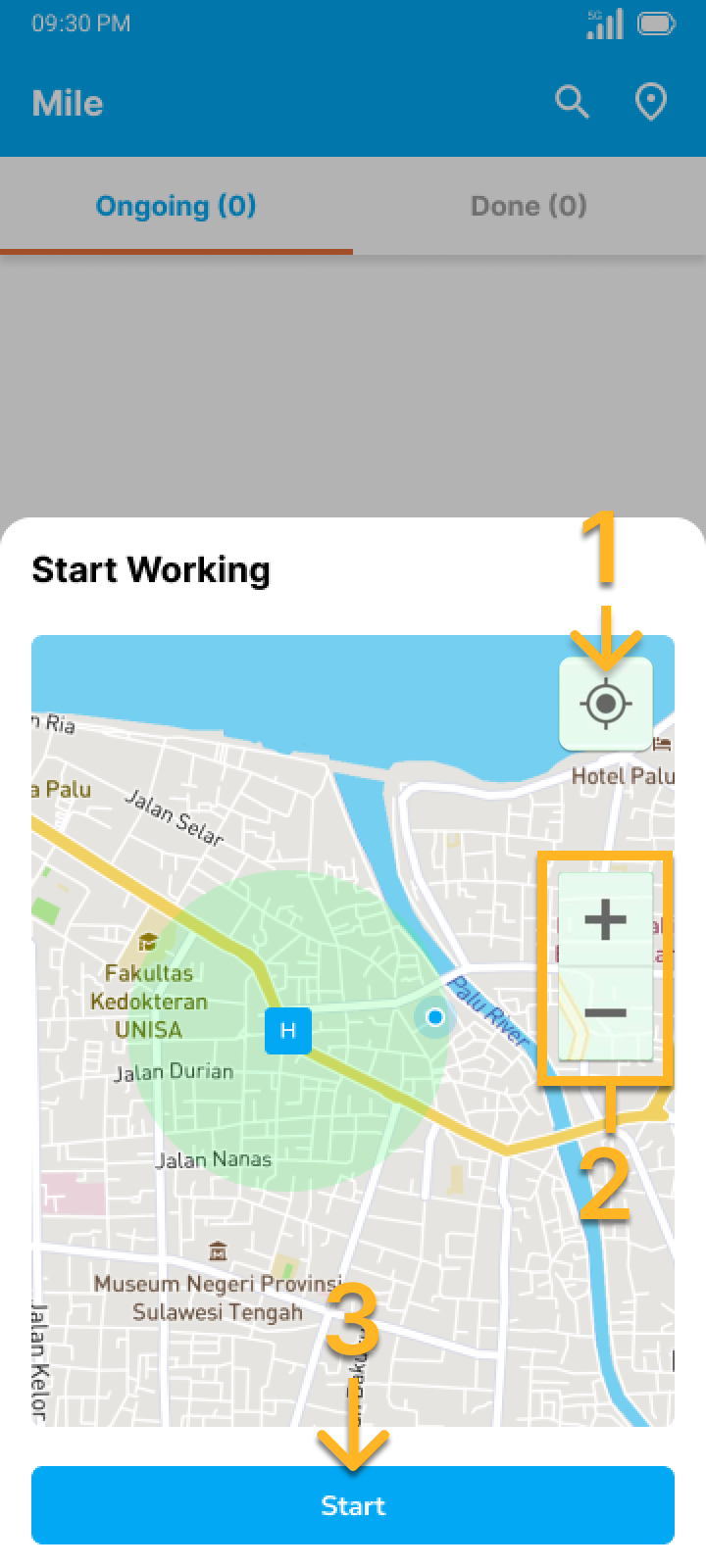
If the "Start Trip - End Trip" permission is active, the first page that the MileApp Field user would see when they open the app is the start page (if they haven't start the trip yet):
1. Click this button to update the coordinate
2. Button to zoom in / zoom out the map
3. Button to Start
* If the "Start Radius" is set to a certain value, for example, 50 meters, the MileApp Field users could only start the trip if they are inside the set radius (inside the green circle on the map).
* If the "Start Radius" is set to 0 meters, the MileApp Field users could start the trip anywhere.
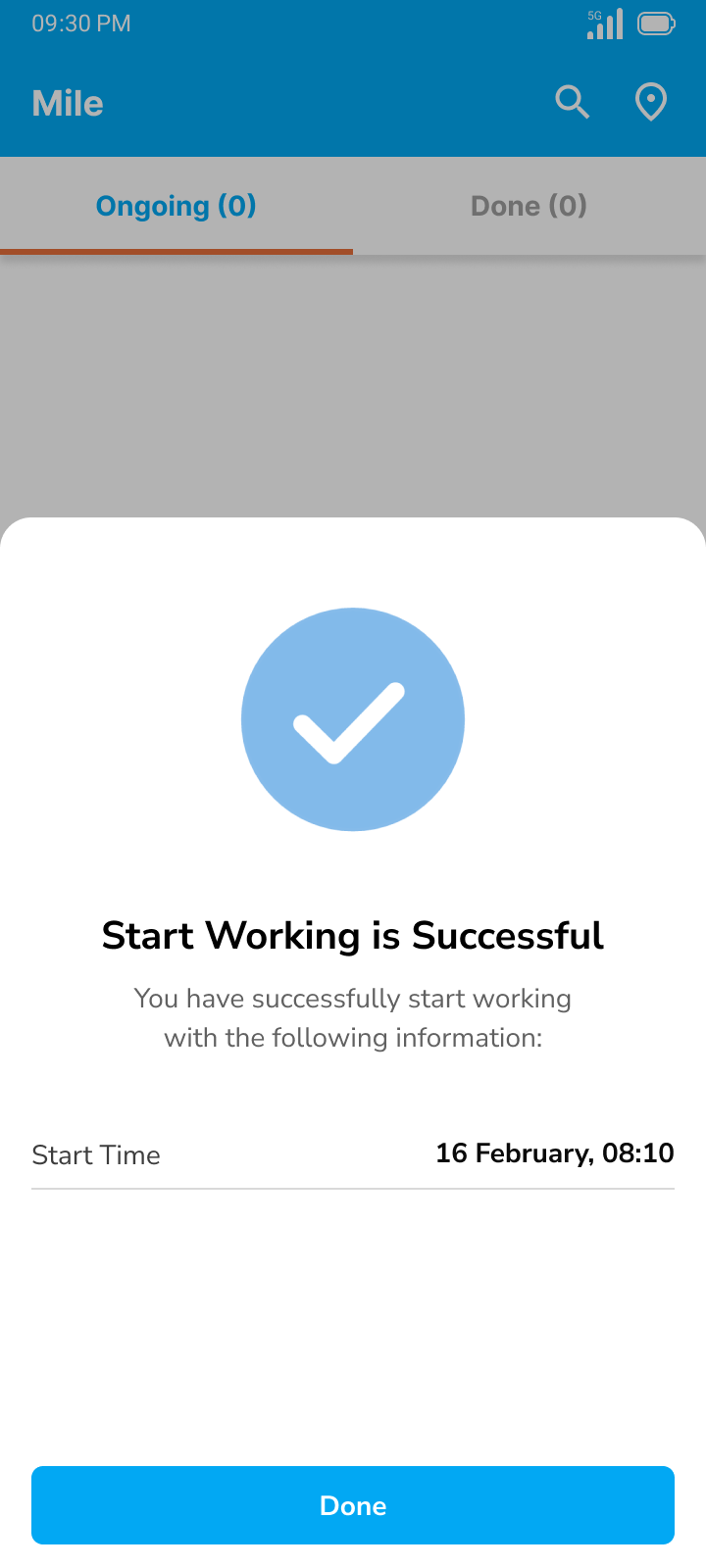
### Start Confirmation
This page will show the user time that they are start the trip, and after they click "Done", they would be able to access the task.
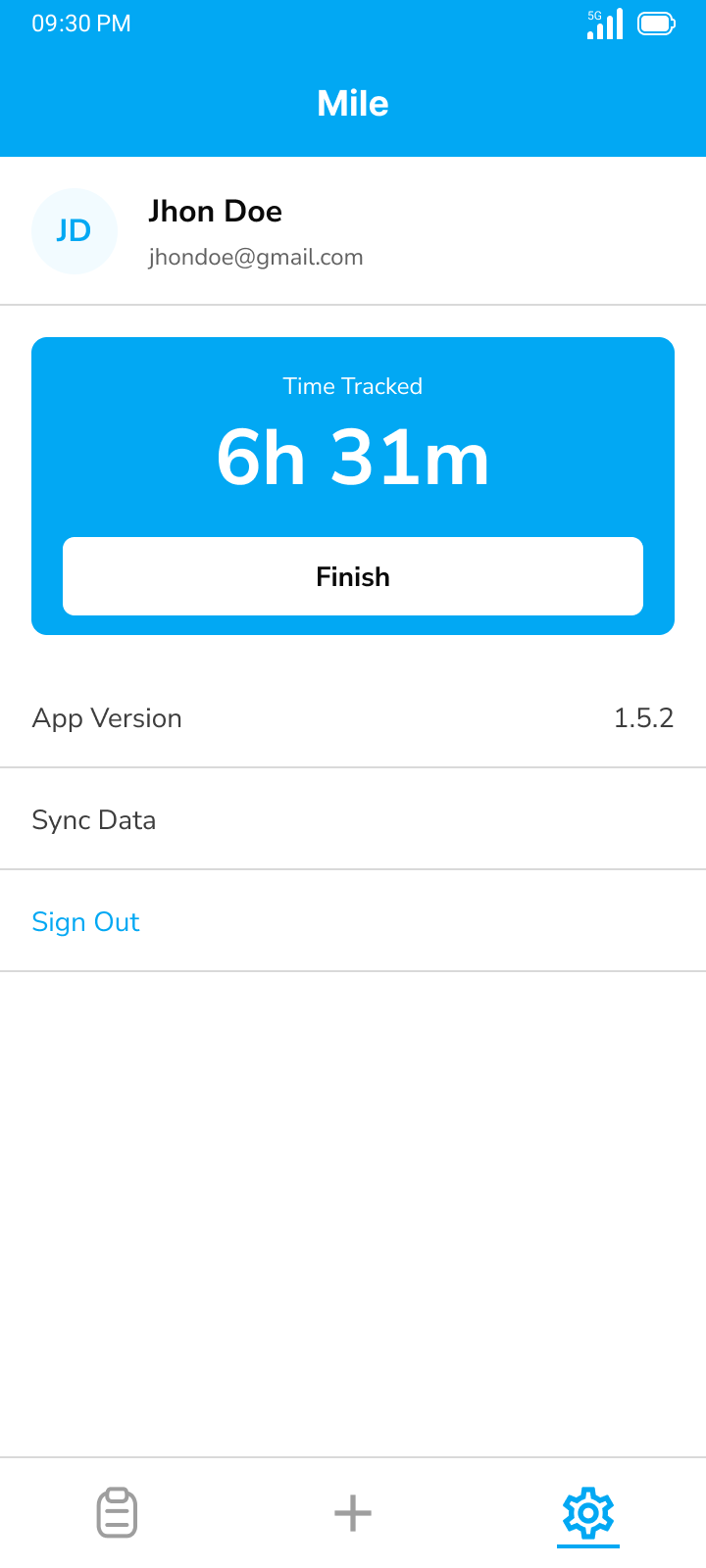
### Finish Button
The MileApp Field user could access the "Finish" button from the Setting menu on the mobile app. When they clicked the "Finish" button, the user will open the "Finish" page.
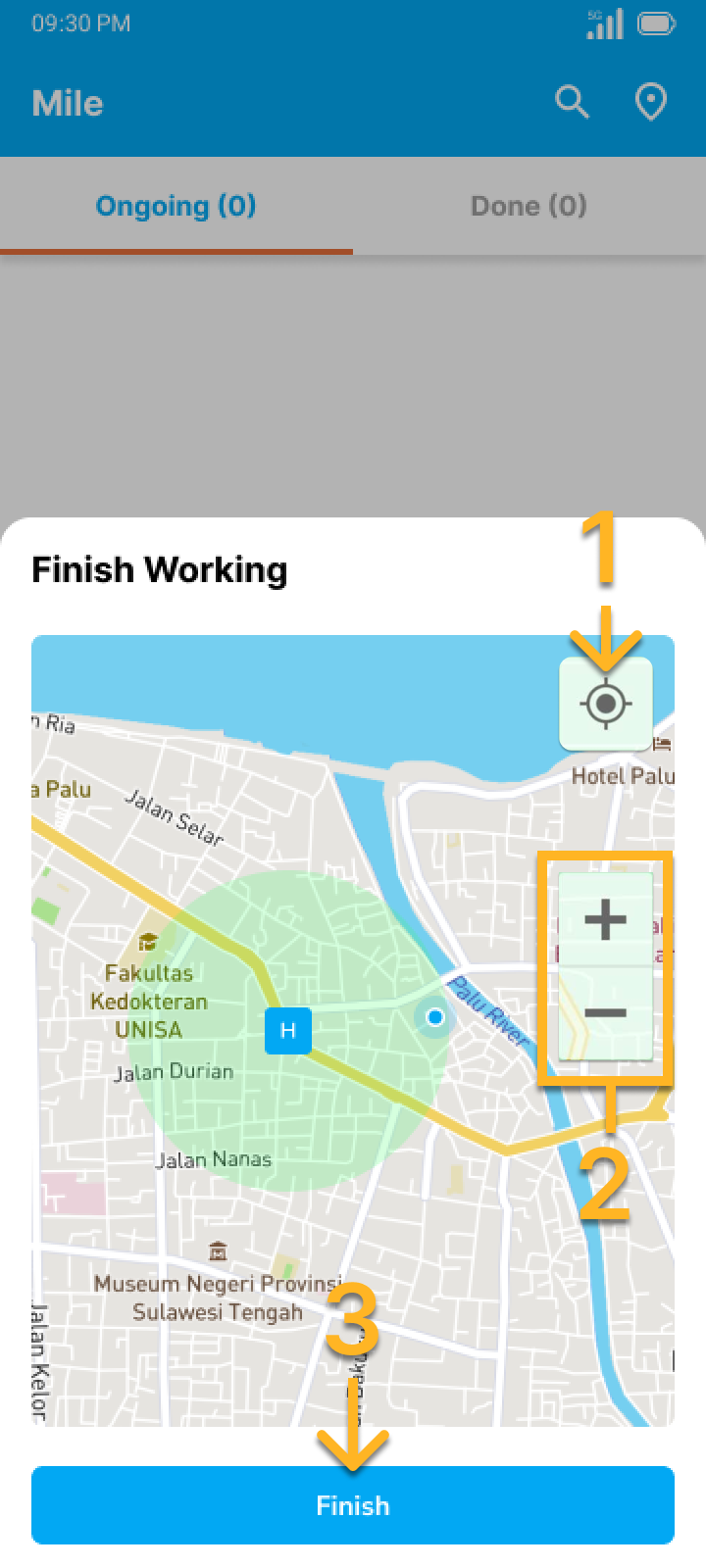
### Finish Page
1. Click this button to update the coordinate
2. Button to zoom in / zoom out the map
3. Button to Finish
* If the "Finish Radius" is set to a certain value, for example, 50 meters, the MileApp Field users could only finish if they are inside the set radius (inside the green circle on the map).
* If the "Finish Radius" is set to 0 meters, the MileApp Field users could finish anywhere.
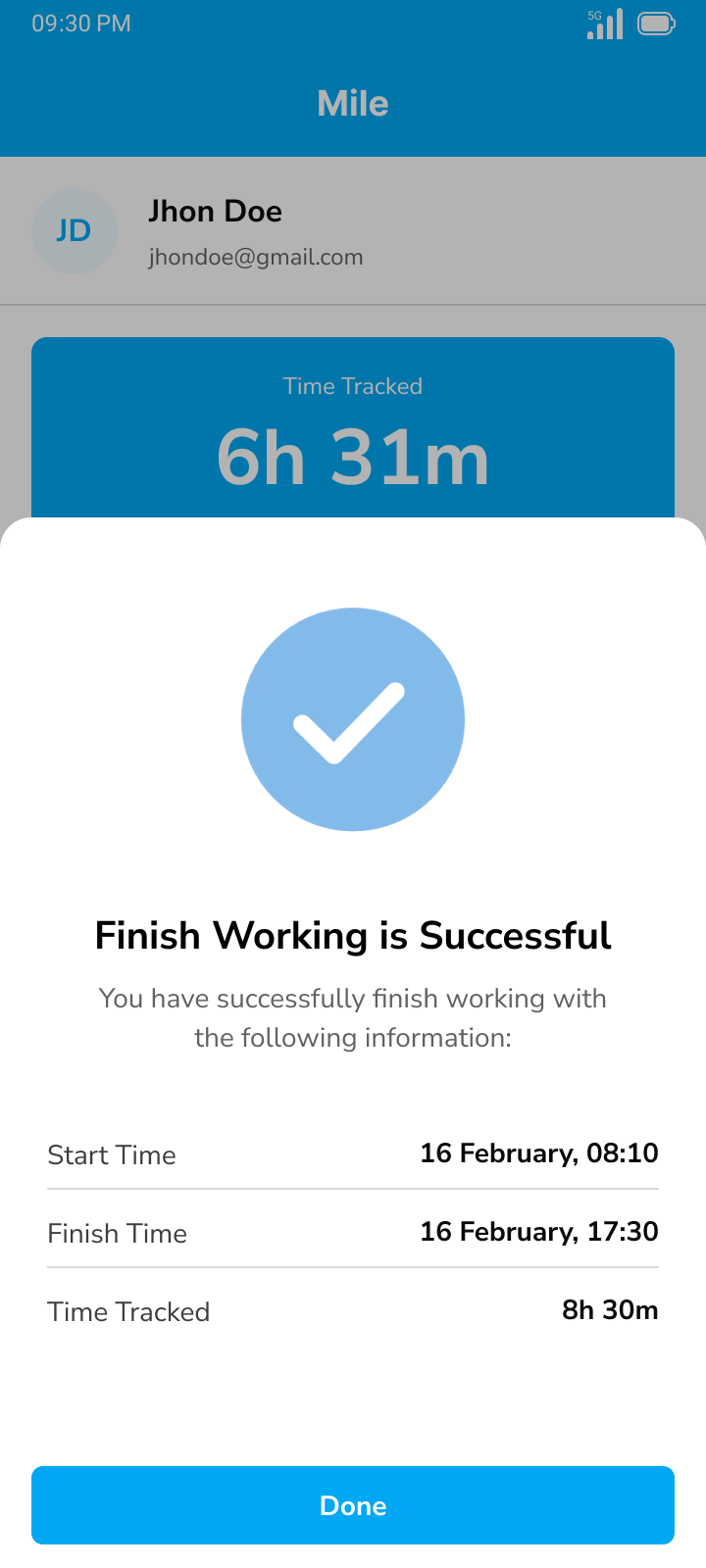
### Finish Confirmation
This page will show the user time that they Finish, the time they are Finish, and their total Tracked Time in this session.