> ## Documentation Index
> Fetch the complete documentation index at: https://docs.mileapp.dev/llms.txt
> Use this file to discover all available pages before exploring further.
# External Data Source
External Data Sources enable MileApp to seamlessly integrate with external systems, allowing you to synchronize real-time data from external databases, web services, and business applications.
By leveraging External Data Sources, you can maintain a single source of truth across multiple systems, automate data synchronization, and create dynamic workflows that respond to changes in your external systems in real-time.
## Overview
### What are External Data Sources?
External Data Sources are data types that pull information from external APIs rather than storing data within MileApp. When configured, these sources automatically fetch and validate data from external systems, making it available throughout your MileApp workflows just like regular data types. The data remains in your source system while being accessible across tasks, flows, and automations.
### Key Benefits
* **Real-time Data Synchronization**: Always work with the latest data from external systems without manual updates
* **Elimination of Data Duplication**: Maintain a single source of truth without redundant data storage
* **Reduced Manual Entry**: Automatically pull customer, product, or location data from existing systems
* **Enhanced Data Accuracy**: Single source of truth
* **Dynamic Updates**: Changes in external systems are immediately reflected
### Common Use Cases
* **Product Catalogs**: Synchronize product information from e-commerce platforms or inventory management systems
* **Customer Databases**: Pull customer details from CRM systems like Salesforce or HubSpot
* **Location Services**: Integrate with geocoding services or location databases
* **Pricing Systems**: Fetch dynamic pricing from external pricing engines
* **Inventory Levels**: Display real-time stock levels from warehouse management systems
* **Order Management**: Connect with order processing systems for delivery details
## Getting Started
### Accessing External Data Sources
1. Navigate to the [Data](https://web.mile.app/data/data-list) page from the main navigation menu
2. Click on the **Data Type** sub-tab to manage data type configurations
3. Look for data types marked with the purple **EXTERNAL** badge
4. External Data Sources are managed similarly to regular data types but include additional configuration options
### Understanding the Interface
The External Data Source interface consists of three main components:
* **External Source Toggle**: Switch to enable or disable external API integration
* **Configuration Panel**: Settings for the external endpoint and API authentication
* **Test Connection**: Button to validate the external API configuration
### Basic Concepts
Before creating an External Data Source, understand these key concepts:
* **API Endpoint**: The GET URL where your external data resides (e.g., `https://api.example.com/v1/products`)
* **API Key**: The authentication token sent as an Authorization Bearer header
* **Field Mapping**: The process of matching external API fields to the data type structure
* **Response Structure**: The expected JSON format of data returned by the API
## Creating an External Data Source
### Step 1: Create a New Data Type
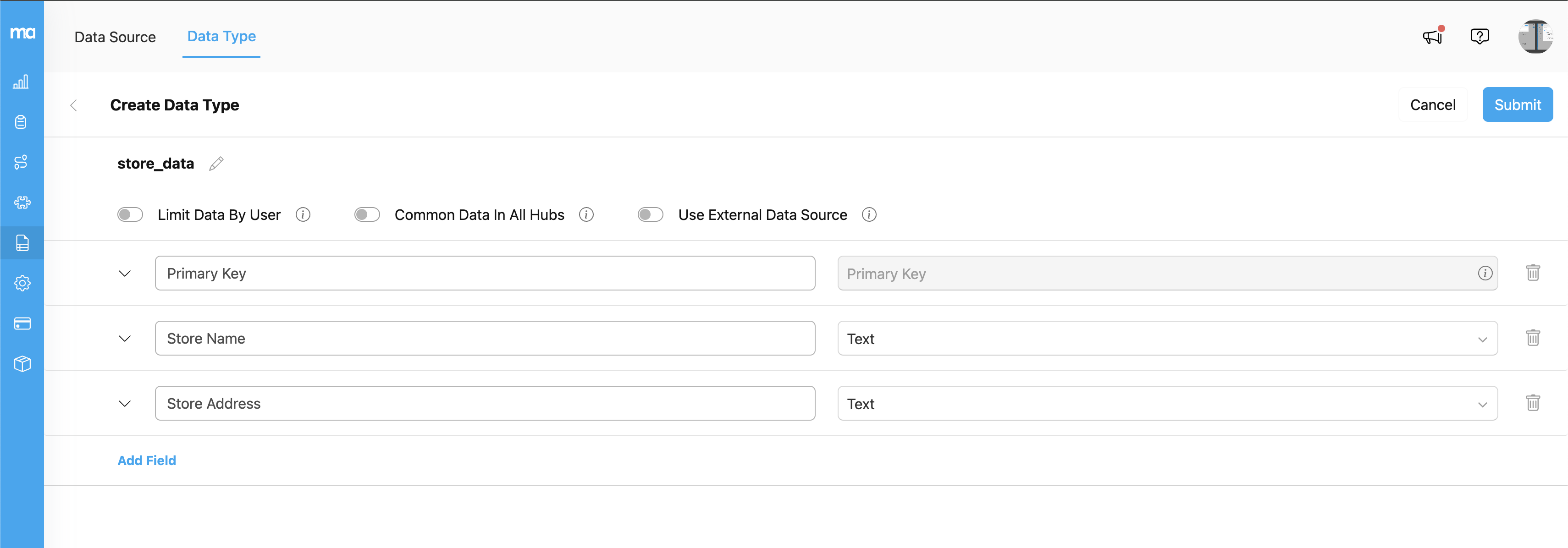
1. Navigate to **Data Source → Data Type**
2. Click **"New"**
3. Enter basic information including data type name and field definitions
### Step 2: Enable External Source
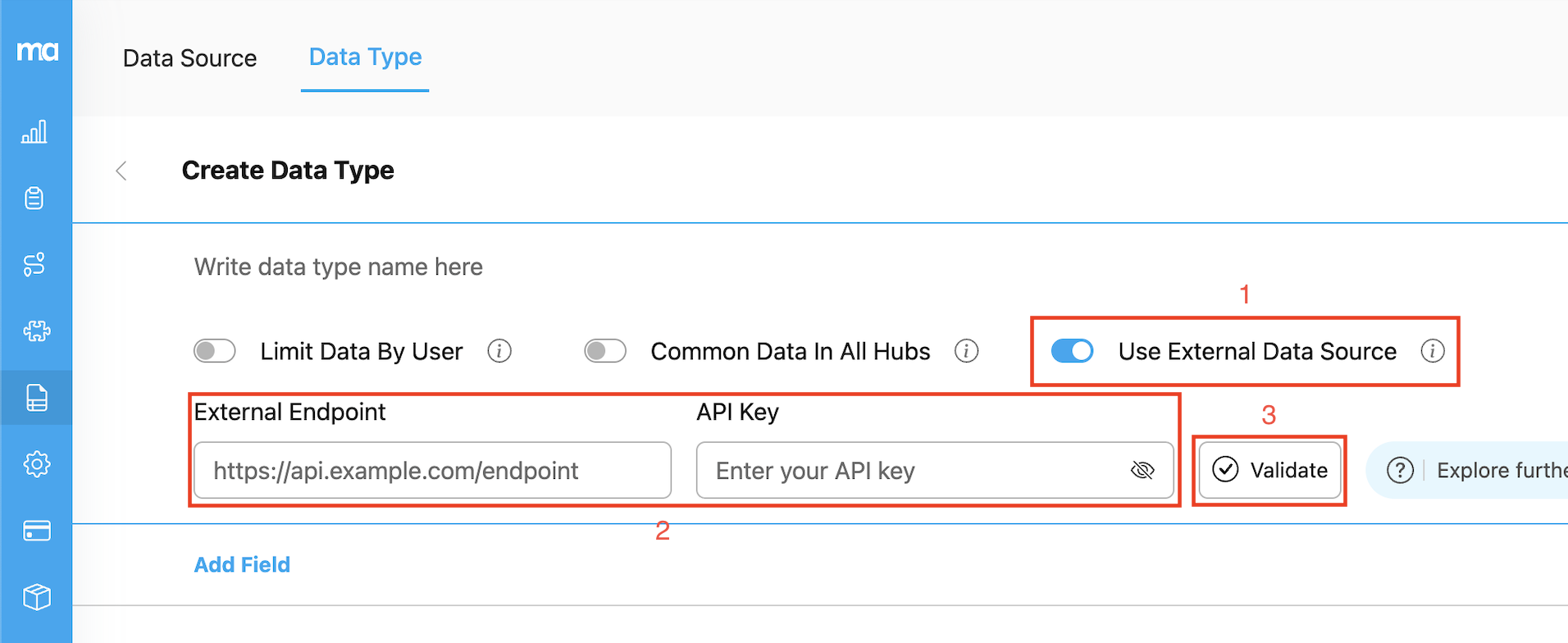
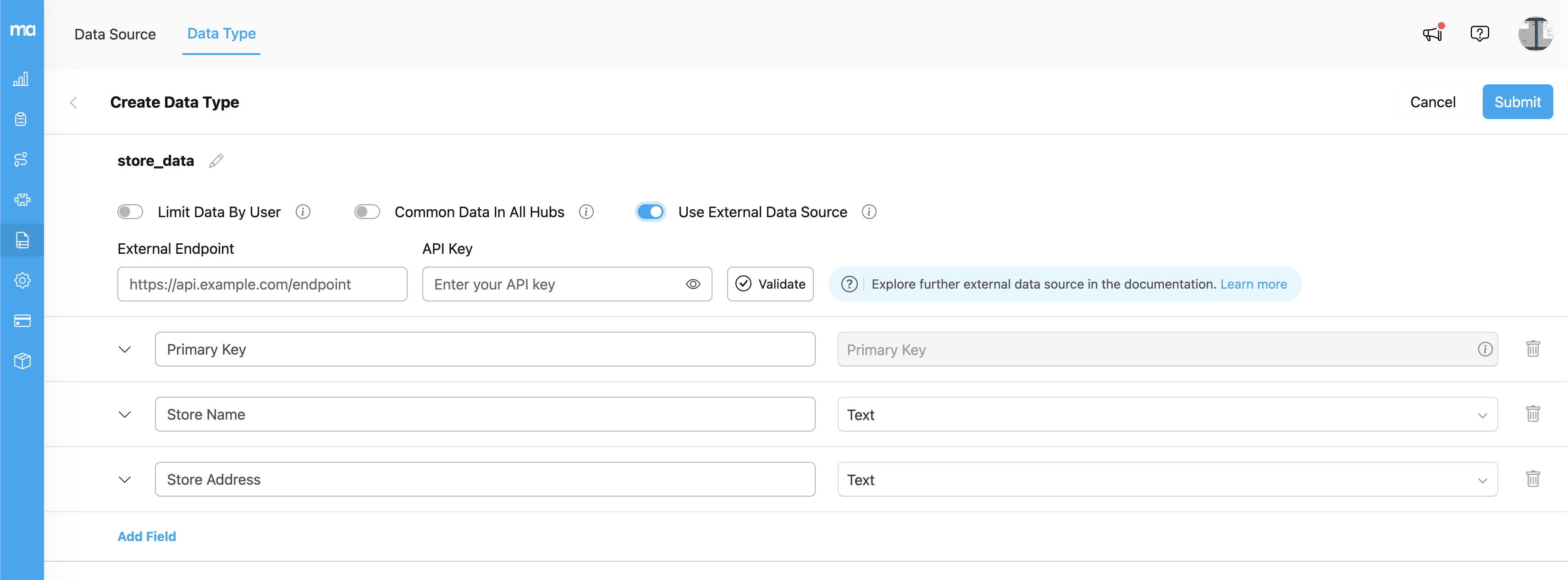
1. Toggle the **"Use External Data Source"** switch to enable external API integration
**Important Notes:**
* Once a data type is created, the external source toggle cannot be modified
* For existing data types, this toggle will be permanently disabled
* Plan your data architecture carefully before creating the data type
### Step 3: Configure External API
Configure the external API settings with the following parameters:
#### Required Configuration
| Field | Description | Example |
| ----------- | --------------------- | ---------------------------------------- |
| **API URL** | Full GET endpoint URL | `https://api.storexyz.com/api/v2/stores` |
#### Optional Configuration
| Field | Description | Example |
| ----------- | ------------------------------- | ---------------------- |
| **API Key** | Bearer token for authentication | `sk_live_abc123xyz789` |
### Step 4: Define Field Structure
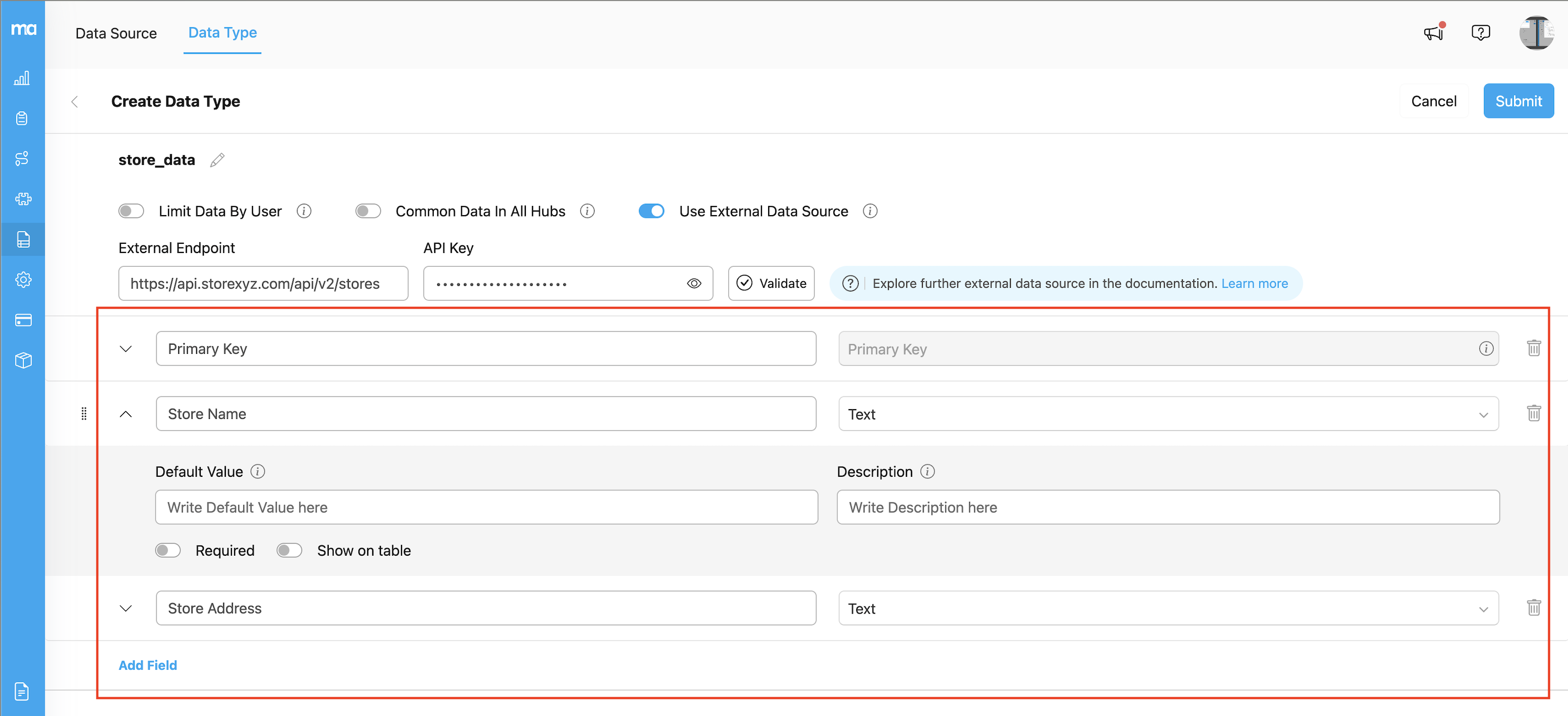
Define the fields expected from your external API:
For each field, configure:
* **Field Title**: Human-readable name displayed in MileApp
* **Field ID**: Machine-readable identifier (typically camelCase version of title)
* **Field Type**: Select from available types:
* Primary Key (one required per data type)
* Text
* Number
* Option
* Date
* Coordinate (geolocation)
* Phone Number
* Time
* Date Time
* **Required**: Toggle if the field must be present in all records
* **Show in Table**: Display the field in data listings
* **Description**: Help text for users (displayed as a tooltip)
#### System Fields Requirements
The following system fields are required for proper data processing and must be included in every record returned by your external API:
* First-level `data`, must contain these fields:
* **total**: Total amount of data (required for pagination)
* Second-level `data`, must contain these fields:
* **\_id**: Unique identifier (auto-generated by the external system)
* **dataId**: Required for representing the data when creating tasks with data source configuration enabled
* **hubId**: Required for hub-based data filtering
* Not required if the data type has "Common data in all hubs" enabled
* **data\_type.name**: Required for data type identification in API operations
* **limitUser**: Required for "Limit Data by User" config
* If "Limit Data by User" config is turned off, the value must be array with one value "all"
**Important Notes:**
* Empty field names are automatically filtered out during validation
* At least one field must be designated as the Primary Key
* Field IDs should match or closely resemble external API field names for automatic mapping
### Step 5: Validate Connection
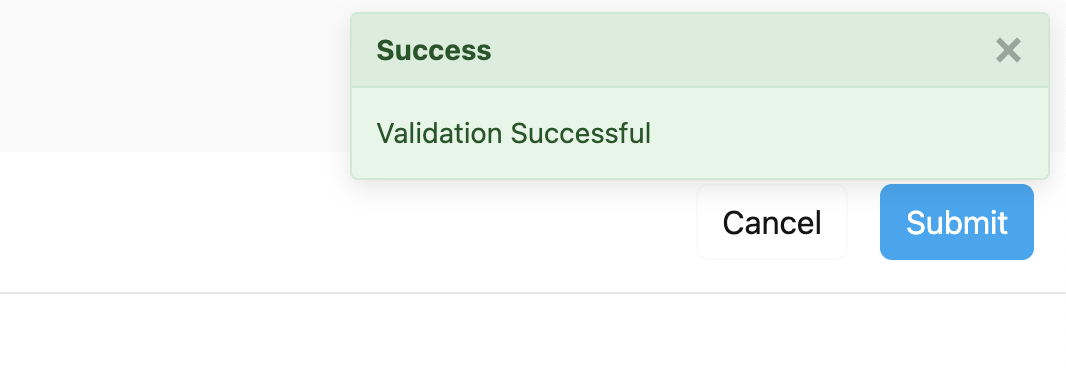
1. Click the **"Validate"** button to test your configuration:
The validation process performs the following checks:
* **Connection Test**: Verifies API endpoint accessibility
* **Authentication**: Confirms bearer token validity
* **Response Format**: Validates JSON structure
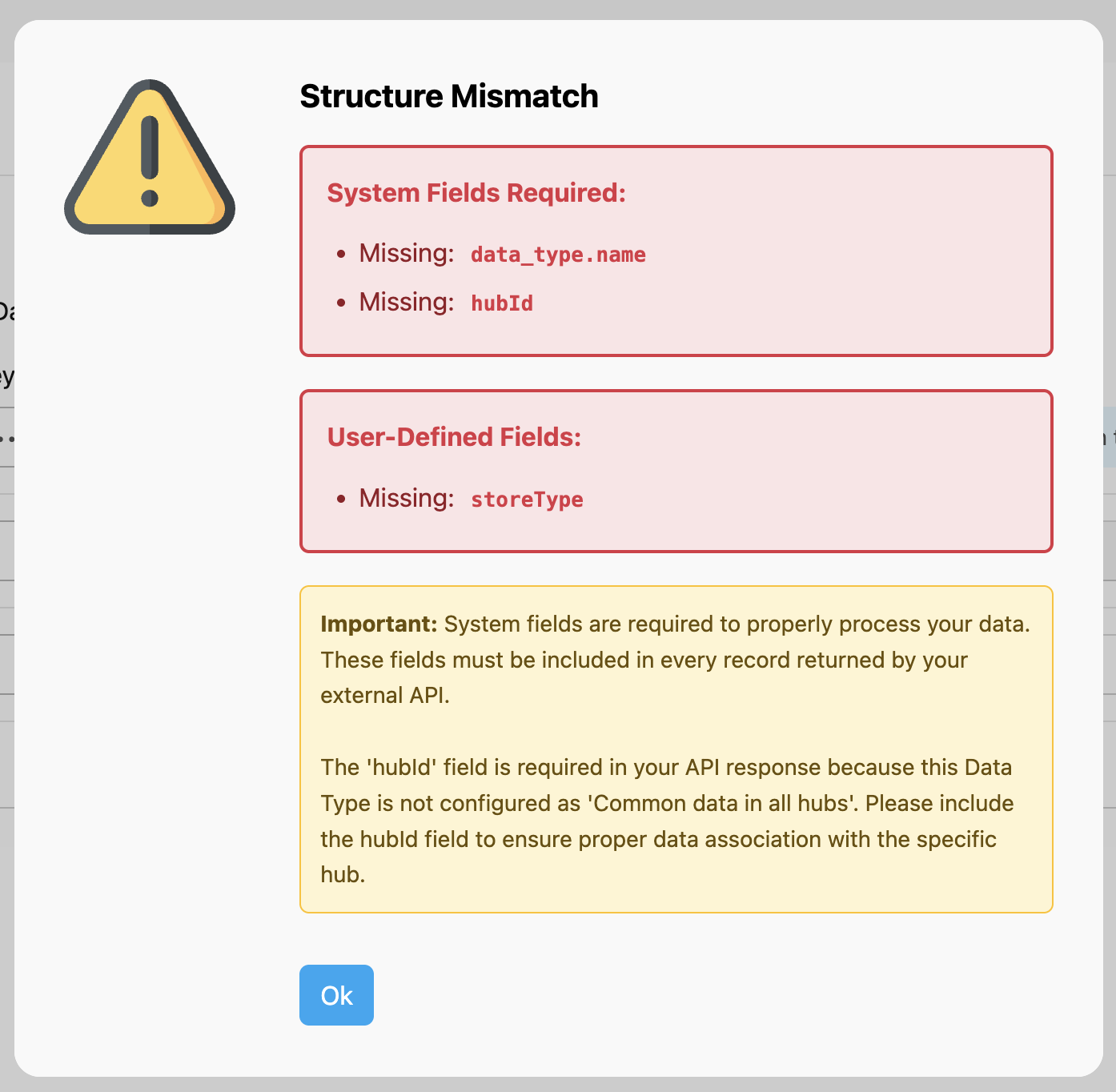
* **Field Validation**: Compares expected versus actual fields
When required system fields or user-defined fields are missing, a Structure Mismatch popup will appear:
### Step 6: Submit and Activate
1. After successful validation, click **"Submit"** to create the External Data Source
2. The system performs an initial connection test
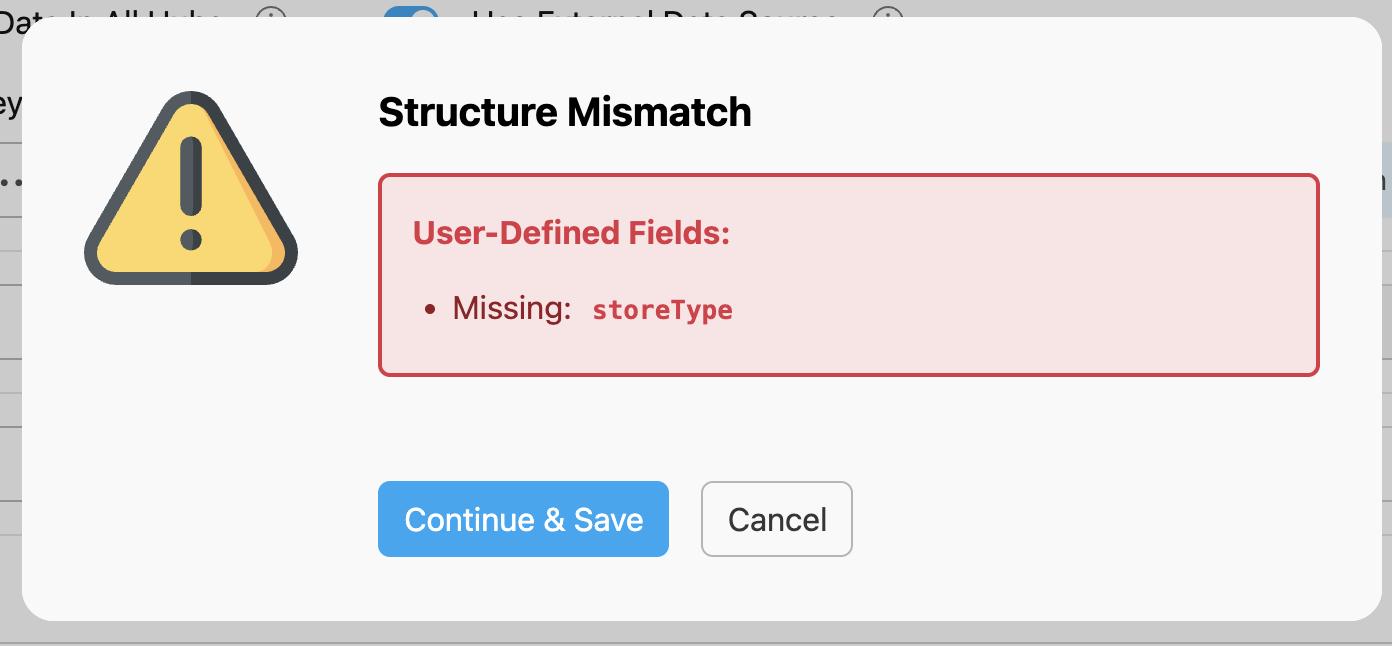
3. If fields are missing, a confirmation popup appears:
You can proceed with missing fields, but some fields may not populate correctly.
4. Once successful, the data type is ready for use in flows and tasks
## Managing External Data Sources
### Editing Configuration
To modify an External Data Source:
1. Click the **Edit** icon on the data type
2. Update API URL, API Key, or field mappings as needed
3. **Always** test the connection after making changes
4. Save to apply updates
**Important Considerations:**
* The "Use External Data Source" toggle cannot be changed after creation
* Changing field mappings may affect existing flows using this data source. Test thoroughly before saving.
### Deleting External Sources
To remove an External Data Source:
1. Verify that no active flows or tasks depend on this data type
2. Navigate to the Data Type list
3. Click **Delete** from the actions menu
4. Confirm deletion (this action cannot be undone)
5. The system will remove the data type configuration
**Note**: Deletion only removes the configuration in MileApp. Your external data remains unchanged in the source system.
## API Requirements and Implementation Details
### Required API Endpoints
Based on MileApp's standard API structure, external systems should provide endpoints similar to (please note route priority):
1. **Get All Data**: `GET /data`
* Supports pagination parameters: `page`, `limit`
* Supports filtering: `fields`, `sortBy`, `sortOrder`
* Return a paginated list of records
2. **Get by Hub ID, Data Type, and Data ID**: `GET /data/hub/{hubId}/type/{dataTypeName}/{dataId}`
* Return a specific record by hubId, dataTypeName, and dataId
3. **Get by Data Type and Data ID**: `GET /data/type/{dataTypeName}/{dataId}`
* Return a specific record by dataTypeName and dataId
4. **Get by ID**: `GET /data/{_id}`
* Return a single record by unique identifier (\_id)
### Query Parameters Support
External API endpoints, especially the "get all data" endpoint, should accept standard query parameters:
* `page`: Page number for pagination (default: 1)
* `limit`: Number of records per page (default: 20, max: 2000)
* `fields`: Comma-separated list of fields to return
* `sortBy`: Field name for sorting
* `sortOrder`: Sort direction (`asc` or `desc`)
* `hubId`: Filter by hub ID (supports comma-separated multiple values)
* `dataTypeName`: Filter by data type name
* `dataId`: Filter by specific data IDs (supports comma-separated values)
* `q`: Search query string (by dataId) with wildcard matching (case-insensitive)
* `limitUser`: Filter by user access permissions
### Authentication
The API Key is sent as an Authorization Bearer token in the request header:
```
Authorization: Bearer {api_key}
```
### Response Format
External APIs at least should return data in the following JSON structure:
```json theme={null}
{
"data": {
"data": [
{
"_id": "unique_identifier",
"dataId": "data_identifier",
"hubId": "hub_identifier",
"data_type": {
"name": "type_name"
},
"limitUser": [
"user_email"
]
// Additional custom fields
}
],
"total": 2
}
}
```
## Important Considerations and Limitations
### Data Access Restrictions
For External Data Types, the Data Source menu provides **read-only** access:
* No creation of new records through MileApp interface
* No modification of existing records
* No deletion capabilities
* All data management must be performed in the external system
### Mobile App Considerations
There are specific limitations for external data sources in mobile applications:
* **Offline Mode**: External data sources do not support offline mode due to dependency on real-time API connectivity
### Implementation Flow Considerations
When implementing external data sources, consider the workflow sequence:
* **Option A: MileApp-First Approach**
* Create the data type structure in MileApp first
* Develop the external API to match the defined structure
* Benefit: Clear specification for API development
* **Option B: API-First Approach**
* Develop the external API with required fields
* Configure MileApp data type to match existing API
* Benefit: Leverage existing APIs without modification
The choice depends on whether you're building new APIs or integrating with existing systems.
## Best Practices
### Integration Patterns
#### Product Catalog Integration Example
```json theme={null}
{
"name": "Product Catalog",
"provider": "external-api",
"providerConfig": {
"url": "https://api.inventory.com/products",
"key": "Bearer sk_live_..."
},
"fields": [
{ "id": "sku", "type": "primaryKey", "title": "SKU" },
{ "id": "name", "type": "text", "title": "Product Name" },
{ "id": "price", "type": "number", "title": "Price" },
{ "id": "stock", "type": "number", "title": "Stock Level" }
]
}
```
#### Customer Database Integration Example
```json theme={null}
{
"name": "Customer Database",
"provider": "external-api",
"providerConfig": {
"url": "https://crm.company.com/api/customers",
"key": "Bearer token_xyz"
},
"fields": [
{ "id": "customerId", "type": "primaryKey", "title": "Customer ID" },
{ "id": "fullName", "type": "text", "title": "Full Name" },
{ "id": "email", "type": "text", "title": "Email" },
{ "id": "phoneNumber", "type": "phoneNumber", "title": "Phone" },
{ "id": "address", "type": "text", "title": "Address" }
]
}
```
### Performance Optimization
* **Implement Caching**: Cache frequently accessed data to reduce API calls
* **Use Pagination**: Always implement pagination for large datasets
* **Optimize Queries**: Use field filtering to retrieve only necessary data
* **Monitor Response Times**: Ensure API responses are under 5 seconds
* **Implement Rate Limiting**: Protect external APIs from excessive requests
### Security Recommendations
* **Use HTTPS**: Always use encrypted connections for API endpoints
* **Rotate API Keys**: Regularly update authentication tokens
* **Implement IP Whitelisting**: Restrict API access to known IP addresses
## Troubleshooting
### Common Issues and Solutions
#### Connection Failures
**Symptoms**: Unable to connect to external API
**Solutions**:
* Verify API URL is correct and accessible
* Check network connectivity and firewall settings
* Confirm API service is running and available
* Validate SSL certificates for HTTPS connections
#### Authentication Errors
**Symptoms**: 401 or 403 errors when accessing API
**Solutions**:
* Verify API key is correct and active
* Check token format (should include "Bearer" prefix)
* Confirm API key has necessary permissions
* Verify IP whitelisting if applicable
#### Field Mapping Issues
**Symptoms**: Missing or incorrect data in MileApp
**Solutions**:
* Review field ID matching between MileApp and external API
* Verify all required system fields are present
* Check data type compatibility
* Validate response structure matches expectations
#### Performance Problems
**Symptoms**: Slow data retrieval or timeouts
**Solutions**:
* Implement pagination for large datasets
* Add appropriate indexes to external database
* Consider implementing caching layer
* Optimize API queries to return only necessary fields
## Support and Resources
For additional support or advanced integration scenarios, contact MileApp support or consult the [API documentation](/api-reference/introduction).