> ## Documentation Index
> Fetch the complete documentation index at: https://docs.mileapp.dev/llms.txt
> Use this file to discover all available pages before exploring further.
# Coordinate
The **Coordinate** input type enables field workers to capture a precise GPS location (latitude and longitude) as part of a task. It supports geofencing validation (GeoLock) and can automatically populate the Coordinate field from a linked [Address](/pages/flow/flow-builder/component-input-type/address) component during task import.
## What is the Coordinate Input?
Coordinate captures a `lat,lng` position — either from the device GPS or entered manually. It is the primary component for location-based operations: route optimization, expected-location enforcement, and map-based task visualization.
**Use Cases:**
* **Delivery location**: Capture the customer's GPS position on the Initial Page for route optimization and proof-of-delivery geolock
* **Field service check-in**: Record on-site coordinates to prove the technician arrived at the correct location
* **Import geocoding**: Import tasks with address text and let the system forward-geocode the coordinates automatically
## Coordinate Properties
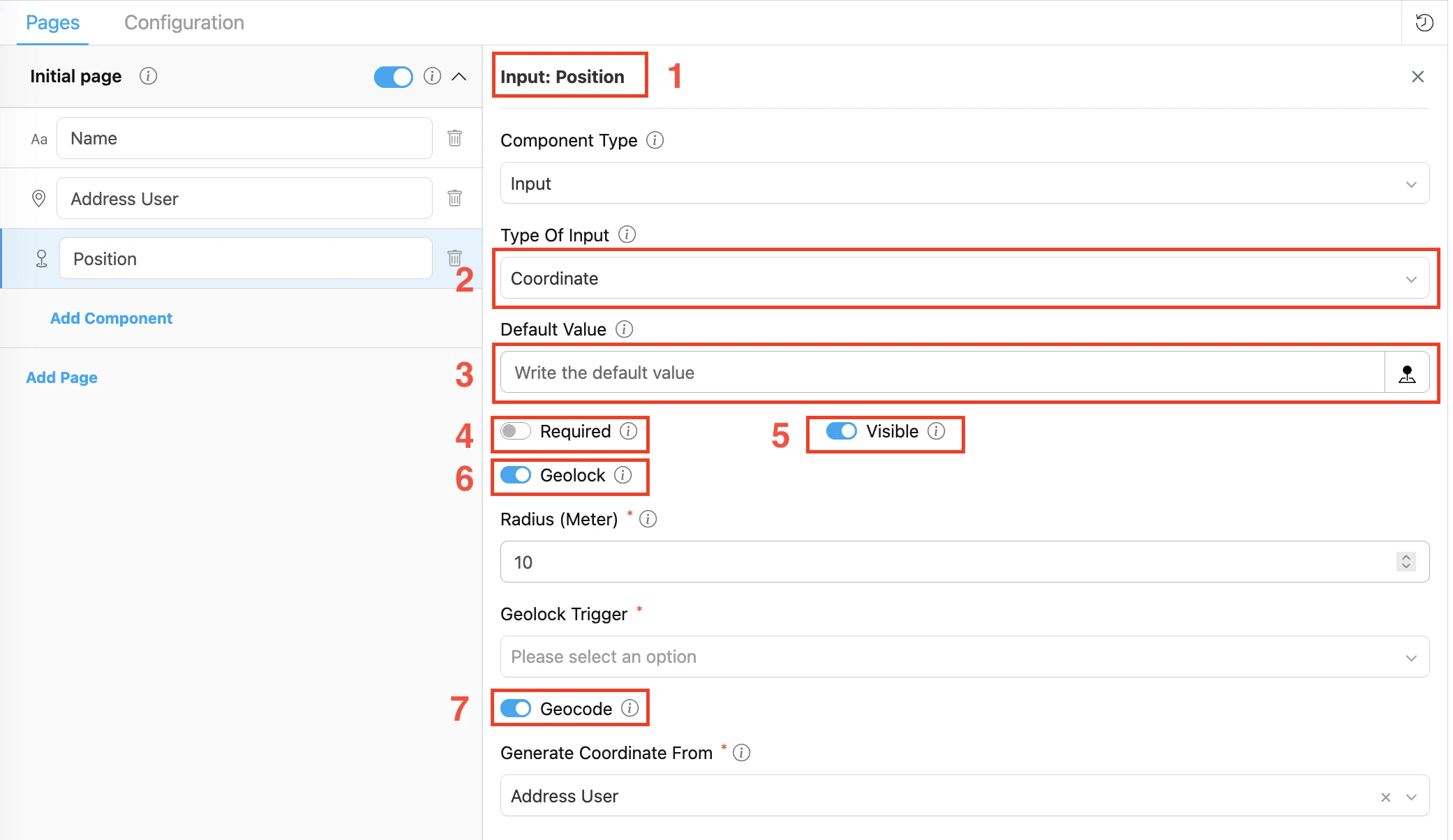
**Coordinate Type of Input settings:**
1. **Title** — Component label shown to field workers (e.g., "Delivery Location", "Position")
2. **Data type** — Set to Coordinate
3. **Default Value** — Pre-filled `lat,lng` value (e.g., `-6.200000,106.816666`). A task created with this flow will use this value unless overridden.
4. **Required** — If on, the field must be filled before page completion
5. **Visible** — Controls display on Create Task (web and mobile) and View Task (mobile).
6. **Geolock** — If on, enables geofencing validation. Reveals two additional fields:
* **Radius (Meter)** — Defines the geofence boundary around the expected coordinate. Minimum 0.
* **Geolock Trigger** — When the check occurs: **On Task Started** or **On Task Done**
7. **Geocode** — If on, automatically populates this Coordinate field from the linked Address component during task import. Reveals:
* **Generate Coordinate From** — Select the Address component to use as the geocoding source (e.g., select "Address User")
## How to Configure Coordinate
### Step 1: Add the Component
In the Flow Builder, click **Add Component** on the target page. Set **Component Type** to **Input** and **Type Of Input** to **Coordinate**.
### Step 2: Set Basic Properties
Enter the component **Title** (e.g., "Position"). Toggle **Required** and **Visible** as needed. Optionally enter a **Default Value** in `lat,lng` format.
### Step 3: Configure Show As / Route As (optional)
In the **Configuration** section at the bottom of the settings panel:
* Set **Show As** to `expectedCoordinate` — the value is copied to the task's `expectedCoordinate` root field, used by the route optimization engine and displayed on the task list map.
* Set **Route As** to `Coordinate` — maps this field to the routing engine as the visit's geographic position.
### Step 4: Enable Geolock (optional)
Toggle **Geolock** on to enforce that the field worker is physically near the expected location:
1. Set **Radius (Meter)** — the acceptable distance from the expected coordinate (e.g., 100 for 100 meters).
2. Set **Geolock Trigger**:
* **On Task Started** — validates proximity when the driver starts the task (useful for pick-up at a depot)
* **On Task Done** — validates proximity when marking the task complete (useful for delivery proof)
Each flow can have at most **one** Coordinate component with `On Task Started` and at most **one** with `On Task Done`. Duplicate triggers are rejected when saving the flow.
### Step 5: Enable Geocode (optional)
Toggle **Geocode** on to automatically populate this Coordinate field from an Address component during task import:
1. **Generate Coordinate From** dropdown appears — select the Address component in the flow that should be used as the geocoding source (e.g., "Address User").
2. Save the flow. The two components are now linked.
Enabling Geocode gives you one key benefit:
* **No manual coordinate entry when importing tasks** — if you fill the Address field during import, the system automatically converts it to GPS coordinates and populates this Coordinate field.
Both Geolock and Geocode can be active on the same Coordinate component at the same time.
## Geocode: Address → Coordinate
When **Geocode** is enabled, the Address field drives the Coordinate field automatically during task import:
| Direction | When it runs | What happens |
| ------------------------ | --------------------------- | -------------------------------------------------------------------------------------------------------------------------------------------------------------------- |
| **Address → Coordinate** | Task import / bulk creation | If the Coordinate field is empty but the linked Address has a value, the system forward-geocodes the address text to `lat,lng` and stores it in the Coordinate field |
**How to set up:**
1. Add both a **Coordinate** component and an **Address** component to the flow (same page or different pages).
2. Click the Coordinate component to open its settings.
3. Toggle **Geocode** on.
4. In **Generate Coordinate From**, select the Address component from the dropdown.
The **Generate Coordinate From** dropdown only shows `Input / Address` components. If no options appear, make sure you have added an Address-type input component to the flow first.
## GeoLock vs Geocode
Both features are enabled on the Coordinate component but serve completely different purposes:
| Feature | GeoLock | Geocode |
| ------------------------- | ------------------------------------ | ------------------------------------------------ |
| **Purpose** | Validates worker proximity | Auto-populates coordinates from an address |
| **Effect** | Blocks task action if outside radius | Fills coordinate from address text — no blocking |
| **Extra fields required** | Radius (Meter) + Geolock Trigger | Generate Coordinate From (Address component) |
| **Can combine** | ✓ Both active on same component | ✓ |
## Validation Rules
* **Radius** must be an integer ≥ 0 when Geolock is on
* **Geolock Trigger** must be selected when Geolock is on
* **Generate Coordinate From** must reference a valid Address component when Geocode is on
* Maximum **one** `On Task Started` geolock per flow
* Maximum **one** `On Task Done` geolock per flow
## How Coordinate Works in Tasks
When a field worker opens a task on the mobile app:
1. The Coordinate field shows a `latitude,longitude` input with a **map picker** button
2. The worker taps the map picker to use their current GPS position, or enters coordinates manually
3. If **Geolock** is configured, the app checks proximity at the trigger point:
* If within radius → task action proceeds normally
* If outside radius → the action is blocked with an error message
## Related
* [Address Component](/pages/flow/flow-builder/component-input-type/address) — Address field used as the geocoding source for this Coordinate
* [Configuration: Route](/pages/flow/flow-builder/configuration-route) — Setting `Route As: Coordinate`
* [Configuration: Task List](/pages/flow/flow-builder/configuration-task-list) — Setting `Show As: expectedCoordinate`
* [Input Component Overview](/pages/flow/flow-builder/component-input-type/component-input)