> ## Documentation Index
> Fetch the complete documentation index at: https://docs.mileapp.dev/llms.txt
> Use this file to discover all available pages before exploring further.

# Currency

The **Currency** input type enables field workers to enter monetary values as part of a task.

## What is the Currency Input?

Currency captures a number formatted as money. It is functionally similar to Number, but the input is presented and stored as a currency value so it is easier to read on the form and on the task list.

**Use Cases:**

* **Price**: Record the agreed sale price of an item or service
* **Cost**: Capture the cost of materials or services incurred during a task
* **Transaction amount**: Record the amount collected during cash-on-delivery (COD)

## Currency Properties

<div align="center">
  <img src="https://mintcdn.com/mileapp-c1584fbc/OPAMjeo91qoaLUGM/images/flow/component-input-currency-settings.png?fit=max&auto=format&n=OPAMjeo91qoaLUGM&q=85&s=f1ef36573eaabb54d95ae206eb9bd908" alt="image" width="600" data-path="images/flow/component-input-currency-settings.png" />

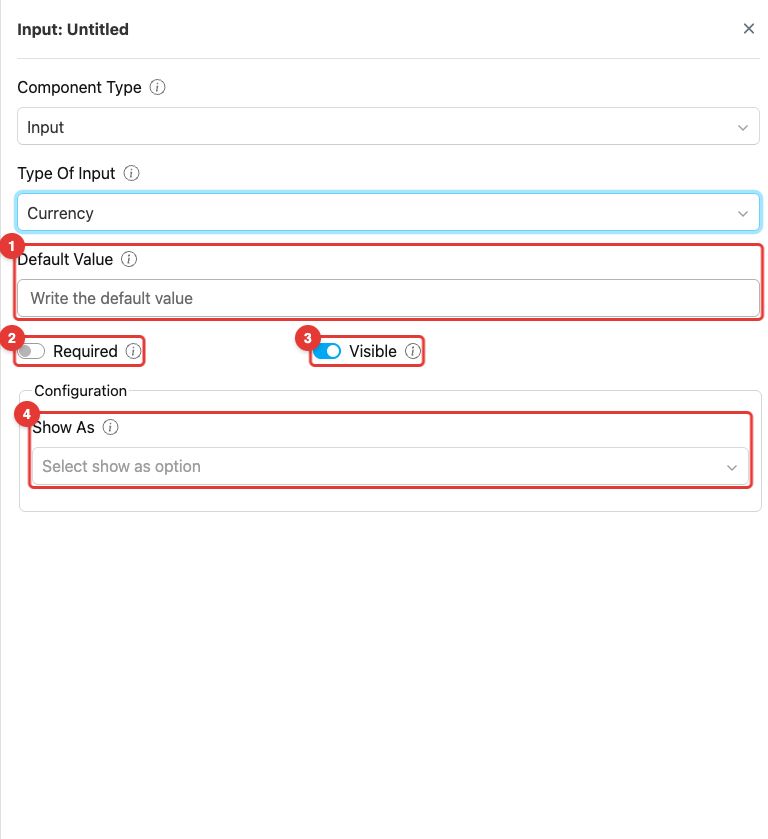
  <p><i>Component currency input settings</i></p>
</div>

1. **Default Value:** This setting allows you to set a pre-filled monetary value for this component. If a value is specified, any task created with this flow will use it as the initial value.
2. **Toggle Required:** This option makes the currency input mandatory. If not filled, users cannot proceed to other activities.
3. **Toggle Visible:** This setting affects the visibility of the component during task creation on the web and mobile, as well as task viewing on the mobile app. If the component is not visible, it will not be shown in the UI. However, both visible and hidden component data will be exported, regardless of their visibility status.
4. **Show As:** This configuration, controls how the input value is displayed within the task. The value of this component will appear on the task table in the **Task** menu as the **Title**, **Content**, or **Label**, depending on the option selected.

## How to Configure Currency

### Step 1: Add the Component

In the Flow Builder, click **Add Component** on the target page. Set **Component Type** to **Input** and **Type Of Input** to **Currency**.

### Step 2: Set Basic Properties

Enter the component **Title** (e.g., "COD Amount"). Toggle **Required** and **Visible** as needed. Optionally enter a **Default Value**.

### Step 3: Configure Show As (optional)

In the **Configuration** section, set **Show As** to **Title**, **Content**, or **Label** to control how the currency value appears on the task list in the Task menu.

## How Currency Works in Tasks
<div align="center">
  <img src="https://mintcdn.com/mileapp-c1584fbc/OPAMjeo91qoaLUGM/images/flow/component-input-currency-mobile.png?fit=max&auto=format&n=OPAMjeo91qoaLUGM&q=85&s=deee7c33f851f6ae3feea3ebb8349e44" alt="image" width="300" data-path="images/flow/component-input-currency-mobile.png" />

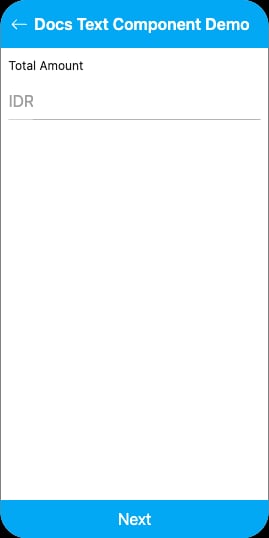
  <p><i>Currency input on mobile preview</i></p>
</div>

When a field worker opens a task on the mobile app:

1. The Currency field shows a **numeric keyboard input** formatted as money
2. The field may already be populated:
   * **From task creation**: If the task was created with a currency value, it is pre-filled
   * **From Default Value**: The flow-level default appears if no value was provided at creation
3. The worker can edit the amount before completing the page

## Related

* [Number Component](/pages/flow/flow-builder/component-input-type/number) — General numeric input without currency formatting
* [Input Component Overview](/pages/flow/flow-builder/component-input-type/component-input)
