> ## Documentation Index
> Fetch the complete documentation index at: https://docs.mileapp.dev/llms.txt
> Use this file to discover all available pages before exploring further.

# Component: Timer

The **Timer Component** tracks how long a field worker spends on a step of a task. It renders as a stopwatch on the mobile app with start, pause, and (optionally) reset controls — useful for measuring service duration, on-site time, or any activity that needs an audit trail.

## What is the Timer Component?

The Timer is a stopwatch attached to a single Mobile App Page. When the page is opened, the worker starts the timer; when they leave the page or finish the task, the elapsed duration is saved on the task.

<Warning>
  The Timer component **cannot be placed on the Initial Page**. It is only available on Mobile App Pages (Page 1, Page 2, etc.). The Component Type dropdown will not include Timer when the Initial Page is selected.
</Warning>

**Use Cases:**

* **On-site service duration** — Track how long a technician spends at a customer's location
* **Working time per step** — Measure the time taken for each stage of a multi-page flow
* **Performance auditing** — Compare durations across workers or visits
* **SLA monitoring** — Verify that a stop or activity stays within an expected window

## Timer Component Properties

<div align="center">
  <img src="https://mintcdn.com/mileapp-c1584fbc/9a5Ka_AG8JS8Qn6V/images/flow/component-timer-settings.png?fit=max&auto=format&n=9a5Ka_AG8JS8Qn6V&q=85&s=dd9aeed26eb7a49e805395b78fbf6ad5" alt="Timer component configuration" width="600" data-path="images/flow/component-timer-settings.png" />

  <p><i>Timer component settings panel</i></p>
</div>

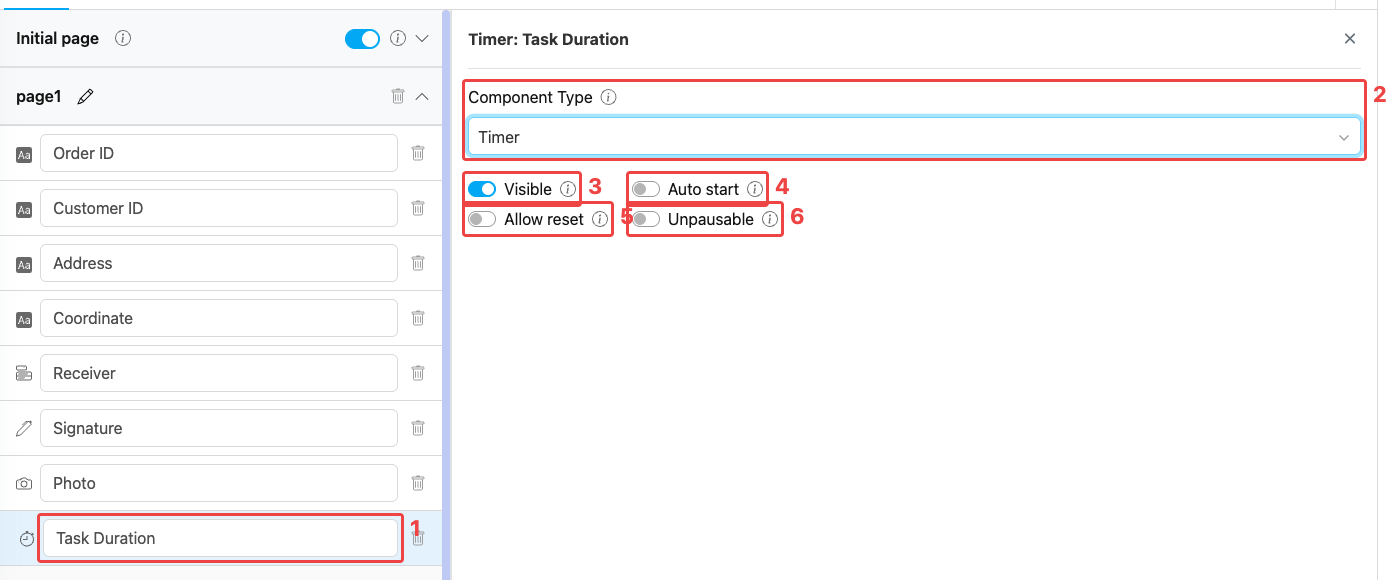
**Timer component settings:**

1. **Title** — Component label shown above the stopwatch on the mobile app (e.g., "Task Duration", "Service Time")
2. **Component Type** — Set to Timer
3. **Visible** — Controls display on Create Task (web and mobile) and View Task (mobile). Hidden components still export their data.
4. **Auto start** — When on, the timer starts counting automatically the moment the worker opens the page. When off, the worker must tap **Start** to begin counting.
5. **Allow reset** — When on, the mobile app shows a **Reset** button so the worker can clear the elapsed time and start over. When off, the timer cannot be reset by the worker.
6. **Unpausable** — When on, the timer cannot be paused once it starts. Use this for activities that should be measured continuously (e.g., SLA-bound service windows).

## How to Configure the Timer Component

### Step 1: Add the Component on a Mobile App Page

In the Flow Builder, open a **Mobile App Page** (e.g., Page 1). Click **Add Component**, then set **Component Type** to **Timer**. The Timer option is not available on the Initial Page.

### Step 2: Set the Title

Enter a descriptive **Title** (e.g., "Task Duration", "Service Time", "Visit Duration"). This label appears above the stopwatch on the mobile app.

### Step 3: Choose Auto Start Behavior

* Turn **Auto start** on when the activity begins as soon as the worker reaches the page (e.g., on-site service starts immediately on arrival).
* Leave it off when the worker needs to explicitly tap **Start** (e.g., to mark the moment a customer signs the form).

### Step 4: Configure Reset and Pause Controls

* Turn **Allow reset** on if the worker should be able to restart the timer (e.g., on a mistake or retry). Leave it off to preserve the original duration.
* Turn **Unpausable** on for continuous, audit-grade measurements where pausing should not be possible.

### Step 5: Save

Click **Save** in the Flow Builder. The timer is now part of the page for any task created from this flow.

## How the Timer Works in Tasks

<div align="center">
  <img src="https://mintcdn.com/mileapp-c1584fbc/9a5Ka_AG8JS8Qn6V/images/flow/component-timer-mobile.png?fit=max&auto=format&n=9a5Ka_AG8JS8Qn6V&q=85&s=9ca7d4434e919c98925fec6a69129a7b" alt="Timer component on mobile preview" width="300" data-path="images/flow/component-timer-mobile.png" />

  <p><i>Timer component rendered on the mobile preview</i></p>
</div>

When a field worker opens the page on the mobile app:

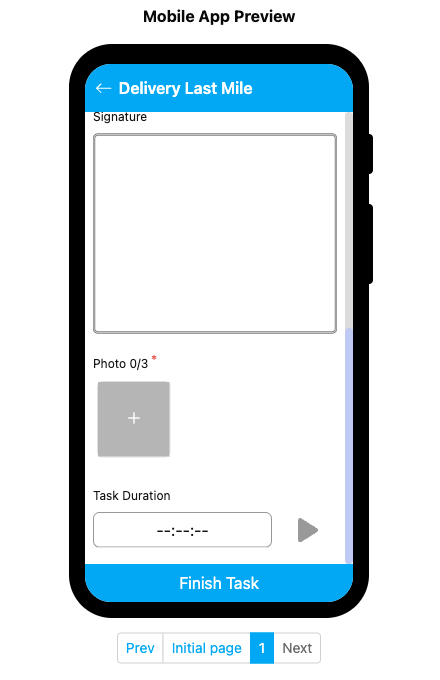
1. The Timer section shows the title and a stopwatch display (`--:--:--`) with a **Start** (play) button.
2. If **Auto start** is on, the timer begins counting automatically; otherwise the worker taps **Start**.
3. While running, the worker can tap **Pause** to stop counting — unless **Unpausable** is on, in which case the pause button is hidden.
4. If **Allow reset** is on, a **Reset** button is available to clear the elapsed time.
5. The accumulated duration is saved on the task when the worker completes it.

## Related

* [Component: Capture](/pages/flow/flow-builder/component-capture) — Automatically capture a single timestamp (arrival/departure) instead of measuring elapsed time
* [Configuration: Time](/pages/flow/flow-builder/configuration-time) — Flow-level start and end time windows
* [Mobile App Page](/pages/flow/flow-builder/page-mobile-app-page) — Where Timer components must live
* [Flow Builder Overview](/pages/flow/flow-builder/introduction) — Reference for every part of the Flow Builder