> ## Documentation Index
> Fetch the complete documentation index at: https://docs.mileapp.dev/llms.txt
> Use this file to discover all available pages before exploring further.

# Component: Voice Note

The **Voice Note Component** records audio from the device microphone and attaches it to a task. Use it when typed input is too slow or limiting — verbal customer feedback, complaint details, on-site explanations, or multilingual notes that are easier spoken than written.

## What is the Voice Note Component?

The Voice Note component renders as an audio recorder on the mobile app. The worker taps the microphone button to start recording, taps again to stop, and the audio file is saved as part of the task. Recordings are bounded by a configurable maximum duration.

<Warning>
  The Voice Note component **cannot be placed on the Initial Page**. It is only available on Mobile App Pages (Page 1, Page 2, etc.).
</Warning>

**Use Cases:**

* **Voice notes for complex issues** — Field worker explains a problem verbally instead of typing it
* **Customer complaints or feedback** — Capture the customer's own words for accuracy
* **Audio documentation** — Provide context that screenshots and text cannot
* **Multilingual support** — Record in the customer's language without forcing translation in the form

## Voice Note Component Properties

<div align="center">
  <img src="https://mintcdn.com/mileapp-c1584fbc/9a5Ka_AG8JS8Qn6V/images/flow/component-voice-note-settings.png?fit=max&auto=format&n=9a5Ka_AG8JS8Qn6V&q=85&s=a23b1b3de01ea366b33c783ae1879afc" alt="Voice Note component configuration" width="600" data-path="images/flow/component-voice-note-settings.png" />

  <p><i>Voice Note component settings panel</i></p>
</div>

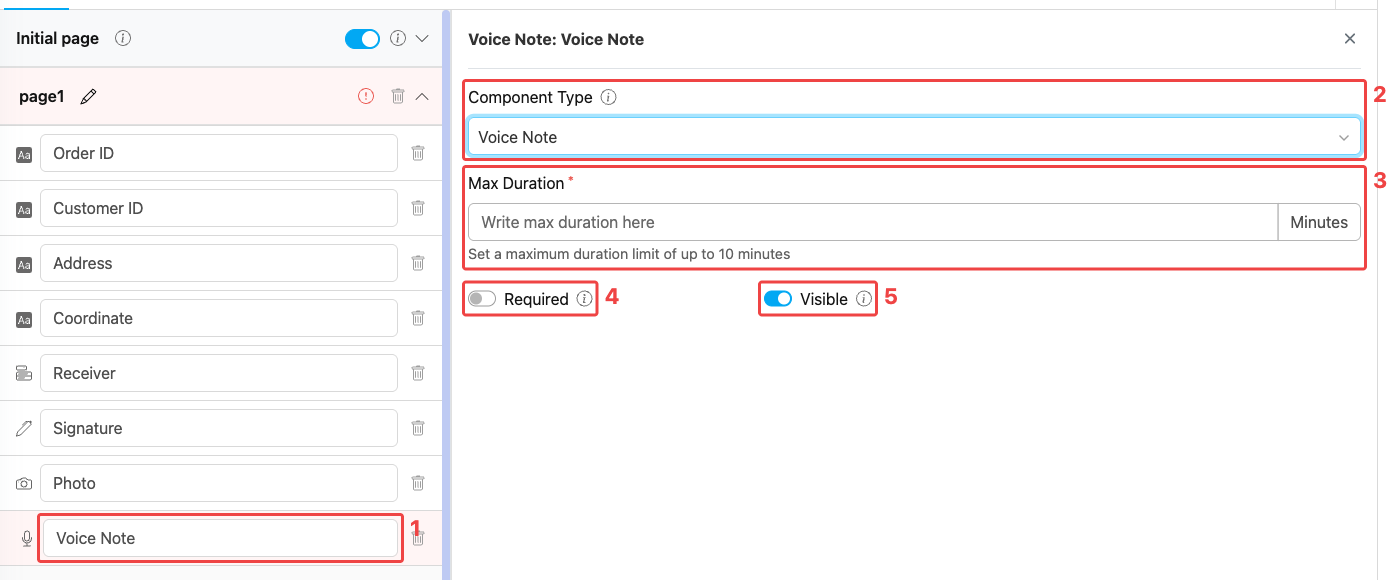
**Voice Note component settings:**

1. **Title** — Component label shown above the recorder on the mobile app (e.g., "Voice Note", "Customer Feedback")
2. **Component Type** — Set to Voice Note
3. **Max Duration** — Maximum recording length in **minutes** (range 1–10). Required field. The recorder automatically stops when this limit is reached.
4. **Required** — When on, the worker must record audio before the task can be saved
5. **Visible** — Controls display on Create Task (web and mobile) and View Task (mobile). Hidden components still export their data.

## How to Configure the Voice Note Component

### Step 1: Add the Component on a Mobile App Page

In the Flow Builder, open a **Mobile App Page** (e.g., Page 1). Click **Add Component**, then set **Component Type** to **Voice Note**. The Voice Note option is not available on the Initial Page.

### Step 2: Set the Title

Enter a descriptive **Title** (e.g., "Voice Note", "Customer Feedback", "Complaint Detail"). This label appears directly above the recorder on the mobile app.

### Step 3: Set Max Duration

Enter the maximum recording length in **minutes** (1–10). Pick a value that fits the typical recording — short for brief comments, longer for detailed accounts. The recorder stops automatically when the limit is reached.

### Step 4: Toggle Required and Visible

* Turn on **Required** when the recording is mandatory for completing the task. Leave it off if the field is optional.
* Leave **Visible** on for normal use. Turn it off only when the component should be hidden from both the web admin form and the mobile app but still exported on completed tasks.

### Step 5: Save

Click **Save** in the Flow Builder. The voice recorder is now live in any task created from this flow.

## How the Voice Note Works in Tasks

<div align="center">
  <img src="https://mintcdn.com/mileapp-c1584fbc/9a5Ka_AG8JS8Qn6V/images/flow/component-voice-note-mobile.png?fit=max&auto=format&n=9a5Ka_AG8JS8Qn6V&q=85&s=b3b8205af7f3270aa327ff1cc31c0fc9" alt="Voice Note component on mobile preview" width="300" data-path="images/flow/component-voice-note-mobile.png" />

  <p><i>Voice Note component rendered on the mobile preview</i></p>
</div>

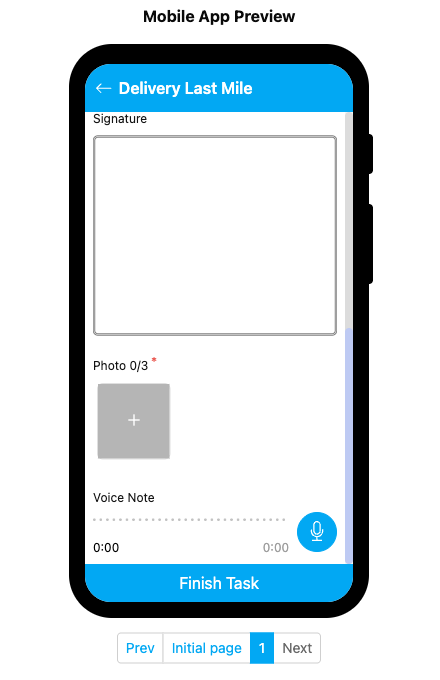
When a field worker opens the page on the mobile app:

1. The Voice Note section shows the title, an audio progress bar, and a **microphone** button on the right.
2. Tap the microphone button to start recording. The elapsed time updates in real time.
3. Tap the button again to stop. The recording is attached to the task.
4. The recorder stops automatically when the **Max Duration** limit is reached.
5. If **Required** is on, the worker cannot save the task until a recording is captured.

## Related

* [Component: Video](/pages/flow/flow-builder/component-video) — Record video instead of audio for visual documentation
* [Component: Capture](/pages/flow/flow-builder/component-capture) — Auto-capture data such as timestamps or barcodes
* [Mobile App Page](/pages/flow/flow-builder/page-mobile-app-page) — Where Voice Note components must live
* [Flow Builder Overview](/pages/flow/flow-builder/introduction) — Reference for every part of the Flow Builder