> ## Documentation Index
> Fetch the complete documentation index at: https://docs.mileapp.dev/llms.txt
> Use this file to discover all available pages before exploring further.

# Page: Mobile App Preview

A **Mobile App Page** is any page that comes after the Initial Page in a Flow. These are the screens that a field worker sees on the mobile app while completing a task. You can add as many Mobile App Pages as you need to break the workflow into clear steps — for example, *Delivery Info → Proof of Delivery → Confirmation*.

## What is a Mobile App Page?

Mobile App Pages let you structure the field worker's experience step by step. Unlike the Initial Page, they only appear in the mobile app — never in the web admin's New Task form.

Typical reasons to add a Mobile App Page:

* **Separate stages of work** — pickup confirmation, in-transit update, drop-off proof
* **Conditional steps** — display different next pages depending on a selection (e.g., success vs. failed delivery)
* **Display reference info from the Initial Page** — show customer name, address, or coordinate without asking the worker to type them again
* **Capture media or signatures** — group photo, signature, and voice note components onto their own page

## Mobile App Page Properties

<div align="center">
  <img src="https://mintcdn.com/mileapp-c1584fbc/flgN9jdgNWcdngrB/images/flow/page-mobile-app-page-panel.png?fit=max&auto=format&n=flgN9jdgNWcdngrB&q=85&s=19013f40456a6042abe3631e7b2d4871" alt="Mobile App Page in the pages list" width="400" data-path="images/flow/page-mobile-app-page-panel.png" />

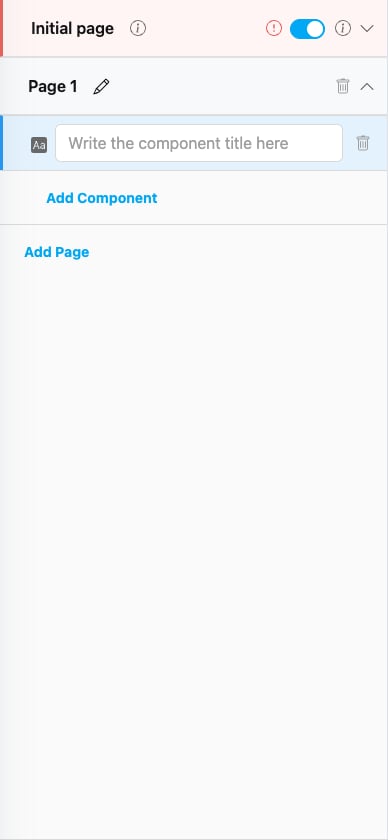
  <p><i>Mobile App Page (Page 1) below the Initial Page in the Pages panel</i></p>
</div>

A Mobile App Page row in the **Pages** panel has these elements:

* **Page name** — Editable. Click the pencil icon to rename (e.g., from `Page 1` to `Delivery Info`). Use clear names so the steps make sense in the mobile app's page indicator.
* **Trash icon** — Delete this page. The Initial Page cannot be deleted; only Mobile App Pages have this option.
* **Chevron** — Expand or collapse the page to see its components.
* **Add Component** — Add a new component to this page.
* **Add Page** — Below the last page, click this link to append another Mobile App Page.

You can add as many Mobile App Pages as your Flow's component limit allows (see [Introduction to Flow](/pages/flow/introduction-to-flow) for plan limits).

## Mobile App Preview

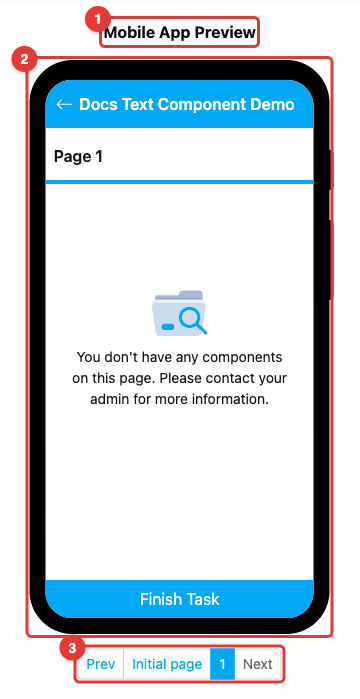
The right side of the Flow Builder shows a live preview of the active page on a simulated phone. Use it to verify what the field worker will see before saving the Flow.

<div align="center">
  <img src="https://mintcdn.com/mileapp-c1584fbc/flgN9jdgNWcdngrB/images/flow/page-mobile-app-preview.png?fit=max&auto=format&n=flgN9jdgNWcdngrB&q=85&s=dcbe92a6973ffdd154ad9eeb1ee07c1c" alt="Mobile App Preview area" width="400" data-path="images/flow/page-mobile-app-preview.png" />

  <p><i>The Mobile App Preview area with the phone simulator and page navigation</i></p>
</div>

1. **Mobile App Preview label** — Marks the preview area. Everything below this label updates in real time as you edit the Flow.
2. **Phone simulator** — The phone-shaped frame renders the active page exactly as it will look on the field worker's device, including the Flow name at the top and the page's components below it. The bottom button changes based on the page — **Next** on intermediate pages, **Save Task** on the last page.
3. **Pagination bar** — Switch between pages while editing. Use **Prev** / **Next** or tap a page name (**Initial page**, **1**, **2**, …) to jump to that page in the simulator. The active page is highlighted.

When a field worker uses the mobile app, the Mobile App Pages are shown in order. The worker fills in each page, then taps **Next** to proceed to the following page, and finally **Save Task** on the last page to submit the task.

## Linking to the Initial Page

A Mobile App Page can pull values from the Initial Page so the field worker does not have to re-enter information that was already captured at task creation.

The most common way is using a **View** component:

1. Open the Mobile App Page and click **Add Component**.
2. Set **Component Type** to **View** and **Type Of View** to match the source (e.g., String for a text value).
3. In **Value**, select the Initial Page component to reference (e.g., *Customer Name*).
4. The View now displays the Initial Page value automatically for every task created with this Flow.

You can do the same with other component types that support referencing, such as a Bill that continues from one started on the Initial Page.

## How to Configure a Mobile App Page

### Step 1: Add the Page

In the Pages panel, click **Add Page** at the bottom of the list. A new page named `Page 1` (or `Page N`) appears below the Initial Page.

### Step 2: Rename the Page

Click the **pencil** icon next to the page name and type a descriptive name (e.g., `Delivery Info`, `Order & Proof`, `Receiver Confirmation`). Clear names help field workers know which step they are on.

### Step 3: Add Components

Click the chevron to expand the page, then **Add Component**. Pick the right component type for each piece of information you want the field worker to see or capture.

### Step 4: Reorder Pages (optional)

Drag a page up or down in the list to change the order it appears in the mobile app. The Initial Page is always first and cannot be moved.

### Step 5: Preview and Save

Use the **Mobile App Preview** on the right to verify the page renders as expected, then click **Save** to persist your changes.
<Tip>
  Navigate through the mobile preview pagination (Prev / page numbers / Next) while building the Flow. This shows how the page transitions look in the actual mobile app and helps you catch issues like a missing Next button or a page that is empty in some conditions.
</Tip>

## Related

* [Initial Page](/pages/flow/flow-builder/page-initial-page) — The first page of every Flow
* [Component: View](/pages/flow/flow-builder/component-view) — Common way to display Initial Page values on a Mobile App Page
* [Previewing a Flow](/pages/flow/previewing-a-flow) — Tips on using the mobile preview while building
* [Flow Builder Overview](/pages/flow/flow-builder/introduction) — Reference for every part of the Flow Builder
