> ## Documentation Index
> Fetch the complete documentation index at: https://docs.mileapp.dev/llms.txt
> Use this file to discover all available pages before exploring further.

# Using WhatsApp OTP

OTP (One-Time Password) lets you verify a step in a task by sending a short code to the recipient. Besides Email and SMS, MileApp can now send the OTP code over **WhatsApp** — handy when your recipients are more reachable on WhatsApp.

## What you need

* An **OTP component** in your Flow (or add one — see below).
* Your organization has **OTP credit**. WhatsApp OTP is charged **per destination country** (sending to a number abroad may cost more than a local one).
* WhatsApp OTP is sent from the official MileApp WhatsApp number. If your organization needs its own branded number, contact MileApp to arrange it.

## Step 1: Open the Flow Builder

Sign in to MileApp on the web, open the **Flow** menu, and open the Flow you want to edit (or create a new one).

## Step 2: Add or open an OTP component

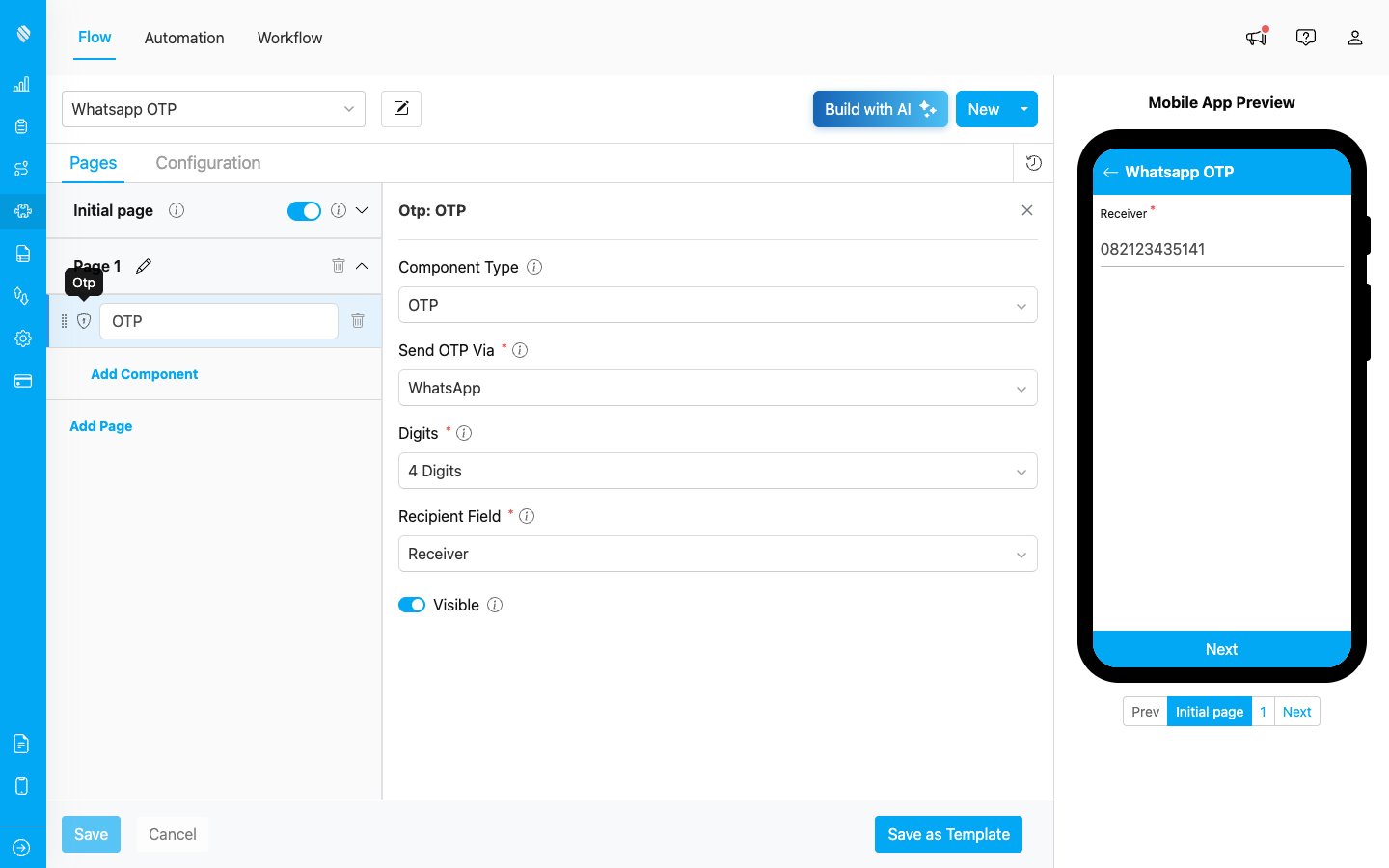
In the Flow Builder, add an **OTP** component to the page where verification is needed (or select an existing one). Selecting it opens its settings on the right, where you can set the **Component Type** (OTP), how the code is sent, the number of **Digits**, and the **Recipient Field**.

<div align="center">
  <img src="https://mintcdn.com/mileapp-c1584fbc/g09JQkjNuKqpxbxT/images/whatsapp-otp/flow-otp-component.png?fit=max&auto=format&n=g09JQkjNuKqpxbxT&q=85&s=a6b43f6561a401769a3c5206ee0ee97d" alt="OTP component settings in Flow Builder" width="600" data-path="images/whatsapp-otp/flow-otp-component.png" />
</div>

<p><em>The OTP component and its settings in the Flow Builder</em></p>

## Step 3: Choose WhatsApp in "Send OTP Via"

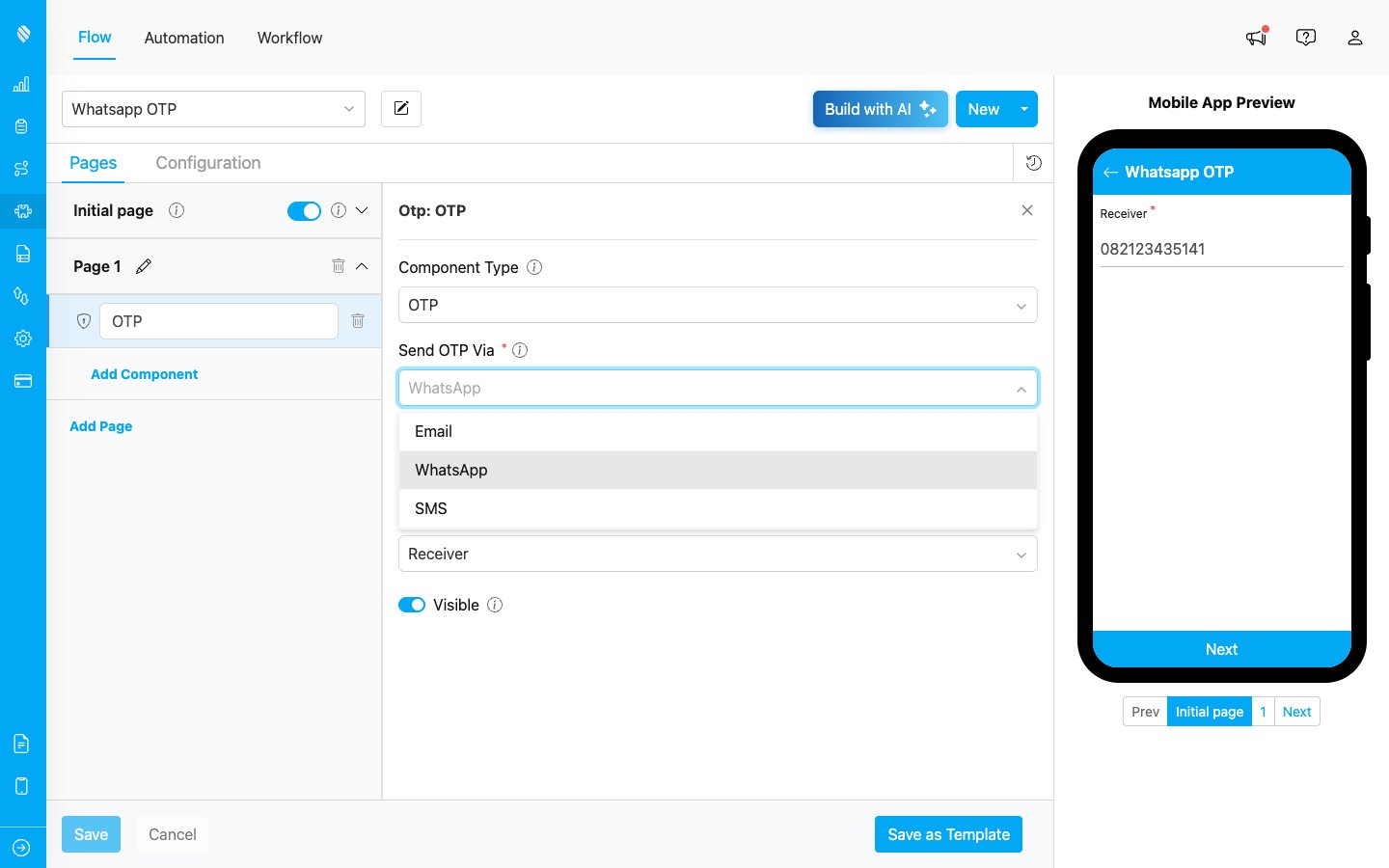
In the OTP component settings, open the **Send OTP Via** dropdown and choose **WhatsApp** (you can also pick Email or SMS). Then set the **Recipient Field** to the field that holds the recipient's phone number.
<div align="center">
  <img src="https://mintcdn.com/mileapp-c1584fbc/g09JQkjNuKqpxbxT/images/whatsapp-otp/flow-otp-servicesender.png?fit=max&auto=format&n=g09JQkjNuKqpxbxT&q=85&s=f86c49eb7b20ba8a851eaf5d4970425a" alt="Send OTP Via set to WhatsApp" width="600" data-path="images/whatsapp-otp/flow-otp-servicesender.png" />
</div>

<p><em>Choose WhatsApp in the "Send OTP Via" dropdown</em></p>

Save the Flow.

## Step 4: How it works for the field worker

When the task reaches the OTP step:

1. MileApp sends a verification code to the recipient's **WhatsApp**.
2. The recipient reads the code and tells it to the field worker (or enters it).
3. The field worker enters the code to complete verification.

## Channels at a glance

| Channel      | Sent to                 | Charged         |
| ------------ | ----------------------- | --------------- |
| Email        | Recipient's email       | Flat            |
| SMS          | Recipient's phone (SMS) | Per country     |
| **WhatsApp** | Recipient's WhatsApp    | **Per country** |

## Frequently asked

**The code didn't arrive.** Make sure the phone number is correct and in international format (e.g. starts with the country code). The recipient must have WhatsApp on that number.

**How much does it cost?** WhatsApp OTP is charged from your OTP credit based on the destination country. Your administrator can review per-country rates in Billing.
