> ## Documentation Index
> Fetch the complete documentation index at: https://docs.mileapp.dev/llms.txt
> Use this file to discover all available pages before exploring further.
# Creating A Task
Required permission:
* View Task
* Create Task
* Assign Task
The task can be created in several ways:
* **Web Form** ➝ Create a single task using an input form
* **Excel Upload** ➝ Create multiple tasks by uploading an Excel template
* **Field App** ➝ Create task directly from the field application
* **API** ➝ Read our RESTful API documentation [**here**](https://apidoc.mile.app/#/Task/task)
* **Automation** ➝ Learn how to trigger task creation from another task event [**here**](/pages/automation/how-to-create-automation)
* **Scheduled** ➝ Learn to create recurring tasks using Scheduler [**here**](/pages/task/schedule/creating-task-schedule)
## Web Form
You can create a single task from the web form:
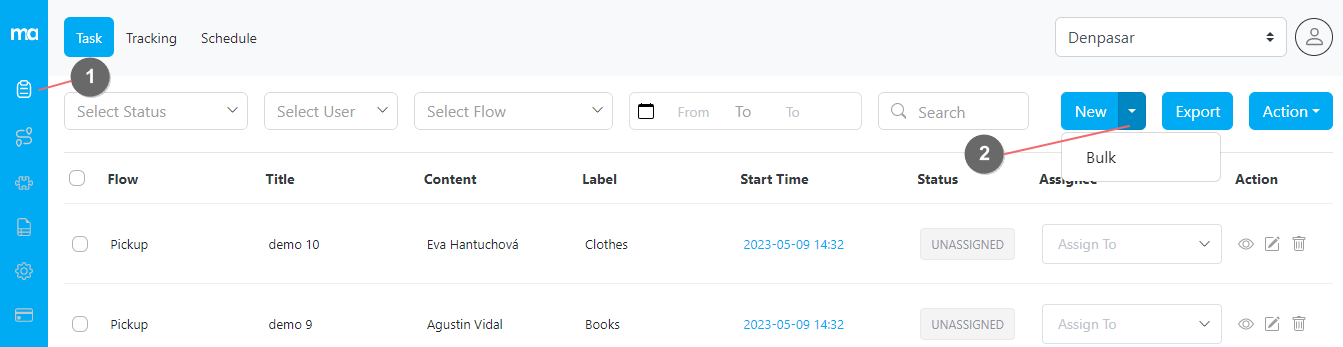
1. Open the [task menu](https://web.mile.app/tasks/task)
2. Click on the **New** button on the task page
3. Select the flow on the popup form
4. Fill out the **Initial Page** form, and change the start time and end time if need be
5. Submit the form
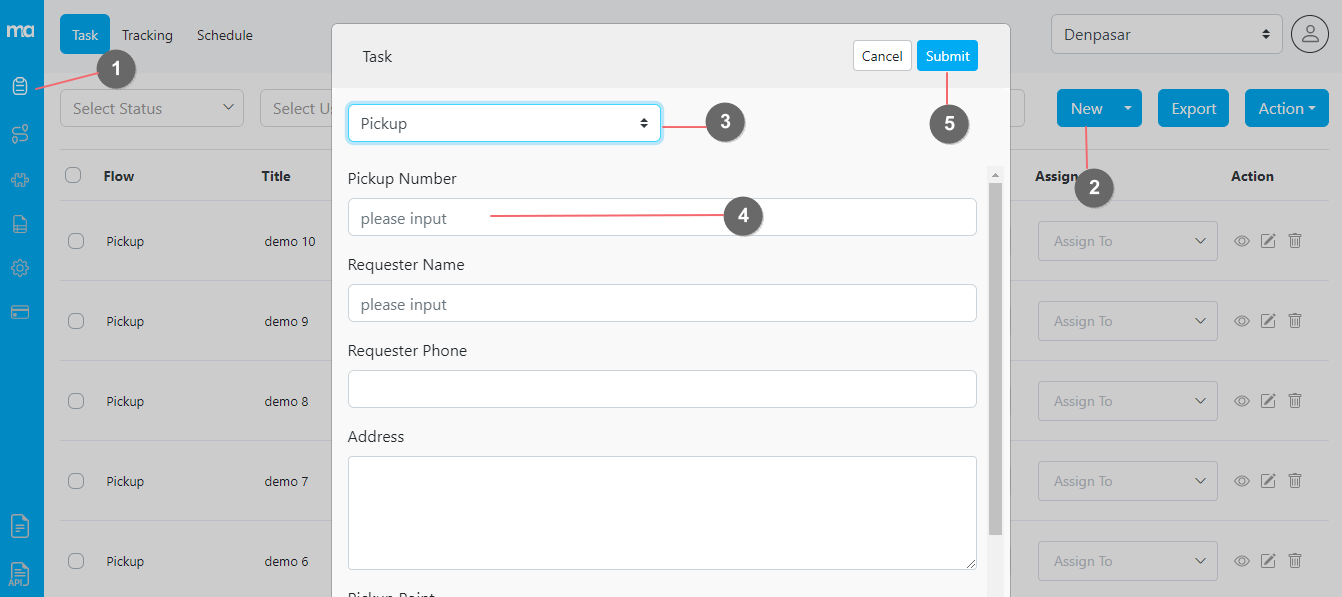
Creating one task using the web form
## Excel Upload
If you want to create multiple tasks in one go, you can use the New > Bulk method.
1. Open the [task menu](https://web.mile.app/tasks/task)
2. Click on the **New > Bulk** button on the task page
3. Select the flow on the popup form
4. Download the provided template and fill the template with Excel or other CSV reader
5. Upload the filled template by dropping it on the given space or by selecting the file
6. You can also use our sample data to get started
7. Submit the form
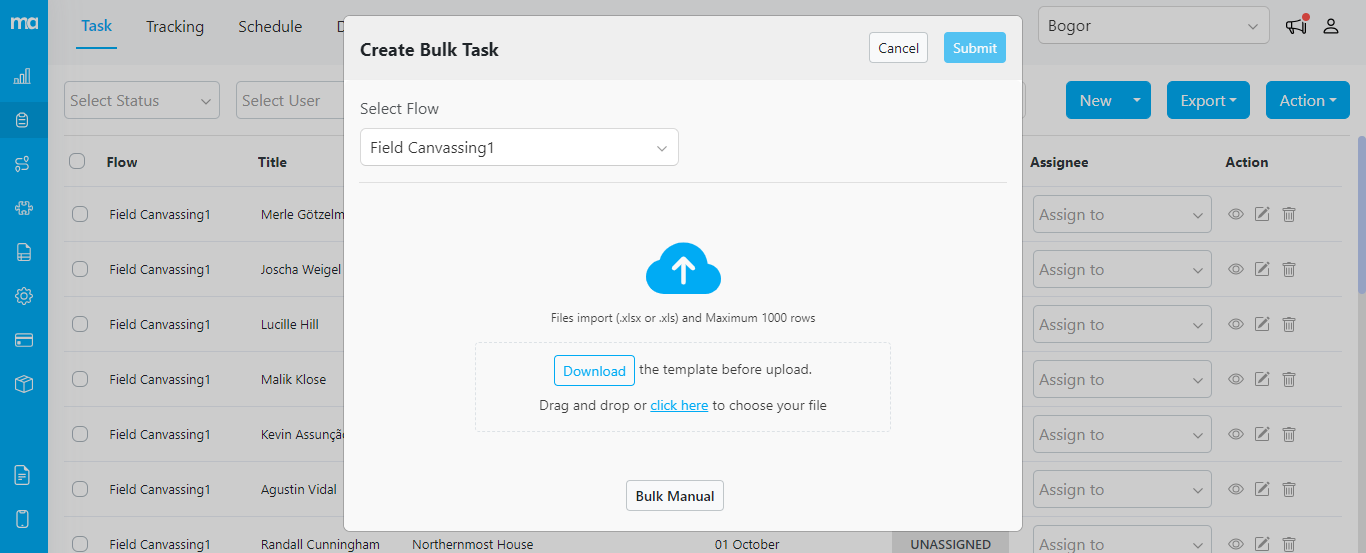
Uploading several tasks in a go using Excel upload
## Field App
MileApp allows field users to start and do a new task on the go. This is handy in cases where the tasks are not predetermined beforehand.
Field users can start a task by opening the MileApp field application (Android and iOS):
1. Click the **+** button in the middle of the bottom menu
2. Select the **flow** for the task
3. Fill in the **initial page**
4. Click on the **Create Task** button
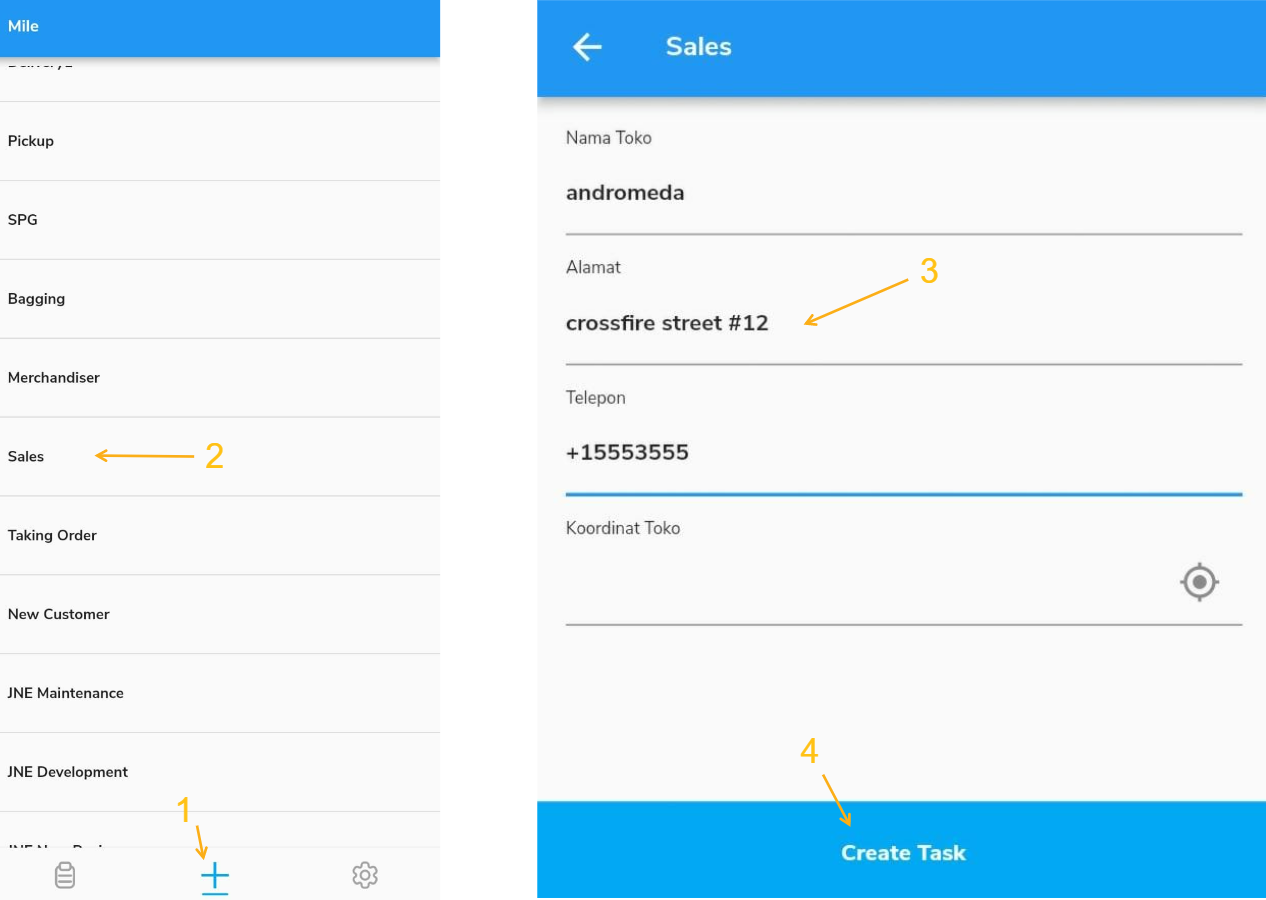
Creating tasks on the go from field application