> ## Documentation Index
> Fetch the complete documentation index at: https://docs.mileapp.dev/llms.txt
> Use this file to discover all available pages before exploring further.

# Register to MileApp

## Organization Setup

If you are the first user from your Organization to register to the MileApp, you will also need to set up your Organization information along with your user account simultaneously.

But, if your organization is already registered to the MileApp you could invite other users from the [Setting - User](https://web.mile.app/setting/user) page instead.

## Registration Process

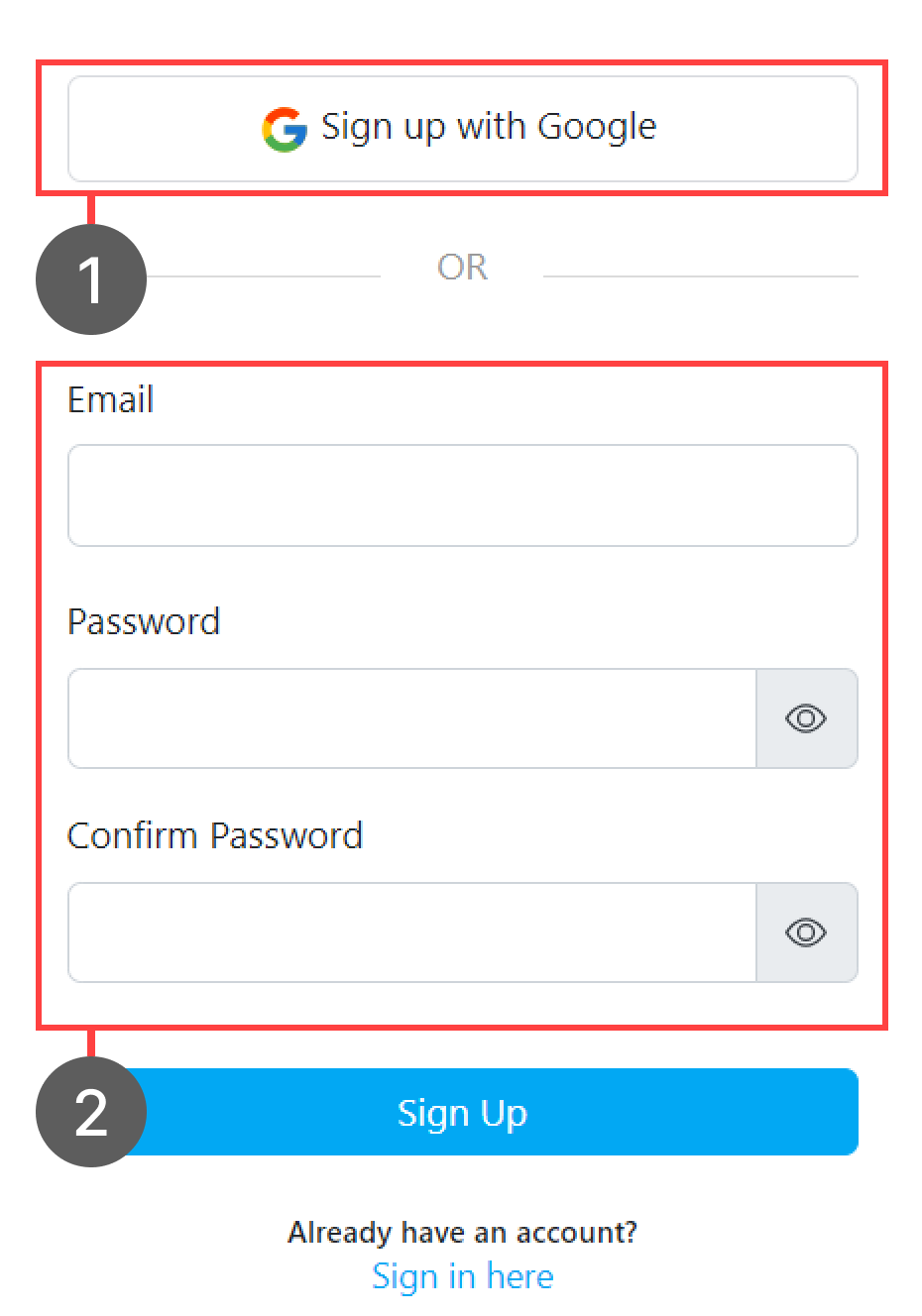
There are 2 ways to register your email to MileApp: by using the Sign up with Google account button or sign up manually by inputting your email and password manually.

<div align="center">
  <img src="https://t3837933.p.clickup-attachments.com/t3837933/44cb2731-b276-40d6-9c50-ee6d7281858e/image.png" alt="Registration options" width="400" />
</div>

1. If you use the **Sign up with Google button** you will be redirected to our Verification page, and you could continue the process from there.

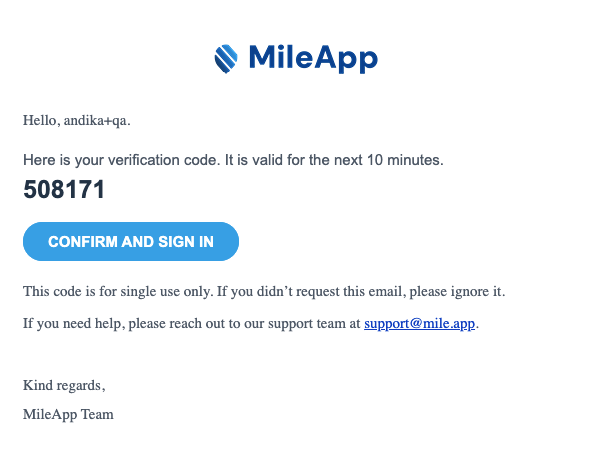
2. If you use the **Manual Sign up method** you will need to verify your email using a 6-digit verification code. After successful registration, you will be automatically redirected to the Verification Code page. At the same time, we will send a verification email to your registered email address. This is the sample of the Verification Code email that you would receive:

<div align="center">
  <img src="https://mintcdn.com/mileapp-c1584fbc/is4VXiF3-WFLGsPb/images/verification-code-email.png?fit=max&auto=format&n=is4VXiF3-WFLGsPb&q=85&s=27a54ba6845e5d0ad390fa6d84ceb5e3" alt="Verification code email sample" width="600" data-path="images/verification-code-email.png" />
</div>

<p><em>Sample verification code email sent after manual registration</em></p>

The email contains:

* A **6-digit verification code** (e.g., "123456") that expires in 10 minutes
* A **"Confirm and Sign In"** button that automatically fills and verifies the code for you
* The email template is available in **English** and **Indonesian** (defaults to English for other languages)

On the Verification Code page, you have two options to verify your email:

**Option 1: Click the "Confirm and Sign In" button in your email**

* This will automatically open the verification page with the code pre-filled
* The code will be verified automatically without manual input

**Option 2: Manually enter the 6-digit code**

* Check your email for the 6-digit verification code
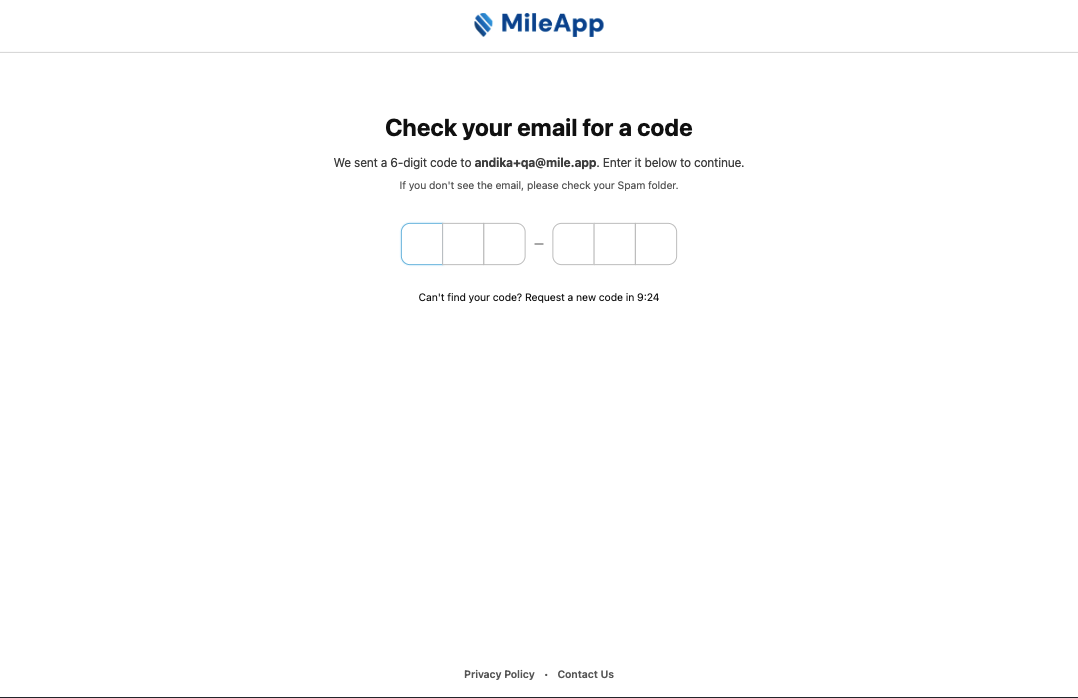
* Enter the code in the input boxes on the verification page
* The code will be automatically verified once all 6 digits are entered
<div align="center">
  <img src="https://mintcdn.com/mileapp-c1584fbc/is4VXiF3-WFLGsPb/images/verification-code-page.png?fit=max&auto=format&n=is4VXiF3-WFLGsPb&q=85&s=407fd7c6267550e636c5629458dca1e5" alt="Verification code input page" width="600" data-path="images/verification-code-page.png" />
</div>

<p><em>Verification code input page where you enter the 6-digit code</em></p>

If you don't receive the email or the code has expired, you can request a new code by clicking **"Request a new code"** (available after a 10-minute cooldown between requests).

After you finish the Registration step by using your Google account or manual sign up method, you will need to Verify your information at our verification process.
