> ## Documentation Index
> Fetch the complete documentation index at: https://docs.mileapp.dev/llms.txt
> Use this file to discover all available pages before exploring further.
# Avoid Chemical Zones
The **Avoid Chemical Zones** setting allows you to exclude roads restricted for chemical transport from the route optimization process. When this setting is enabled, the system will calculate and recommend the most efficient route **without using roads restricted for chemical transport**, helping you plan routes that comply with your operational or regulatory requirements.
Required permission:
* View configuration
* Create configuration
* Edit configuration
## How to Activate Avoid Chemical Zones
1. Go to the **Routing ➝ Configuration** menu.
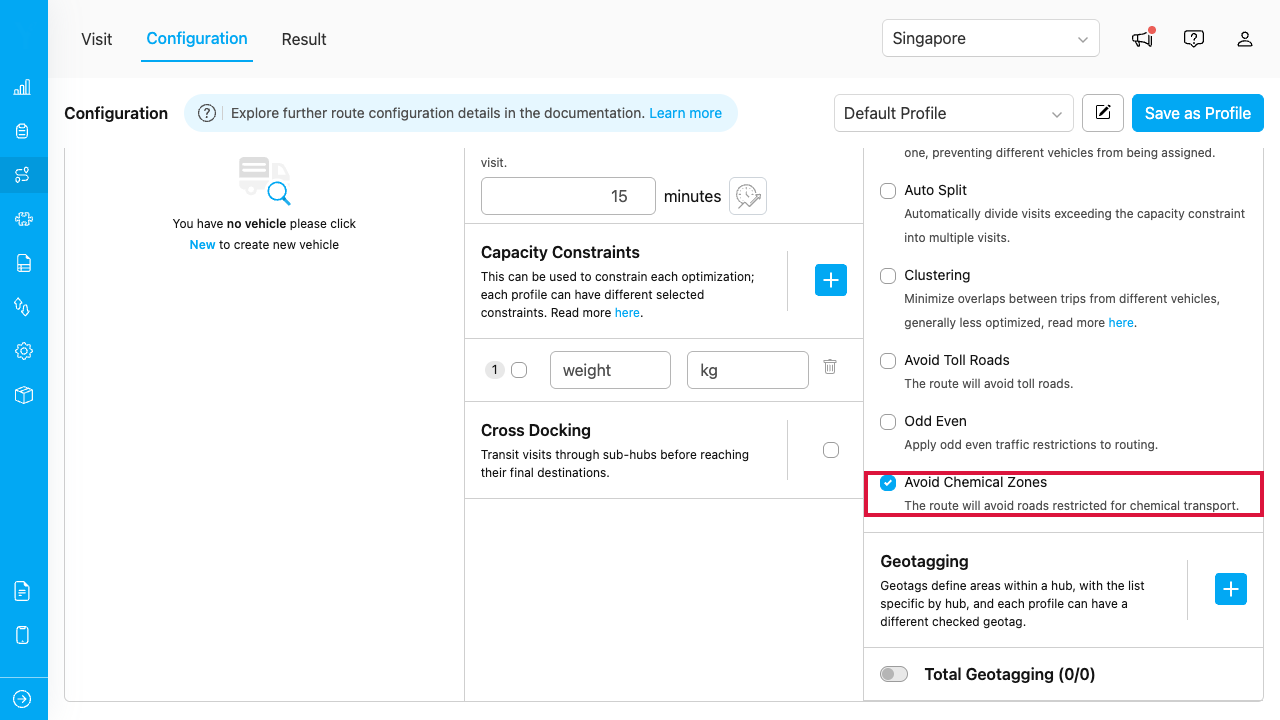
2. Check the **"Avoid Chemical Zones"** option.
The Avoid Chemical Zones option in the Routing Configuration page
Once activated, the route optimization will automatically exclude roads restricted for chemical transport when generating routes. When this option is disabled, these roads may be used as part of the generated route based on the optimization result.
You can review the configuration used for an optimization in the tooltip beside the **Optimize** button and on the routing result list.
Chemical-restricted road data is managed by MileApp. If you want to add or register a road as restricted for chemical transport, please contact MileApp support.
You can disable this option anytime if you want the system to include chemical-restricted roads again in future optimizations.
## Frequently Asked Questions
**Q: What happens to my existing configurations after this option is released?**
A: Nothing changes. Configurations created before this option exists are treated as having it **disabled**, so previous optimization behavior is preserved until you enable it.
**Q: Can I use this together with other configurations like Avoid Toll Roads or Odd Even?**
A: Yes. Avoid Chemical Zones works alongside all other routing configurations — each constraint is applied to the same optimization request.
**Q: How do I know which setting was used for a past optimization?**
A: Hover the info icon beside the **Optimize** button or on the routing result list — the tooltip lists all configurations, including Avoid Chemical Zones, as they were used for that result. The result detail **Summary** view shows it as well.
**Q: How do I add or register a road as restricted for chemical transport?**
A: The chemical-restricted road data used by Avoid Chemical Zones is managed by MileApp. Please contact MileApp support to discuss your organization's needs and explore available options.
## Related Documentation
* [Route Optimization Configuration Introduction](/pages/route-optimization/configuration/introduction)
* [Avoid Toll Roads](/pages/route-optimization/configuration/avoid-toll-roads)
* [Odd Even](/pages/route-optimization/configuration/odd-even)
* [How to Use Route Optimization](/pages/route-optimization/how-to-use-route-optimization)