> ## Documentation Index
> Fetch the complete documentation index at: https://docs.mileapp.dev/llms.txt
> Use this file to discover all available pages before exploring further.
# Geotagging
This configuration allows you to automatically assign visit tags based on geographic areas.
## How to Create a Geotag
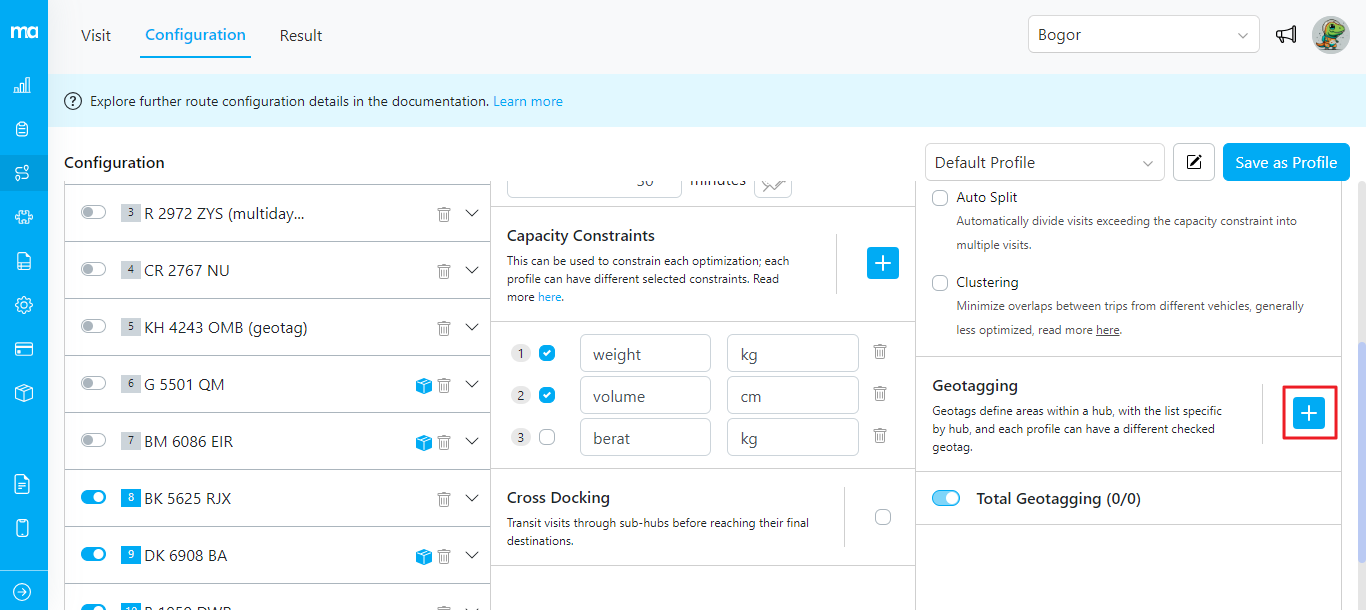
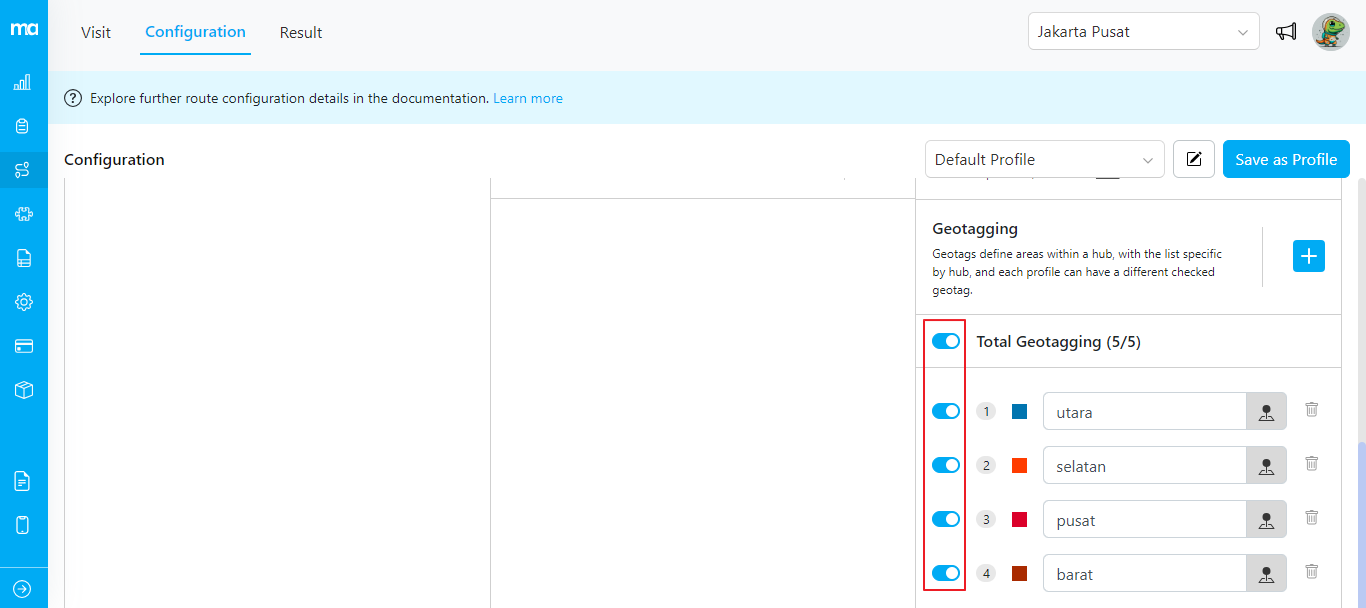
1. **Navigate to the Routing/Configuration menu and scroll down to the Geotagging section.**
2. **Click on the + icon** to start creating a new tag.
3. **Enter the tag name**, for example, "Selatan". This name usually corresponds to a specific area. Note: The geotag name must be **unique** and cannot be duplicated.
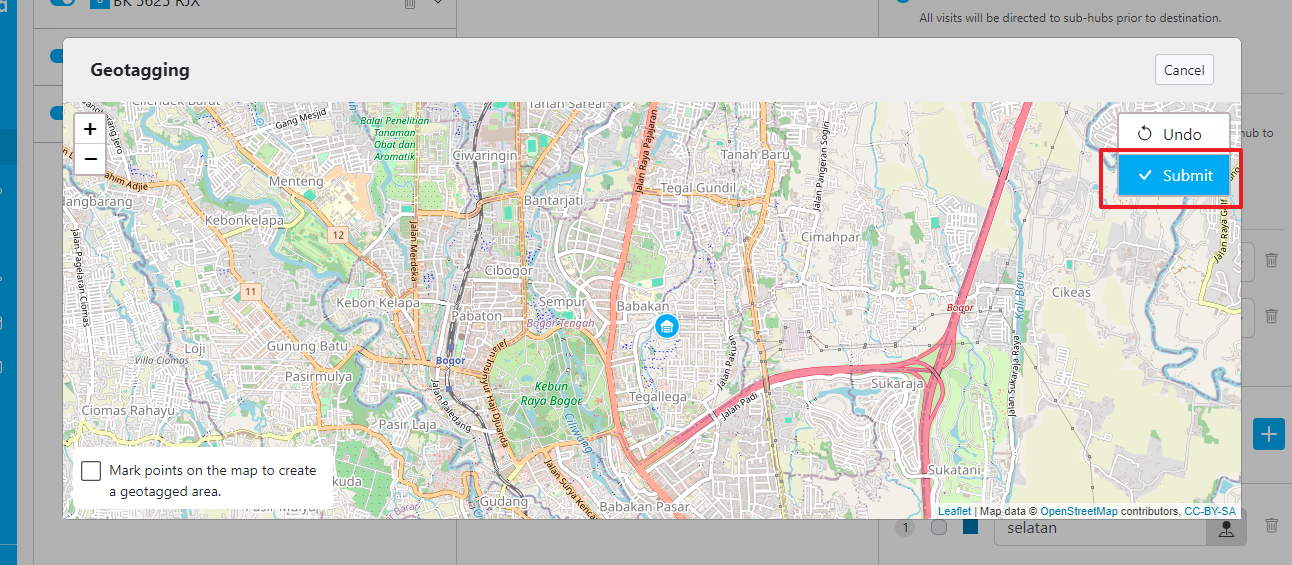
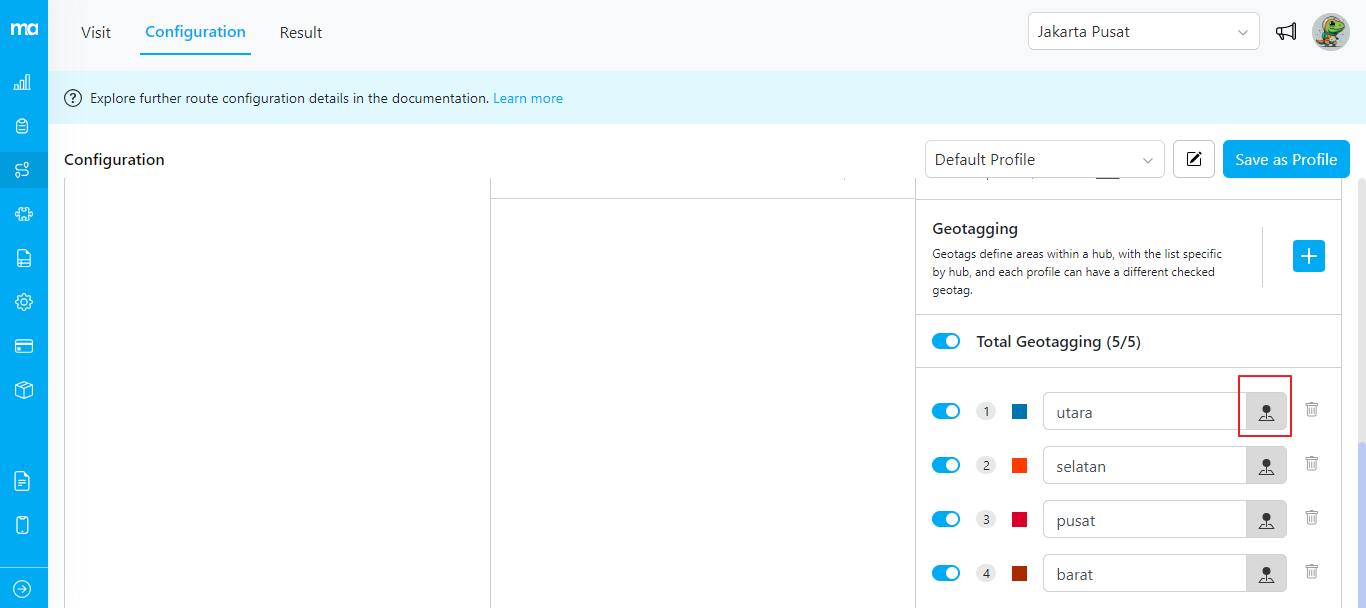
4. **Click on the map icon** to start creating a polygon by dropping points on the map to outline the area.
5. **Click Submit** when you have finished defining the area.
* The list of geotags is specific to each **hub**. Whenever you change the filter hub in the top right corner, the geotag list will update accordingly.
* If a visit already has a manually input tag, the geotag will be added to the existing visit tag.
* When polygons overlap, a visit within the overlapping area will be tagged with all relevant geotags.
## Example
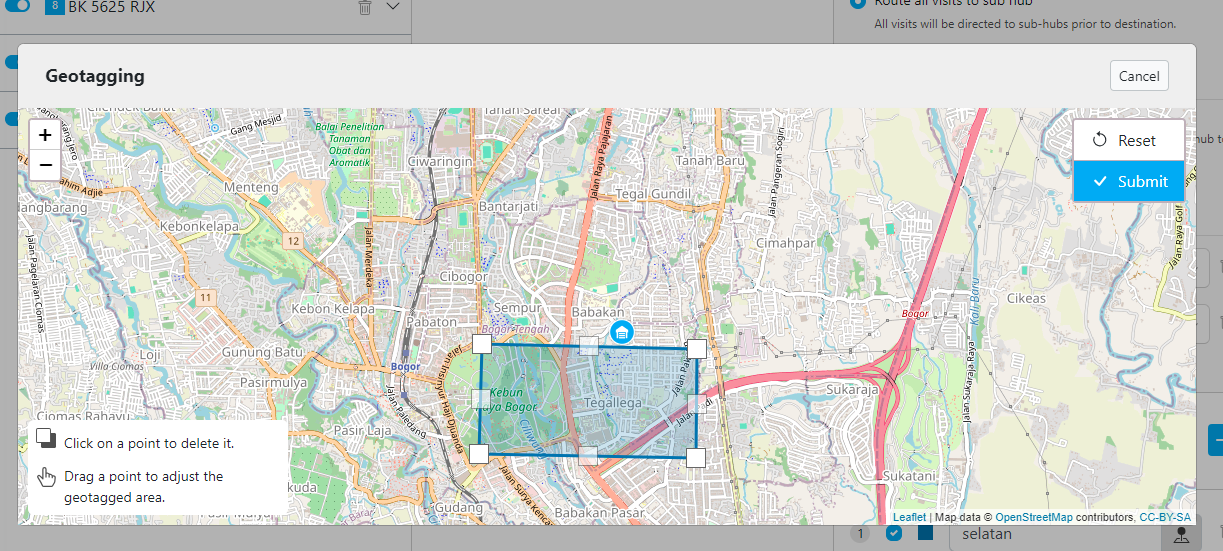
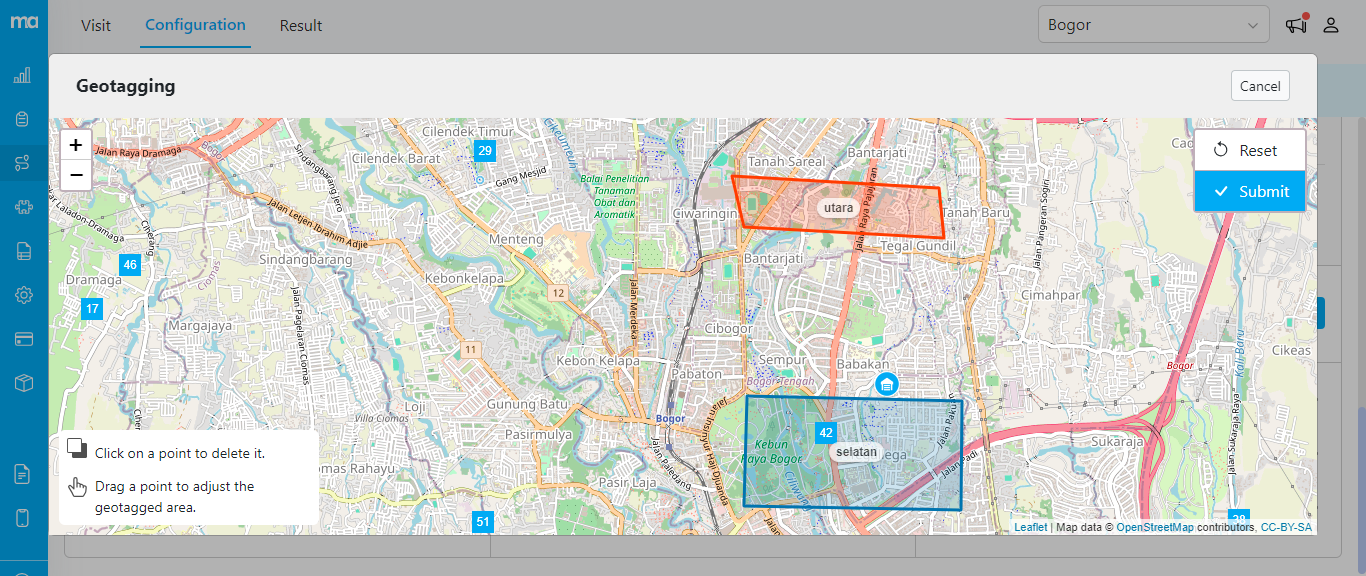
Once geotagging is set up, any visit within the defined area will automatically receive the corresponding tag. For instance, if you create a geotag named "Selatan" for the area below:
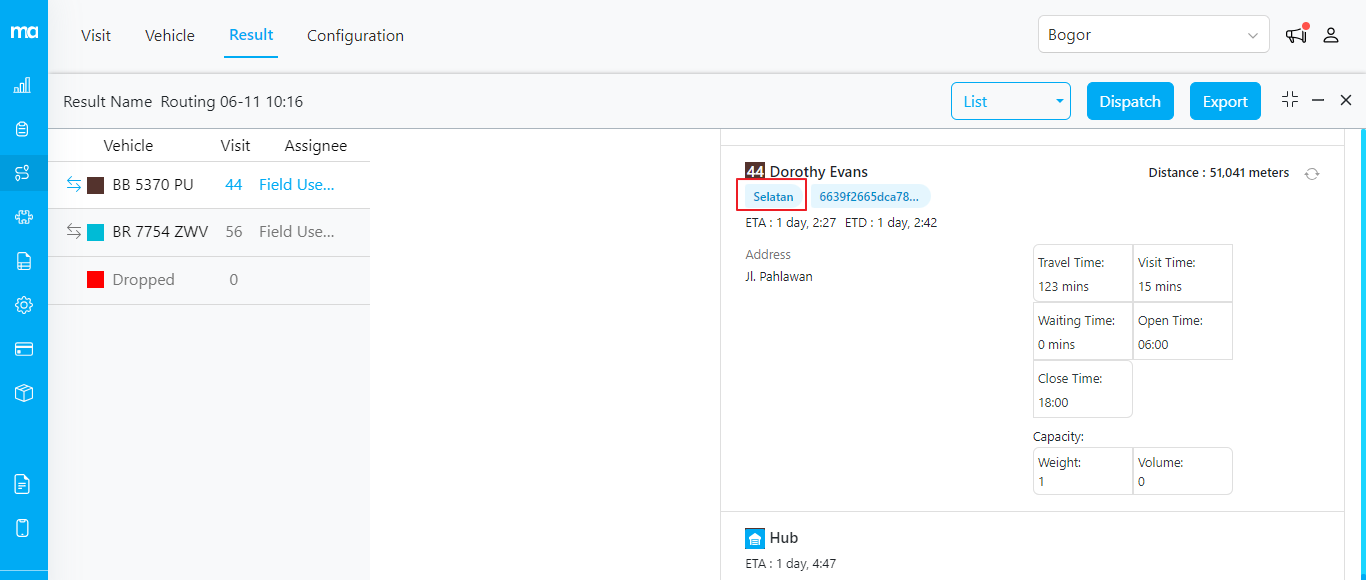
Any visit occurring at coordinates within this area will automatically be tagged as "Selatan" when you optimize routing.
**Notes**: Before optimizing, you can select specific geotags to include in the route optimization.
## How to Edit Geotag
If you need to modify the area of a saved geotag, follow these steps:
1. Click on the map icon associated with the specific geotag you wish to edit.
2. A map will appear, displaying the current geotagged area. You can adjust this area in two ways:
* **Delete a Point:** Click on a point to remove it from the geotagged area.
* **Adjust a Point:** Drag a point to a new location to reshape the geotagged area.
By using these methods, you can easily update the geotag to accurately reflect the desired area.
When you have more than one geotag and you click to edit an area, other geotags will be visible and identifiable by their names: