> ## Documentation Index
> Fetch the complete documentation index at: https://docs.mileapp.dev/llms.txt
> Use this file to discover all available pages before exploring further.
# Dispatch
Required permission: Dispatch result
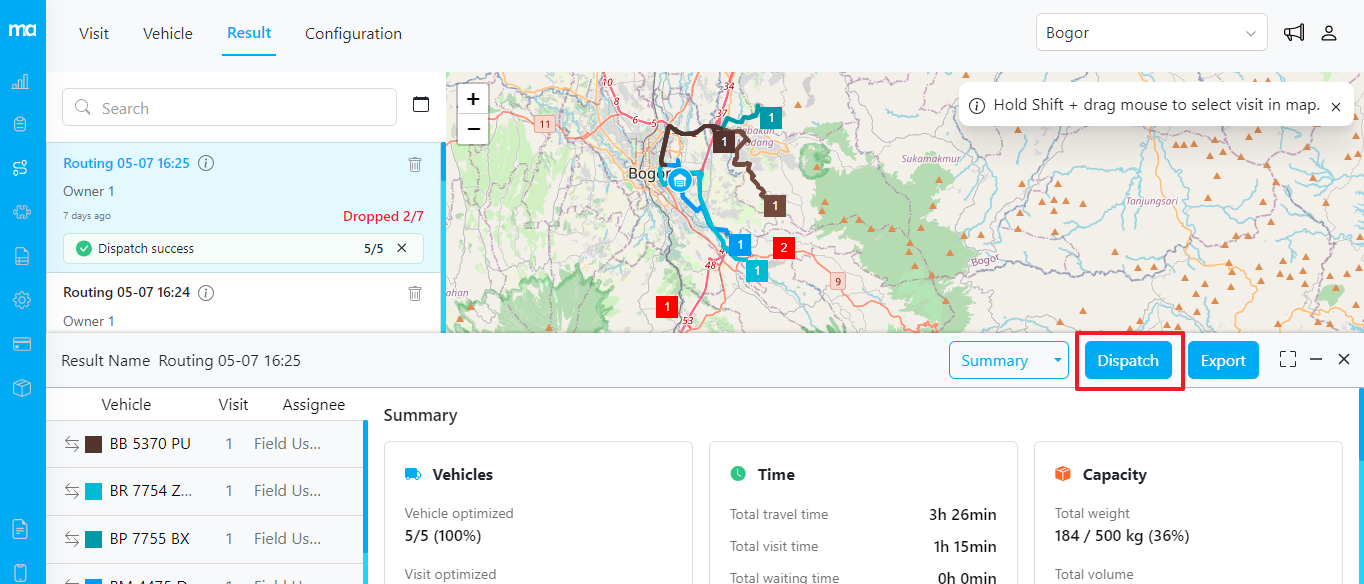
Once you are satisfied with the optimization results, you can dispatch them. After dispatching, the tasks on the Task page will automatically update according to these results. Additionally, if you assign these visits to a user, they will be able to access the tasks through their mobile app.
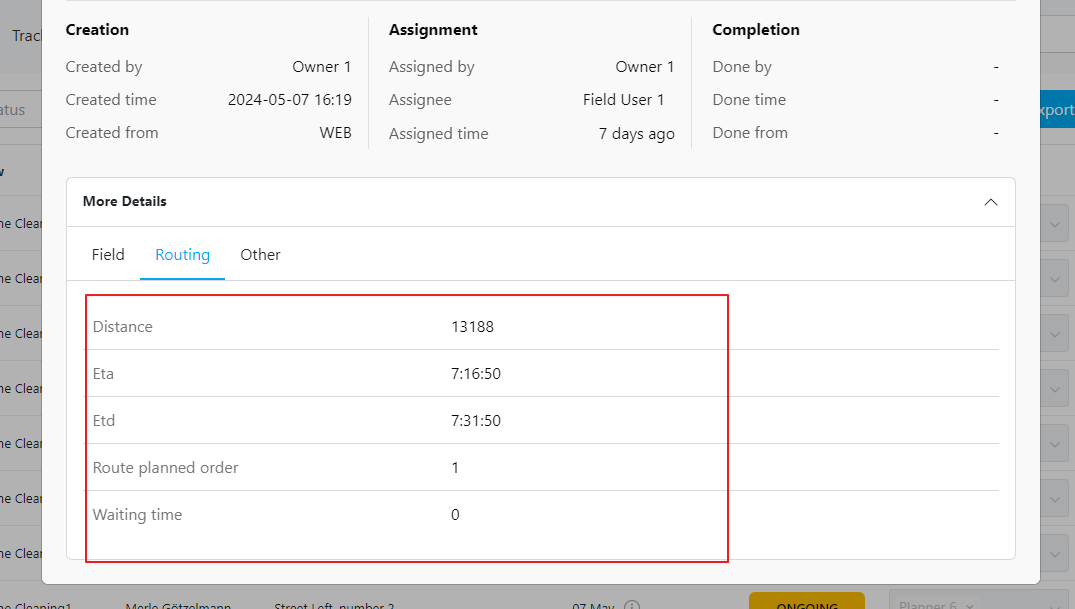
Information from the optimization results will be used to update this task. This information includes the ETA, ETD, task order, and task assignment. If you leave the user field **empty**, the task will also become **unassigned**.
These additional details can be viewed on the Task page:
## Additional Information
Please find below the additional information sample that will be sent to the data task when dispatching the result of route optimization:
```json theme={null}
"assignee"
"assignedVehicleId"
"distance": 9248
"eta": "7:22:12"
"etd": "7:37:12"
"routePlannedOrder": 1
"waitingTime": 0
```
If you are using the Cross Docking and Auto Split configuration, additional keys are sent during dispatching. For more detailed information, please refer to our [API documentation](https://apidoc.mile.app/#/Dispatch%20Routing%20Result/dispatch).