> ## Documentation Index
> Fetch the complete documentation index at: https://docs.mileapp.dev/llms.txt
> Use this file to discover all available pages before exploring further.
# How to Activate Single Login (Device Limit)
The Device Limit permission enhances the security of your account by allowing only one active session at a time. This prevents unauthorized access and ensures better control over your account.
To activate this, follow these steps:
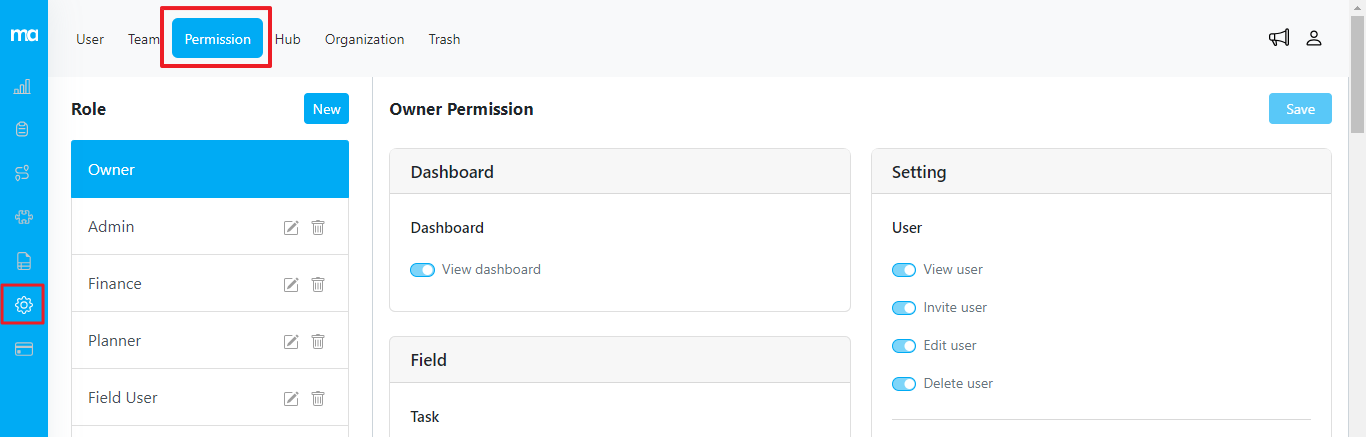
1. Log in to [https://web.mile.app](https://web.mile.app/setting/permission)
2. Navigate to the "Settings" menu.
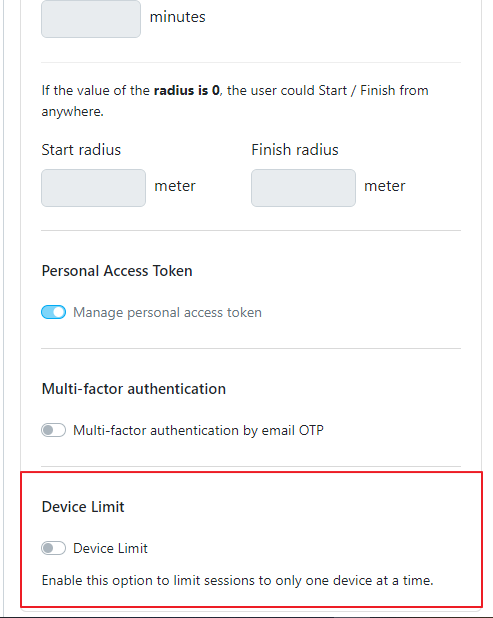
3. Inside the "Settings" menu, find the "Permissions" section. The "Device Limit" feature is positioned within the "Advanced" module.
4. By default, the "Device Limit" permission is turned off. To activate it, simply turn on the "Device Limit" switch, and make sure to click the "Save" button to ensure the changes take effect.
Once the Device Limit is activated, if a user attempts to log in from a different device, the system will **automatically log out** any previous active sessions. This applies to both web and mobile app logins.