> ## Documentation Index
> Fetch the complete documentation index at: https://docs.mileapp.dev/llms.txt
> Use this file to discover all available pages before exploring further.

# How to Delete your Organization

**Important Notes**:

1. **Irreversible Action**: Deleting an organization is permanent and cannot be undone. Ensure you have backed up any critical data before proceeding.
2. **Owner's Role Requirement**: Only users with the role of "Owner" have the authority to delete an organization. If you do not possess this role, contact the organization owner to perform this action.
3. **Password Input Required**: To prevent accidental deletions, you must input your password to confirm the deletion.

If you find the need to delete your organization, follow the steps below to ensure a smooth process. Deleting an organization is a irreversible action, and it will result in the complete removal of all associated data.

<div align="center">
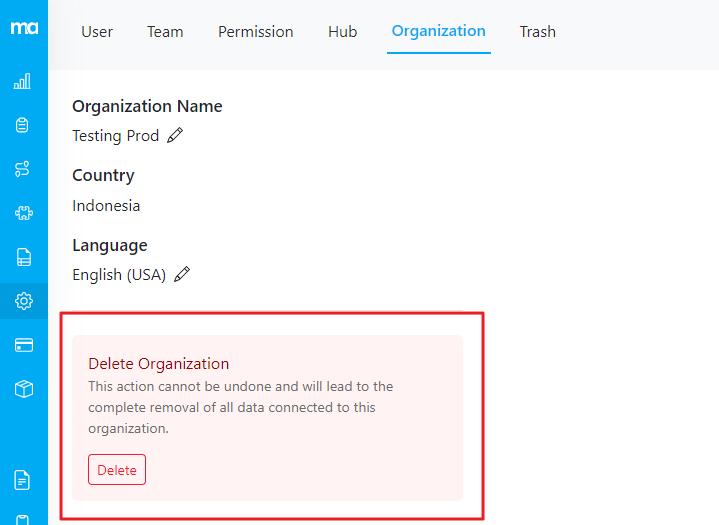
  <img src="https://t3837933.p.clickup-attachments.com/t3837933/74841a89-528c-45b3-a6a3-8223f56bce51/image.png" alt="image" width="600" />

  <p><i>Delete button on Setting/Organization page</i></p>
</div>

### Steps to Delete Organization:

1. Navigate to the "Settings" menu in the organization dashboard.
2. Click on the "Organization" tab.
3. Locate the "Delete" button.
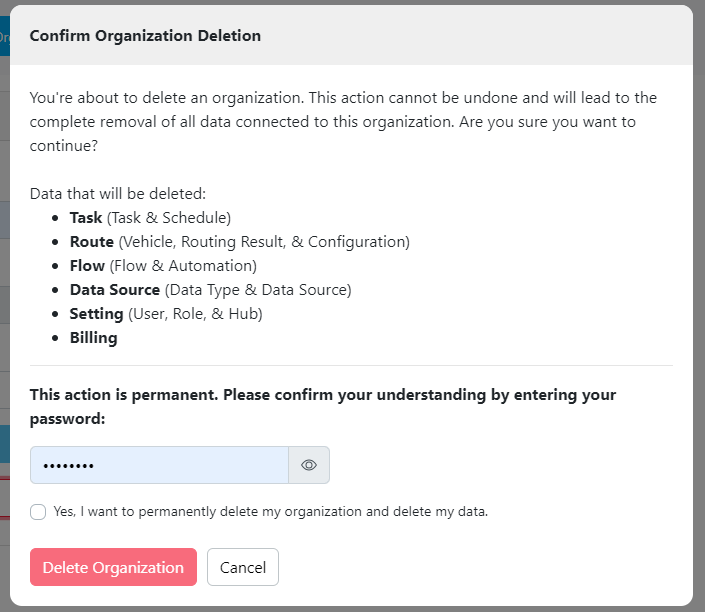
4. Confirm your decision by entering your password.

### Data to be Deleted:

Deleting the organization will remove the following types of data:

* **Task**: All task-related information including task details and schedules.
* **Route**: Information related to vehicles, routing results, and configurations.
* **Flow**: Data pertaining to flows and automation processes.
* **Data Source**: Data types and sources associated with the organization.
* **Setting**: User information, roles, and hub configurations.
* **Billing**: Billing information associated with the organization.
<div align="center">
  <img src="https://t3837933.p.clickup-attachments.com/t3837933/075b7ddc-d2c1-4794-93e3-b5284a415ba6/image.png" alt="image" width="600" />

  <p><i>Form delete organization</i></p>
</div>

Upon successful deletion of your organization, an **email notification** will be sent to both the owner and all associated users within the organization. This notification is to inform you that the organization has been permanently deleted.

### After Deletion

The experience after deleting your organization depends on whether you belong to other organizations:

* **If you have other organizations**: You will see a success page with an option to log in and access your other organizations. Your account remains active, and you can continue using MileApp with your remaining organizations.

* **If this was your only organization**: You will see a farewell page and be redirected to the MileApp homepage. Your access to MileApp will be revoked until you create or join a new organization.

<Tip>
  With the [Multi-Organization](/pages/setting/multi-organization) feature, you can belong to multiple organizations using the same email address. This means deleting one organization doesn't necessarily mean losing access to MileApp entirely.
</Tip>

***

## Related

* [Multi-Organization](/pages/setting/multi-organization)
* [Organization Management](/pages/setting/organization-management)
