> ## Documentation Index
> Fetch the complete documentation index at: https://docs.mileapp.dev/llms.txt
> Use this file to discover all available pages before exploring further.
# How to Manage Add-on
Add-ons extend MileApp with additional functionality that goes beyond the core platform. Each add-on provides specialized tools — such as invoice generation, Discord notifications, or sales target tracking — that you can enable for your organization.
You can browse available add-ons, add them to your organization, configure their name and URL, and remove them when they are no longer needed.
## Browsing Add-Ons
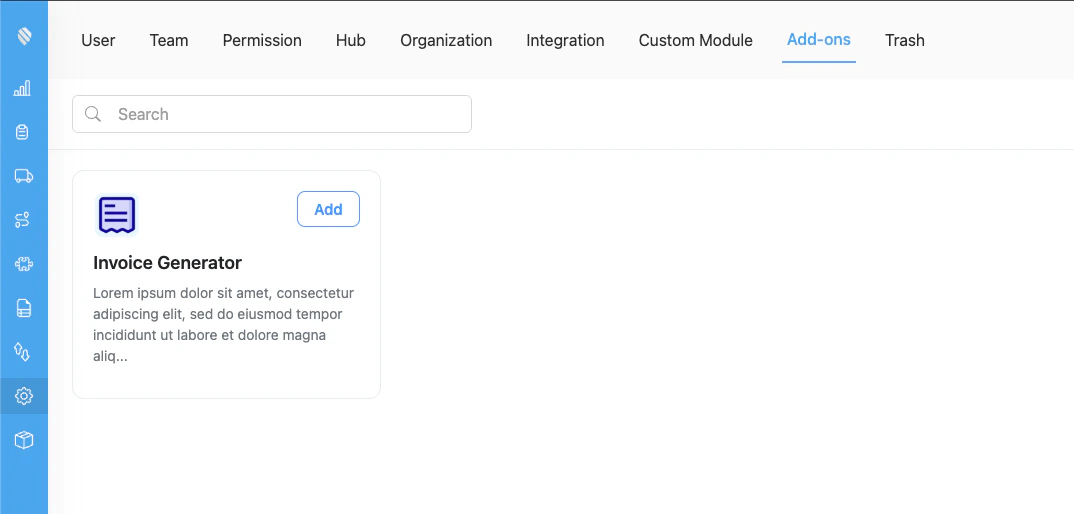
To view available add-ons, navigate to **Settings > Add-ons**. The page displays all add-ons as cards, each showing an icon, name, and description.
The Add-ons page lists all available add-ons. Click "Add" to install one to your organization.
Use the **Search** bar at the top to quickly find a specific add-on by name or description.
## Adding an Add-On
To add an add-on to your organization:
1. Go to **Settings > Add-ons**.
2. Find the add-on you want to use and click the **Add** button on its card.
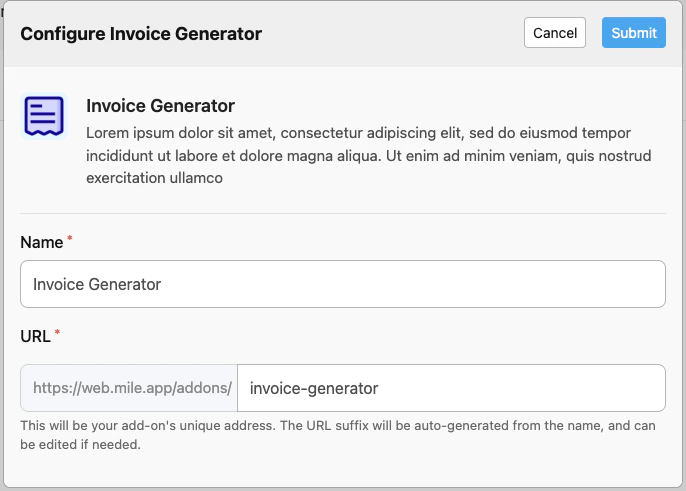
3. A configuration dialog appears. The **Name** field is pre-filled with the add-on name, and the **URL** suffix is auto-generated from the name. You can edit both fields if needed.
The configuration dialog lets you set a custom name and URL for the add-on. The URL suffix is auto-generated but can be edited.
4. Click **Submit** to complete the setup.
Once added, the add-on appears in your navigation menu and is accessible to users with the appropriate permissions.
## Removing an Add-On
If you no longer need an add-on, you can remove it from your organization:
1. Go to **Settings > Add-ons**.
2. Find the add-on you want to remove. Its card will show a **Remove** button instead of "Add".
3. Click the **Remove** button.
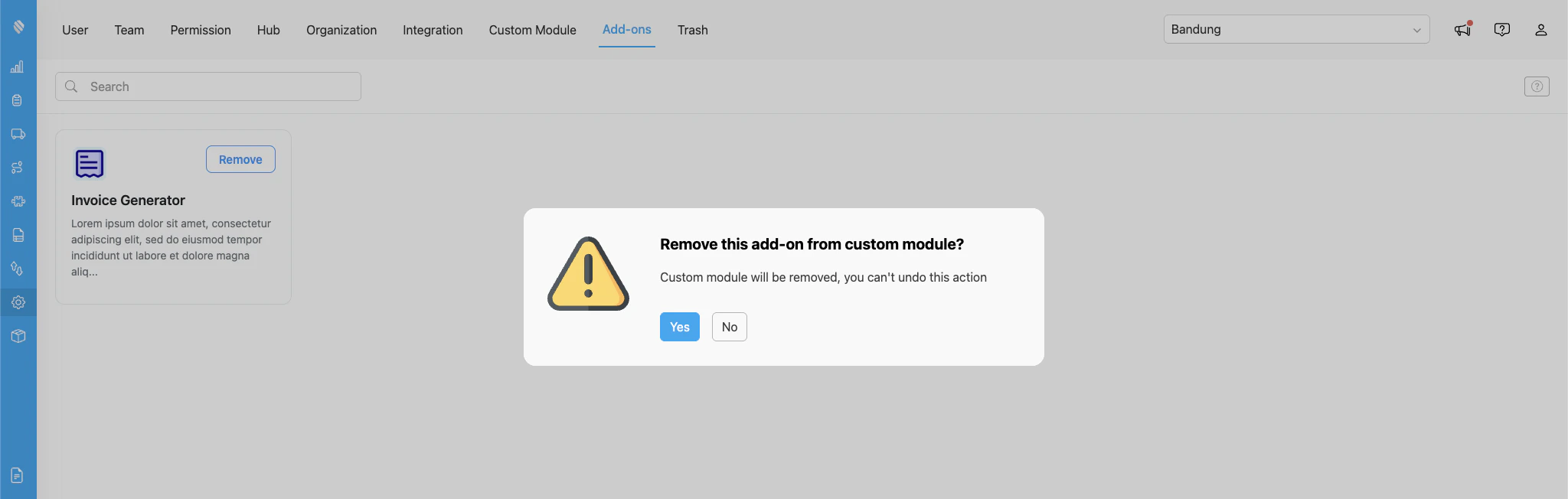
4. A confirmation dialog appears. Click **Yes** to confirm the removal.
Confirm the removal. The custom module and its associated permissions will be deleted from your organization.
Removing an add-on deletes the custom module and all related permissions from your organization. This action cannot be undone.
## Available Add-Ons
| Add-On | Description |
| ----------------------------------------------------------------------- | ----------------------------------------------------------------------------------------------------------------------------------- |
| [Discord Notification](/pages/add-on/discord-notification/introduction) | Send automated messages to Discord channels when events happen in your organization |
| [Invoice Generator](/pages/add-on/invoice-generator/introduction) | Design invoice templates with a drag-and-drop builder and print or export them as PDF |
| [PDF Generator](/pages/add-on/pdf-generator/introduction) | Design multi-page PDF templates with watermarks, conditional elements, and header/footer zones, then print or export from task data |
| [Sales Target](/pages/add-on/sales-target/introduction) | Set, track, and manage sales targets for your team members |
## Next Steps
* [Discord Notification](/pages/add-on/discord-notification/introduction) — Set up automated Discord alerts
* [Invoice Generator](/pages/add-on/invoice-generator/introduction) — Create and print invoices from task data
* [PDF Generator](/pages/add-on/pdf-generator/introduction) — Design multi-page PDF documents with advanced features
* [Sales Target](/pages/add-on/sales-target/introduction) — Configure sales targets and track progress