> ## Documentation Index
> Fetch the complete documentation index at: https://docs.mileapp.dev/llms.txt
> Use this file to discover all available pages before exploring further.

# Multi-Organization

Multi-Organization is a feature that allows users to belong to multiple organizations using the same email address. This enables seamless switching between organizations without requiring separate login credentials.

***

## How to Switch Organization

You can switch between organizations directly from the profile menu.

**Step 1:** Click on your profile icon in the top-right corner of the navigation bar.

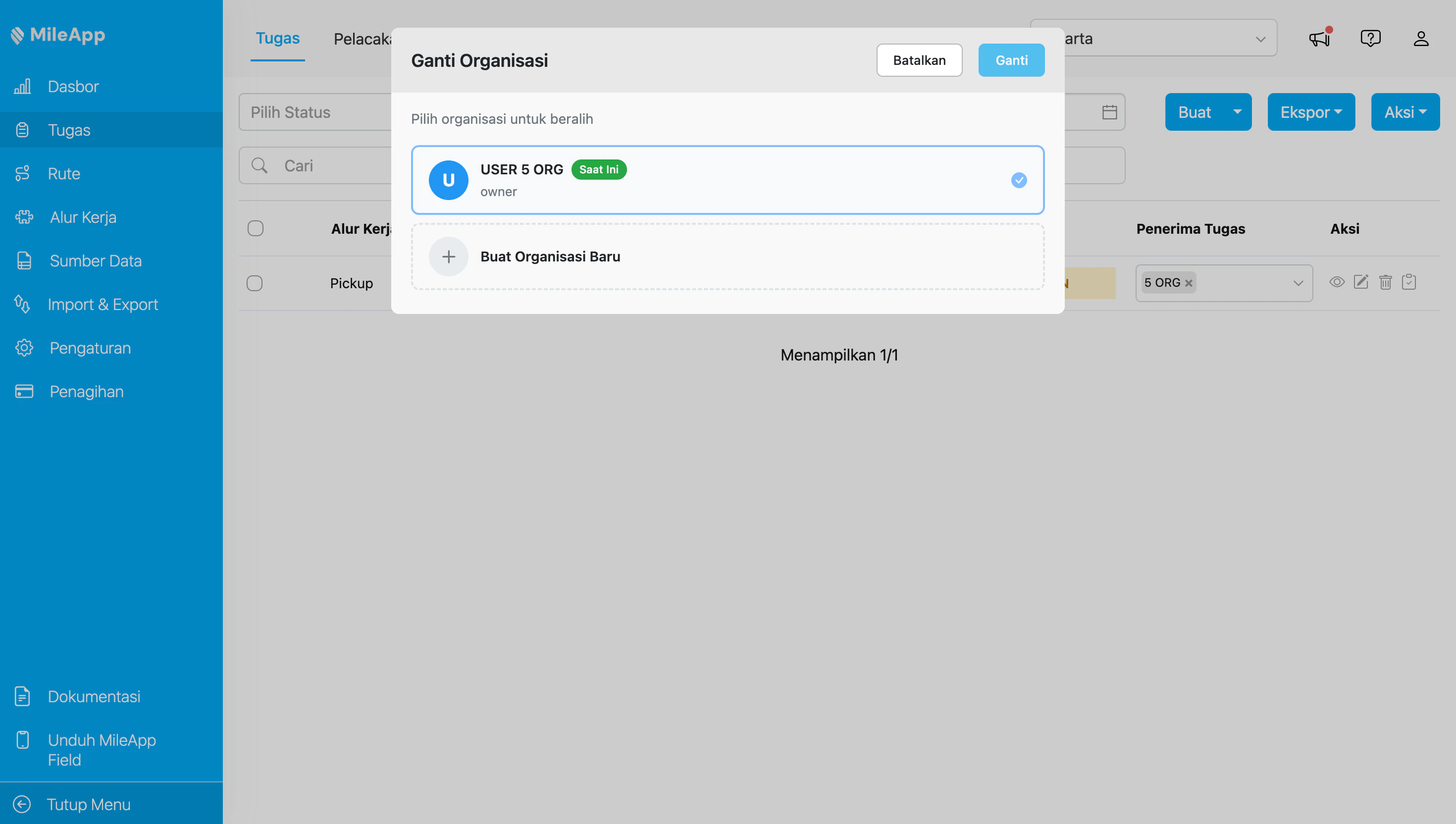
**Step 2:** Click on **Switch Organization** from the dropdown menu.

<div align="center">
  <img src="https://mintcdn.com/mileapp-c1584fbc/-gjfBcSXuPXDe_Cp/images/multi-org/switch-organization-modal.png?fit=max&auto=format&n=-gjfBcSXuPXDe_Cp&q=85&s=56e3628077cd0a10a1b63d6cfcfcf216" alt="Switch Organization Modal" width="600" data-path="images/multi-org/switch-organization-modal.png" />
</div>

<div align="center">
  <p><em>Switch Organization modal showing list of organizations</em></p>
</div>

**Step 3:** Select the organization you want to switch to from the list. The current organization is marked with a "Current" badge.

**Step 4:** Click the **Switch** button to switch to the selected organization.
<Tip>
  After switching, you will be redirected to the Task page of the new organization. Your previous session will end automatically.
</Tip>

### Security Verification When Switching

If the target organization has additional security enabled, you may be asked to verify your identity before completing the switch:

* **Cloud Authenticator**: You will be redirected to enter your authenticator code
* **Email OTP**: A verification code will be sent to your email

***

## How to Create a New Organization

You can create a new organization directly from the Switch Organization modal.

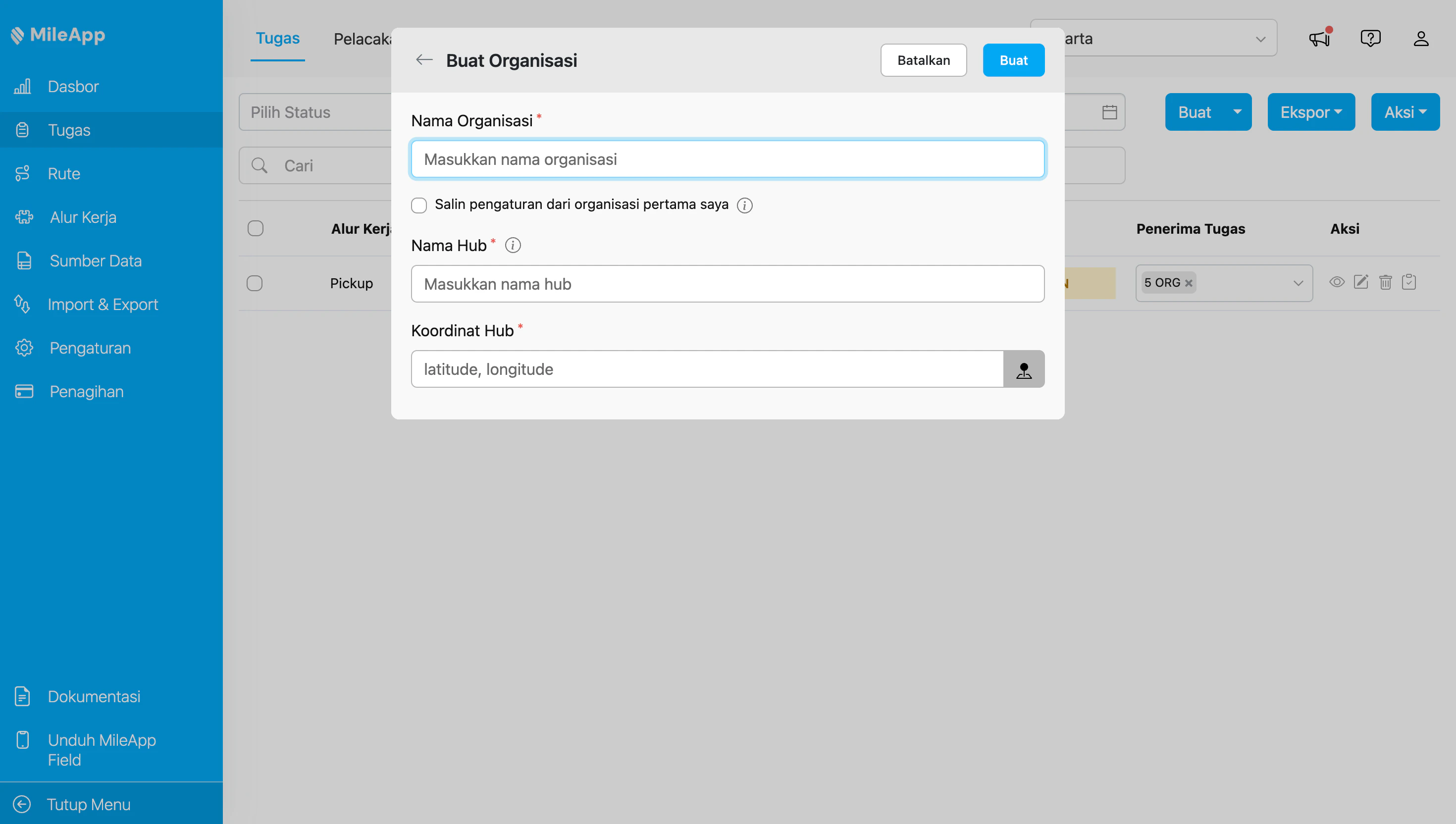
**Step 1:** Open the Switch Organization modal by clicking on your profile icon and selecting **Switch Organization**.

**Step 2:** Click on **Create New Organization** at the bottom of the organization list.

<div align="center">
  <img src="https://mintcdn.com/mileapp-c1584fbc/-gjfBcSXuPXDe_Cp/images/multi-org/create-organization-form.png?fit=max&auto=format&n=-gjfBcSXuPXDe_Cp&q=85&s=6dee18a07b5b2d54a60f0b254c785b42" alt="Create Organization Form" width="600" data-path="images/multi-org/create-organization-form.png" />
</div>

<div align="center">
  <p><em>Create Organization form with required fields</em></p>
</div>

**Step 3:** Fill in the required information:

1. **Organization Name** - Enter a name for your new organization (required).

2. **Copy settings from my first organization** - Check this option to copy configuration, hubs, roles, and flows from your first owned organization. This option only appears if you have an organization where you are the owner.

3. **Hub Name** - Enter the name for your initial hub (required if not copying data).

4. **Hub Coordinate** - Enter the latitude and longitude coordinates for your hub location, or click the map icon to select a location (required if not copying data).

**Step 4:** Click the **Create** button to create your new organization.

<Warning>
  If you choose not to copy data from an existing organization, you must provide Hub Name and Hub Coordinate. These fields are required to create the initial hub for your new organization.
</Warning>

### What Gets Copied

When you check "Copy settings from my first organization":

| Data                      | Copied | Notes                                   |
| ------------------------- | ------ | --------------------------------------- |
| Organization Settings     | Yes    | Language, currency, configuration       |
| Hubs                      | Yes    | All hubs you have access to             |
| Custom Roles              | Yes    | Only with system permissions            |
| Flows                     | Yes    | All custom and default flows            |
| Default Roles             | No     | Always created from standard templates  |
| Custom Module Permissions | No     | Organization-specific, not transferable |

***

## Password Behavior in Multi-Organization

When a user belongs to multiple organizations:

* **Password Sync**: Password changes are synchronized across all organizations automatically
* **Password Reset**: Admin can only reset passwords for users who originally registered in their organization (not for invited users)

<Warning>
  **Password Reset Restriction**: If a user was invited to your organization from another organization, you cannot reset their password. Only the organization where the user originally registered can perform password resets.
</Warning>

***

## For API Integration

For programmatic access to Multi-Organization features, see the API Reference:

* [Get User Organizations](/api-reference/auth/multi-organization/get-user-organizations)
* [Switch Organization](/api-reference/auth/multi-organization/switch-organization)
* [Create Organization](/api-reference/auth/multi-organization/create-organization)

***

## Related

* [Organization Management](/pages/setting/organization-management)
* [User Management](/pages/setting/user-management/introduction)
* [Role and Permission Management](/pages/setting/role-and-permission-management/introduction)
* [How to Delete Your Organization](/pages/setting/how-to-delete-your-organization)