> ## Documentation Index
> Fetch the complete documentation index at: https://docs.mileapp.dev/llms.txt
> Use this file to discover all available pages before exploring further.
# Setting Permission
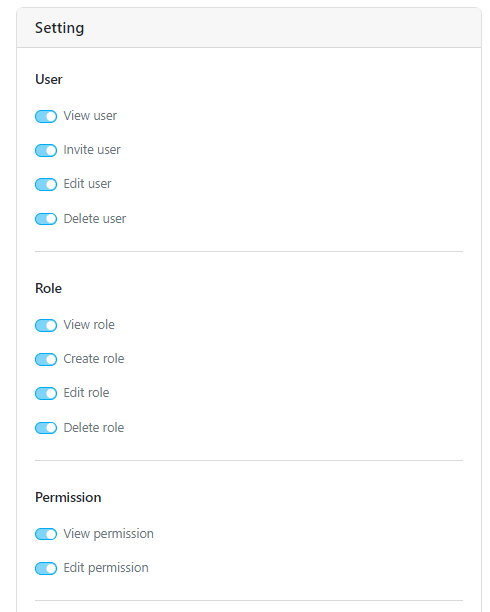
This user manual will guide you through the various permissions and actions available within the Setting menu.
## User
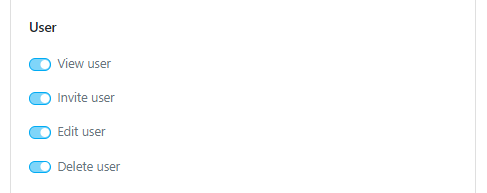
The User permission allows you to manage user data within the organization. This menu can be filtered by hub.
1. **View User:** Allows you to view the list of users currently registered in the organization.
2. **Invite User**: Enables you to invite new users. Ensure the View User and View Role permissions are also active.
3. **Edit User**: Allows you to edit user data such as Name, Phone Number, Team, and Hub.
4. **Delete User**: Allows you to delete a user.
Learn more here about [User](/pages/setting/user-management/introduction) menu.
## Role
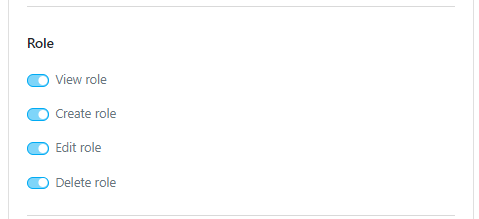
The Role permission allows you to manage custom roles within the Permission Menu.
1. **View Role**: Allows you to view the roles.
2. **Create Role**: Allows you to create new roles.
3. **Edit Role**: Allows you to edit existing roles.
4. **Delete Role**: Allows you to delete roles.
Learn more [here](/pages/setting/role-and-permission-management/introduction) about Role and Permission menu.
## Permission
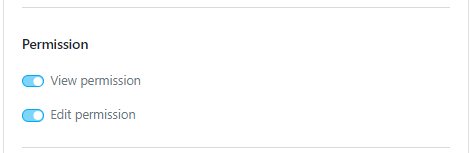
1. **View Permission**: Allows you to access the Setting/Permission menu and see its contents.
2. **Edit Permission**: Allows you to update permissions for custom roles.
Learn more [here](/pages/setting/role-and-permission-management/introduction) about Role and Permission menu.
## Hub
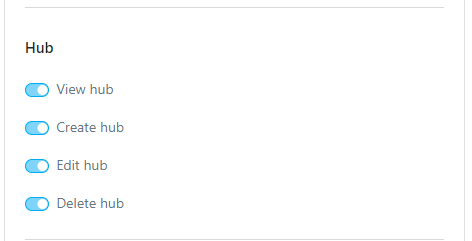
The Hub permission allows you to manage hubs within the organization.
1. **View Hub**: Allows you to view hubs.
2. **Create Hub**: Allows you to create new hubs.
3. **Edit Hub**: Allows you to edit existing hubs.
4. **Delete Hub**: Allows you to delete hubs.
Learn more [here](/pages/setting/hub-management) about Hub menu.
## Flow
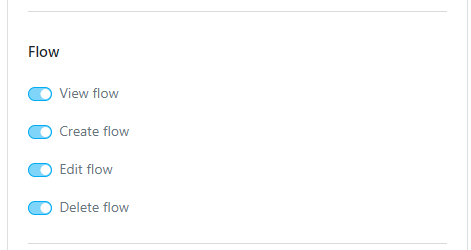
The Flow permission allows you to manage the task flows within the organization.
1. **View Flow**: Allows you to view flows.
2. **Create Flow**: Allows you to create new flows.
3. **Edit Flow**: Allows you to edit existing flows.
4. **Delete Flow**: Allows you to delete flows.
Learn more [here](/pages/flow/introduction-to-flow) about Flow menu.
## Organization
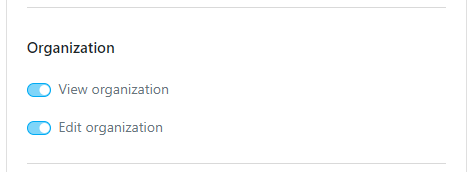
1. **View Organization**: Allows you to access the Setting/Organization menu.
2. **Edit Organization**: Allows you to make updates to the organization data, such as the Organization Name.
Learn more [here](/pages/setting/organization-management) about Organization menu.
## Automation
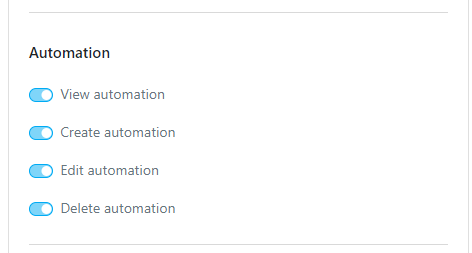
The Automation permission allows you to manage automations within the organization.
1. **View Automation**: Allows you to access the Flow/Automation menu.
2. **Create Automation**: Allows you to create new automations.
3. **Edit Automation**: Allows you to edit existing automations.
4. **Delete Automation**: Allows you to delete automations.
Learn more [here](/pages/automation/how-to-create-automation) about Automation menu.
## Data
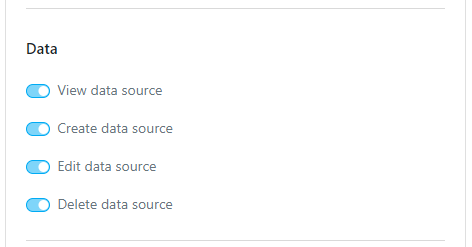
The Data permission allows you to manage data sources within the organization.
1. **View Data Source**: Allows you to access the Data Source menu.
2. **Create Data Source**: Allows you to create new data sources.
3. **Edit Data Source**: Allows you to edit existing data sources.
4. **Delete Data Source**: Allows you to delete data sources.
Learn more [here](/pages/data-source/how-to-create-and-use-data-source) about Data Source menu.
## Data Type
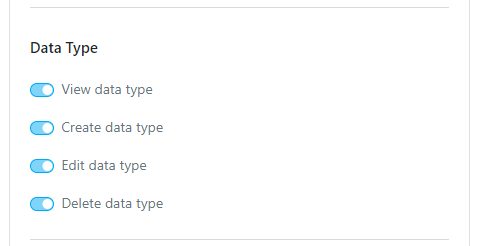
The Data Type permission allows you to manage data types within the organization.
1. **View Data Type**: Allows you to access the Data Source/Data Type menu.
2. **Create Data Type**: Allows you to create new data types.
3. **Edit Data Type**: Allows you to edit existing data types.
4. **Delete Data Type**: Allows you to delete data types.
Learn more [here](/pages/data-source/how-to-create-and-use-data-source) about Data Type menu.
## Team
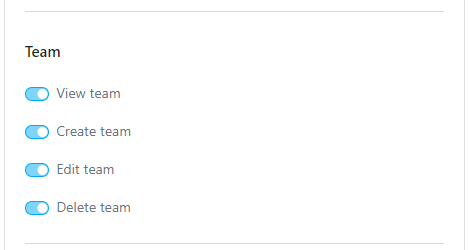
The Team permission allows you to manage teams within the organization.
1. **View Team**: Allows you to access the Team menu.
2. **Create Team**: Allows you to create new teams.
3. **Edit Team**: Allows you to edit existing teams.
4. **Delete Team**: Allows you to delete teams.
Learn more [here](/pages/setting/team-management) about Team menu.
## Trash
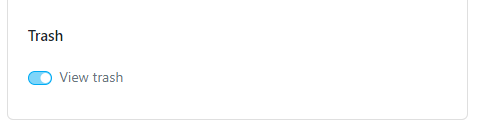
The Trash menu has only one permission:
1. **View Trash**: Allows you to access the Setting/Trash menu.
Learn more [here](/pages/setting/trash) about Trash menu.