> ## Documentation Index
> Fetch the complete documentation index at: https://docs.mileapp.dev/llms.txt
> Use this file to discover all available pages before exploring further.

# Delete Custom Export

<Note>
  Required permission:

  * Export Task
  * View custom export
  * Delete custom export
</Note>

You can delete an existing Custom Export by following these steps:

<div align="center">
  <img src="https://mintcdn.com/mileapp-c1584fbc/LRuOy7ZrKCurMDXt/images/task/data-export/custom-export/delete-custom-export-1.png?fit=max&auto=format&n=LRuOy7ZrKCurMDXt&q=85&s=92968d7302096492aeb431b01ea33346" alt="Custom Export Display" width="600" data-path="images/task/data-export/custom-export/delete-custom-export-1.png" />
</div>

<div align="center">
  <img src="https://mintcdn.com/mileapp-c1584fbc/LRuOy7ZrKCurMDXt/images/task/data-export/custom-export/delete-custom-export-2.png?fit=max&auto=format&n=LRuOy7ZrKCurMDXt&q=85&s=b7d935eb624d480560174016a823f47f" alt="Popup Confirmation Delete Display" width="600" data-path="images/task/data-export/custom-export/delete-custom-export-2.png" />
</div>

**Steps to Delete a Custom Export:**

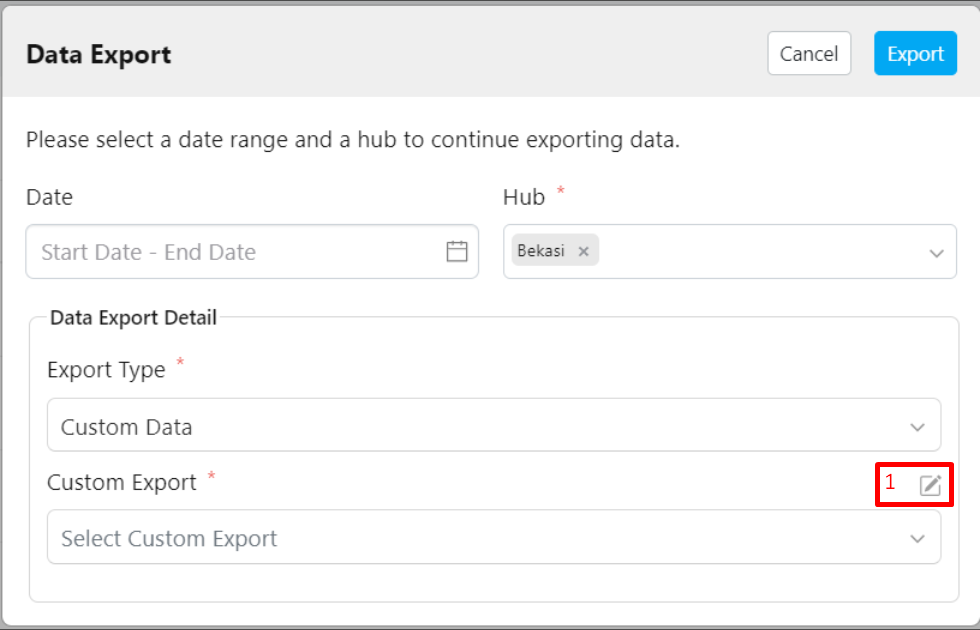
1. Click the pencil icon (Custom Export Manager) located next to the Custom Export field.
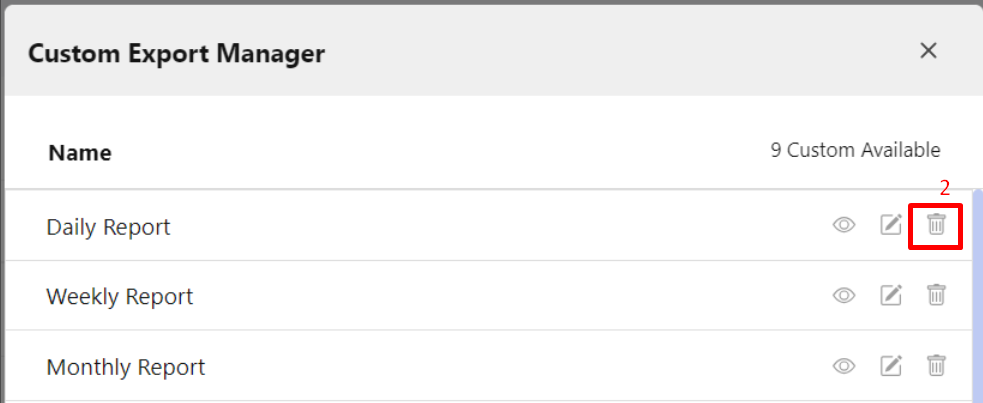
2. Select the Custom Export you want to delete, then click the delete (trash) icon.
3. Confirm the deletion by clicking the **Delete** button.

**Note:** Make sure you review the Custom Export before deleting it, as once deleted, it cannot be restored.