> ## Documentation Index
> Fetch the complete documentation index at: https://docs.mileapp.dev/llms.txt
> Use this file to discover all available pages before exploring further.
# Introduction
You can specify the data values that will appear in the exported file based on your specific requirements.
Required permission:
* Export Task
* View custom export
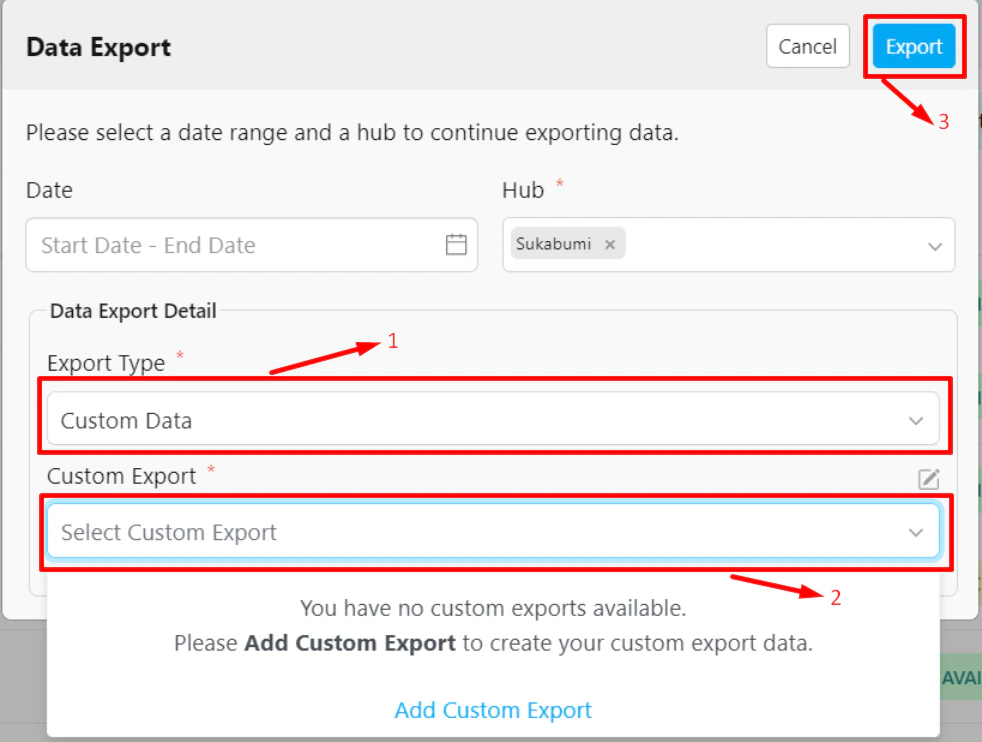
**Steps to Export Custom Data:**
1. Select **"Custom Data"** in the **Export Type** field.
2. Choose the **Custom Export Template** you want to use.
3. Click the **Export** button.
Your export file will be available for download once its status is marked as "Available." You can check the status in the **Data Export** list view.
**Tip:** If you don't have a Custom Export template yet, you can create one first. Learn more about how to [create a custom export](/pages/task/data-export/custom-export/create-custom-export).