> ## Documentation Index
> Fetch the complete documentation index at: https://docs.mileapp.dev/llms.txt
> Use this file to discover all available pages before exploring further.
# View Custom Export
Required permission:
* Export Task
* View custom export
To check the order of columns in the exported file or view the details of an existing Custom Export, follow these steps:
**Steps to View Custom Export Details:**
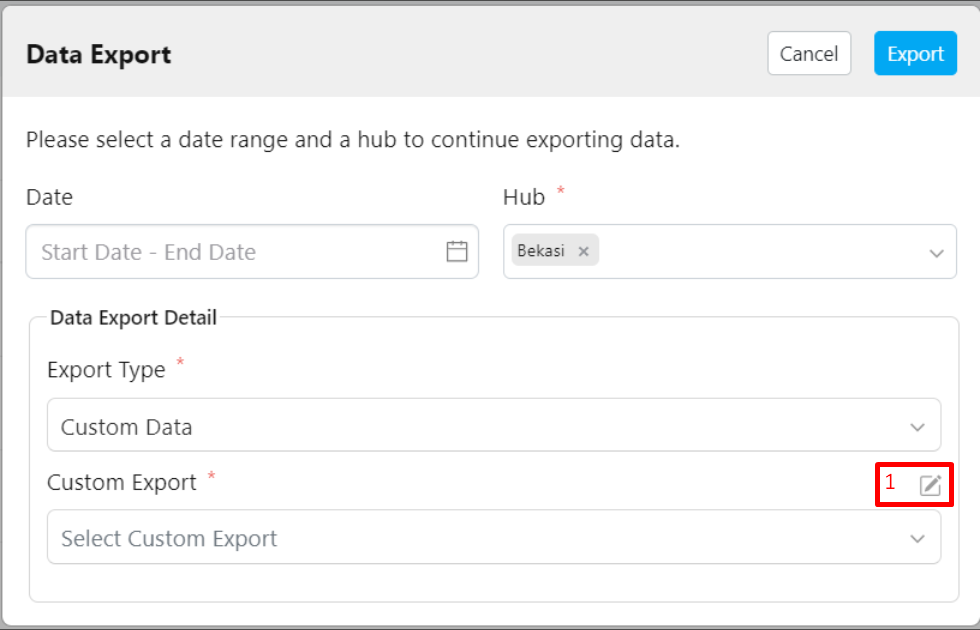
1. Click the pencil icon (Custom Export Manager) located next to the Custom Export field.
2. After clicking the pencil icon, the following view will appear.
3. Click the eye icon in the Custom Export Manager to view the details.
4. The details of your Custom Export, including the fields, will be displayed.
In the **Custom Export Details** view, you can see the order and the fields that will appear in the exported file.