> ## Documentation Index
> Fetch the complete documentation index at: https://docs.mileapp.dev/llms.txt
> Use this file to discover all available pages before exploring further.
# Export with Advanced Options
You can export data with additional options to suit your specific needs.
Required permission:
* Export Task
**Steps to Export Task Data with Advanced Options:**
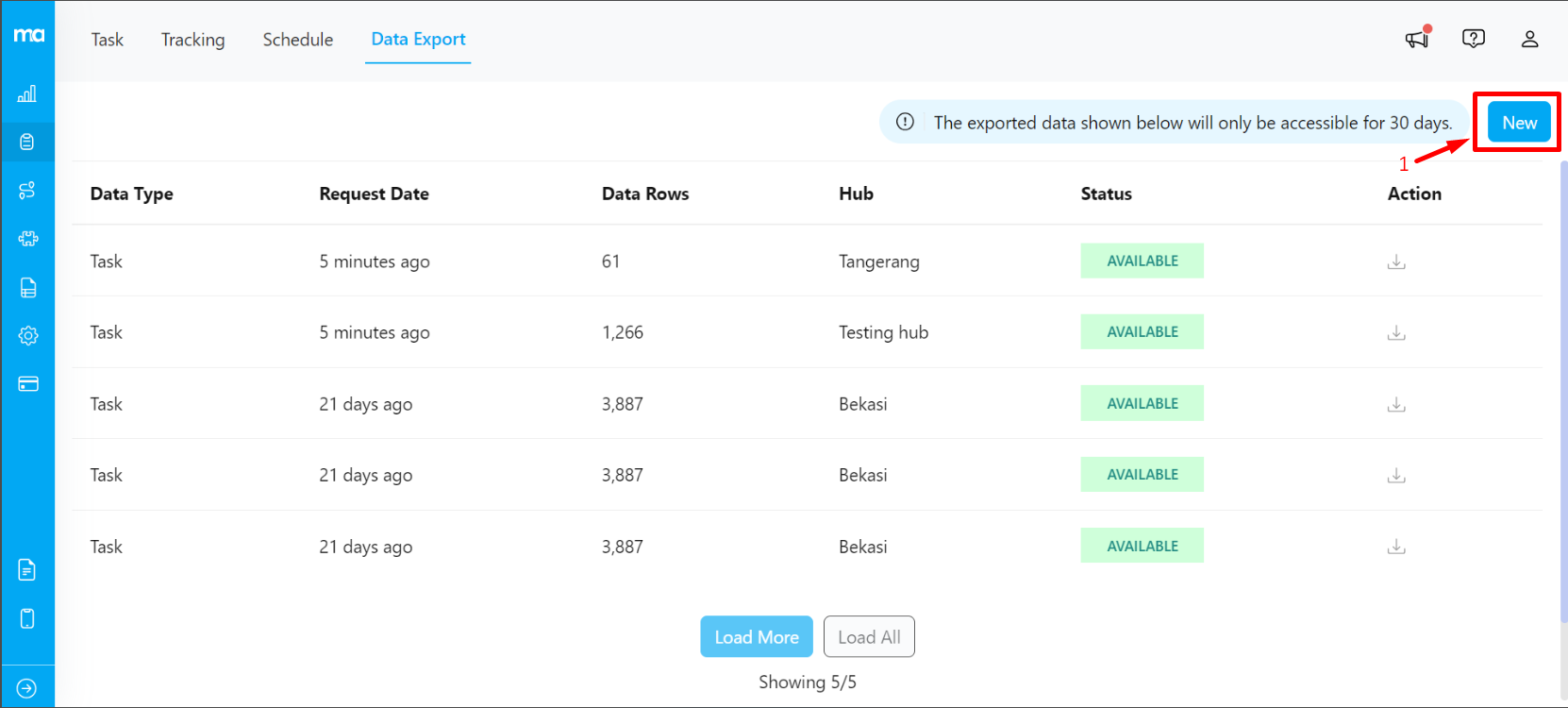
1. Click the **New** button to configure the data you wish to export.
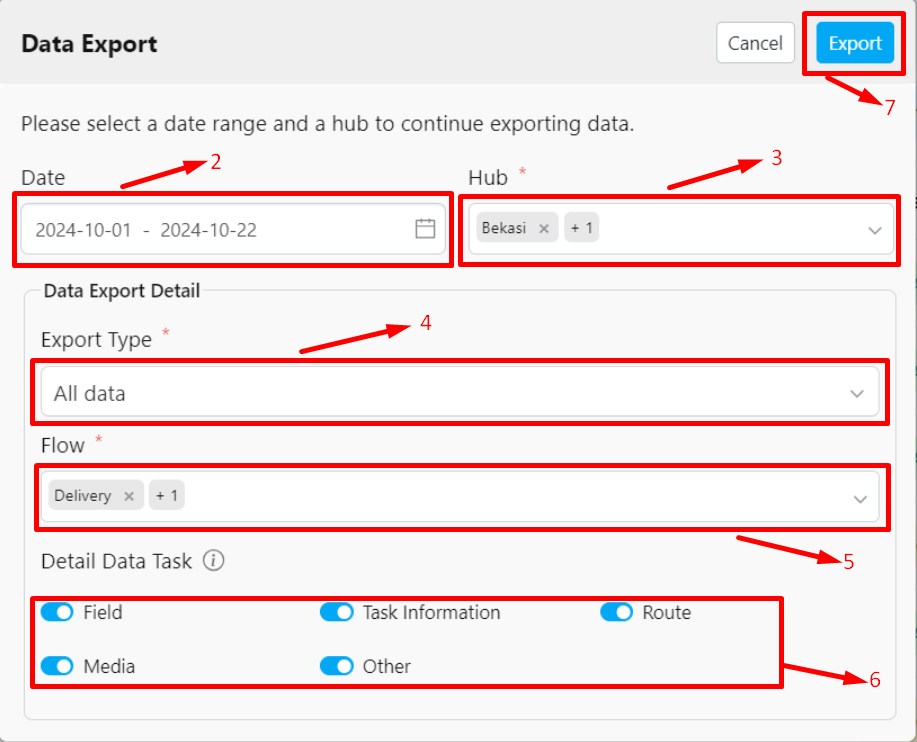
2. Select the date range for the data you want to export. You can leave it blank if you want to export all data.
3. Choose the hub from which you want to export data.
4. Select **All Data** to export all task data.
5. Choose the appropriate flow based on the data you wish to export. In addition to regular flows, you can also select **Trip Activity** as a source.
6. You can also customize the data to be exported by enabling the toggle in the **Detail Data Task** section. For more information about each toggle option, see [here](/pages/task/managing-task/export-to-excel).
7. Click the **Export** button to export the file according to the selected settings.
The export process will appear in the main Data Export menu, and you can download the file once the status is marked as "Available."
### Trip Activity Export
When exporting data, **Trip Activity** is available as an additional source alongside your regular flows. Trip Activity data includes: Username, Start Trip, Start Trip Coordinate, End Trip, End Trip Coordinate, Total Distance (km), and Total Duration (minutes). When selected, this data appears as a separate sheet in the exported Excel file.
* If **no flow is selected** (exporting all data), Trip Activity is **automatically included** in the export.
* If a **specific flow is selected** without also selecting Trip Activity, only that flow's task data is exported.
**Tip**: You can perform a custom export and specify the values that will appear in the file by selecting **Custom Data** under the **Export Type**. Learn more about [Custom Export](/pages/task/data-export/custom-export/introduction).