> ## Documentation Index
> Fetch the complete documentation index at: https://docs.mileapp.dev/llms.txt
> Use this file to discover all available pages before exploring further.
# Data Import
The **Data Import** menu allows you to create tasks in bulk by uploading a file. This feature supports importing up to **50,000 records** in a single upload.
Required permission:
* View task
* Create task
## How to Create Tasks via Data Import
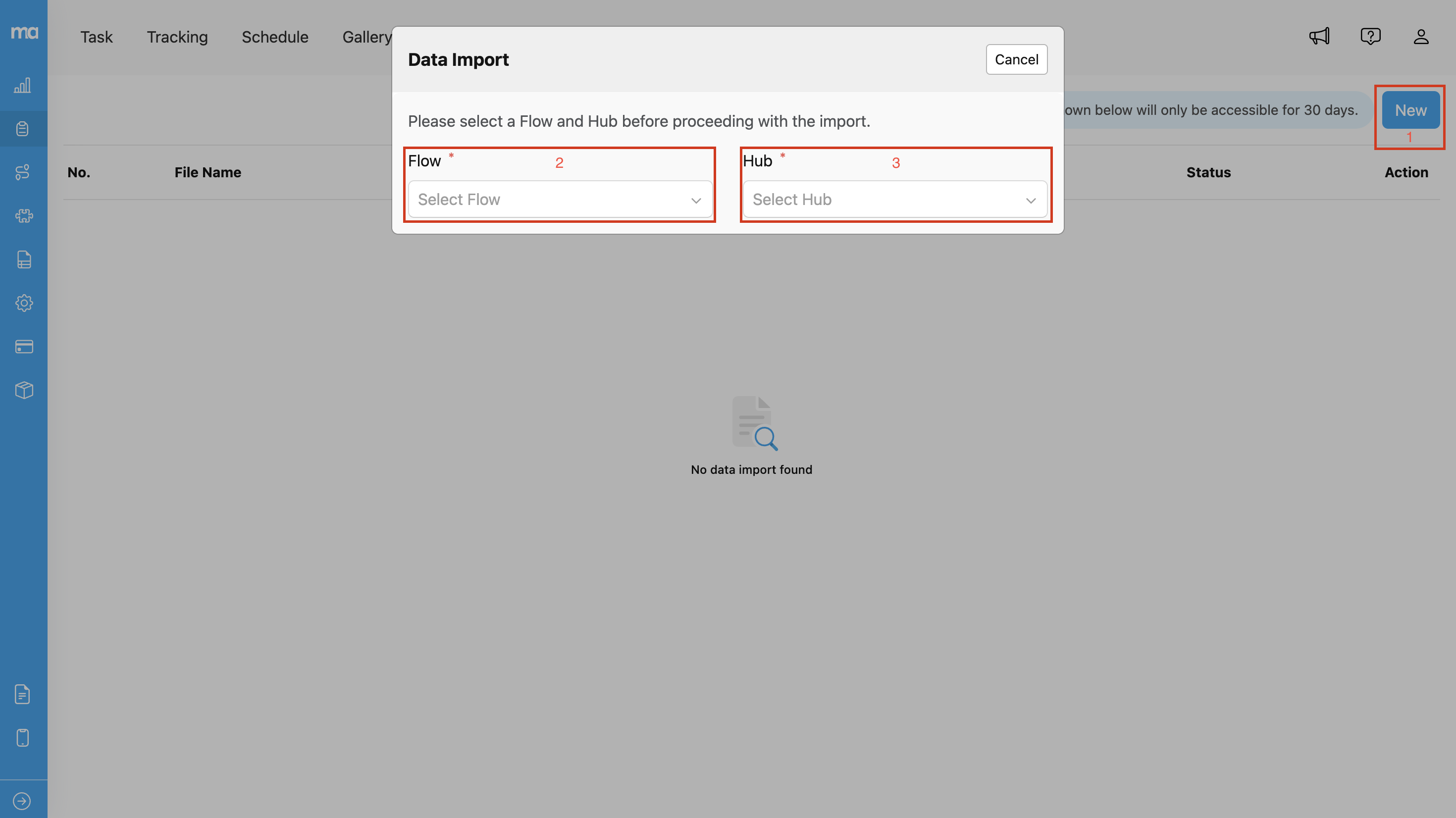
1. Click the **New** button.
2. Select the **Flow** you want to use for task creation.
3. Select the **Hub** where the tasks will be assigned.
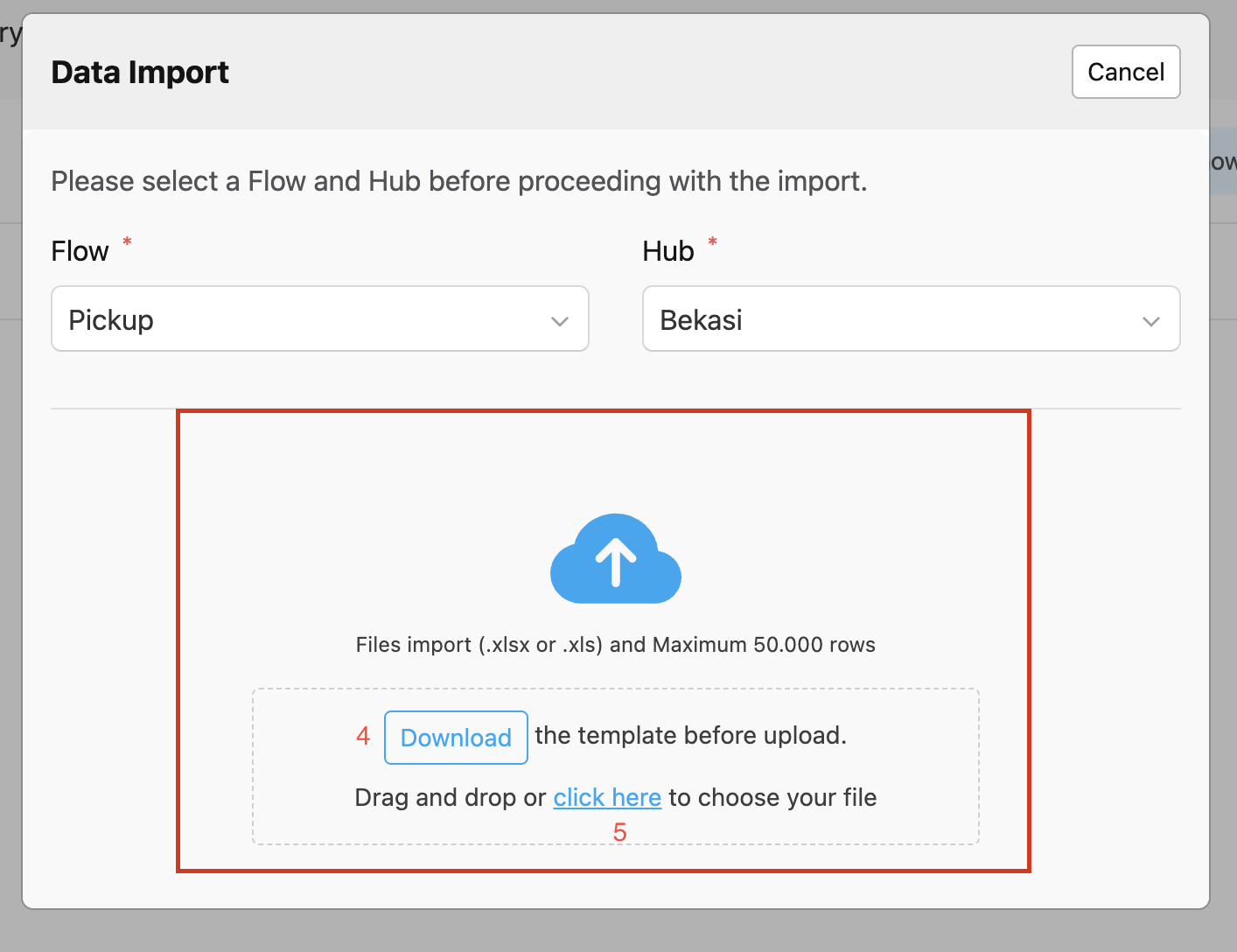
4. Download the **Flow Template** (if you don't have one already). If you already have the template, you can skip this step.
5. Upload your file by either **dragging and dropping** it into the upload area, or by clicking **"Click here"** to browse for the file.
6. Confirm the import by clicking **"Yes"** once your data is verified.
7. The task creation process will begin, and you will see the result shortly.
Once the file is uploaded, you can view the status of the import in the **List of Imported Files**. The import status includes:
* **Success**: All task data in the file was successfully created.
* **Failed**: All task data in the file failed to be created.
* **Partially Success**: Some tasks were successfully created, while others failed.
If the import status is **Failed** or **Partially Success**, you can download a detailed file containing only the failed data. This file includes a **"validationMessage"** column that explains the reason for each failed row, making it easier for you to correct and re-upload the data.
**Note:** Import history is only available for the last **30 days**. After 30 days, the import status and logs will no longer be accessible.