> ## Documentation Index
> Fetch the complete documentation index at: https://docs.mileapp.dev/llms.txt
> Use this file to discover all available pages before exploring further.
# Viewing and Editing Task
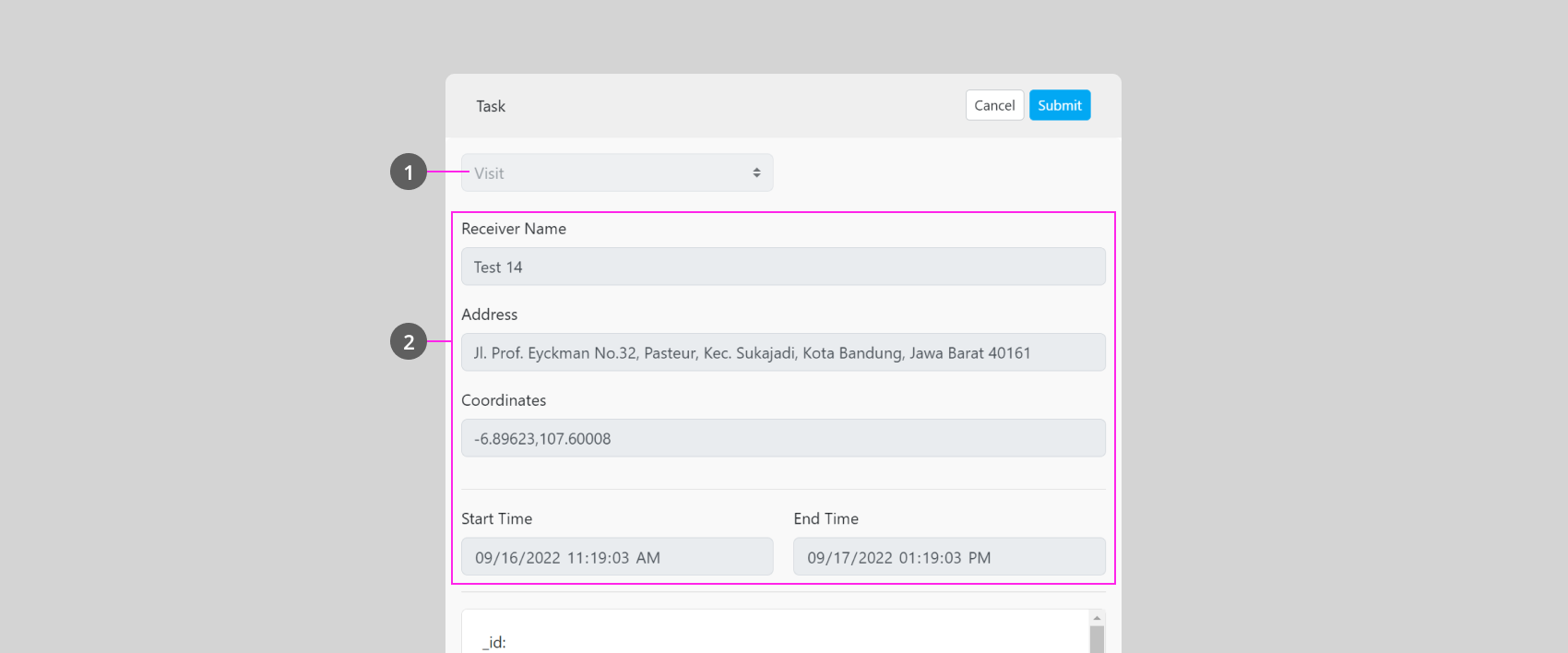
You could view and edit a Task by clicking this button (1), and will open a pop-up as shown below:
1. The flow that you have selected, for the task that has been submitted, the Flow can't be changed.
2. Information that you have on this Task. You could edit this information (except for the Done task, finished task information can't be edited).
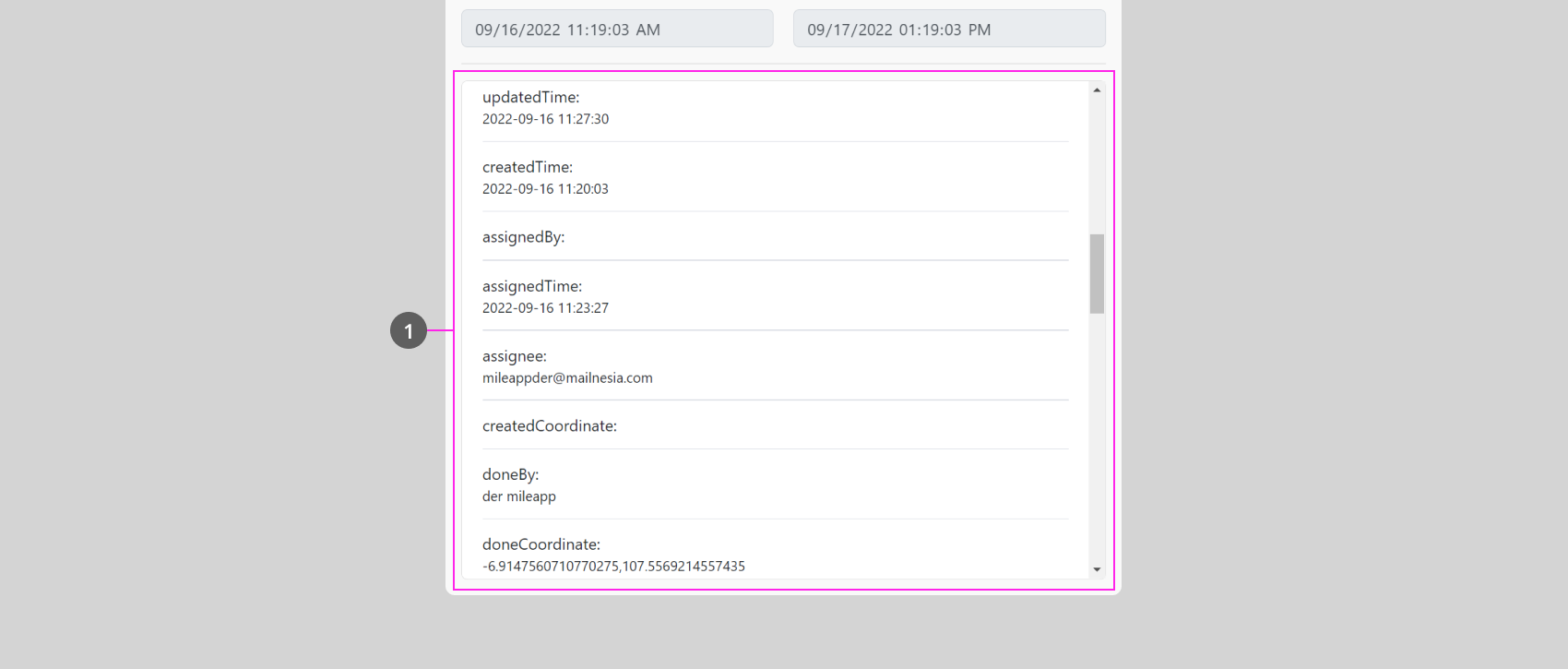
Below the Task information field there's a scrollable field that contains more task information:
This scrollable field (1) contains various information about the task, such as the task's updated time, who finished the task, where the task is finished based on latitude and longitude coordinates, photos & signature, and many more.
Please note that the information in this field is generated based on the flow setting, so the information will vary, and some are only generated after a field user finished the task.