> ## Documentation Index
> Fetch the complete documentation index at: https://docs.mileapp.dev/llms.txt
> Use this file to discover all available pages before exploring further.
# Public Tracking Information
This page explains what information is displayed on the public tracking page and how external users can interpret the data.
## Accessing Public Tracking
External users can access public tracking in two ways:
1. **Direct Link**: Click on the tracking URL shared with them
```
https://web.mile.app/tracking/{taskId}
```
2. **Portal Entry**: Visit `https://web.mile.app/tracking` and manually enter the task ID
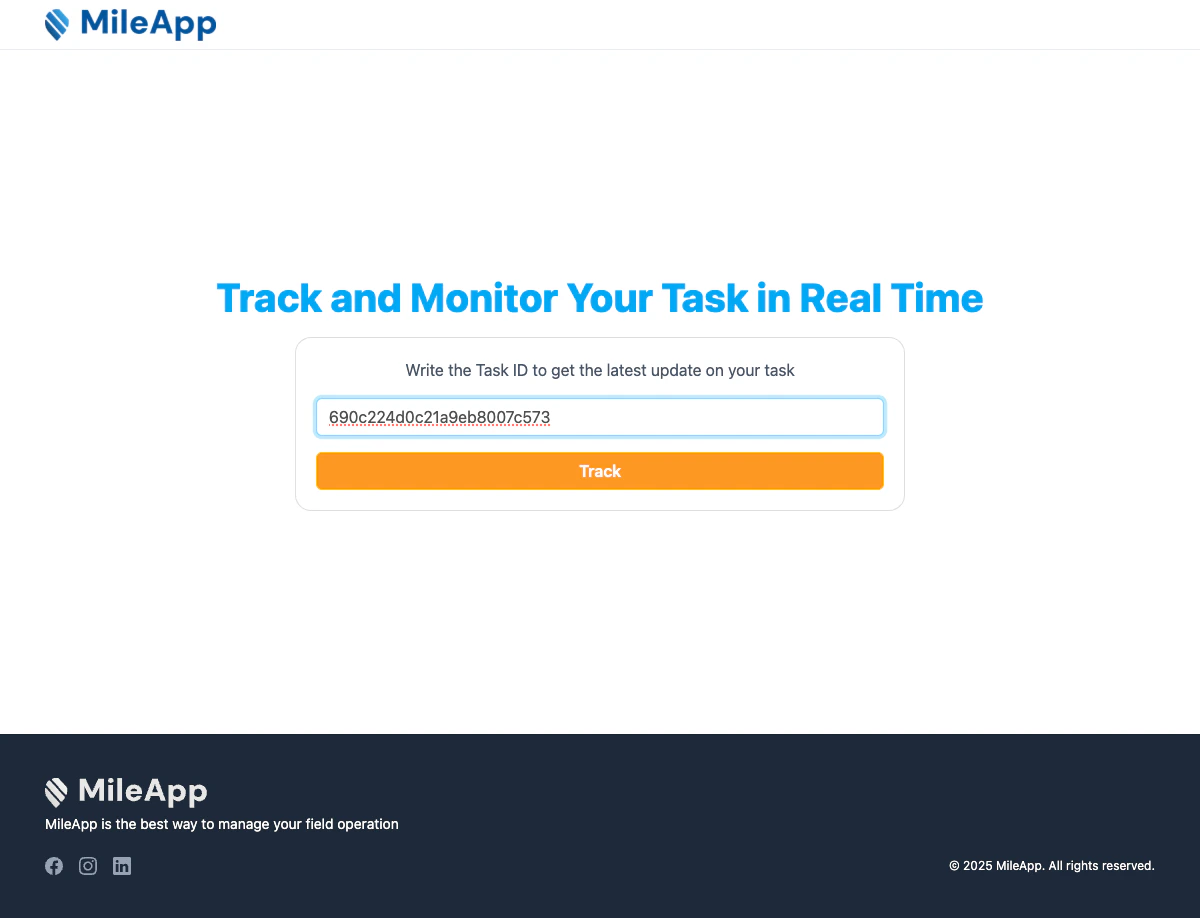
Public tracking portal with task ID input field
After entering a valid task ID and clicking "Track", the system will display the task information page.
## Task Information Display
The public tracking page is divided into three main sections:
### 1. Task Information Card
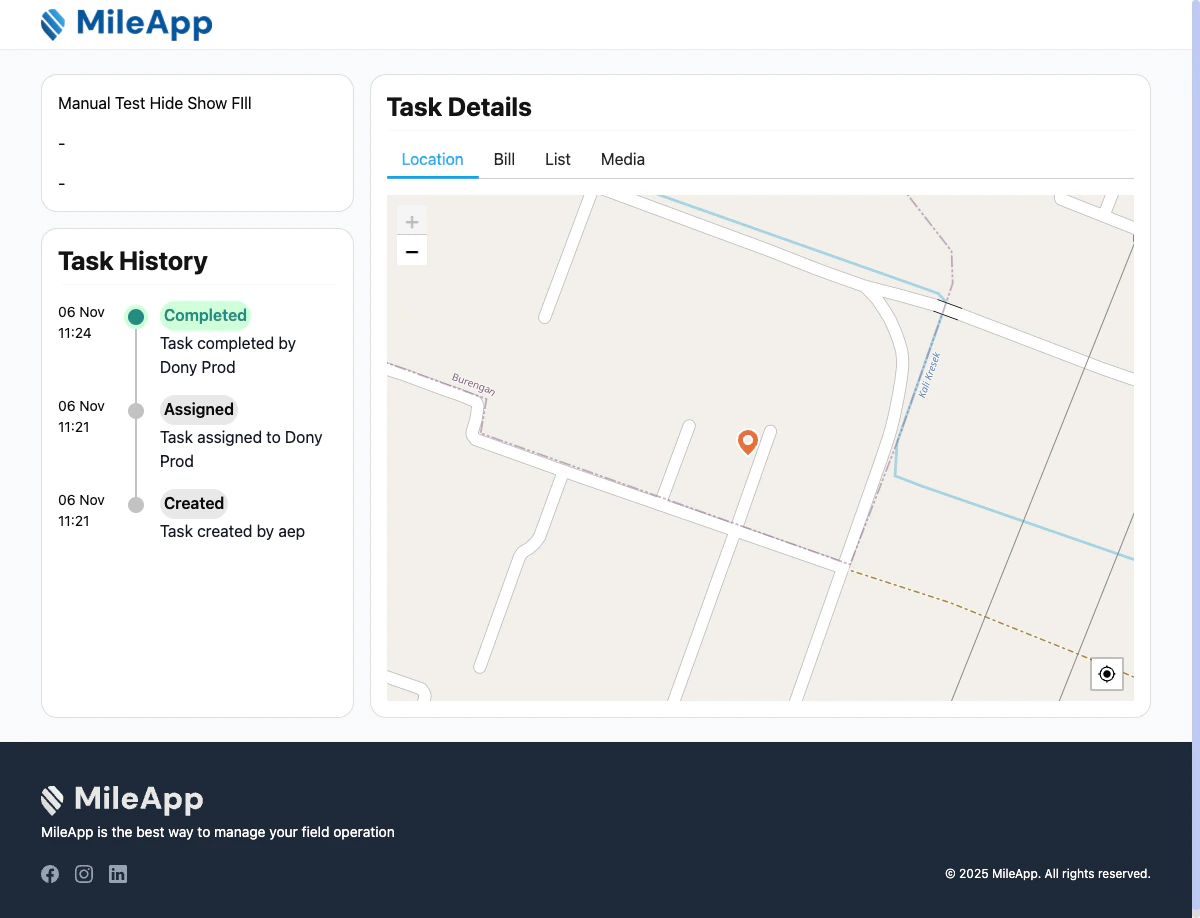
Task information card showing title, content, and label
This section displays basic task details:
* **Title**: The task name or title
* **Content**: Task description or additional details
* **Label**: Task category or classification label
If any of these fields are empty, they will display as "-".
### 2. Task History Timeline
Task history timeline showing all status changes and events
The task history timeline shows a chronological list of all task events with:
**Date and Time**
Each event displays the timestamp in `DD MMM HH:mm` format (e.g., "30 Jan 14:30").
**Status Indicator**
A colored circle indicates the current status:
* The most recent event has a colored indicator matching the status
* Older events have a neutral gray indicator
* A vertical line connects events to show progression
**Status Label**
Displays the action or status change, such as:
* "Assigned" - Task has been assigned to a user
* "Ongoing" - Task is in progress
* "Completed" - Task has been finished
**Display Note**
Additional information about the event or status change. This may include:
* Who performed the action
* Why the status changed
### 3. Task Details and Map View
The right section of the page contains tabs for different types of task information:
#### Map Tab
Interactive map showing task location
The map tab displays:
* **Task location marker**: Shows where the task is located
* **Route information**: If available, displays the route taken
* **Field user location**: If multiple field users are involved, a dropdown selector allows switching between field users
#### Additional Tabs (Based on Flow Configuration)
Depending on how the task's flow is configured, additional tabs may appear:
**Media Tab**
Displays photos and media files captured during task execution, organized by component name.
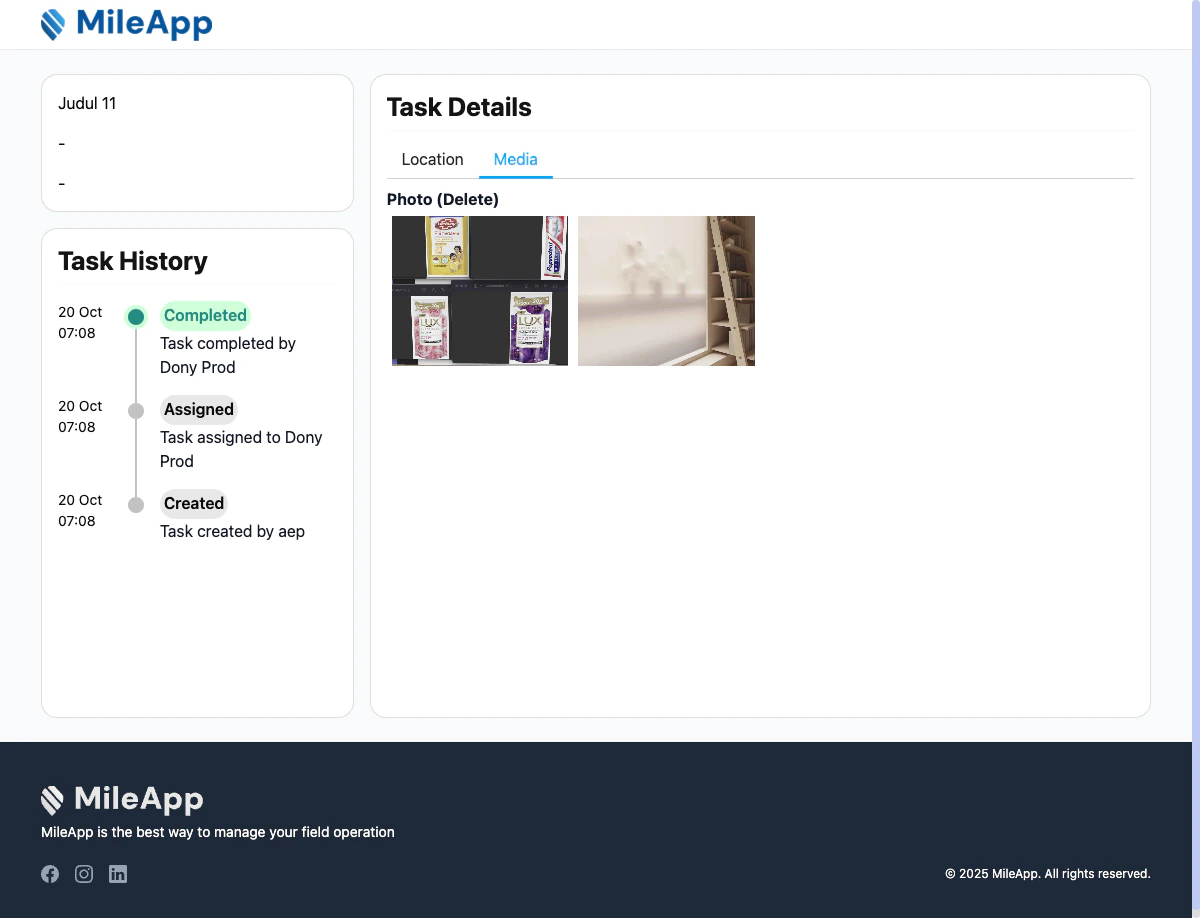
Media tab showing task photos
**Bill Tab**
Shows billing information if the task includes bill components:
* **Bill Items**: List of items with quantity, unit price, and total
* **Processed Quantity**: If applicable, shows quantity processed vs. ordered
* **Cost Items**: Additional costs (shipping, tax, etc.)
* **Subtotals**: Itemized subtotals and grand total
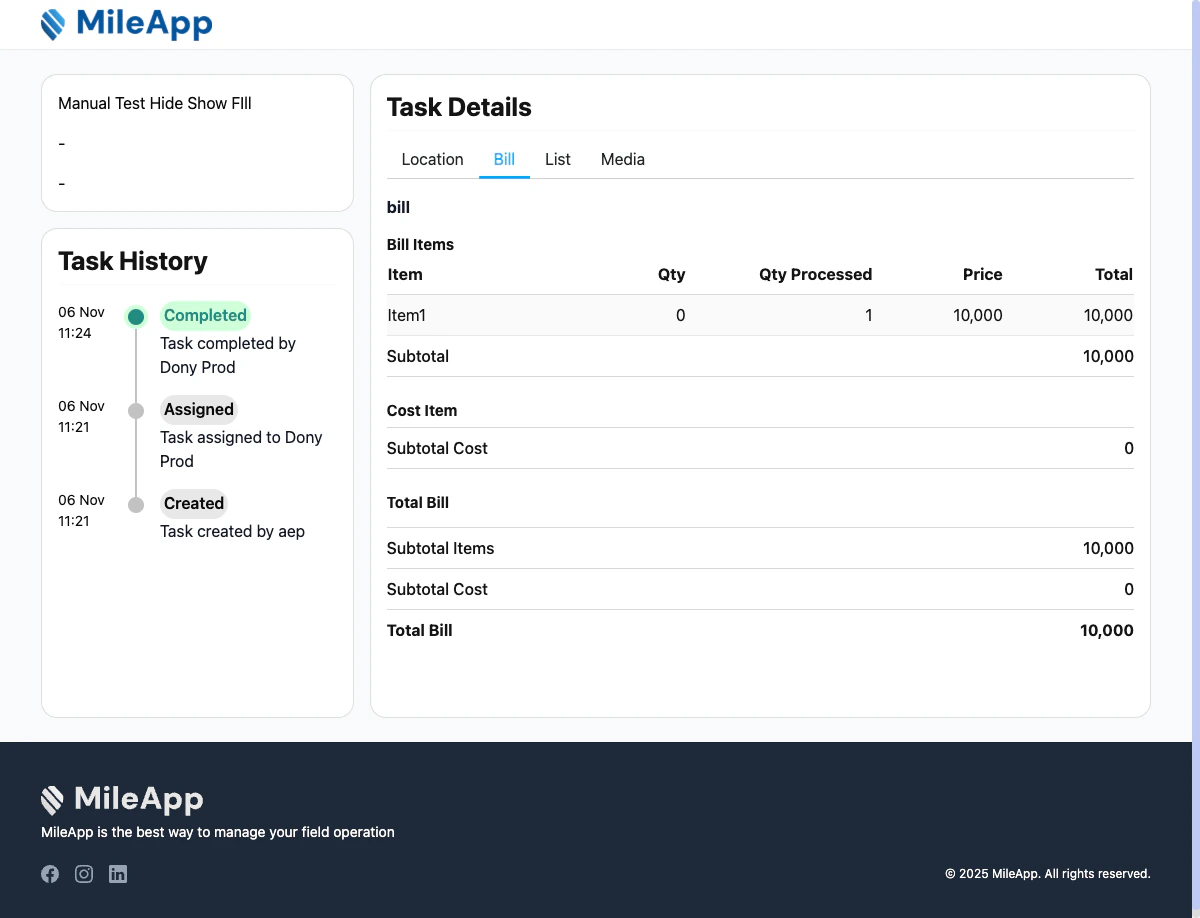
Bill tab showing billing information with items and costs
**List Tab**
Displays list information if the task includes list components. The display format varies based on the list type:
* **Text List**: Simple list of items with title only
* **Checkbox List**: Items with checked/unchecked status indicators
* **Quantity List**: Items with quantity and processed quantity tracking
* **Qty**: Total quantity for each item
* **Qty Processed**: Quantity already processed
* **Total Quantities**: Sum of all quantities and processed quantities
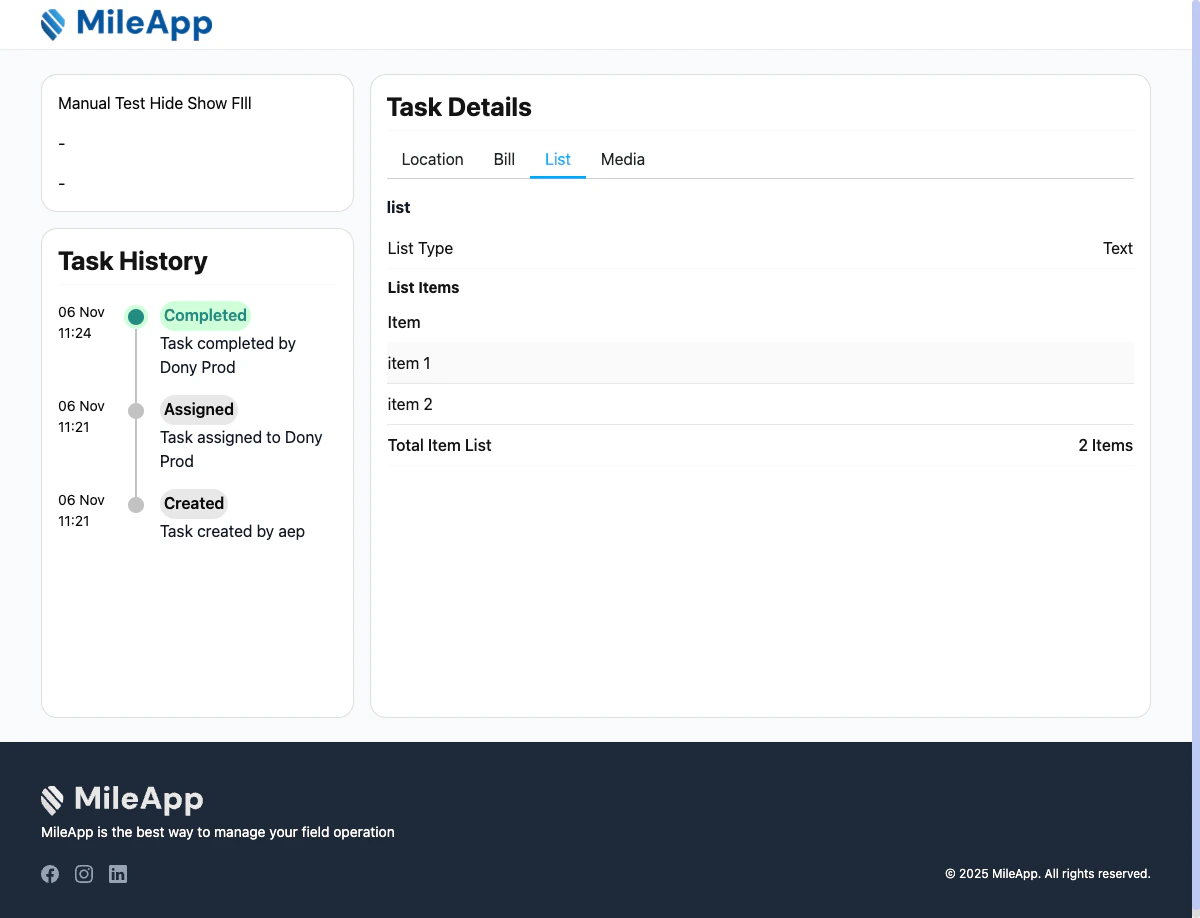
List tab showing list items with quantity tracking
## Understanding Task Status
Task status indicators help track progress:
| Status | Meaning |
| ------------- | ------------------------------------------ |
| **Created** | Task has been created but not yet assigned |
| **Assigned** | Task has been assigned to a field user |
| **Ongoing** | Field user has started working on the task |
| **Completed** | Task has been successfully finished |
The most recent status appears at the top of the history timeline with a colored indicator.
## Data Visibility and Privacy
**What is Shown**
Public tracking displays only the information configured for external visibility:
* Task title, content, and label
* Status history and timeline
* Task location (if enabled)
* Task Information
## Real-Time Updates
Public tracking displays real-time information:
* **Status changes** appear immediately when updated
* **Location data** updates based on your organization's tracking interval
* **History events** are added as they occur
Users can refresh the page to see the latest updates, though the page automatically shows current data.
## Mobile-Friendly View
The public tracking page is fully responsive and works on:
* Desktop browsers
* Mobile phones
* Tablets
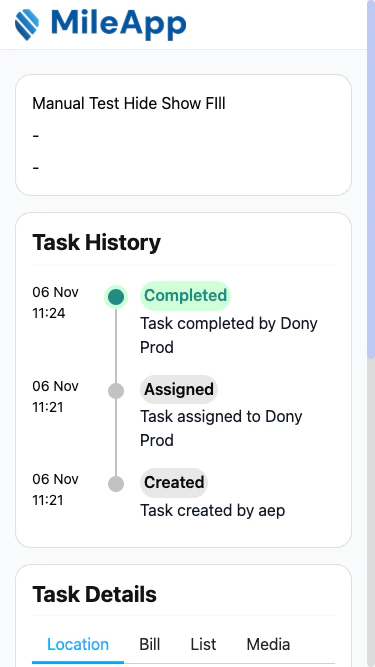
Public tracking page on mobile devices
## Related
* [Introduction to Public Tracking](/pages/task/public-tracking/introduction-to-public-tracking)
* [How to Share Public Tracking](/pages/task/public-tracking/how-to-share-public-tracking)
* [Introduction to Tracking](/pages/task/tracking/introduction-to-tracking) (Internal tracking for logged-in users)