> ## Documentation Index
> Fetch the complete documentation index at: https://docs.mileapp.dev/llms.txt
> Use this file to discover all available pages before exploring further.
# Creating Task Schedule
Required permission:
* View schedule
* Create schedule
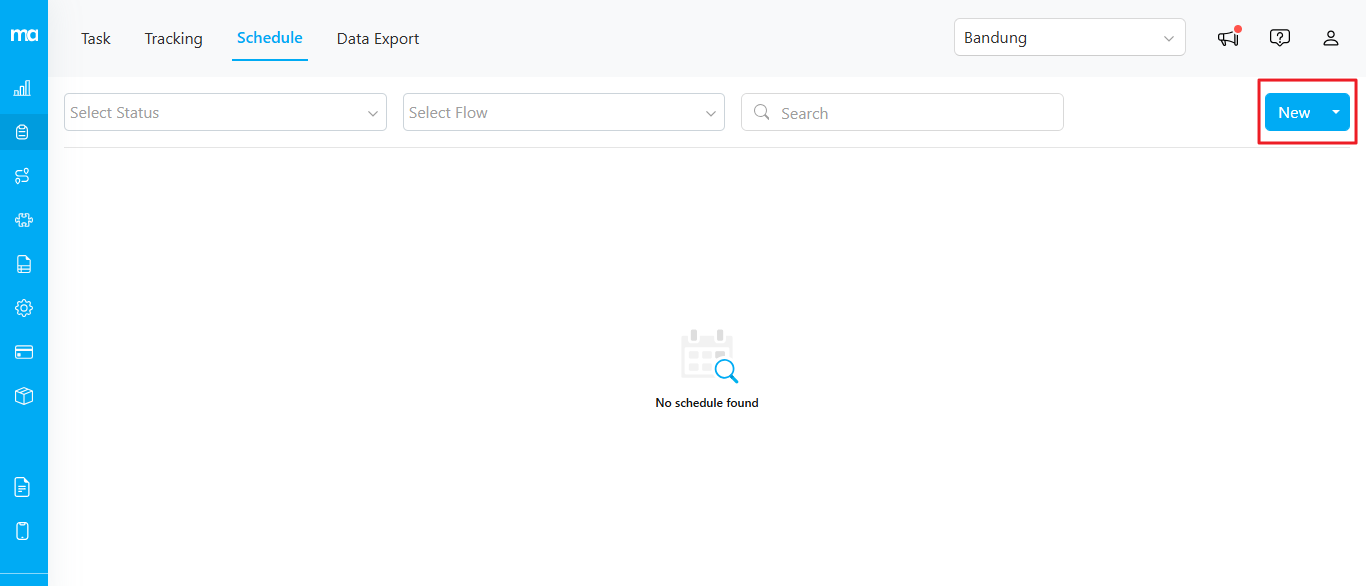
There are two ways to create a task schedule. Click the **"New"** button to create a single schedule or select **"Bulk"** to create multiple schedules at once.
## Single Schedule
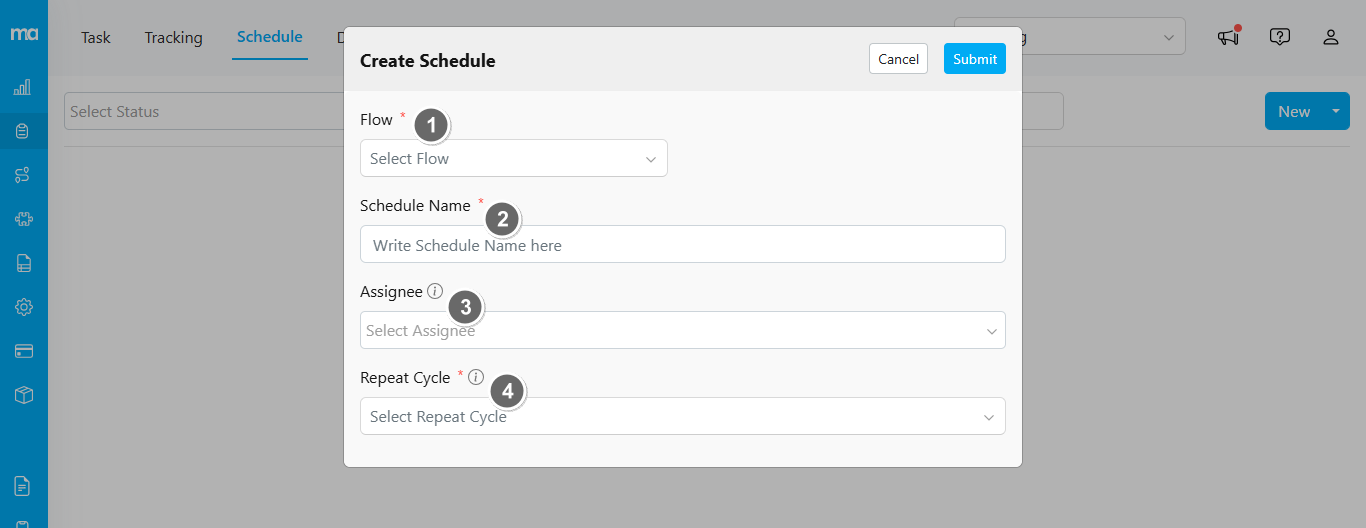
When creating a new schedule, you must fill in the following information. Required fields are marked with an asterisk (\*).
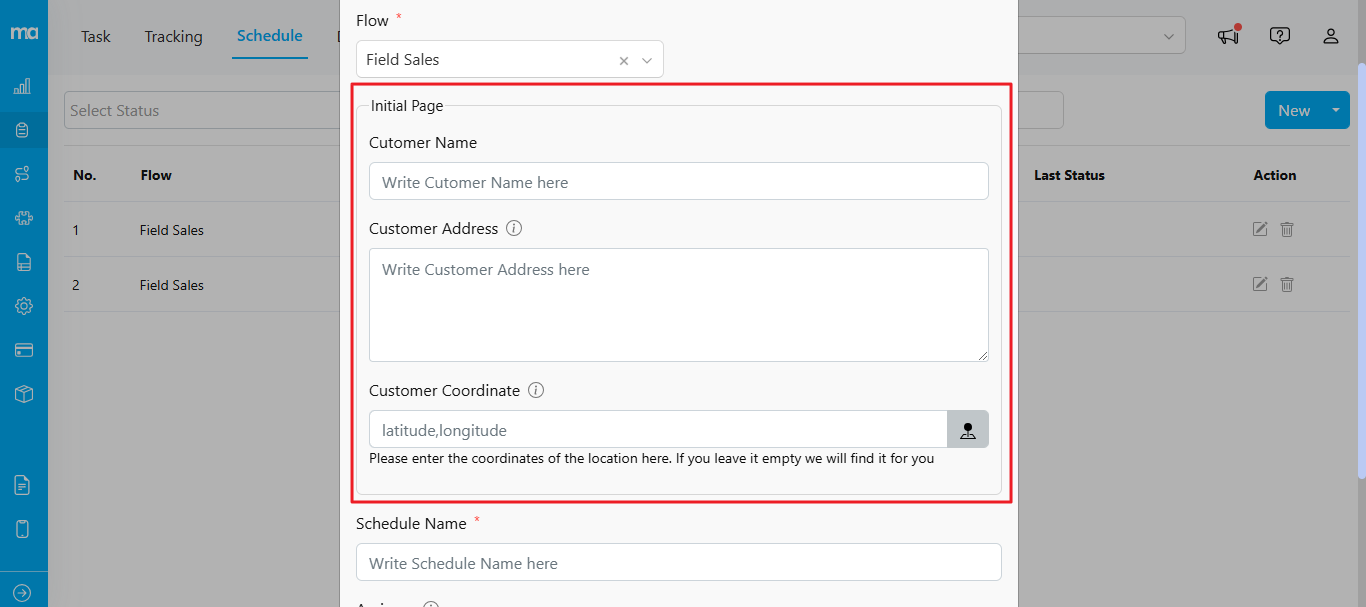
1. **Task Flow**: Select the task flow to use for this schedule (e.g., Pickup, Delivery). Once selected, additional form fields will appear based on the initial page of your flow settings.
2. **Schedule Name**: Enter a specific name to help differentiate this schedule from others you may create.
3. **Assignee**: Choose the assignee for the task schedule. The available assignees are based on the hub selected in the upper-right corner.
4. **Repeat Cycle**: Set the time and cycle for when the schedule will be active. For more details on each cycle option, refer to this [page](/pages/task/schedule/repeat-cycle/repeat-daily).
## Bulk Schedule
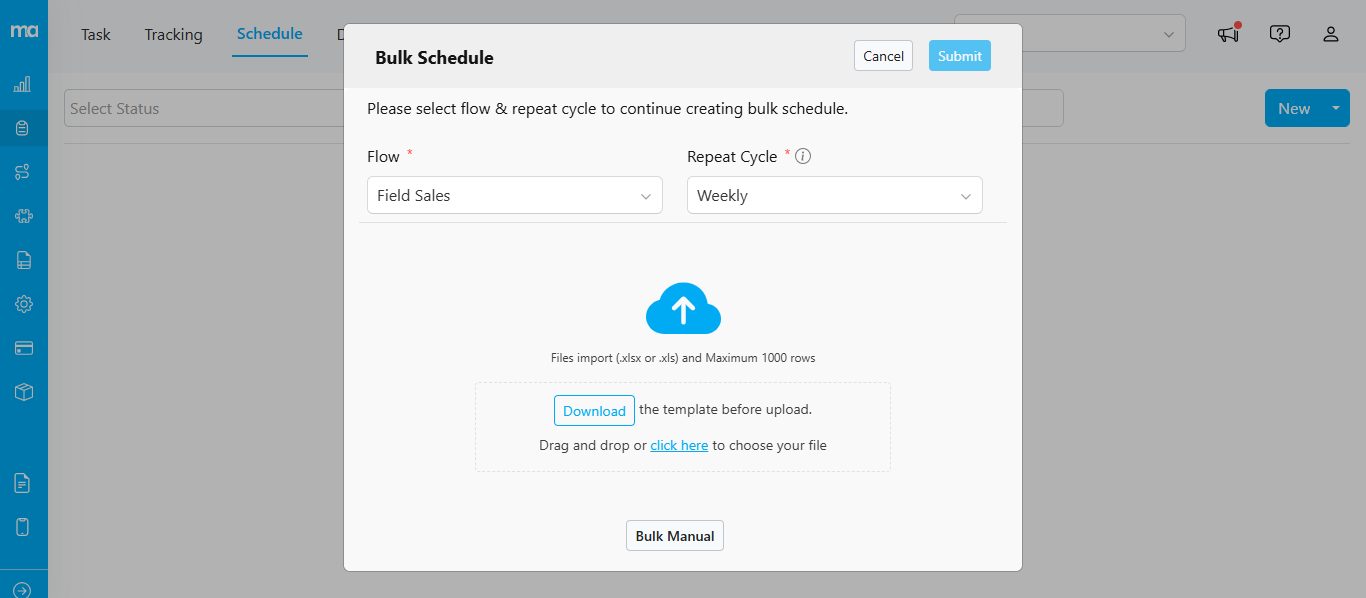
If you need to create multiple schedules at once, select **"Bulk"**.
1. Select Task Flow.
2. Choose Repeat Cycle.
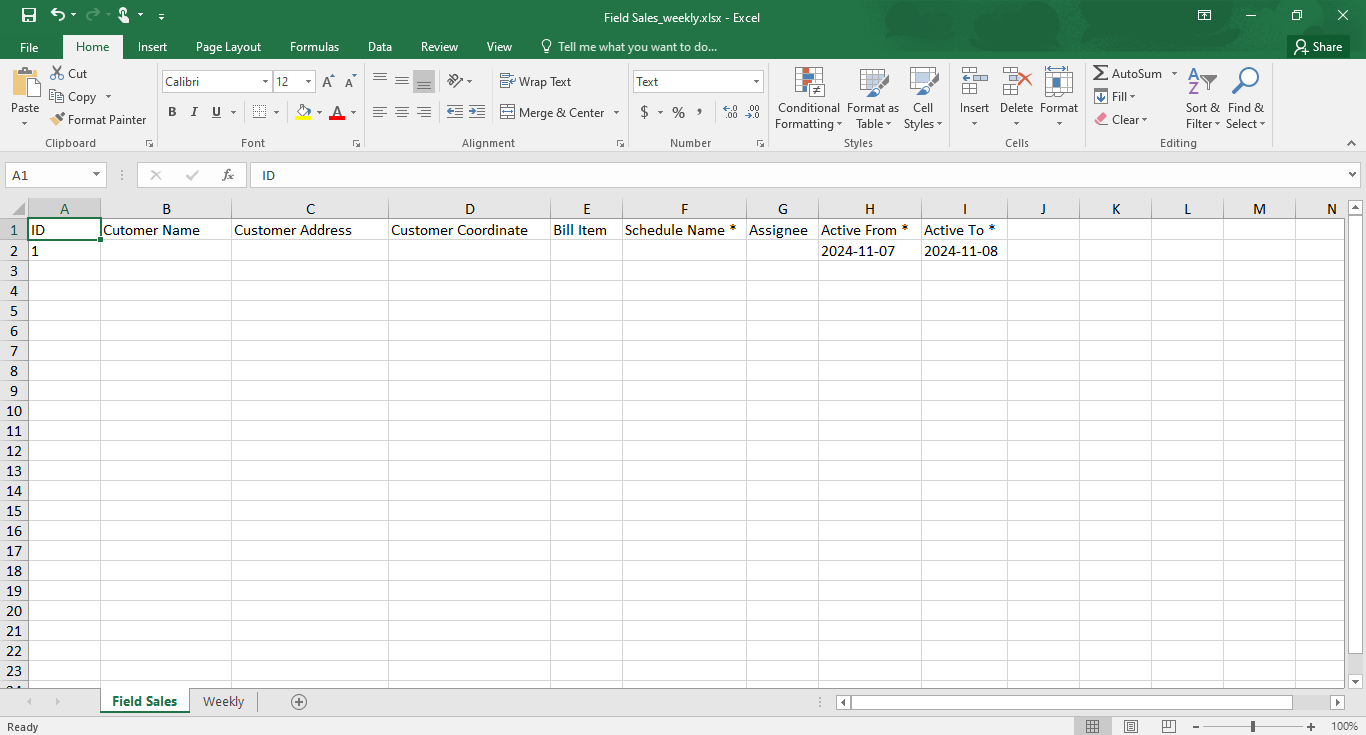
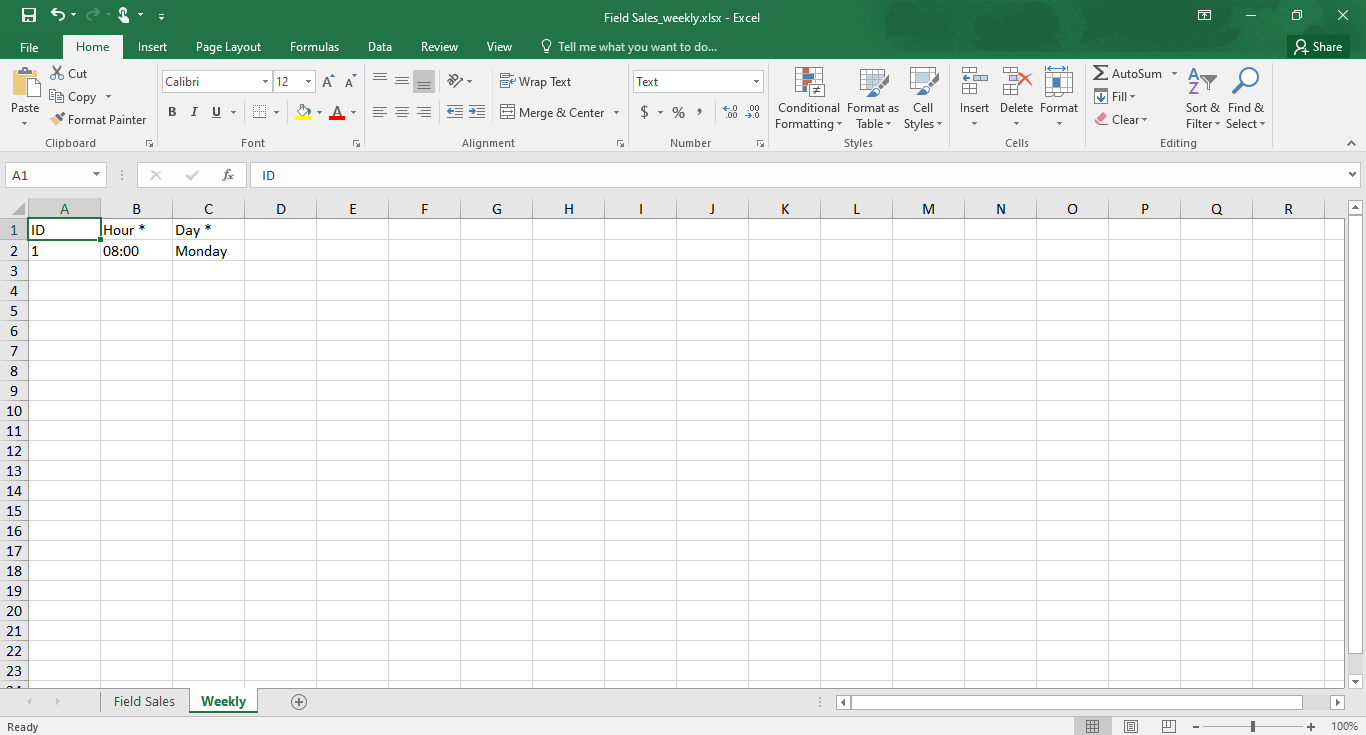
3. **Download the Template** before uploading. The Excel template includes two sheets:
* **Sheet 1** for schedule data, including fields such as "Name," "Address," and "Coordinate."
* **Sheet 2** for setting up the time. Required fields are marked with an asterisk (\*).
Example of the **"Field Sales"** flow in Sheet 1:
Example of the **"Weekly"** cycle sheet:
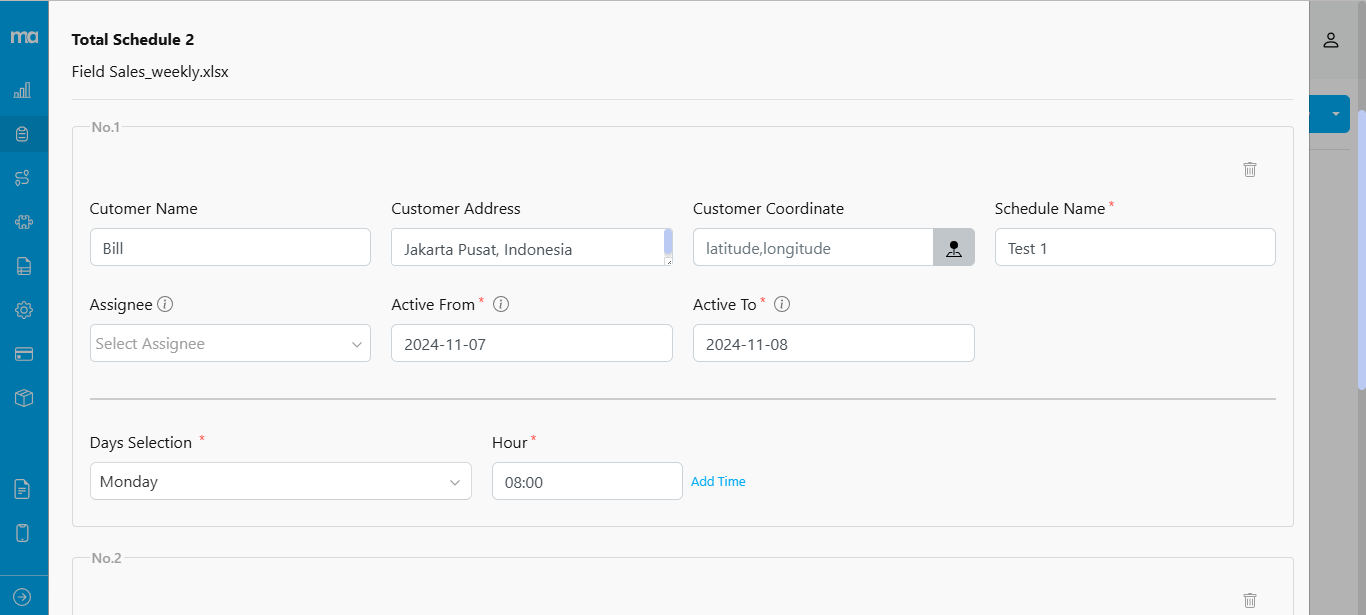
Before submitting, you can review the uploaded schedules to check for any missing or invalid data.
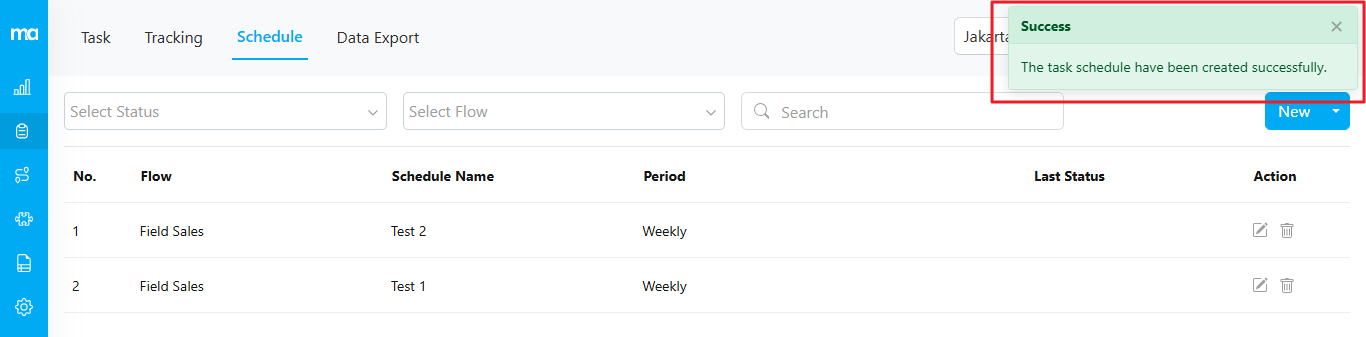
A success message will confirm once your task schedule has been created: *"The task schedule has been created successfully."*