> ## Documentation Index
> Fetch the complete documentation index at: https://docs.mileapp.dev/llms.txt
> Use this file to discover all available pages before exploring further.
# Manage Schedule
## View Schedule
Required permission:
* View schedule
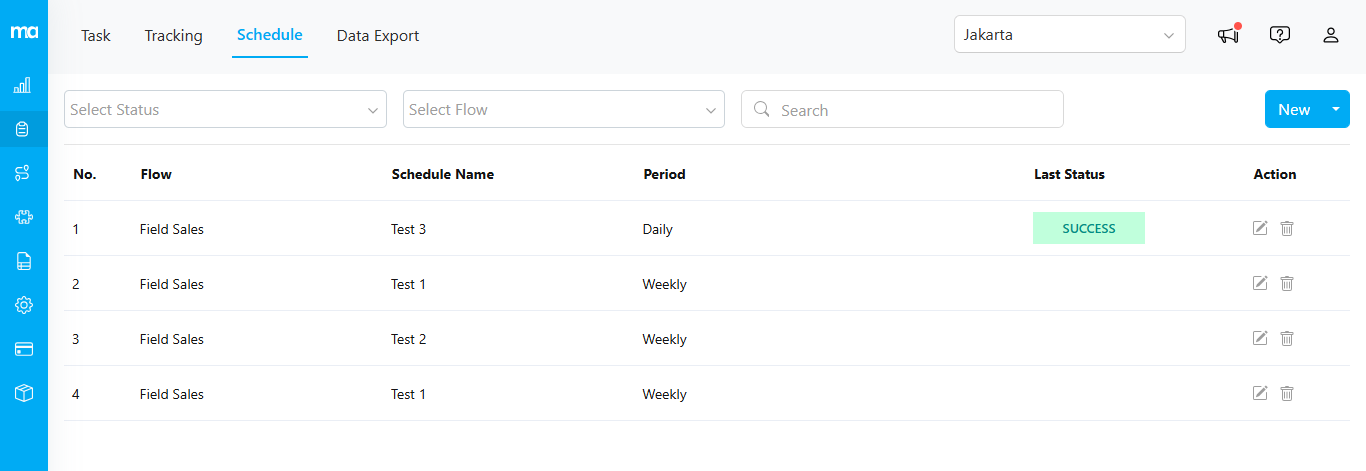
Once you have successfully created a schedule, it will appear in the table below.
The table includes the following columns:
* **Flow**: Displays the task flow name.
* **Schedule Name**: Shows the name of the schedule.
* **Period**: Indicates the schedule cycle, such as "Daily."
* **Last Status**: Shows the status of the last run. If the status is "SUCCESS," you can hover over it to see the complete date and time in a tooltip.
\* **Action**: Allows you to edit or delete the schedule.
## Edit
Required permission:
* View schedule
* Edit schedule
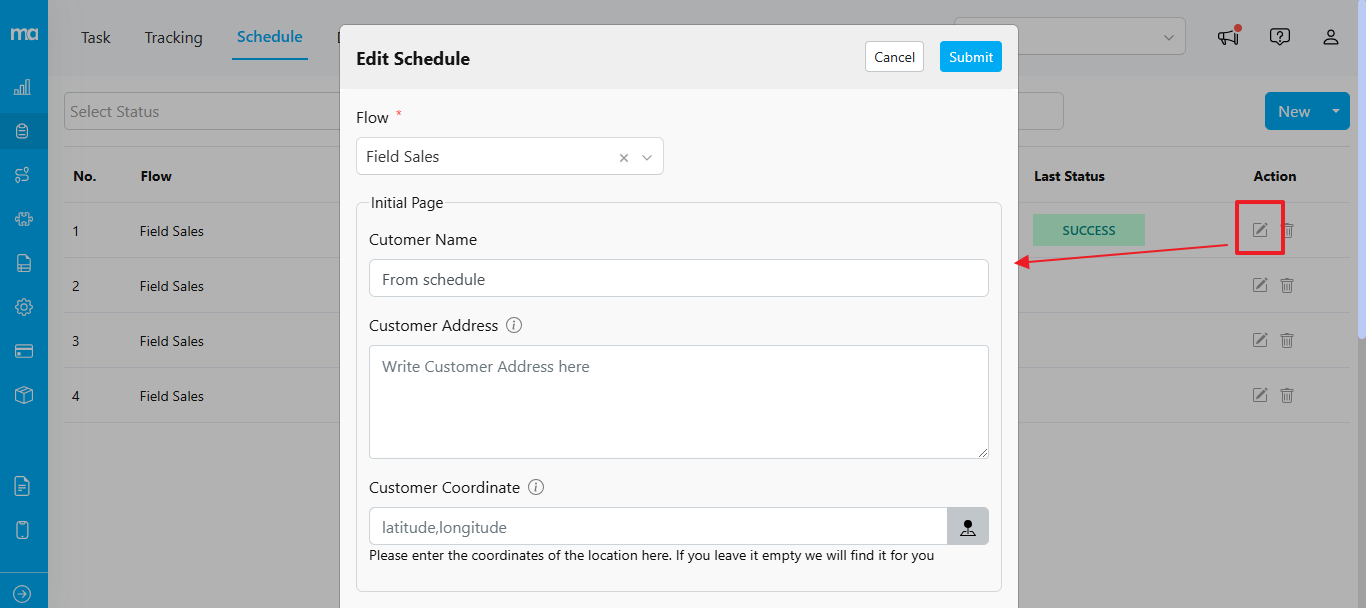
To edit a schedule, click the pencil icon in the Action column.
## Delete
Required permission:
* View schedule
* Delete schedule
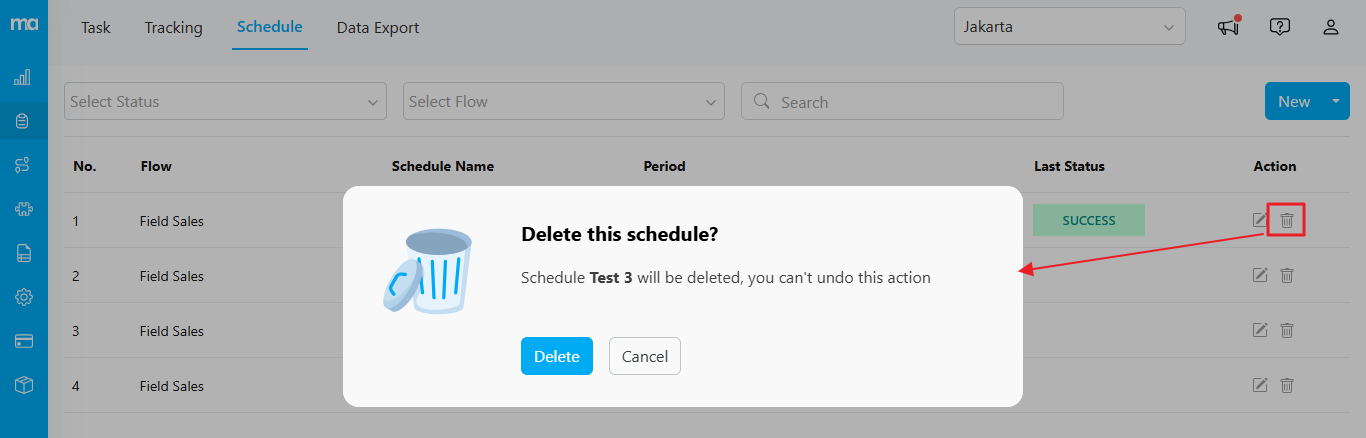
To delete a schedule, click the trash icon in the Action column. When the confirmation dialog appears, select "Delete."