

Overview
MileApp authenticates your API requests using your account’s access token. If a request doesn’t include a valid key, MileApp returns an invalid request error. If a request includes a deleted or expired key, MileApp returns an authentication error. All requests need a Bearer Token for authentication.Generate Access Token
For security, MileApp only shows you a secret or restricted access token one time. Store the key in a safe place where you won’t lose it. If you lose the key, you can delete it and create another.1
Sign in to MileApp
Visit https://web.mile.app and enter your user email address and password.
2
Navigate to Personal Token
Go to Profile → Access Token.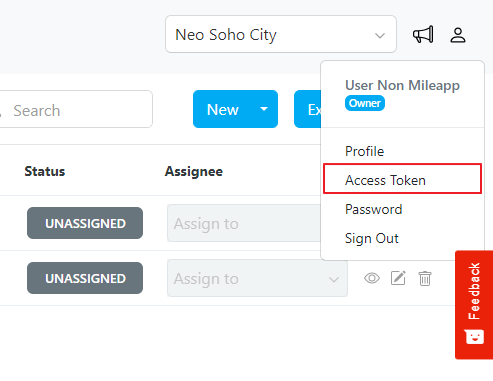
3
Create New Token
Click New to create a new token.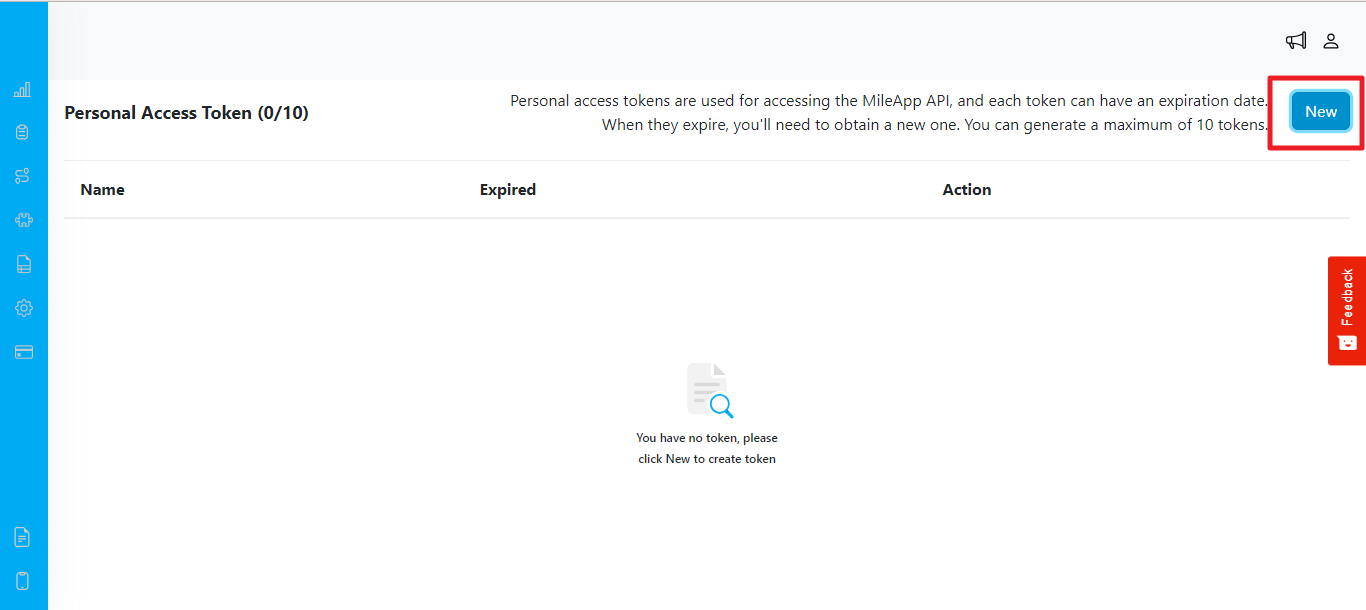
4
Configure Token
Fill in the token name (this is typically used to describe the token’s purpose) and choose the expiration date.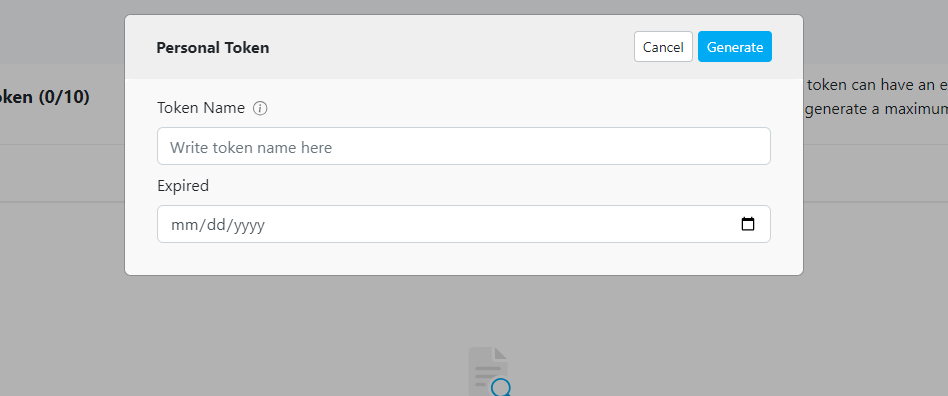
5
Generate and Copy
Click Generate.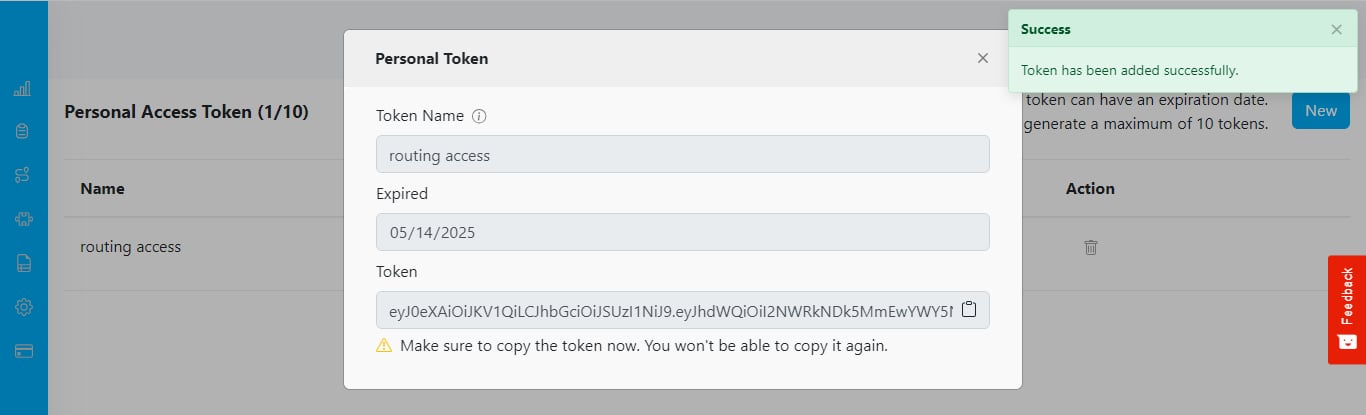
Using the Token
Include the token in theAuthorization header of your API requests:
Protecting Against Key Leakage
Access tokens are a form of account credentials, like a username and password. If bad actors obtain a secret key, they can use it to harm your business and other parties in the MileApp ecosystem. MileApp users own the responsibility of keeping access tokens safe.Use secure key management systems (KMS)
Use secure key management systems (KMS)
When you create a secret live mode key from the MileApp Dashboard, it is only revealed once. Immediately copy the key to a KMS, which is designed to handle sensitive information with encryption and access controls. Make sure you don’t leave a copy of the key in the local file.
Don't store keys in source code repositories
Don't store keys in source code repositories
Bad actors might scan public source repositories for leaked keys. Even if the source repository is private, it could be shared with team members on their development environments.
Don't embed secret keys in applications
Don't embed secret keys in applications
Bad actors can exploit secret keys by matching a certain string pattern in the application. Avoid embedding keys in applications such as client tools, SDKs, and mobile apps.
Handle Leaked Secret Keys
If you identified a secret key leak (such as if a key is accidentally published to GitHub):- Immediately delete the key from MileApp Dashboard
- Replace your integration with a new key
- If you detected abnormal behaviors without confirming the leak, create a new access token proactively while investigating the root cause
If MileApp detects that your access token has been exposed, we will immediately notify you. Depending on the imposed risk and activity on the account, we might decide to roll the key on your behalf.