

Introduction
Welcome to the Multi-Factor Authentication (MFA) with Email OTP user manual. This document will guide you through the process of setting up and using Email OTP-based MFA to enhance the security of your accounts on MileApp. What is Multi-Factor Authentication (MFA)? Multi-Factor Authentication (MFA) is a security feature that adds an extra layer of protection to your accounts. In this case, MFA combines your regular login credentials with a one-time passcode (OTP) sent to your registered email address.Setting Up MFA
Action Required: Administrators can configure MFA settings for specific roles through the “Setting/Permission” menu. Follow these steps to set up MFA for your account:- Log in to your account using your existing credentials.
- Navigate to the “Setting/Permission” menu.
- Select the roles for which you want to enable MFA. You can choose to enable MFA for specific roles or all roles.
- Save your changes. Once MFA is enabled for your role, you will be prompted to set up your email address for OTP delivery.
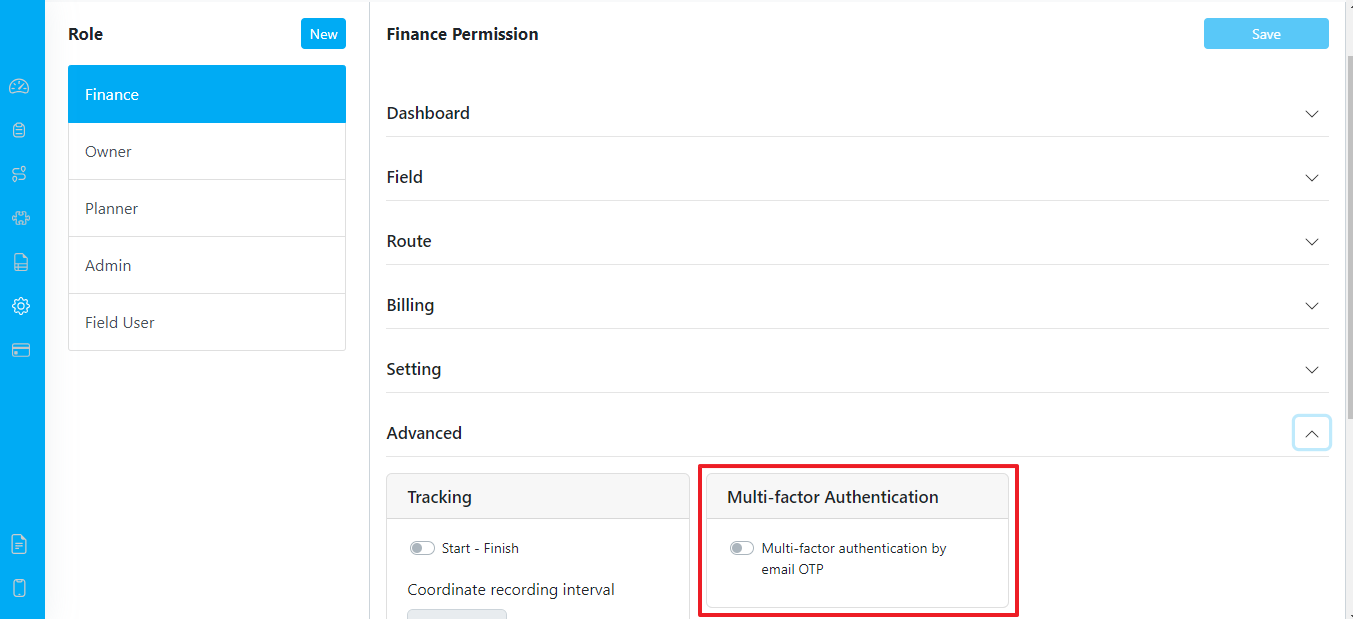
Activate MFA by Email OTP
Using MFA
After MFA is enabled for your role, you will encounter the OTP input page during the sign-in process. Here’s how to use MFA with Email OTP:- Enter your username and password as usual on the sign-in page.
- Click the “Sign In” button.
- Check your registered email address for the OTP.
- Enter the OTP in the designated field on the sign-in page.
- Click the “Verify” button.
- If you entered the correct OTP, you will gain access to your account. If the OTP is incorrect or has expired, you may need to request a new one.
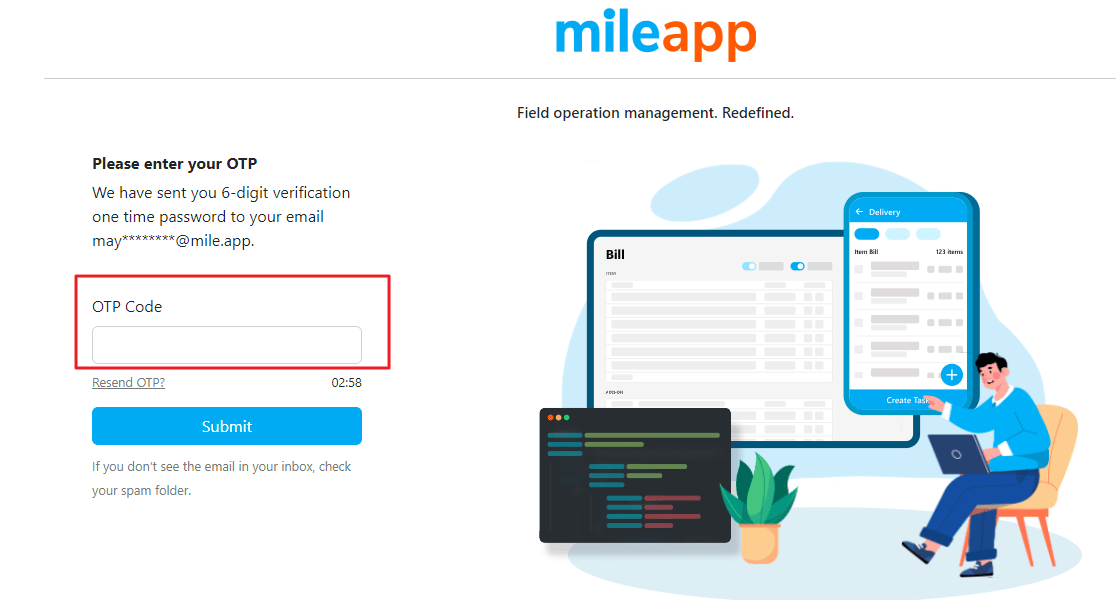
Form OTP Code
Troubleshooting
I did not receive the OTP email:- Check your spam or junk folder; the email might have been filtered there.
- Ensure you have provided the correct email address in your account settings.
- Contact your administrator for assistance if you continue to experience issues.