

- Changing the name of existing flows
- Changing the order of each flow
- Deleting flows when they are no longer needed
Required permission:
- View Flow
- Create Flow
- Edit Flow
- Delete Flow

Flow Menu Display
Flow Manager Display
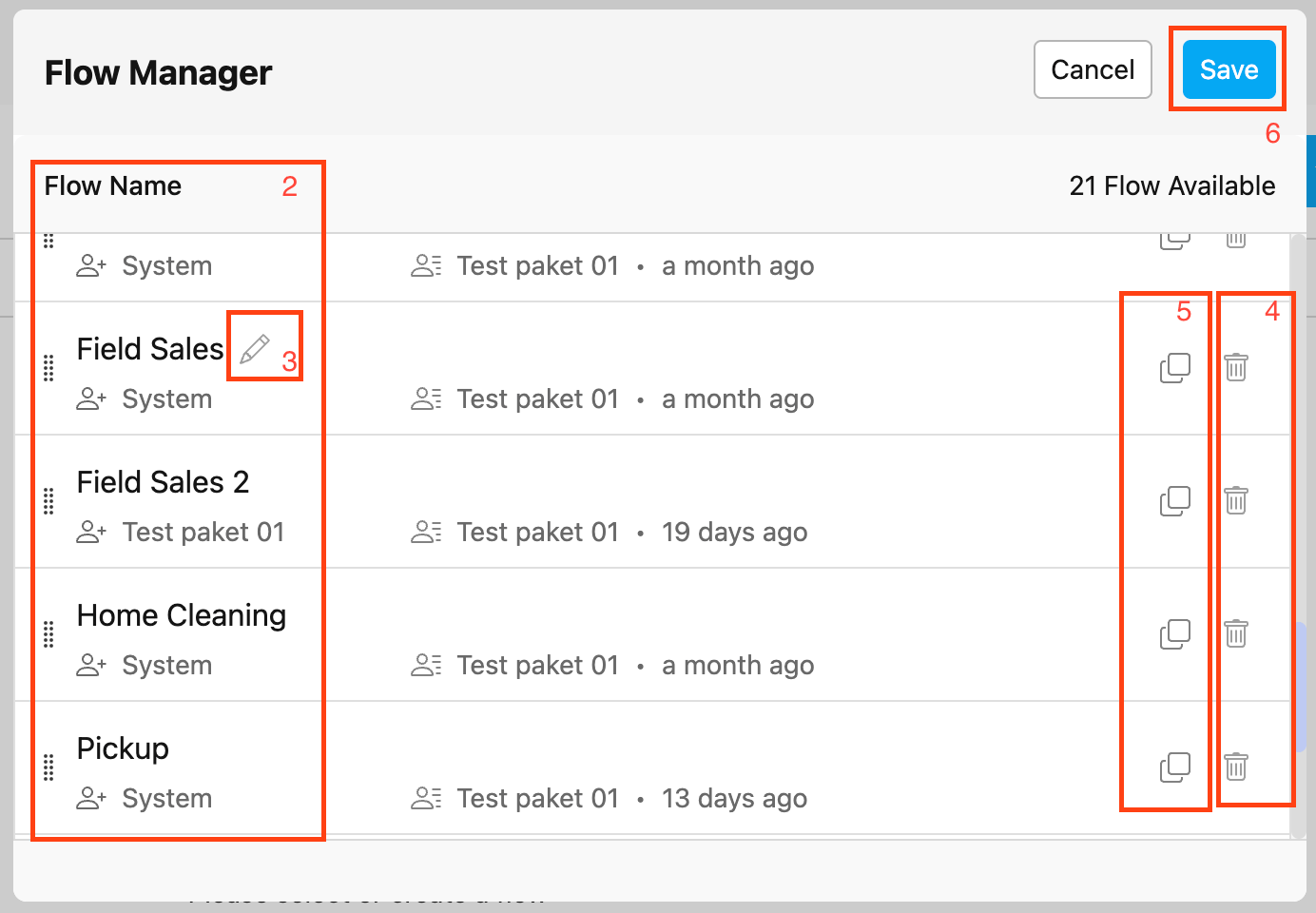
- When clicked, the button to access the flow manager will bring up a pop-up modal containing all existing flows.
- All flows with a name will be included in this list, both existing flows by default or flows that have just been created.
- The edit icon is used to edit the flow name
- The delete icon is used to delete the desired flow as needed
- The duplicate icon is used to duplicate the desired flow.
- When there are changes to the flow manager, don’t forget to save them using the save button, or you can cancel them if you don’t want changes.
Flow Selection Display
Detailed Of Selected Flow Display
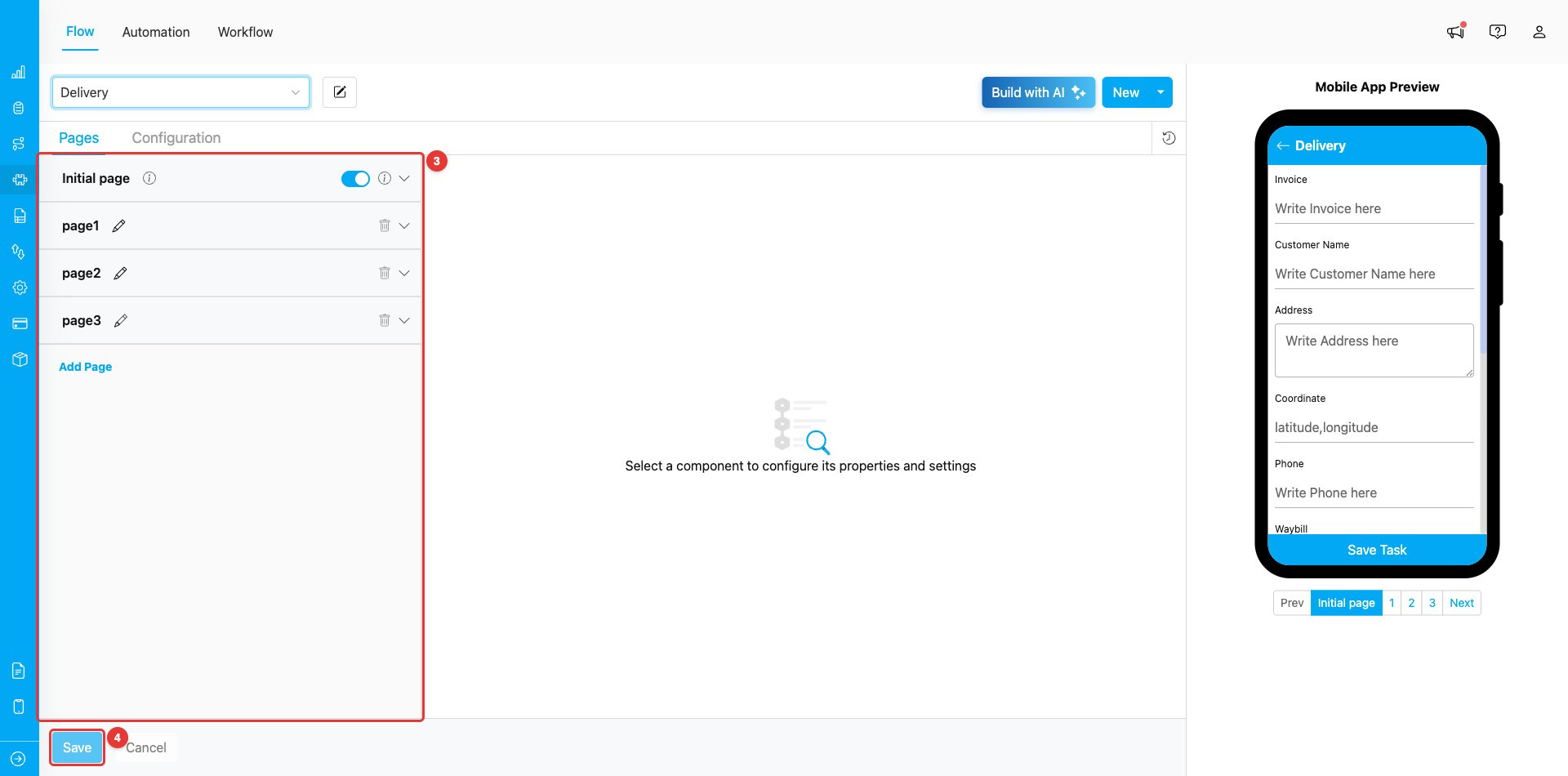
- Active flow that you currently view, and you could edit it right away
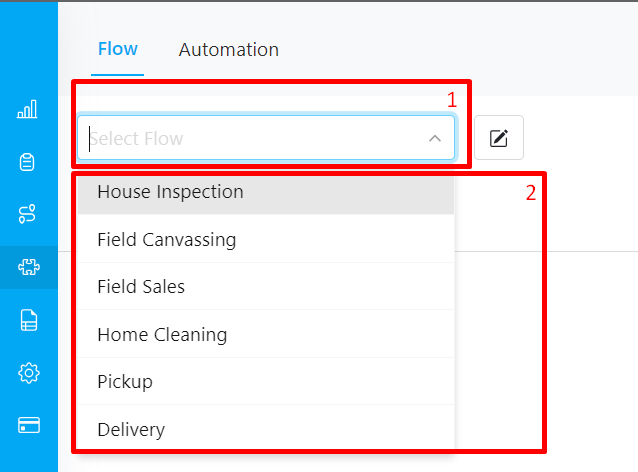
- Click the dropdown flow if you want to view or edit it from the list
- The editable part of the flow consists of form and configuration settings
- Save button to keep all the changes in a flow; remember to save if you edit any part of the flow’s form and configuration settings.
Flow Menu Display
Flow Manager Display
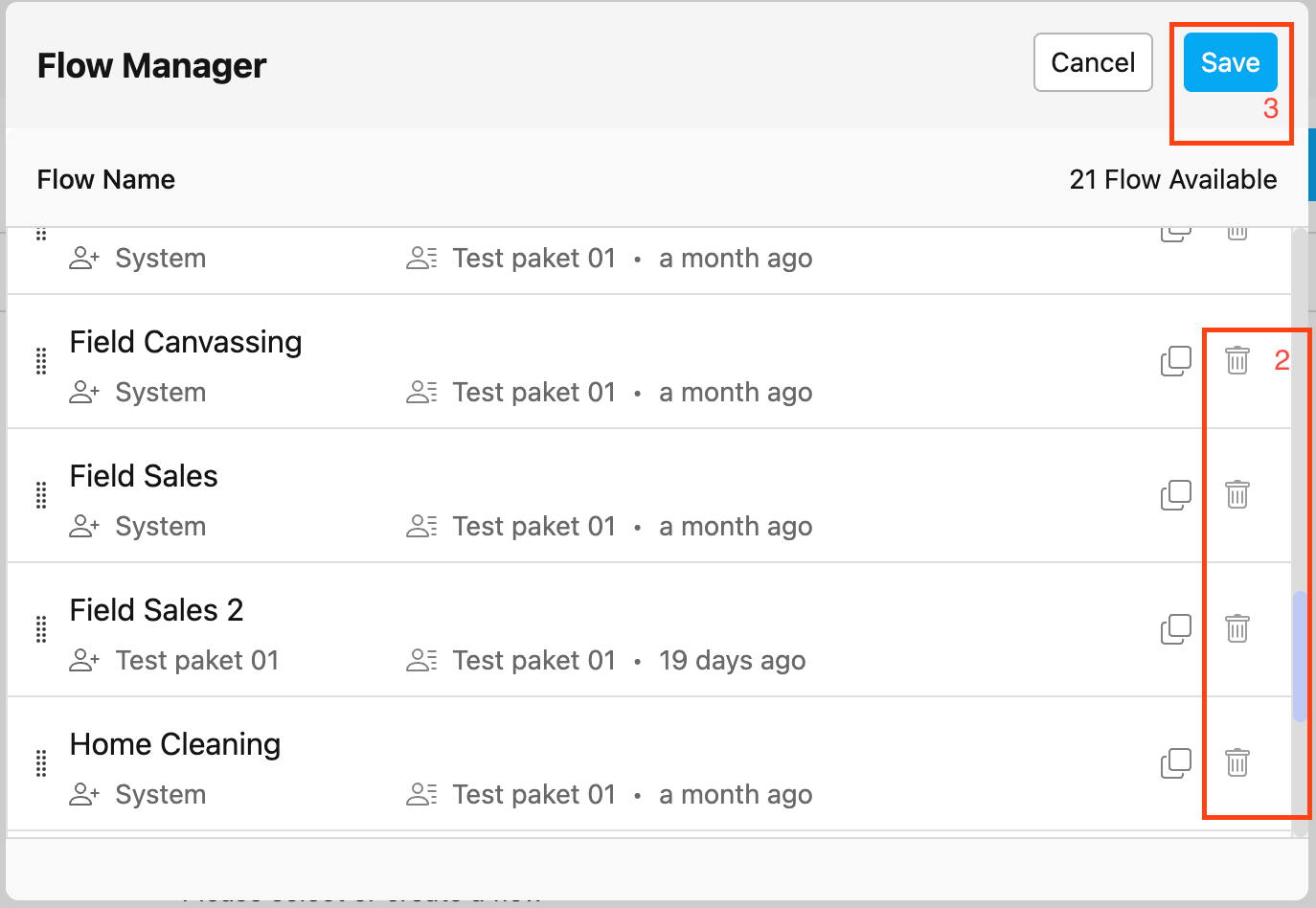
- Click this button flow manager
- Select the flow you want to delete by pressing the delete button on the right
- When the pop-up appears press yes and if there are no more changes you can press the save button
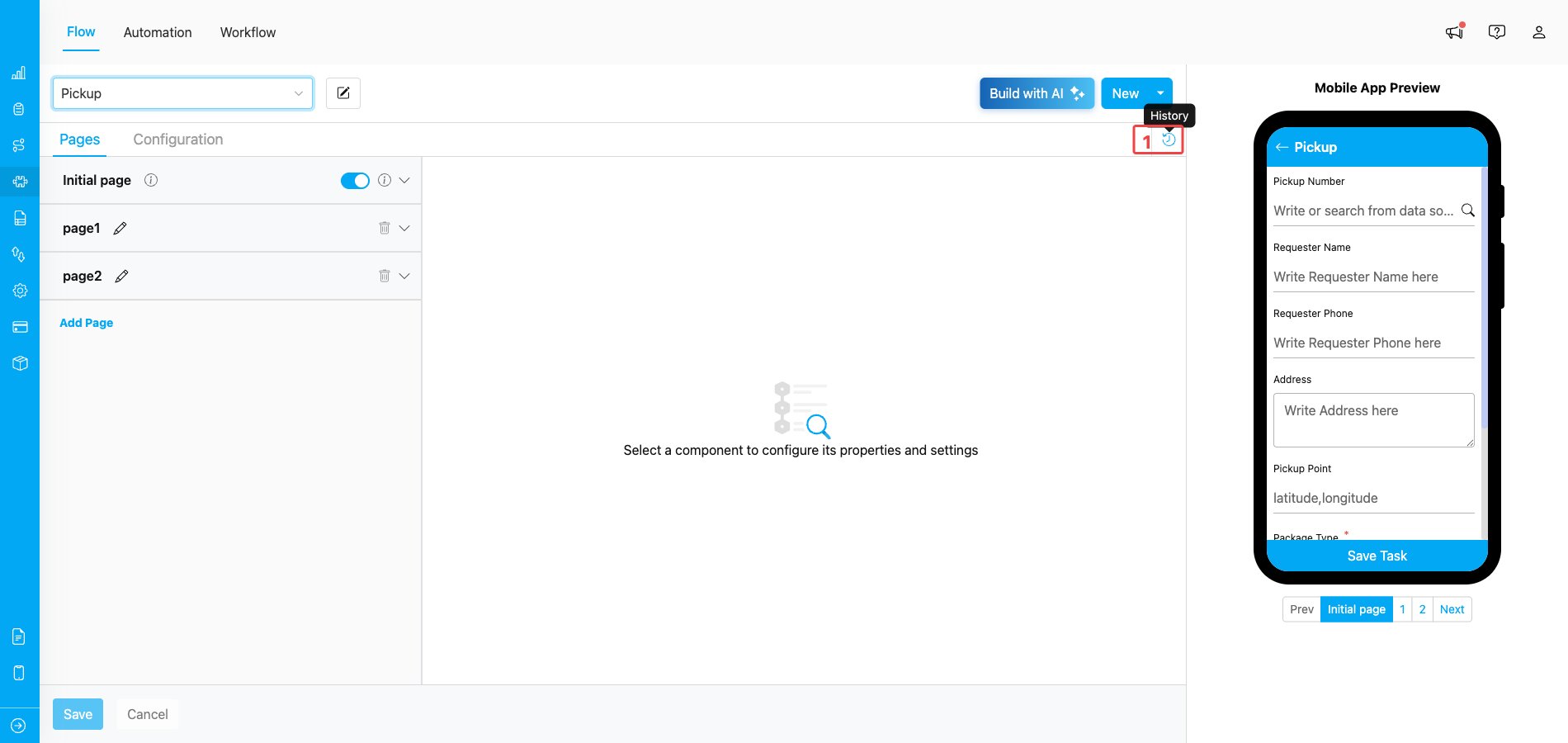
Flow Menu Display
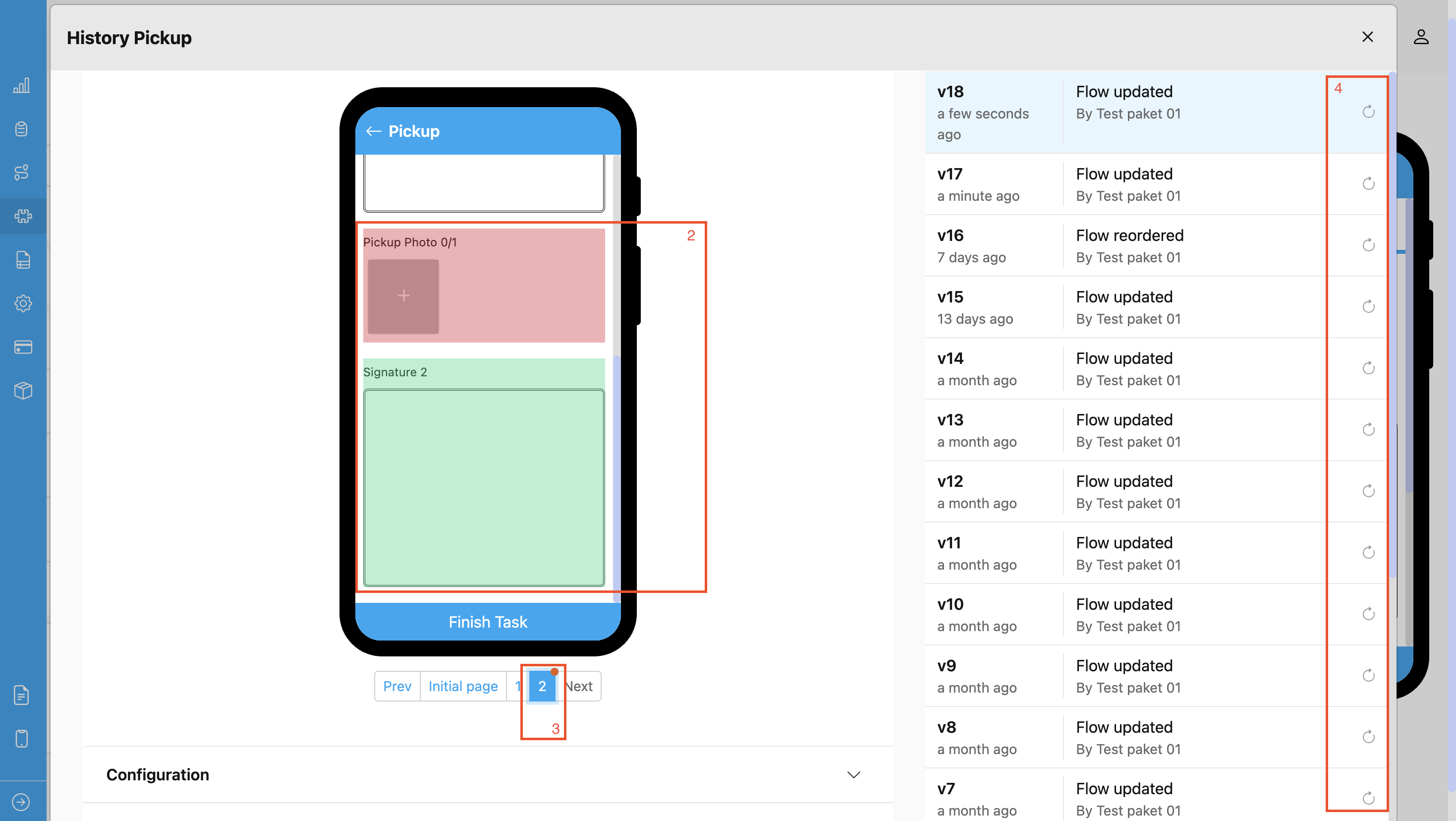
Flow History Display
- Click the History icon to open the detailed version history of the selected flow.
- In the mobile preview, components that were deleted are highlighted in red, while newly added components are highlighted in green.
- A red dot will appear on any page where component changes occurred, helping you easily identify modified pages.
- To restore a previous version of the flow, click the Restore icon next to the desired version.