

Configuring Route As Mapping in Flow Configuration
When a task is created through a Flow (whether on web, mobile, import, or API), the routing engine does not automatically know which form field corresponds to “address”, “open time”, or “weight”. Route As Mapping is the bridge: it tells MileApp which component on your Flow’s initial page should populate which visit field used by the routing engine. Once mapped, every new task created through that Flow will automatically appear in the Visit menu with the routing fields filled in. You do not need to re-enter the visit data manually before each optimization run.Required permission:
- Edit Flow
- View Flow
- Go to Flow and select the Flow you want to use for routing.
- Click the Configuration tab, then open the Route section.
- For each routing field on the right, choose the matching Flow component on the left. Only components from the initial page of the Flow are eligible.
- Click Save to apply the mapping.

Flow → Configuration → Route — map each routing field to a Flow component on the initial page
Mappable Fields
The fields below can be mapped under Flow → Configuration → Route. Once mapped, the values entered through the Flow will automatically populate the corresponding fields in the Routing → Visit menu.If a field is not mapped, the routing engine still works — it simply treats that field as empty for tasks created from this Flow. You can also fill these fields manually from the Visit menu before optimizing.
Use Case Examples
The four examples below show how to combine the fields above to model real operational requirements. Each one explains the setup in MileApp and the result you can expect from the routing engine.1. Planning by Zone Using Visit and Vehicle Tagging
When you want certain vehicles to only serve certain areas — for example, a fleet split into “North” and “South” zones — you combine three building blocks:- Geotagging — draw a polygon on the map for each zone. Visits inside the polygon automatically receive the corresponding tag. See Geotagging for the full setup.
- Visit (Task) Tag — the tag that lives on the visit, either applied manually or auto-assigned by Geotagging.
- Vehicle Tag — the tag set on each vehicle to declare which zones it can serve.
- A visit with a tag will only be served by a vehicle that has the same tag.
- A visit with no tag can be served by any vehicle, with or without a tag.
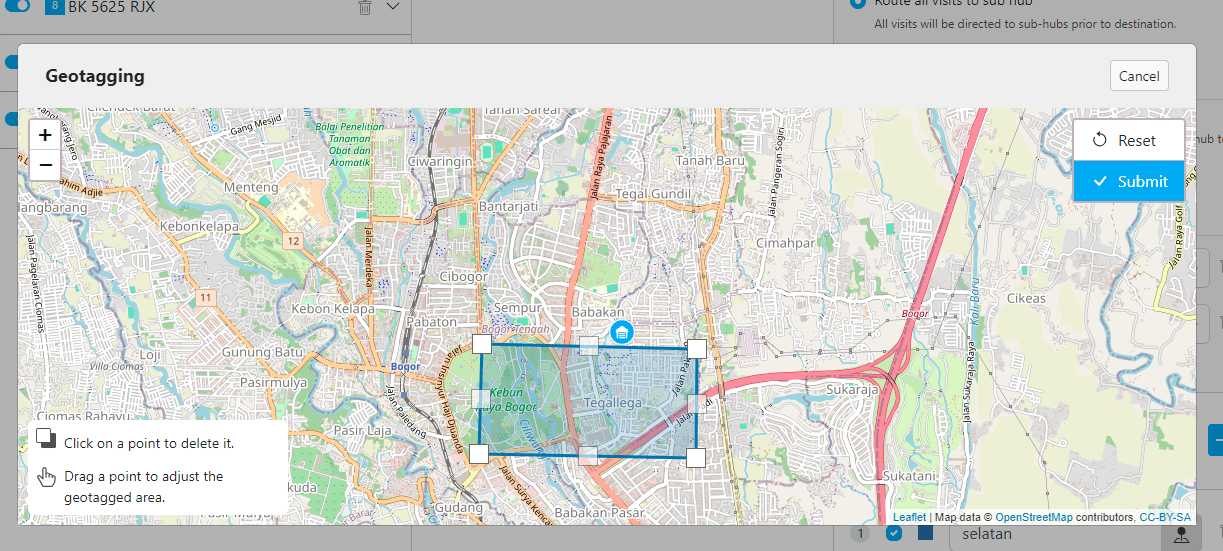
A geotagged area — visits inside the polygon receive the zone tag automatically
- In Routing → Configuration → Geotagging, draw the polygon for each zone and give it a unique tag name (for example,
Selatan). - Click the pinpoint icon to draw the polygon area on the map.
- In Routing → Vehicle, add the same tag to every vehicle assigned to that zone.
- Optimize. The engine will consider matching tag pairs when assigning visits to vehicles.
2. Prioritizing Your Visits
Not every visit is equal. Some need to be served first — a higher-priority visit, a stop with a narrow operating window, or a job that must happen before another. MileApp gives you two ways to express this: Way 1 — Time Window (when the visit can be served) If a visit can only be served inside a specific time range — for example, 06:00–08:00 AM for a customer with limited operating hours — set the visit’s Open Time and Close Time accordingly. The routing engine treats time window as a hard constraint: it will not schedule the visit outside that range. Way 2 — Priority (which visit comes first when ranking matters) A time window only sets when a visit can be served — it does not decide which visit comes first. If you need true ordering — for example, “serve this visit before any other visit in the same group” — use the Priority field on the visit:- Priority is an integer from 1 to 100.
- A lower number means higher priority. Use
1for the highest priority you want to express. - If you leave Priority empty, the visit is treated as having no priority preference — visits with an explicit value in the same group go first.
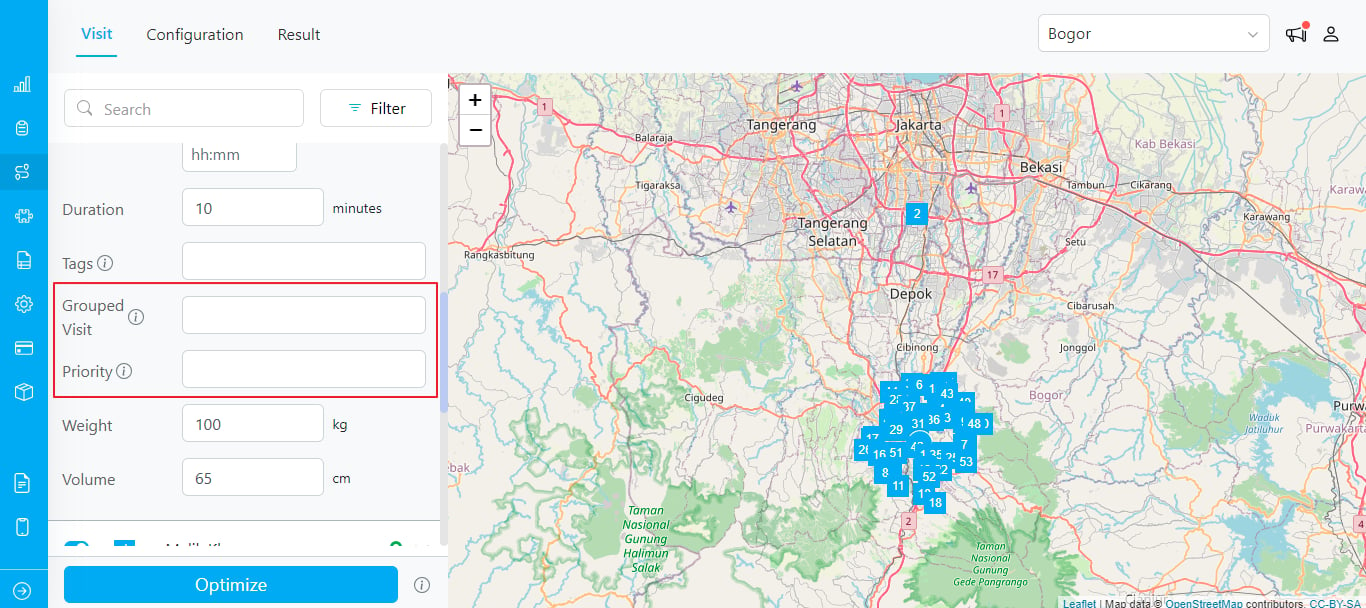
Grouped Visit and Priority inputs on the Visit edit panel
- On the visit, set Open Time and Close Time if the visit must fall within a specific window (e.g.
06:00to08:00). - Set Priority to a low integer (e.g.
1) for visits you want served first. - (Optional) Put the visit in a Visit Group with related stops so the priority ranking applies inside that group. See Visit Group for details.
3. Using Routing for Pickup and Delivery
When a single order requires both picking goods up from one location and dropping them at another, both stops should be handled by the same vehicle, in the correct order. MileApp handles this with a combination of Visit Group, Priority, and directional Capacity values. The pattern:
Setup in MileApp:
- Group both visits by setting the same Visit Group value (e.g.
clothing-order-42). - Set Priority =
1on the pickup,2on the delivery. The engine will schedule pickup first because lower number means higher priority. - Set the Weight (or any active Capacity Constraint) to a positive value on the pickup and the negative of that value on the delivery. This way the on-board load goes up at the pickup and back down at the delivery.
Case Study — Pickup & Delivery Logistics
To make the setup above more concrete, here is how it plays out in a typical mixed operation. A 3PL company runs a single vehicle that leaves the warehouse with 5 hub-loaded parcels for morning deliveries. Mid-route, the dispatcher receives 2 pickup orders from a vendor that need to be returned to the warehouse the same day. Without modeling pickup and delivery together, the dispatcher would have to:- Manually decide which driver collects the vendor pickups.
- Estimate whether the vehicle still has space after the morning deliveries.
- Hope the driver visits the pickup before attempting any related delivery.
1/2, and +/- Weight — the routing engine handles all three decisions automatically:
The dispatcher only models the data once. The engine produces a single mixed-flow route that respects sequence, capacity, and vehicle assignment — without any manual matching of pickups to deliveries.
4. Updating the Plan by Adding a Task Without Affecting Existing Routes
After you optimize and dispatch a routing result, every assigned visit appears with a truck icon in the Visit menu. The icon indicates that the visit is already part of a committed route and is being executed by a driver.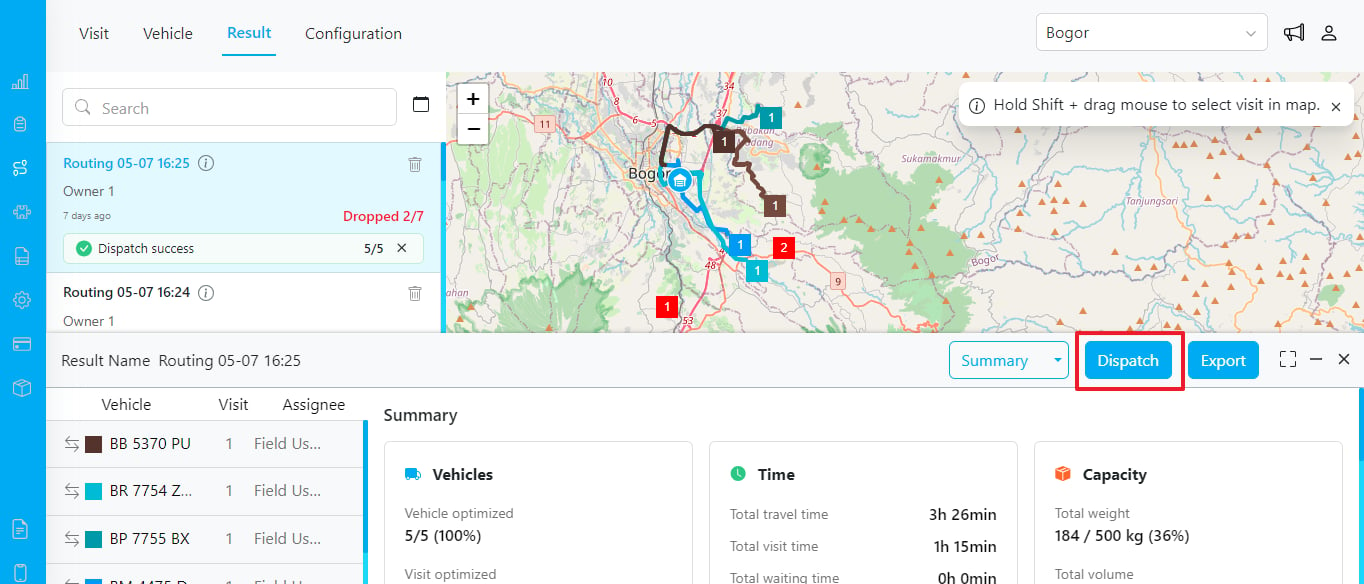
Once dispatched, tasks are marked as committed routes
- Add the new task to the Visit menu, making sure its data is complete (Name, Address, Coordinate, Time Window, Tag if needed).
- Confirm the status of all relevant visits — visits with the truck icon are locked; the new visit should not have one yet.
- Click Optimize again. The engine will preserve dispatched visits as-is and slot the new visit into the most efficient remaining position.
- Review the result and dispatch when you are satisfied.
5. Cold Chain: Temperature-Controlled Delivery
Cold chain deliveries — frozen and chilled food, fresh produce, or pharmaceuticals — add two hard requirements on top of a normal route: the goods must ride on a refrigerated (reefer) vehicle, and they must be delivered within a tight time window before quality degrades. MileApp models both by combining the building blocks you have already seen, and lets you monitor the cold chain in transit from the Tracking page. How to model a cold chain route in MileApp:Cold chain routing does not require a new feature — it is a combination of Tag matching, Capacity Constraint, and Time Window. Map these fields from your Flow via Route As Mapping so every cold chain task is ready to optimize.
data object of each location history record, which is populated by an integration or a telematics/IoT device that posts readings to the API while the vehicle is on the road. This lets operations confirm the reefer is holding temperature while the route is being executed.
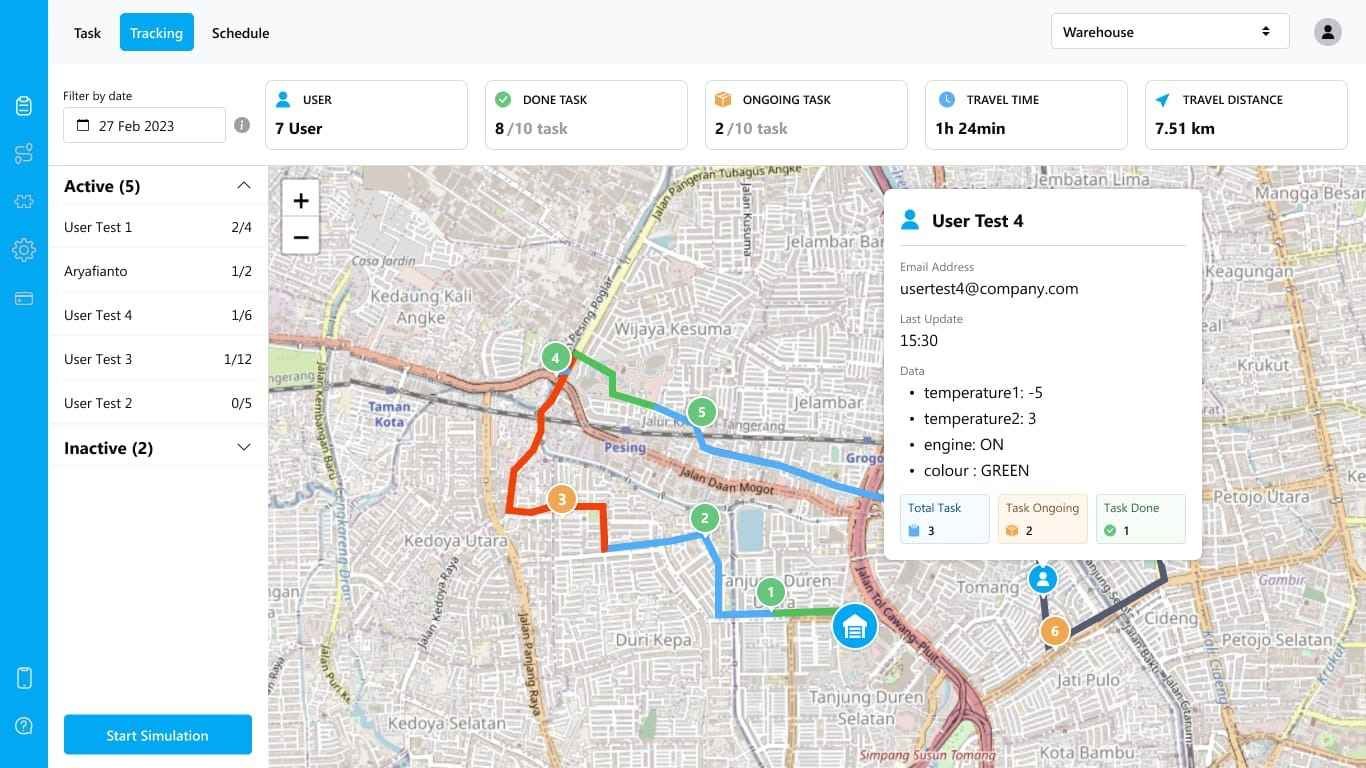
Tracking page — the User Detail popup shows live cold chain data (cabin temperatures, engine, and status indicator) captured from the vehicle while the optimized route is executed
The temperature, engine, and status values shown above do not come from Flow. They are sent to MileApp’s Location History API and stored in each record’s dynamic
data object — typically by a telematics/IoT integration on the reefer that posts readings while the route is being executed. Route Optimization plans and sequences the route; the Tracking page surfaces whatever is in the location history data object so you can watch the cold chain in near real-time.data field on a location history record is a free-form object — any key you send is stored as-is and returned in the response, then displayed under Data on the Tracking page. Point your integration or IoT device at POST /api/v3/location-history and include the reading in data:
temperature, humidity, fuelLevel, or doorStatus. Send a new record on each interval (or use POST /api/v3/location-history/bulk to batch readings) so the values update in near real-time as the driver moves along the optimized route.
Case Study — Frozen Food Distributor
A distributor delivers frozen goods across the city from a single cold-storage warehouse. The operation has three constraints a normal route cannot express on its own:- Only 2 of the 5 vehicles are refrigerated, so frozen orders must never be assigned to a dry truck.
- Each reefer has a limited chilled compartment, so its load must stay within capacity.
- Every customer has a morning delivery window that the route must respect.
frozen tag on both the cold chain visits and the reefer vehicles, a chilled-volume Capacity Constraint, and delivery Time Windows — the routing engine resolves all three automatically:
The dispatcher plans one optimized set of routes that respects vehicle type, capacity, and delivery windows — then uses the Tracking page to verify the cold chain holds all the way to the customer.
Frequently Asked Questions
Q: Do I have to map every field in the Route section of Flow Configuration? A: No. Map only the fields you want auto-populated from the Flow. Unmapped fields can be filled manually on the Visit panel before optimizing. Q: What happens if a visit has a tag but no vehicle has that tag? A: The visit will not be assigned to any vehicle and will appear in the dropped-visit list. See Dropped Visit for details. Q: Can two visits in the same Visit Group be served by different vehicles? A: No. Visit Group is a hard constraint — all visits in the same group are guaranteed to be assigned to the same vehicle. Q: If I set Priority on a visit but it has no Visit Group, does priority still apply? A: Priority ranking is most meaningful within a group. Without a group, the visit competes against all other visits according to time windows and overall route cost. For strict ordering, use Visit Group together with Priority. Q: Will re-optimizing after dispatch change the routes of drivers already on the road? A: No. Dispatched visits (those with the truck icon) are locked. Re-optimization only places newly-added, non-dispatched visits. Q: How do I make sure frozen or chilled orders only go on refrigerated vehicles? A: Use Tag matching: add the same tag (e.g.frozen) to the cold chain visits and to your reefer vehicles only. A tagged visit is served exclusively by a vehicle with the same tag. Combine it with a Capacity Constraint for the chilled compartment and a Time Window for the delivery deadline. See Cold Chain: Temperature-Controlled Delivery.
Q: Can I see live temperature data during a cold chain delivery?
A: Yes, if the temperature (and other sensor values) are sent to MileApp’s Location History API. An integration or telematics/IoT device posts the readings into each location history record’s dynamic data object (for example "data": { "temperature": 31 }), and they then appear under Data in the User Detail popup on the Tracking page while the route is being executed. This data does not come from Flow components. See Monitoring the cold chain in transit.