

- Teams are optional.
- Users without a team are not restricted and can be seen and assigned tasks by all users.
- Owners automatically get access to all teams in their organization.
Manage Team
In the Setting/Team menu, you can view the list of teams with details like Team Name and Total Users.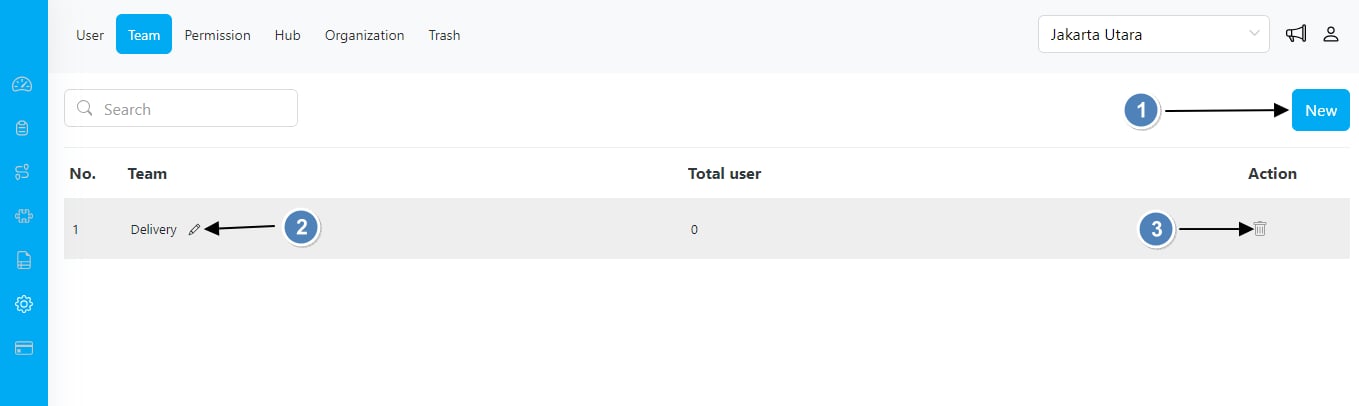
- Create new teams. Create new teams with unique names to reflect your organizational structure, division, departments, or any other specific category you need.
- Edit team names. Modify team names as needed to align with organizational changes or to better represent team purposes.
- Delete teams.
- Remove teams that are no longer required within your organization.
- Note that you must first ensure there are no active users associated with a team before deletion.
- Users can belong to more than one team.
- Ensure no users are associated with a team before deleting it.
Assigning Teams to Users
In Setting/User menu, when editing a user’s profile, there is an option to assign the user to one or more teams.- Users can be assigned to one or more teams.
- Changing the user’s hub will reset their team, and an alert message will notify you.

- Team options depend on the user’s access hub.
- Changing hubs will reset the user’s team.
Assigning Tasks to Teams
When assigning task, you can choose to assign tasks to teams. This team assignment will affect all dropdown assignee options in various menus, including to menus related to task, automation, schedule, routing/vehicle, routing/result, tracking, and data source.- Selecting a team will automatically populate the individual team members.
- The selected team’s individual members will be displayed in the task table.
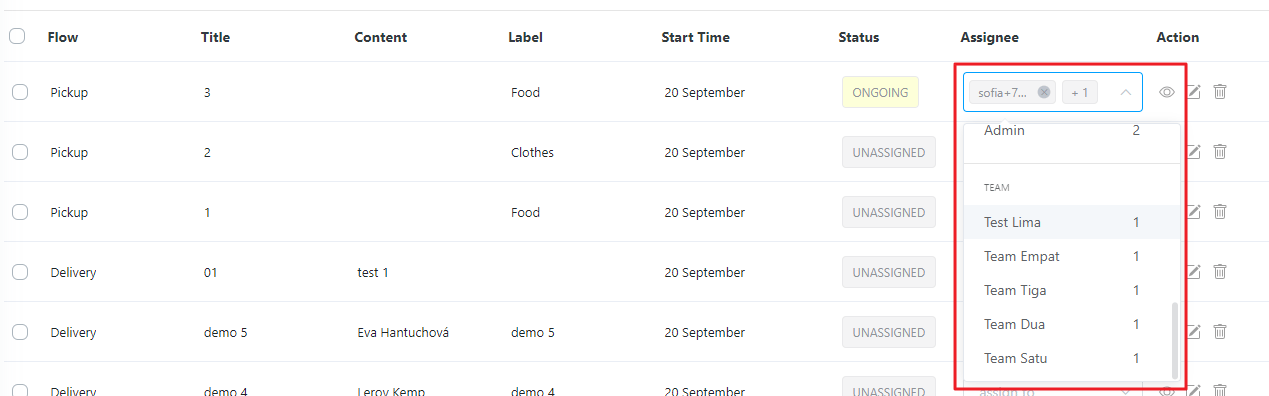
Assignment in Task Menu
Team Rules in User Assignment:
- Users Without Teams: If a user doesn’t belong to any team, it means that the user is NOT RESTRICTED in task assignments.
- They have the ability to view and be viewed by all users within the organization.
- Tasks can be assigned to users without teams by any user,:
- Users With Teams: If a logged-in user has a team, they can view users who do not have teams and users who belong to the same team as them.
- Selecting Team Members:
- Users are unable to select or assign tasks to users who are not members of the same team.
- This ensures that tasks are assigned exclusively to relevant team members, enhancing task management efficiency.
- Creating New Teams: When a user creates a new team, for example, Team A and Team B, they are automatically set as members of Team A and Team B. This streamlines the team creation process and avoids duplication of efforts.
- Automatic Owner Access:
- Owners of the organization are automatically granted access to all newly created teams.
- This grants owners visibility and control over all aspects of the organization.
- Owners maintain the ability to view all users and tasks within the organization, enabling effective monitoring and management.
- These rules are consistent for all owners in the organization, regardless of who initially registered the organization.
- Newly invited owners immediately receive access to all teams, enabling their contribution to organizational management.