

Required permission:
- View Task
- Create Task
- Assign Task
- Web Form ➝ Create a single task using an input form
- Excel Upload ➝ Create multiple tasks by uploading an Excel template
- Field App ➝ Create task directly from the field application
- API ➝ Read our RESTful API documentation here
- Automation ➝ Learn how to trigger task creation from another task event here
- Scheduled ➝ Learn to create recurring tasks using Scheduler here
Web Form
You can create a single task from the web form:- Open the task menu
- Click on the New button on the task page
- Select the flow on the popup form
- Fill out the Initial Page form, and change the start time and end time if need be
- Submit the form
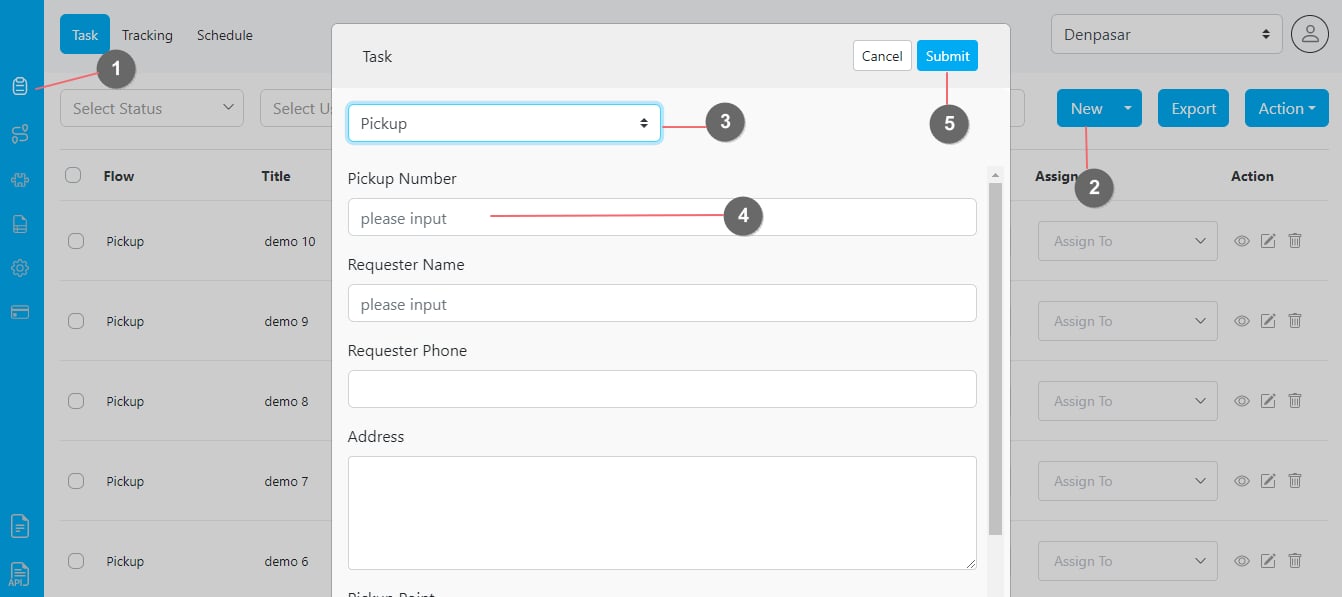
Creating one task using the web form
Excel Upload
If you want to create multiple tasks in one go, you can use the New > Bulk method.- Open the task menu
- Click on the New > Bulk button on the task page
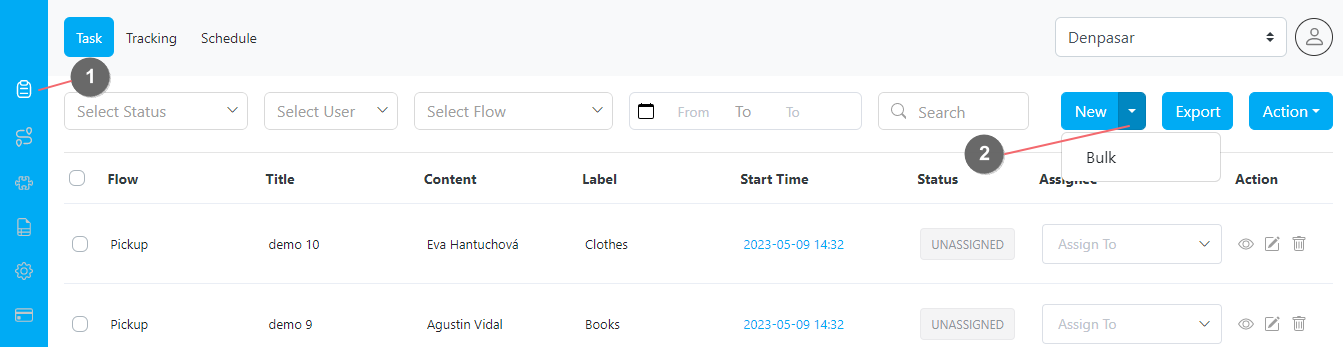
- Select the flow on the popup form
- Download the provided template and fill the template with Excel or other CSV reader
- Upload the filled template by dropping it on the given space or by selecting the file
- You can also use our sample data to get started
- Submit the form
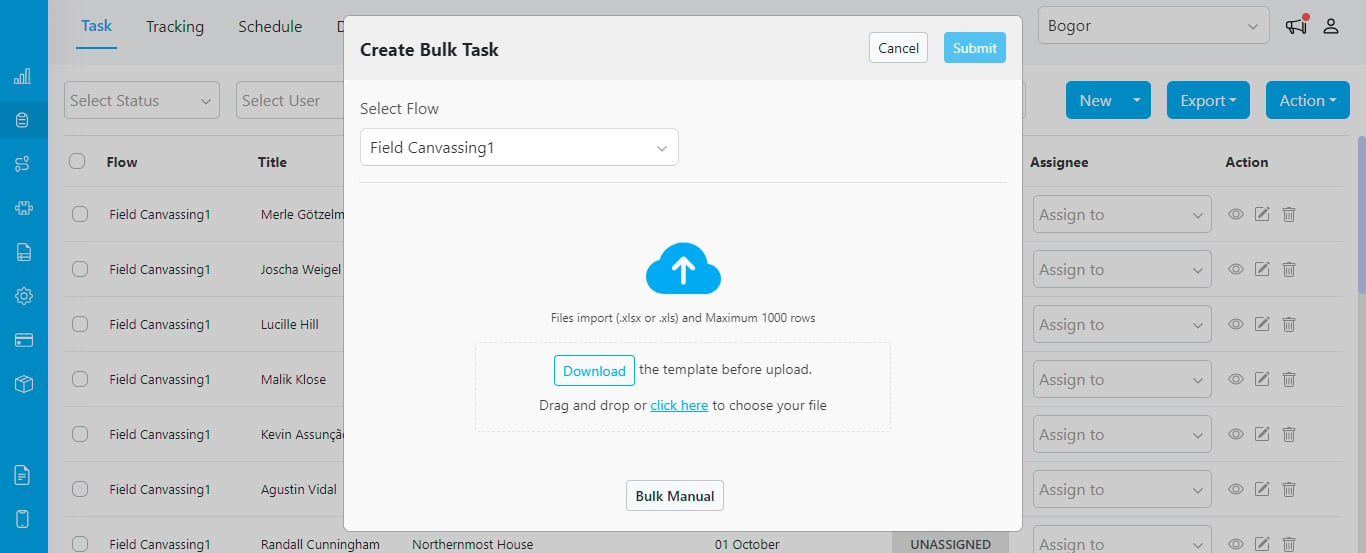
Uploading several tasks in a go using Excel upload
Field App
MileApp allows field users to start and do a new task on the go. This is handy in cases where the tasks are not predetermined beforehand. Field users can start a task by opening the MileApp field application (Android and iOS):- Click the + button in the middle of the bottom menu
- Select the flow for the task
- Fill in the initial page
- Click on the Create Task button
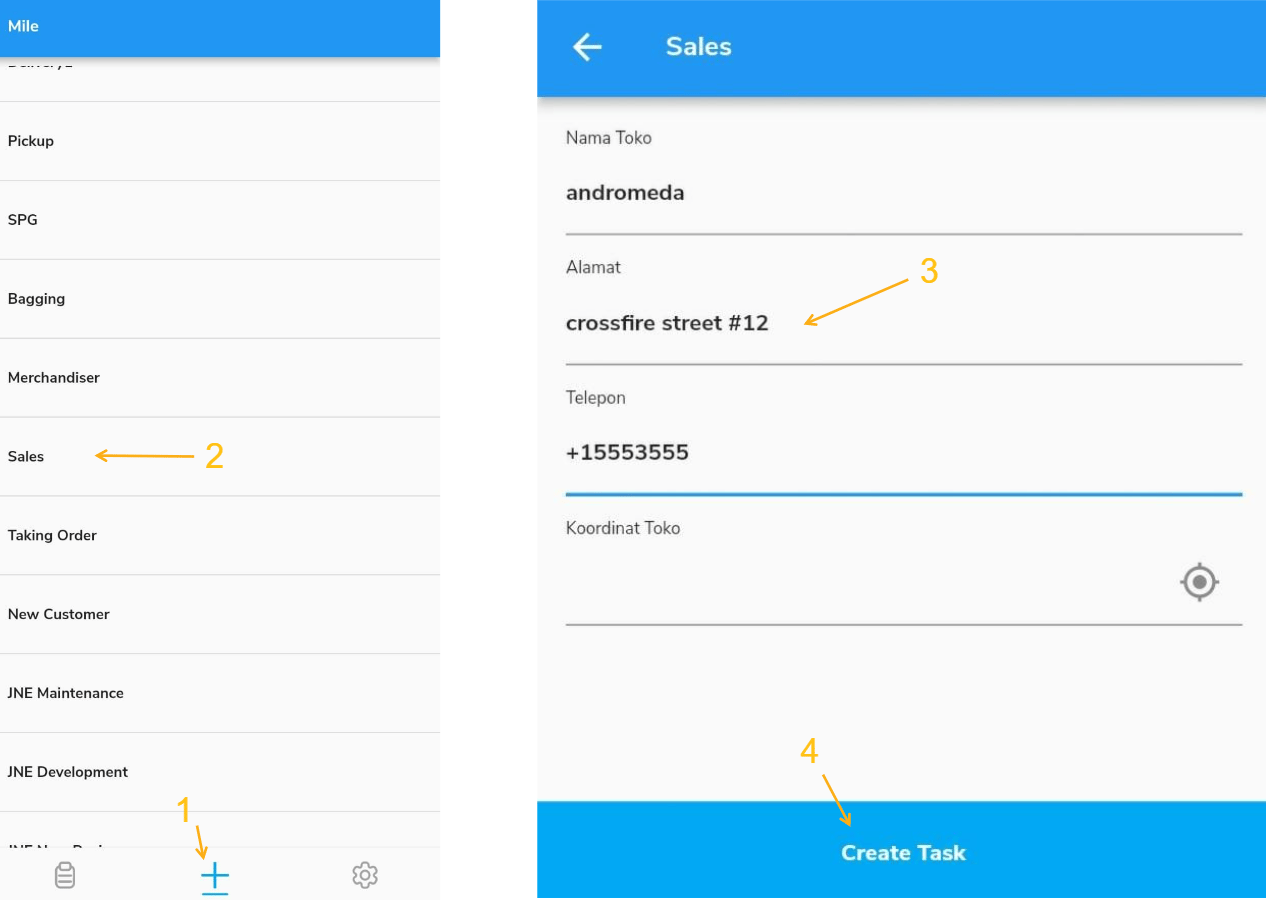
Creating tasks on the go from field application